
Early Access New Firmware for Archer AX53 Introduces Web Protection Whitelist, ECO Mode v2, and More


Hello everyone!
We are pleased to announce a pre-release firmware update for the Archer AX53 V1, introducing new features such as the Web Protection Whitelist, ECO Mode v2, and more.
All users are encouraged to upgrade to the latest firmware and share your feedback. This is crucial for our continuous product improvement! We look forward to your experience!
Download the update now and experience your router's new features!
New Features/Enhancements:
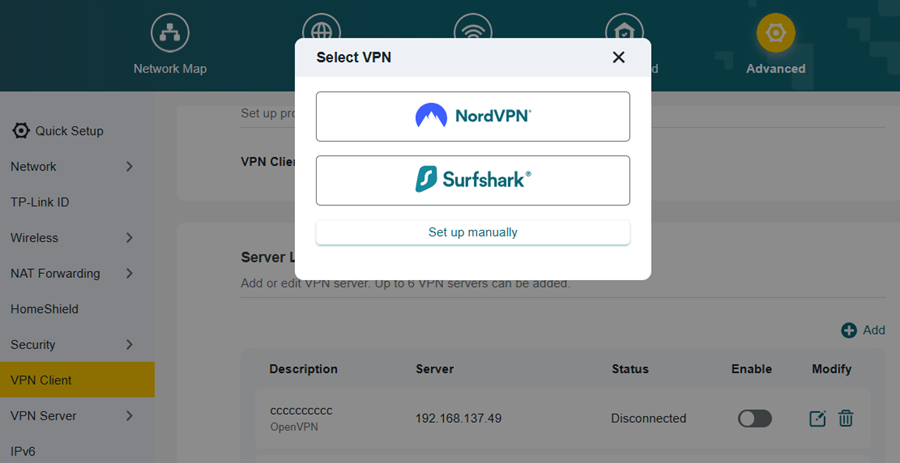
1. Third-Party VPN Client Integration (NordVPN & Surfshark)
Added native support for NordVPN and Surfshark configurations. You can now set up your VPN client using either an Access Token or dedicated Account Credentials directly.
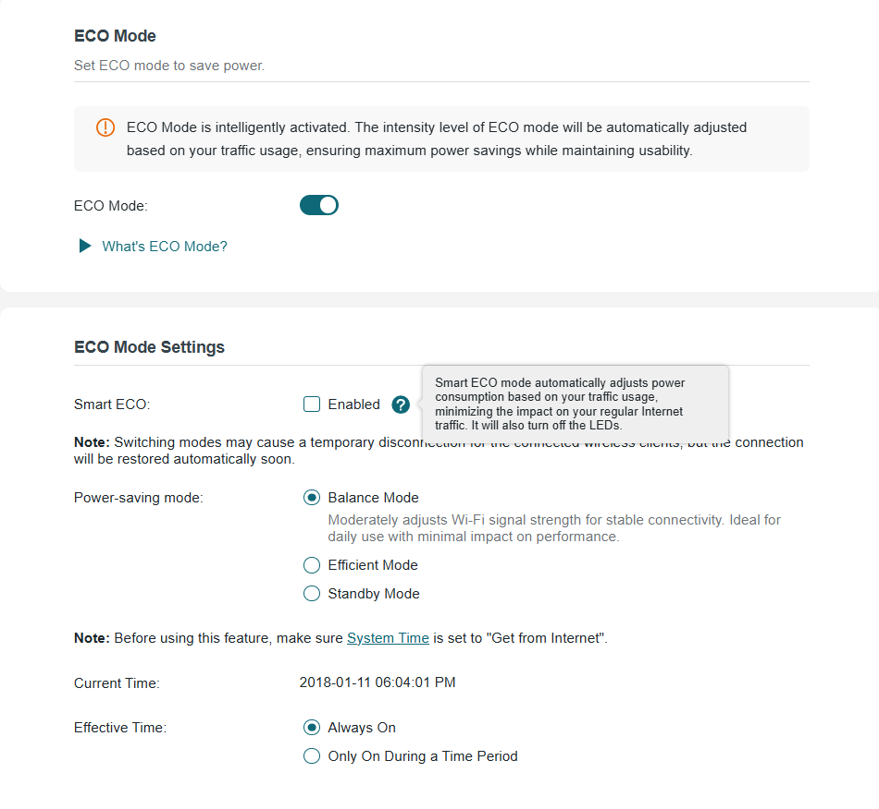
2. ECO Mode v2
Smart ECO Mode (Default): Automatically adjusts power consumption and turns off status LEDs based on real-time network traffic, minimizing energy use without affecting performance.
Custom Profiles & Schedules: Choose from multiple power-saving profiles and customize active time periods to match your daily schedule.
3. Admin Password Recovery
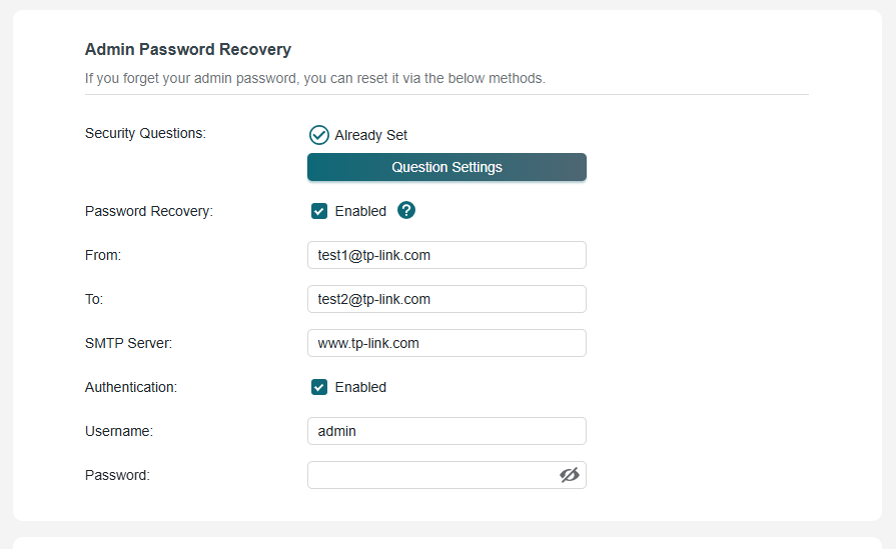
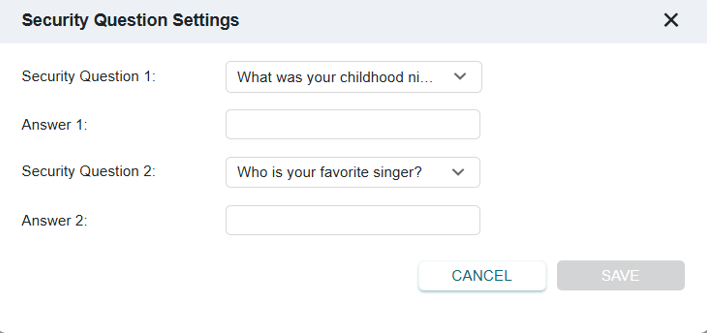
We have introduced new methods to recover your local administrator password, ensuring you never lose access to your router's settings. You can now choose between two secure recovery options:
Security Questions: Set up answers to predefined security questions. This allows you to quickly verify your identity and reset your password.
Email Recovery: Configure a designated email address and your own SMTP server to receive password recovery instructions directly to your inbox.
You can enable and configure these options under System > Administration.
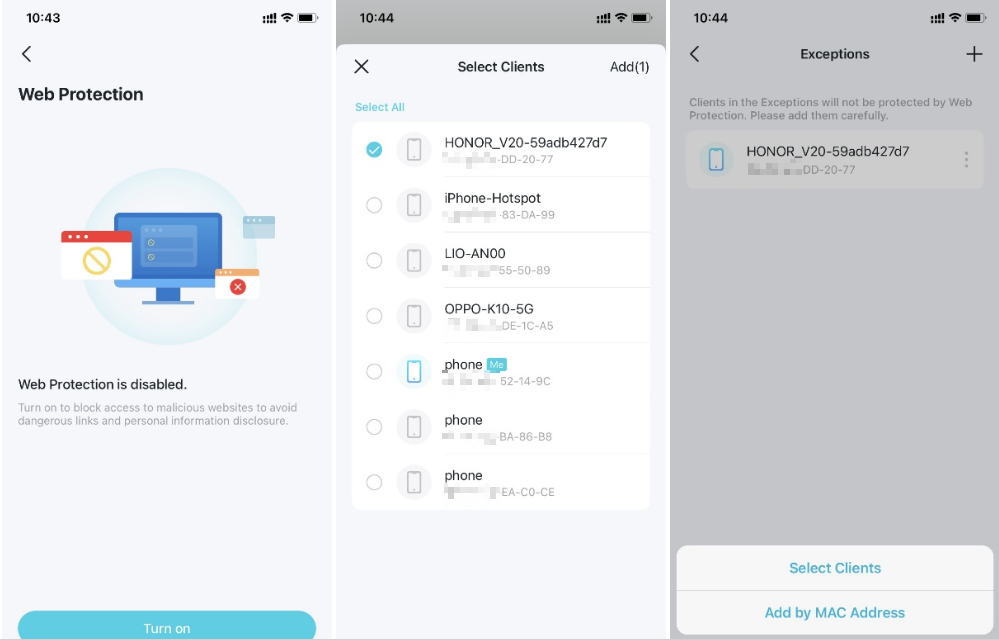
4. Whitelist for Web Protection
Added an exception/whitelist feature to Web Protection. Added client devices can bypass web filtering and access the internet without security blocks or restrictions.
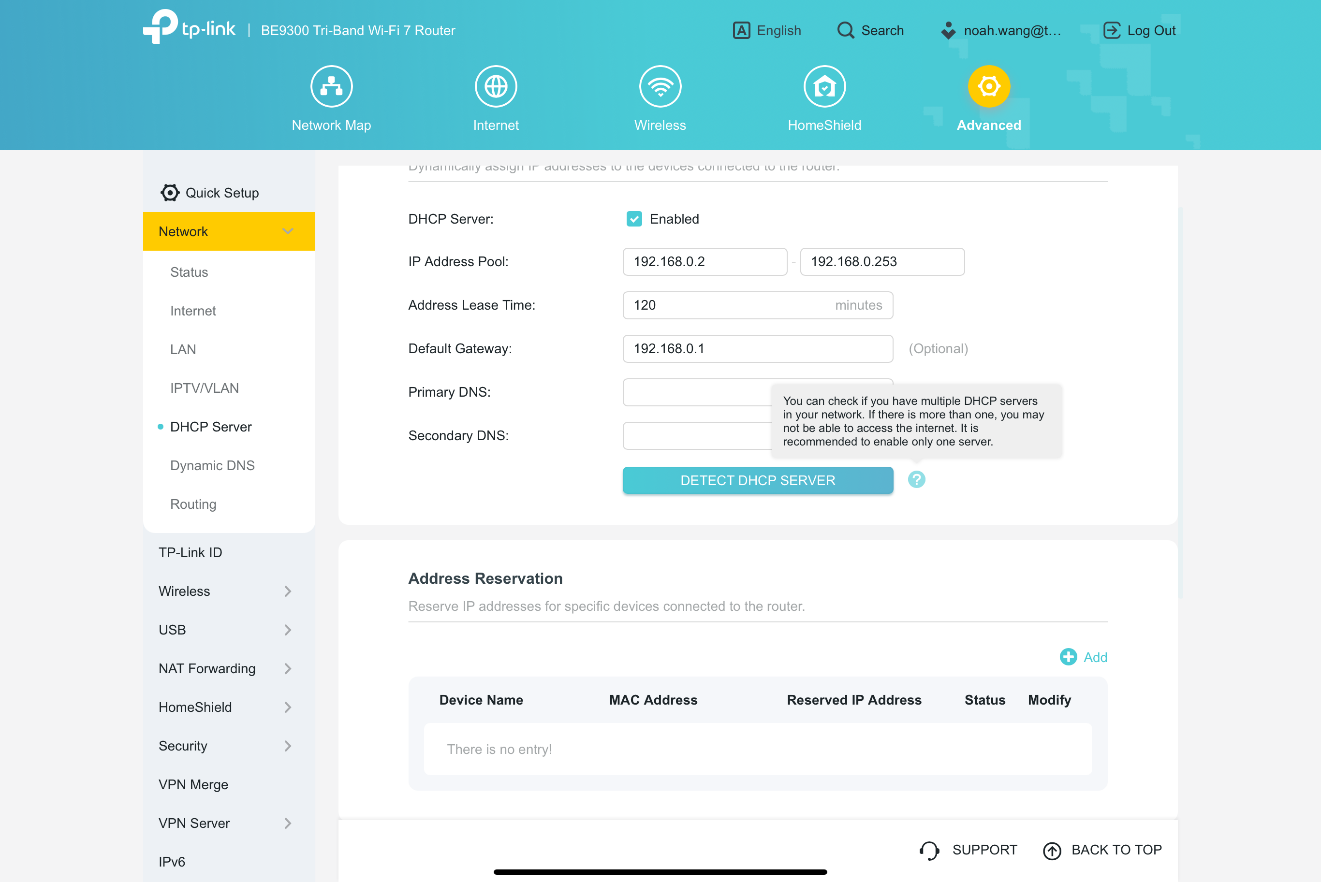
5. DHCP Detection
Having rogue or multiple active DHCP servers on a local network can cause IP conflicts and disconnects. This one-click diagnostic tool scans the LAN to detect duplicate DHCP servers, helping you quickly identify and resolve IP address conflicts.
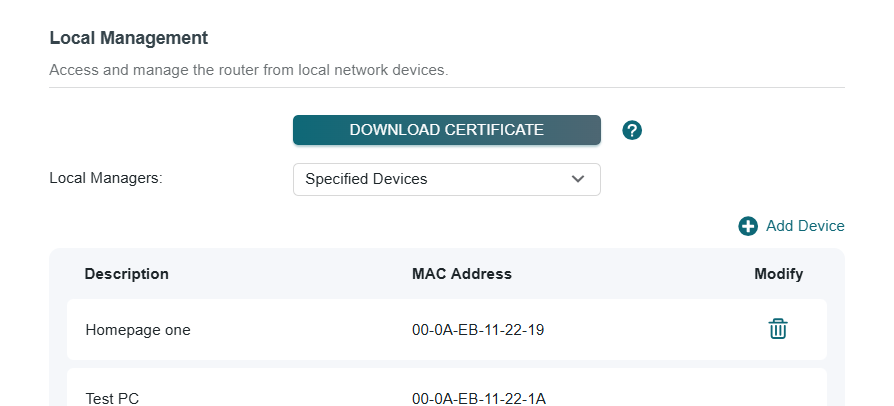
6. HTTPS Certificate Export
When HTTPS Management is enabled, browsers may flag the local management page with a "Not Secure" warning. You can now download and export the router’s SSL certificate directly from the Web UI and install it on your PC or mobile device to eliminate browser security prompts.
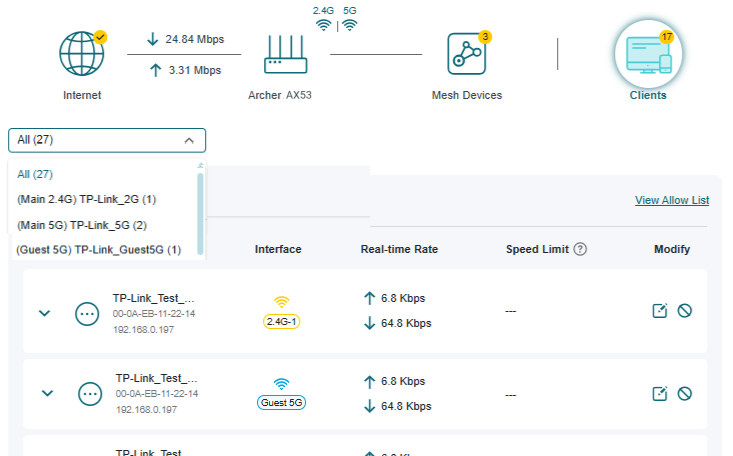
7. Client Filtering by SSID in Client List
Added the ability to filter and view connected devices based on their specific wireless network (SSID).
Other Enhancements:
- Added an option in Access Control whitelist to exempt Guest Network clients.
- Added Interactive Help Tooltips with direct links to official FAQs.
Firmware Download:
Before the Upgrade
(1) Please be sure you have read the Beta Test Agreement before upgrading the pre-release firmware!
(2) For the sake of insurance, it's always recommended to save a copy of the router's Backup Config file before upgrading or downgrading.
(3) You may follow the guide to upgrade the firmware of your router. How to Upgrade the Firmware on the TP-Link Wi-Fi Routers.
(4) This version upgrade is irreversible and you cannot downgrade to the previous firmware after the upgrade.
Direct Firmware Download Link
| Archer AX53_V1 | Archer AX53_V1_1.8.0 Build 20260821 (Pre-Release Firmware) |
Additional Information
As always, we value your feedback. If you encounter any concerns during or after the router firmware upgrade, please leave a message below and include the following information. Your feedback helps us improve and provide better products and support.
Please provide detailed information, including but not limited to:
- A complete network topology diagram.
- The device's connection method and whether EasyMesh networking is enabled.
- Screenshots of relevant error messages, etc.
Thank you for your continued support and for being a member of our community.
- Copy Link
- Subscribe
- Bookmark
- Report Inappropriate Content

@Pankajuuuuu sometimes it spikes to 100 when doing the speedtest, which is dumb..i will try on linux next to see if it's the same or different. If it's the same, well, they should really implement proper SQM fq_codel or smth taken from openwrt, or at least PROVIDE US SUPPORT FOR OPENWRT, or even better.. have a qos rehaul, where you can prioritize by ports & service, not just devices..
- Copy Link
- Report Inappropriate Content

@Pankajuuuuu @Joseph-TP look into this matter and fix the qos
- Copy Link
- Report Inappropriate Content
Hi @Pankajuuuuu ,
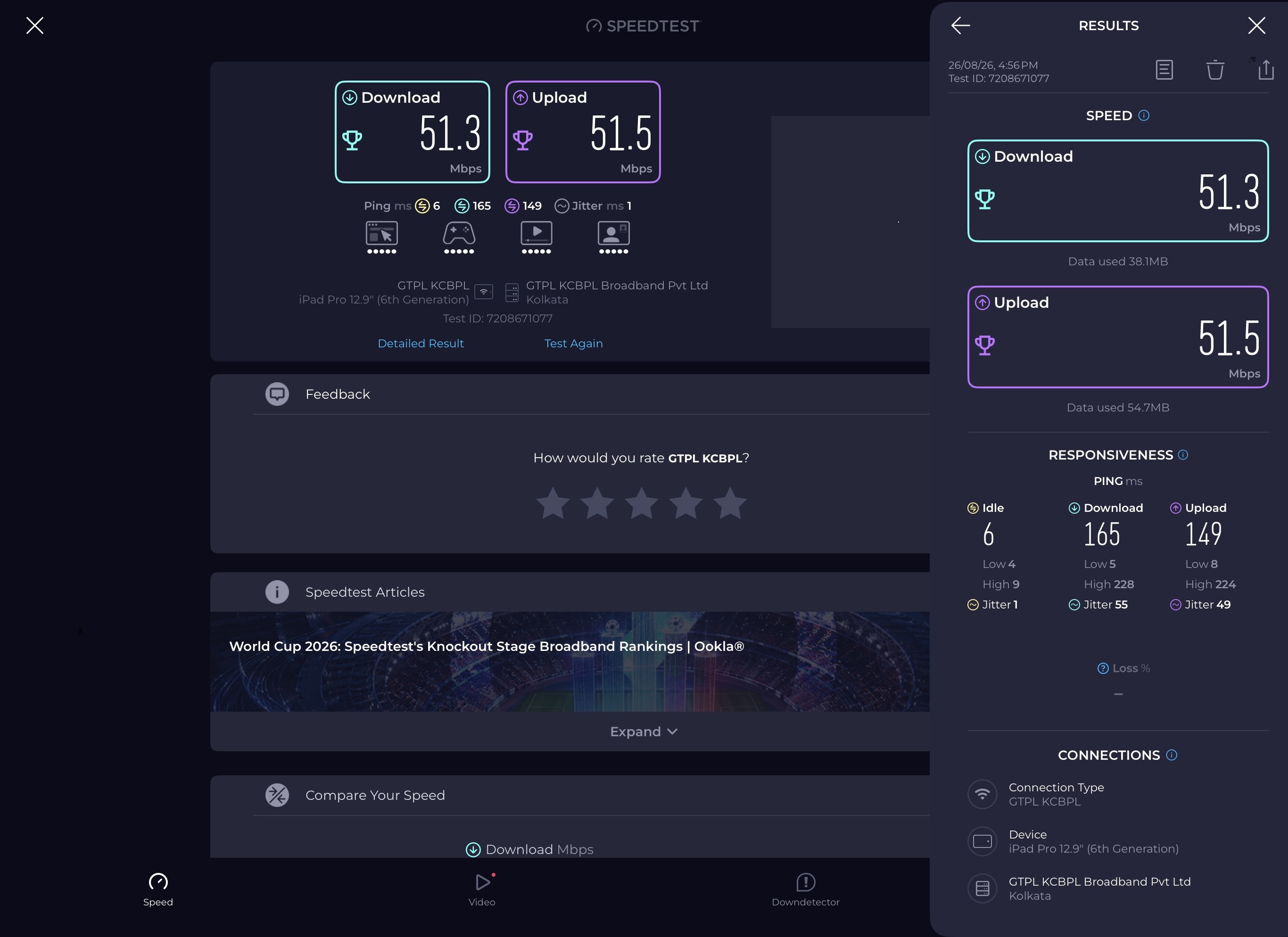
Based on your screenshots, when the client is directly connected to the modem, the test results are:
actual speeds are 51.3Mbps↓/upload 51.5Mbps↑, latency is 165ms↓/149ms↑
Pankajuuuuu wrote
connected directly to the modem
When the PC is directly connected to the AX53 (QoS enabled): 41.5Mbps↓/43.3Mbps↑, latency 7ms↓/7ms↑ If so, enabling QoS seems to reduce latency?
Pankajuuuuu wrote
@Joseph-TP qos on but test performed when the device is connected to lan port here the download latency fixed
Given that your ISP plan is 51Mbps, what QoS bandwidth have you set?
- Copy Link
- Report Inappropriate Content
Hi @Pankajuuuuu ,
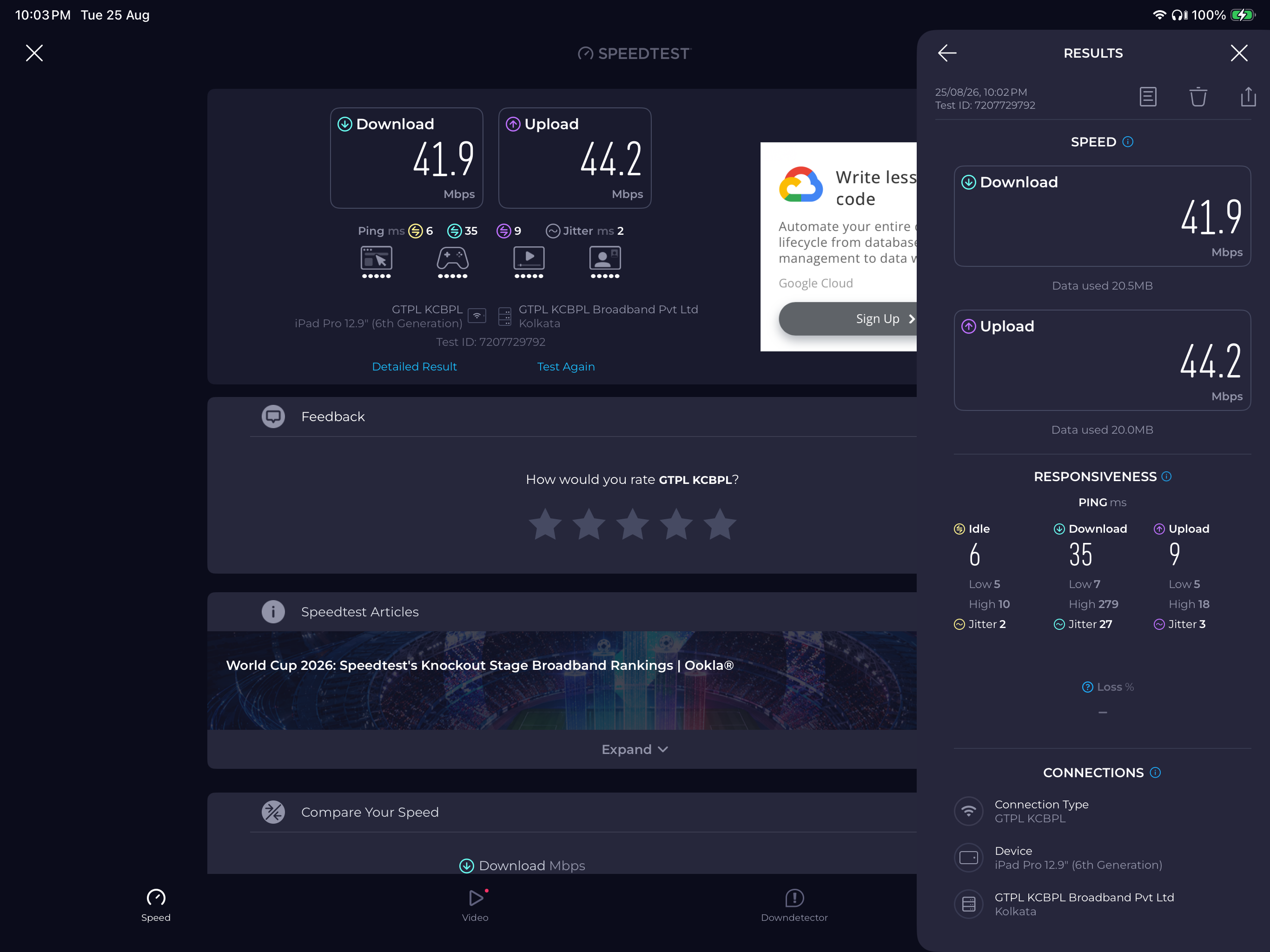
Noticed you mentioned a download latency of 35ms, which is higher than the upload latency of 9ms.
Is this connection wireless? Because in your later reply, you mentioned a wired connection to the router with latency of 7ms↑/7ms↓.
Pankajuuuuu wrote
qos on but test performed when the device is connected to lan port here the download latency fixed
- Copy Link
- Report Inappropriate Content
@Joseph-TP qos set to 51 mbps
- Copy Link
- Report Inappropriate Content
@Joseph-TP yes the 35 ms loaded latencg is wireless test on wifi but noticeble thing is that upload is still the same as wired but download latency spiked
- Copy Link
- Report Inappropriate Content
Hi @Harutolist,
Have you encountered download latency higher than upload latency even without QoS enabled?
Is it convenient to bypass the router to retest the modem's latency?
- Copy Link
- Report Inappropriate Content
Hello @Pankajuuuuu ,
Thanks for your confirmation.
Based on your previous information, you tested the router with QoS enabled. Could you test the router's speed and latency with QoS disabled? Please do not test while connected directly to the modem.
Select either a wireless or wired connection, and ensure each test uses only one variable.
In your case, you could test the wireless connection's latency with QoS disabled and enabled. Please also specify which Wi-Fi band you are connected to.
We have reported this feedback to the relevant departments and will update this post with any updates.
- Copy Link
- Report Inappropriate Content
@Joseph-TP 51.3Mbps↓/upload 51.5Mbps↑, latency is 165ms↓/149ms↑
YES THIS IS THE ACTUL SPEED AND LATENCY FROM MY ISP NO ROUTER IS THERE IN THE TEST INLY MODEM
When the PC is directly connected to the AX53 (QoS enabled): 41.5Mbps↓/43.3Mbps↑, latency 7ms↓/7ms↑ If so, enabling QoS seems to reduce latency?
ANS - YES THIS IS THE LATENCY AND SPEED QOS ON IN AX53 LAN PORT
Given that your ISP plan is 51Mbps, what QoS bandwidth have you set?
Bandwidth is set to 51 Mbps
- Copy Link
- Report Inappropriate Content
Absolutely. Here is the final comparison, using the corrected Wi-Fi channel/width information.
QoS ON vs OFF — iPad Pro 12.9” (6th Generation)
| Wi-Fi |
Channel / Width |
QoS |
Download |
Upload |
Idle Ping |
Download Latency |
Upload Latency |
| 5 GHz |
Ch. 36 / 160 MHz |
OFF |
51.58 Mbps |
51.55 Mbps |
5 ms |
152 ms |
164 ms |
| 5 GHz |
Ch. 36 / 160 MHz |
ON |
44.1 Mbps |
44.1 Mbps |
5 ms |
31 ms |
7 ms |
| 2.4 GHz |
Ch. 1 / 40 MHz |
OFF |
51.6 Mbps |
50.3 Mbps |
6 ms |
161 ms |
239 ms |
| 2.4 GHz |
Ch. 1 / 40 MHz |
ON |
44.0 Mbps |
44.2 Mbps |
5 ms |
31 ms |
10 ms |
I performed the requested additional testing using an iPad Pro 12.9-inch (6th Generation) connected through the TP-Link router via Wi-Fi, without connecting directly to the modem. I tested both the 5 GHz and 2.4 GHz bands, with QoS enabled and disabled, while keeping the same device and testing conditions.
On 5 GHz (Channel 36, 160 MHz), QoS disabled resulted in 51.58 Mbps download / 51.55 Mbps upload, with 5 ms idle latency. With QoS enabled, throughput decreased to 44.1 Mbps download / 44.1 Mbps upload, while idle latency remained at 5 ms. However, loaded latency improved significantly, from 152 ms to 31 ms during download and from 164 ms to 7 ms during upload.
On 2.4 GHz (Channel 1, 40 MHz), QoS disabled resulted in 51.6 Mbps download / 50.3 Mbps upload, with 6 ms idle latency. With QoS enabled, throughput decreased to 44.0 Mbps download / 44.2 Mbps upload, while idle latency was 5 ms. Loaded latency again improved substantially, from 161 ms to 31 ms during download and from 239 ms to 10 ms during upload.
Overall, the testing shows that enabling QoS significantly improves latency under load, but it also reduces the maximum throughput from approximately 50–52 Mbps to approximately 44 Mbps. This behavior was observed consistently on both the 5 GHz and 2.4 GHz bands. I am sharing these results for further investigation into the QoS performance.
And here you can see THE DOWNLOAD LATENCY IS SIGNIFICANTLY HIGHER THAN UPLOAD QOS ON BUT WITH QOS OFF THE DOWNLOAD LATENCY IS LOWER AS COMPARED TO UPLOAD
- Copy Link
- Report Inappropriate Content
Information
Helpful: 7
Views: 7309
Replies: 52
Voters 3