
Smart 4G Hub cannot link to extenders as no WPS available

Smart 4G Hub cannot link to extenders as no WPS available
Smart 4G Hub cannot link to extenders as no WPS available
2026-07-24 15:17:31
Model: RE450  
Hardware Version: V4
Firmware Version: unknown

I have had to install a temp router, as the old one had broken down, from my provider. The signal is weak from its position to the computers/study. Where the router is situated, however, is the best for it to obtain the best signal.

I bought a refurbished unblocked Smart-4G-Hub-7X5P Hub from Amazon as recommended by the providertech guy for temporary use whilst I am buying another property. No point in getting a new contract!
I have used a TP-Link extender (RE450) AC1750, which has worked fine, but now it cannot link to the new router.

The router doesn't have WPS to press, so it won't allow me to connect that way. I have inputted the password for the router, but it will not connect! The WPS on the extender is pressed as stated by TP-LINK, but the router cannot respond. Tried several ways, but I am tearing my hair out researching how to overcome this problem. I have gone through the PDF manual and all through http://192.168.1.1/#/home page.

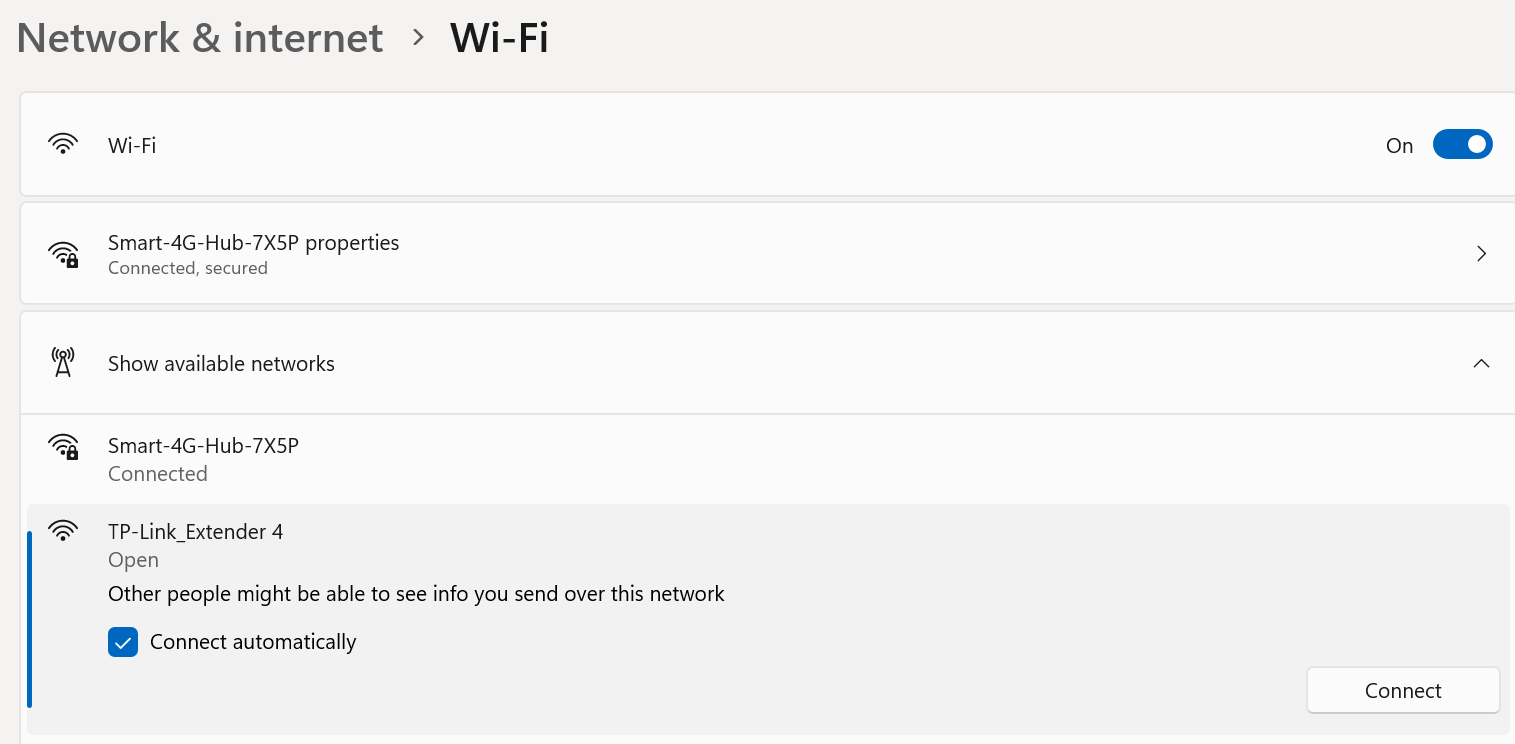
The 2.4 Hz light won't light up because it cannot connect. It shows on the Windows AVAILABLE network, and as I said, I have inputted the password.

Any ideas, please?
Windows Network

  0      
0
#1
Options
5 Reply
Re:Smart 4G Hub cannot link to extenders as no WPS available
2026-07-24 19:33:06

  @UFOned 


If you haven't yet, please try resetting the RE450 to factory default settings by pressing and holding the reset button for at least 10 seconds while the extender is plugged into power.


Once reset, try reconfiguring the extender using the web UI or Tether app methods, ensuring the extender is near the router during setup so it can obtain a clear signal before relocating it after setup.


I'd also recommend taking a look at our FAQ if the web UI or Tether app methods linked above don't do the trick: TP-Link Range Extender Not Working? How to Fix It

  0  
0
#2
Options
Re:Smart 4G Hub cannot link to extenders as no WPS available
2026-07-25 08:06:29

@Ryan, thanks for the info. I have tried going through the tether app on my tablet, but as the unit has no connection to the Smart-4G-Hub-7X5P hub, it won't connect.  The 2.4 GHz light isn't lighting up even though there is a password been inputted, and I pressed the connection button to signal the hub.  No response from the hub at all.  As you can see from my screenshot, Windows sees the unit but just can't connect.  I tried https://tplinkrepeater.net and 192.168.0.254; all I get is site can't be reached.  I have gone through all the FAQs as much as I understand, but at the end of the day it's getting the hub to acknowledge that the extender wants to link. Not sure how to get the hub to do that?  I am sure I can't be the only one who has had to connect to hubs similar to this?

  0  
0
#3
Options
Re:Smart 4G Hub cannot link to extenders as no WPS available
2026-07-29 05:51:35

Hi @UFOned ,

I noticed you keep mentioning that the 2.4GHz light isn't lighting up; can the router's 5GHz Wi-Fi be extended successfully? Or is the range extender unable to connect to the new Smart 4G Hub as expected?


If only the 2.4GHz band cannot be extended, please try the following suggestions:

1. Place the extender closer to the router: Move it 2–3 meters away from the router and wait about 2 minutes to check the LEDs again.
2. Verify the router's Wi-Fi password: On your phone or tablet, forget the router's Wi-Fi network, then reconnect to it manually by typing in the password. This confirms the password you're entering is correct: How to remove existing wireless network profile on Android&iPhone
3. Check for MAC filtering or Access Control on the router: If your Smart-4G-Hub has MAC filtering or access control enabled, it may be blocking the extender. Disable this if possible (refer to the hub's documentation or contact its support).

4. Optimize the router's wireless channel: Try setting the router's 2.4GHz channel to 1, 6, or 11, and the 5GHz channel to 36, 40, 44, or 48 to reduce interference. Take TP-Link Router as an example: How to change wireless settings on TP-Link Wireless Router.
 

Welcome to our Community! Latest Pre-Release firmware: ▷Archer BE550 V2 Enhances EasyMesh Support with Guest/IoT/MLO Extension ▷Archer GE550/GE650 V2 Introduces AI QoS, VPN Enhancements More posts, please see: ▷Get the Ongoing Pre-release Firmware for Wi-Fi Routers Here! Contact via Messages or @Joesph-TP in your new post for urgent problems (not online 24/7). Click Recommended Solution if the post/answer helps.
  0  
0
#4
Options
Re:Smart 4G Hub cannot link to extenders as no WPS available
2026-07-29 08:54:39

  @Joseph-TP thanks for the input.  I spent days trying to resolve this problem via tablets and computers.  I have given up for now as spent too much time and effort trying to resolve it.   We will struggle on and hope the house move comes quickly.  But nothing can be done anyway via my computer as it has the blue screen of death sadly.  Yet more technological problems.   Thanks again for your help

  0  
0
#5
Options
Re:Smart 4G Hub cannot link to extenders as no WPS available
2026-07-29 09:07:37

Hi @UFOned ,

I wish you a smooth move, and may all your new appliances and systems work perfectly from the start. Don’t hesitate to contact us if there’s anything you needwink

Welcome to our Community! Latest Pre-Release firmware: ▷Archer BE550 V2 Enhances EasyMesh Support with Guest/IoT/MLO Extension ▷Archer GE550/GE650 V2 Introduces AI QoS, VPN Enhancements More posts, please see: ▷Get the Ongoing Pre-release Firmware for Wi-Fi Routers Here! Contact via Messages or @Joesph-TP in your new post for urgent problems (not online 24/7). Click Recommended Solution if the post/answer helps.
  0  
0
#6
Options