
Troubleshooting the Status of Your Deco, Connected Clients, and Connection Information in the Deco App
The Deco App may occasionally display inaccurate Deco status, client status, or connection information. The following scenarios cover common behaviors that can occur when the information shown in the Deco App does not match the actual state of the network, along with recommended troubleshooting steps for each case.
- A Satellite Deco is Online but Appears Offline in the Deco App
- Deco Nodes Appear Offline While Managing Locally / Client Device is Online but Appears Offline in Deco App
- Local Management Works Normally, but Deco Appears Offline When Managed Remotely
- Some Connected Devices Do Not Appear in the Deco App
- Client List is Empty
- Deco is Online but Shows No Connected Devices
- Connection Information and Topology Displayed in the Deco App Is Incorrect
Before Proceeding, Try These General Troubleshooting Steps First:
- Ensure all Deco units are running the latest firmware version.
- Make sure the Deco App is updated to the latest version.
- Refresh the Deco App by pulling down on the Network/Home page.
- Completely close the Deco App and then reopen it.
Scenario 1: A Satellite Deco is Online but Appears Offline in the Deco App
Common Symptoms
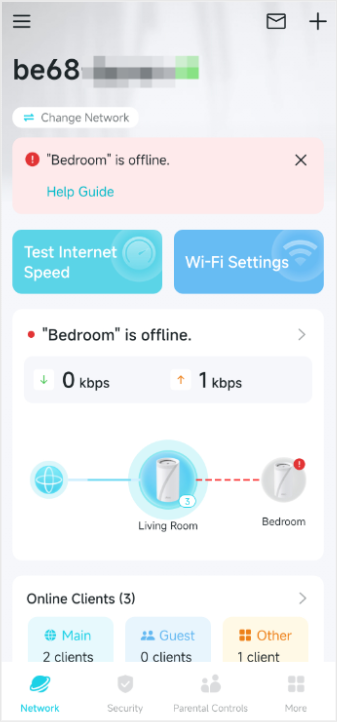
- The satellite Deco has a solid green/white LED and connected devices have internet access, but the Deco App shows it as Offline.
If the General Troubleshooting Steps Do Not Resolve the Behavior:
- Reboot the specific satellite Deco.
- Factory reset the specific satellite Deco and reconfigure it.
Scenario 2: Deco Nodes Appear Offline While Managing Locally / Client Device is Online but Appears Offline in App
Common Symptoms
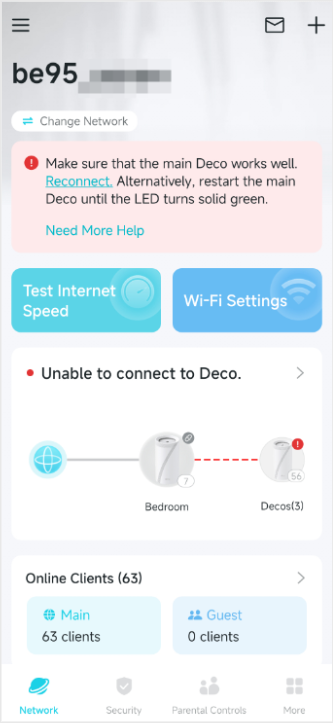
- The Deco nodes appear offline in the Deco App even if your phone is connected to the Deco's Wi-Fi.
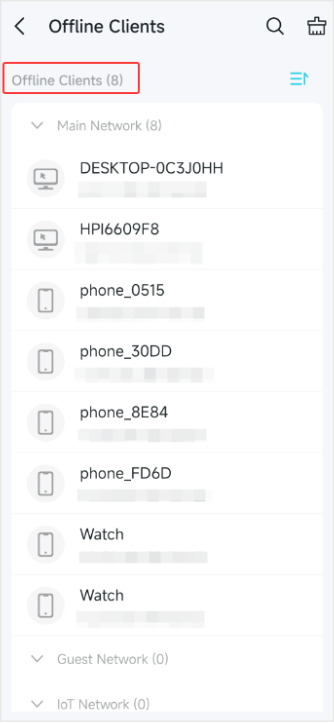
- A client device has internet when connected to the Deco's Wi-Fi but appears under the Offline Client List.
If the General Troubleshooting Steps Do Not Resolve the Behavior:
Detailed steps for troubleshooting this behavior are available here: Troubleshooting for Deco Units and Connected Devices Showing Offline
Scenario 3: Local Management Works Normally, but Deco Appears Offline When Managed Remotely
Common Symptoms
- Deco nodes appear online in the Deco App when your phone is connected to the Deco network, but appear offline when using mobile data or other Wi-Fi networks.
If the General Troubleshooting Steps Do Not Resolve the Behavior:
- Reboot the Deco nodes and see if the behavior resolves.
- Ensure the Deco nodes have a solid green/white LED and the clients connected to them have an internet connection. If not:
- Confirm the upstream modem, router, or network source provides internet to the main Deco. Connect a wired device, such as a laptop, to the main Deco's Ethernet cable and verify internet access.
-
Try the troubleshooting steps in the following FAQ: What if I get error "Unable to connect to the Internet" when setting up main Deco?
- Factory reset the Deco nodes and reconfigure them.
Scenario 4: Some Connected Devices Do Not Appear in the Deco App
Common Symptoms
- Devices connect to the Deco via Ethernet or Wi-Fi and have internet access, but don't appear in the Deco App's Client List.
If the General Troubleshooting Steps Do Not Resolve the Behavior:
- Verify whether the device is connected to your Deco network. Check that no other router is using the same Wi-Fi network name (SSID) as your Deco network.
- Make sure the client devices are set to obtain an IP address automatically (via DHCP) rather than using a static IP address.
- Reboot the entire Deco system.
Scenario 5: Client List is Empty
Common Symptoms
- Client devices connected to the Deco network are working fine, but none appear in the Deco App.
If the General Troubleshooting Steps Do Not Resolve the Behavior:
- Reboot the main Deco unit.
Scenario 6: Deco is Online but Shows No Connected Devices
Common Symptoms
- A Deco node is online in the Deco App, but it shows 0 connected clients.
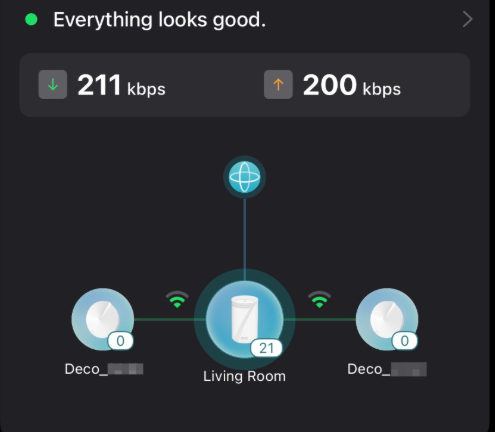
NOTE: If all client devices are closer to other Deco units, this Deco may correctly show 0 connected devices.
To test whether client devices can connect to this Deco, move your phone closer to it, turn Wi-Fi off and back on, and check whether the phone connects to that Deco. If it does not, continue with the troubleshooting steps below.
If the General Troubleshooting Steps Do Not Resolve the Behavior:
- Make sure the specific Deco node has a solid green/white LED.
- Reboot the specific Deco node.
- Wire a device to the specific Deco node to verify connectivity. If the Deco has no internet, try factory resetting and reconfiguring it.
Scenario 7: Connection Information and Topology Displayed in the Deco App Is Incorrect
Common Symptoms
- Connection information and Topology displayed in the Deco app are inaccurate. For example:
- A wireless client is displayed as a wired client.
- A wired Deco is displayed as a Wi-Fi-connected Deco.
- Other connection details are displayed incorrectly.
If the General Troubleshooting Steps Do Not Resolve the Behavior:
- If the Ethernet backhaul does not work, refer to the following instructions: Deco Ethernet Backhaul: Setup, Wiring Rules, and Troubleshooting
- Simplify the network topology if possible. For example, connect the Deco nodes directly (without switches).
Behavior Persists or Need Further Assistance?
If the behavior persists after completing the troubleshooting steps above, collect the following information and contact our Technical Support Team for assistance. You can also leave a comment below with the following details about your network:
- Your Deco model, hardware version, and firmware version.
- Your Deco App version.
- The phenomenon you are experiencing and any troubleshooting steps you’ve already taken.
- A detailed description or diagram of your network topology.
- LED status of the Deco nodes in your network.
- Send the Deco App Log to our Support Team for analysis: How to Get and Send Deco App Log to TP-Link Support