
Troubleshooting Guide for Web-Based Management Interface Anomalies
I. Background
In enterprise network management and home network maintenance, administrators often need to access the management interfaces of network devices such as routers, switches, access points, and other software applications through web browsers for configuration. While these web-based management interfaces provide intuitive operation methods, various anomalies are frequently encountered in practice:
- Configuration changes fail to save successfully.
- The management interface suddenly becomes unresponsive or freezes.
- Parts of pages appear blank or display with abnormal layouts.
- Function buttons do not work when clicked.
- Automatic logout after login or abnormal session behavior.
This guide introduces basic troubleshooting methods to help you quickly restore normal management of network devices/applications.
II. Systematic Troubleshooting Steps
Step 1: Verify Network Connectivity (Primary Check)
Before performing any browser-related troubleshooting, it is essential to first confirm the physical and logical connectivity between the management computer and the network device.
Procedure:
Open Command Prompt (Windows) or Terminal (Mac/Linux).
Enter the command: ping [device IP address] (e.g., ping 192.168.0.1).
Observe the response:
Success: Displays “Reply from…” with timing information.
Failure: Displays “Request timed out” or “Destination host unreachable.”
 Key Points:
- Ensure the correct device management IP address is used.
- Check that the Ethernet cable connection is secure (for wired connections).
- Confirm the Wi-Fi connection is normal (for wireless connections).
- Verify that the computer’s IP address is on the same subnet as the device’s IP.
If ping fails:
Check physical connections (cables, port indicator lights).
Verify the computer’s IP configuration (DHCP or manual settings).
Attempt to connect to another device on the same network.
Restart the network device and the computer.
Only after confirming normal network connectivity should you proceed with the following browser-related troubleshooting steps.
Step 2: Refresh the Browser Interface
When network connectivity is normal but the interface displays anomalies, a simple refresh can often resolve temporary page-loading issues. This is because the browser may have only loaded partial resources, or data packets may have been lost during page transmission.

If you are editing configurations, confirm that changes have been saved before refreshing. Refreshing may cause loss of entered data if the configurations are not saved or if complex forms are involved.
Step 3: Clear Browser Cache
The browser cache mechanism is designed to speed up page loading, but it can sometimes store outdated or corrupted files, causing anomalies in the management interface display. This is especially prevalent after a device firmware upgrade; the files stored in the cache may be incompatible with the new interface.
Procedure (using Chrome as an example):
- Click the menu icon (three dots) in the top-right corner of the browser.
- Select “More tools” > "History" > “Delete browsing data.”
- For the time range, select “All time.”
- Check the box for “Cached images and files.”
- Click “Delete data” and wait for the process to complete.
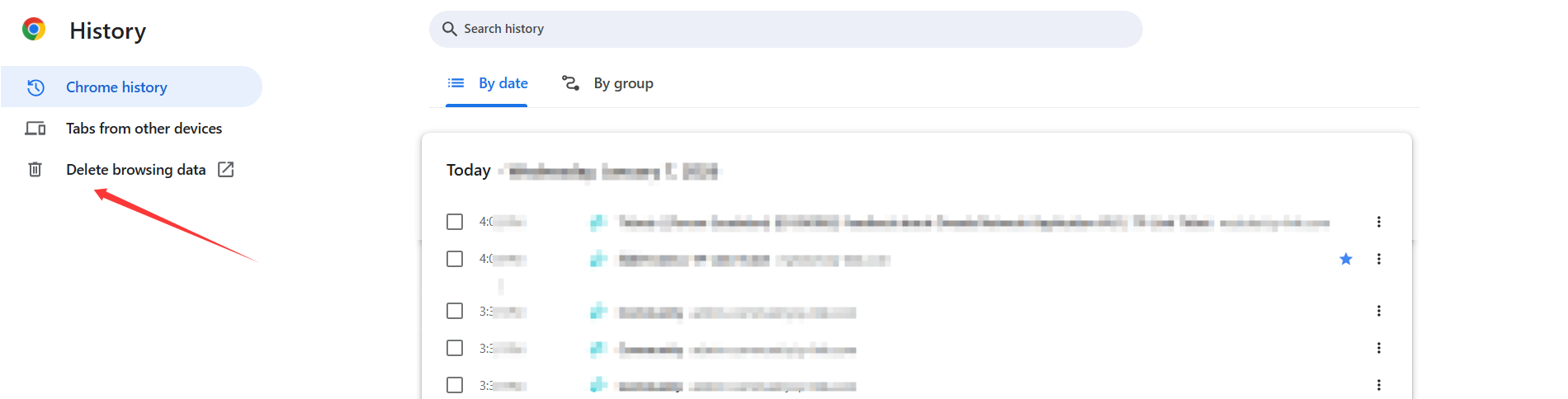
Paths for Other Browsers:
Firefox: Settings > Privacy & Security > Cookies and Site Data > Clear Data
Edge: Settings > Privacy, search, and services > Clear browsing data > Clear now.
Safari: Preferences > Privacy > Manage Website Data > Remove All.
Step 4: Check in Incognito/Private Mode
Browser extensions and plugins can sometimes interfere with the normal functionality of management interfaces. Incognito mode provides a “clean” environment that does not load any extensions, helping to determine if third-party plugins cause the issue.
Command to open an incognito/private window:
- Chrome: Ctrl+Shift+N (Windows) or Cmd+Shift+N (Mac).
- Firefox: Ctrl+Shift+P (Windows) or Cmd+Shift+P (Mac).
- Edge: Ctrl+Shift+N.
- Safari: Cmd+Shift+N.
Step 5: Log Out and Log Back Into the Management Interface
Network device management interfaces typically have session management mechanisms. Prolonged inactivity or concurrent logins can cause abnormal session states. Completely logging out and then logging back in establishes a brand-new session.
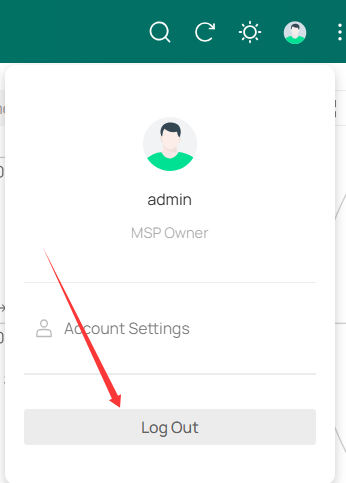
- Click the “Logout” or “Sign Out” button on the management interface.
- Close all browser tabs containing the management interface.
- Wait 1-2 minutes (to ensure the server-side session fully expires).
- Re-enter the device IP address to access.
- Log in with the correct credentials.
Session Management Points:
Different devices have varying session timeout periods (typically 5-30 minutes).
Avoid simultaneous logins with the same account from multiple locations.
Be mindful of session keep-alive during complex operations.
Step 6: Change Browser or Management Computer
If the above steps are ineffective, the issue may be specific to a particular browser or computer environment. Trying different access environments can quickly narrow down the scope of the problem.
- Change Browsers: Try browsers with different kernels (e.g., switch from Chrome to Firefox or Edge).
- Change Computers: Use another computer to access the same management interface.
- Alternative Access Methods: If supported by the device, try SSH, Telnet, or a serial connection.
Long-term Recommendations
Device Level: Regularly update firmware, paying attention to version compatibility notes.
Client Level: Keep browsers up to date while retaining an older version as a backup.
Process Level: Establish standard operating procedures for configuration changes.
Contact Technical Support
Failing the above, please contact the technical support or start a thread in the community if the following conditions are true.
- All troubleshooting steps are ineffective.
- The device shows signs of hardware failure.
- Changes involve complex network architecture.
- Security-related configuration issues arise.
Please include screenshots or a short video showing the issue you encountered, along with all the troubleshooting steps you have tried.