
Early Access VIGI NVR2016H/1016H(-16(M)P) 2008H/1008H(-8(M)P) Pre-Release Firmware (Released on February 4, 2026)


This Article Applies to
NVR2016H-16MP(UN) 2.0/ NVR2008H-8MP(UN) 2.0
Overview
We hope to offer you with a chance to experience the new features added in the VIGI NVR in advance, and also give us TP-Link the opportunity to fully test the software in your real network environment and scenarios before the official release. All feedback is welcome, including lettings us know about successful upgrades.
Release Notes
New Features:
Added support for AI by NVR feature.
How New Features Work
The following instructions use the web interface as the example.
AI by NVR
VIGI IPCs added to the VIGI NVR via the TP-Link protocol, as well as third-party IPCs added via the ONVIF protocol, can be analyzed directly by the NVR for Motion Detection, Line Crossing Detection, and Intrusion Detection.
Enable AI by NVR for the required detection types
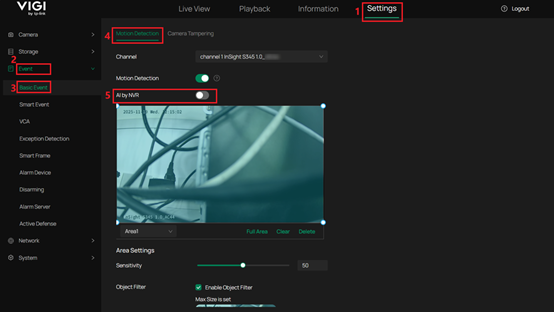
(1) Motion Detection: Navigate to Settings > Event > Basic Event > Motion Detection and enable the AI by NVR switch.
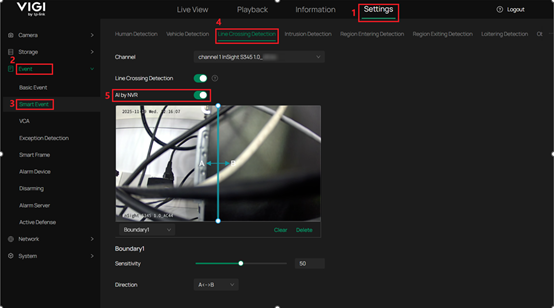
(2) Line Crossing Detection: Navigate to Settings > Event > Smart Event > Line Crossing Detection and enable the AI by NVR switch.
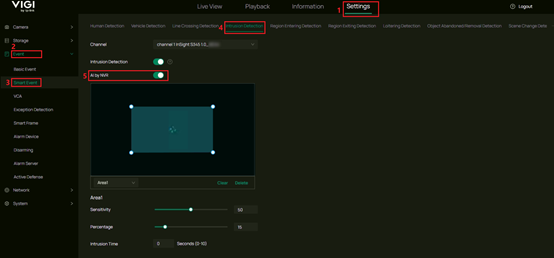
(3) Intrusion Detection: Navigate to Settings > Event > Smart Event > Intrusion Detection and enable the AI by NVR switch.
Note: The following limitations apply when AI by NVR is enabled:
• Camera Compatibility: AI by NVR does not support PTZ cameras, dual-lens cameras, fisheye cameras, or cameras operating in corridor mode.
• Channel Limitation: Up to four channels can be configured for AI by NVR simultaneously.
• Bandwidth Impact: The Net Receive Idle bandwidth will be reduced. For example, the bandwidth decreases from 320 Mbps to 160 Mbps.
• Feature Restrictions: Independent video output and Channel-Zero cannot be enabled.
• Performance Impact: AI by NVR consumes the NVR’s system decoding resources, which may affect live view and playback performance.
• Configuration Recommendation: To improve detection accuracy, it is recommended to set the sub-stream resolution higher than 640 × 360.
For more information, please refer to the Article: How to enable the AI by NVR feature for detection on VIGI NVR | TP-Link
Firmware Download
Before the Upgrade
(1) Please be sure you have read the Beta Test Agreement before upgrading the pre-release firmware!
(2) Just in case, it's always recommended to save a copy of the NVR Config file before upgrade or downgrade.
(3) You may follow the User Guide to upgrade your NVR.
(4) The following pre-release firmware cannot be upgraded via TP-Link cloud access, please access the NVR through the Web Management interface or VIGI Security Manager.
(5) Before upgrading to the pre-release firmware, ensure the current version is above 1.3.1.
(6) Direct downgrade to versions earlier than 1.5.0 is not supported. Please contact VIGI Technical Support if a downgrade is required.
Firmware Download Link
The pre-release firmware download link for NVR2016H-16MP(UN) 2.0 is as follows:
https://static.tp-link.com/upload/beta/2026/202602/20260204/NVR2016H_16MP_v2_AI_by_NVR.zip
The pre-release firmware download link for NVR2008H-8MP(UN) 2.0 is as follows:
https://static.tp-link.com/upload/beta/2026/202602/20260204/NVR2008H_8MP_v2_AI_by_NVR.zip
Note: Please copy the download link above into a web browser and press Enter to start the download.
Additional Information
If somehow you encounter an issue while using the software, it's suggested to contact us with the following info:
• Detailed description of the issue.
• Related settings items. (Screenshots, Pictures or screen records)