
How to set Festa F41 to N only mode
How to set Festa F41 to N only mode

Showing b/g/n mixed at the top right of the screen but I went thru ever setting page and I find no way of setting it to N only mode. 
- Copy Link
- Subscribe
- Bookmark
- Report Inappropriate Content


Hi @Akore
F41 has no 802.11n mode-only option, but as I mentioned before, your clients will use the n protocol as long as they support it.
In mixed mode, the AP is very smart. When a high-speed device that supports n (like your modern phone or new computer) connects, the router will automatically use the n protocol to communicate with it, providing the highest speed.
- Copy Link
- Report Inappropriate Content
@Akore Anyone out there?
- Copy Link
- Report Inappropriate Content
Hi @Akore
Thanks for posting here.
This is Not a Manually Selectable “Mode”
What you see as “b/g/n mixed” is not a “mode” you have selected and can arbitrarily change. It is actually a declaration or status display that means:
“This router/AP currently supports and is compatible with the three older wireless standards 802.11b, 802.11g, and 802.11n, and is operating in mixed mode to ensure all legacy devices using different standards can connect to the network.”
In simple terms:
- b/g/n: Represents the family of wireless protocols the router/AP supports. ‘n’ is a more advanced and faster standard than ‘b’ and ‘g’.
- mixed: Stands for “mixed mode.” This is the default and recommended setting for modern routers.
Why Can’t You Usually Find the “N Only” Option?
-
Backward Compatibility (The Main Reason): If you force your router/EAP into “N Only” mode, any device that only supports the older b or g standards (such as some older smartphones, laptops, IoT devices like smart plugs, or old game consoles) will be unable to detect or connect to your Wi-Fi. To ensure all devices can work, manufacturers set the default to “mixed mode.”
-
Intelligent Management: In mixed mode, the router/EAP is very smart. When a high-speed device that supports n (like your modern phone or new computer) connects, the router will automatically use the n protocol to communicate with it, providing the highest speed. When an old g device connects, the router automatically switches to a compatible mode for that device. This process is automatic and requires no intervention from you.
More Important Recommendations
Instead of worrying about this “mode,” if you want to improve Wi-Fi speed and experience, focus on these two points:
- Connect to the 5GHz Wi-Fi: If you have any other dual-band router or access points(usually showing two Wi-Fi names, one with a “5G” suffix), have your high-speed devices like phones and computers connect to the 5GHz network. The 5GHz band has less interference, faster speeds, and typically does not support old b/g devices, making it essentially a cleaner “high-speed mode.”
- Upgrade to Wi-Fi 6: If your router and devices support it, enable Wi-Fi 6 (802.11ax). This is the latest standard and offers better performance and efficiency.
To summarize: The “b/g/n mixed” you see is the router’s normal, compatibility-focused declaration. It is not a problem and usually does not need to be changed. As long as your devices support the ‘n’ standard or newer, they will automatically operate at the best possible speed when connected. You can use it with confidence!
- Copy Link
- Report Inappropriate Content
@Vincent-TP Thank you for the replay Vincent. The Festa F41 outdoor is a 2.4g radio only and does not have 5g built in. It is being used to connect to ONLY 2.4g security cameras that ONLY support N and thus no need for the older b/g standards as no other devices are going to be used in this system.
- Copy Link
- Report Inappropriate Content
Here is an example from one of your Omada devices:
a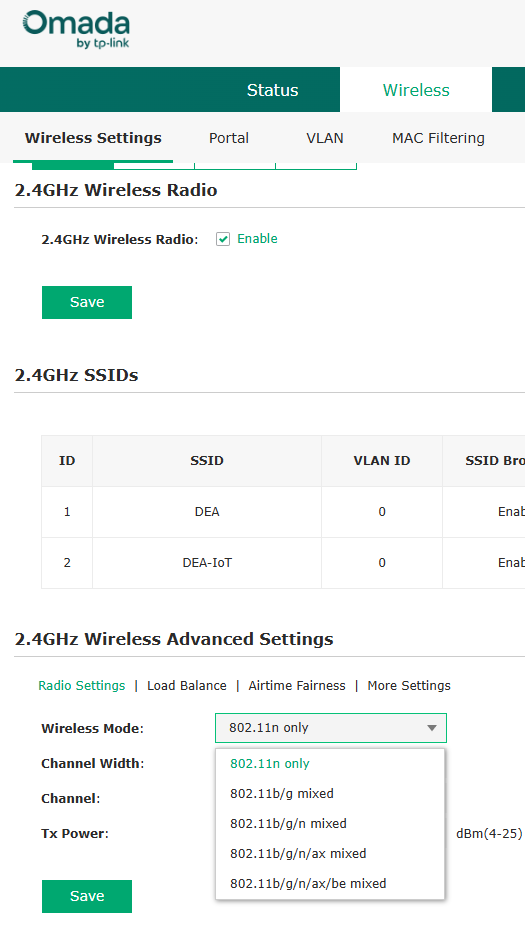
- Copy Link
- Report Inappropriate Content
Hi @Akore
F41 has no 802.11n mode-only option, but as I mentioned before, your clients will use the n protocol as long as they support it.
In mixed mode, the AP is very smart. When a high-speed device that supports n (like your modern phone or new computer) connects, the router will automatically use the n protocol to communicate with it, providing the highest speed.
- Copy Link
- Report Inappropriate Content
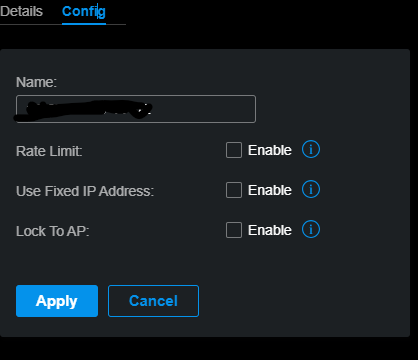
@Vincent-TP Thanks again Vincent. I see that there is a way to "Lock To AP" with the via the MAC, do you know if it is possible to block devices the same way? Thanks again for all the support.
- Copy Link
- Report Inappropriate Content
Hi @Akore
This will force the selected wireless client to connect to the selected AP, preventing it from connecting to other APs.
What kind of devices do you want to block? You may give me more detials about your requirement, I will see if there is any solution, Thanks.
- Copy Link
- Report Inappropriate Content
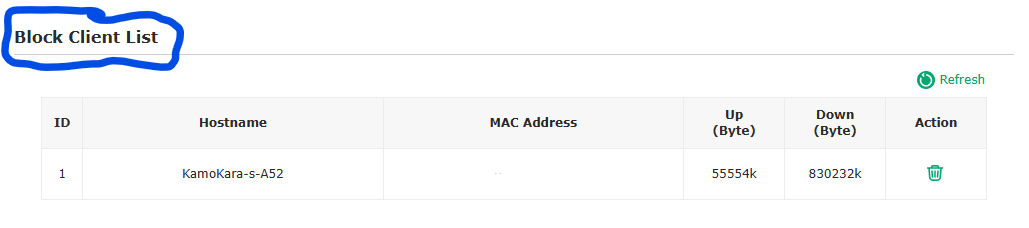
@Vincent-TP I have 8 TP-Link Tapo cameras and 9 TP-Link Tapo P125M switches. most are outside the house and connect to the F41 but I also have some inside that I do not want to connect to the outdoor F41 but instead to connect to my TP-Link Omada EAP770 which is mounted to the ceiling at the center off my house. The Omada seems to have the "Block" option and the F41 seems to have the "Lock To AP" but neither seems to have both which seems strange... Unless I am just missing it?
- Copy Link
- Report Inappropriate Content
Hi @Akore
Have you considered setting up different SSIDs for these two APs? That way, clients inside won’t connect to the outdoor AP. This is the simplest method.
Alternatively, you can enable lock to AP for the inside clients. EAP770 also supports this feature.
- Copy Link
- Report Inappropriate Content
@Vincent-TP Thank you for the reply. can you tell me where in the Omada software I can find that "lock to AP" option?
- Copy Link
- Report Inappropriate Content
Information
Helpful: 0
Views: 1069
Replies: 11
Voters 0
No one has voted for it yet.