
I have multiple access points, some of them I can not connect to the web interface

I have multiple access points, some of them I can not connect to the web interface
I have multiple access points, some of them I can not connect to the web interface
Saturday
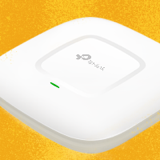
Model: EAP225-Outdoor  
Hardware Version:
Firmware Version:

I have been on the omada train for a few years and have a few APs, including a couple EAP-225 outdoor.
Out of the 6 access points I have there are 3 that I can not access the management website.
procedure: 
1) do a hard reset
2) connect to the default wifi network
3) attempt to access via the default web site
4) I get site not found.
where the web site does not come up. Its not me because it works on my EAP-610 and EAP 603 and one of the EAP 225s. I know how to access non-secure websites and do not have any routing or DNS specified on my wireless connection.

Does that just mean they are trash? Or is this a common issue with known remediation?  I do not think that I even have a laptop with a ethernet port anymore.


.  

0
0
#1
1 Reply
Re:I have multiple access points, some of them I can not connect to the web interface
Yesterday

Hi,  @colorado77 
Thank you for posting your query on our business forum.

Please try the following troubleshooting steps:
1.If you are connecting to the EAP's Wi-Fi to access the management interface, please first confirm your device is connected to the correct Wi-Fi. Then enter https://tplinkeap.net or https://omadaeap.net in your browser's address bar and attempt to access the management page.
2.Please also try accessing the interface via the EAP's local IP address: Locate the IP address of your EAP, connect your computer to the same network as the EAP, then enter the IP address into your browser's address bar to attempt login. If this fails, please run a ping test to the EAP's IP address to confirm whether the connection is reachable.
3.If you still cannot access the login interface after the above attempts, please disconnect the EAP from all other connected devices, then directly connect your computer to the EAP via an Ethernet cable. Next, configure a static IP address in the 192.168.0.x range for your computer, then attempt to access the EAP's management interface via 192.168.0.254 to check if the login succeeds.
You may also refer to our detailed guidance for how to login the standalone page of Omada EAP:
How to Setup Omada EAP in Standalone Mode | Omada Network Support


0
0
#2