
Omada Client Solutions 02 - CrescentDoe Coffee
 NeilR_M


Omada Client Solutions 02: CrescentDoe Coffee

This article series simulates real-world examples of network configurations completed with Omada equipment for home lab and/or business environments. Any similarities to real persons or organizations are purely coincidental.
Challenge
Omar gets a call from another client named CrescentDoe Coffee, a local coffee shop receiving a significant amount of foot traffic from the local university. The owner, Fred, wants to increase sales by creating a separate Wi-Fi network for customers, but wants to make sure that only paying customers can access the internet.
Project Requirements
Omar talks with Fred to discuss exactly what he needs from the network. Fred's business needs are detailed below.
- Customers need to have access to a separate network from the Staff Wi-Fi. What customers do on the network should not affect the Staff Devices.
- Customers should only be able to access the Guest Wi-Fi during business hours.
- Customers should only get access to use the full guest network after purchase.
- Managers should be able to create and manage access to the guest network in case Fred is unavailable.
Implementation
Setting up the Guest Network
Omar begins by logging into the shop's controller. He takes a screenshot of the network topology from the Controller's dashboard.
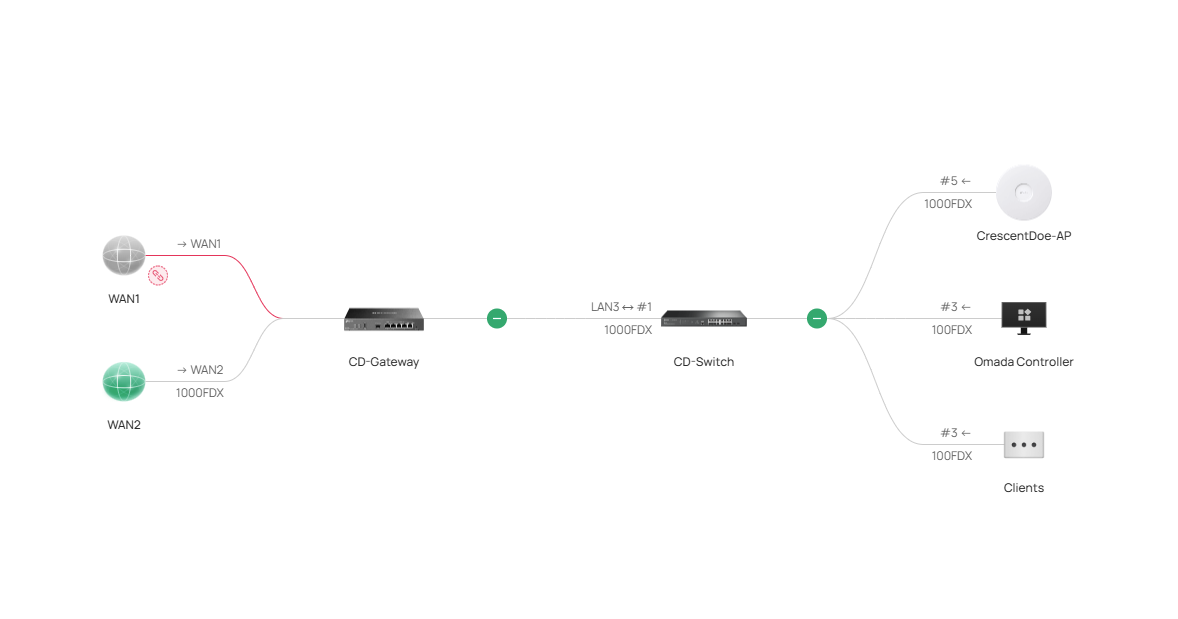
Seeing the simplicity of the topology, he starts setting up a guest network, following instructions from an Omada FAQ. He sets up a new SSID named "CrescentDoe-Guest", using the settings below. The Guest Network toggle is enabled to isolate clients from both the local LAN and other guests. Similarly, clients on the guest network are placed in their own VLAN.
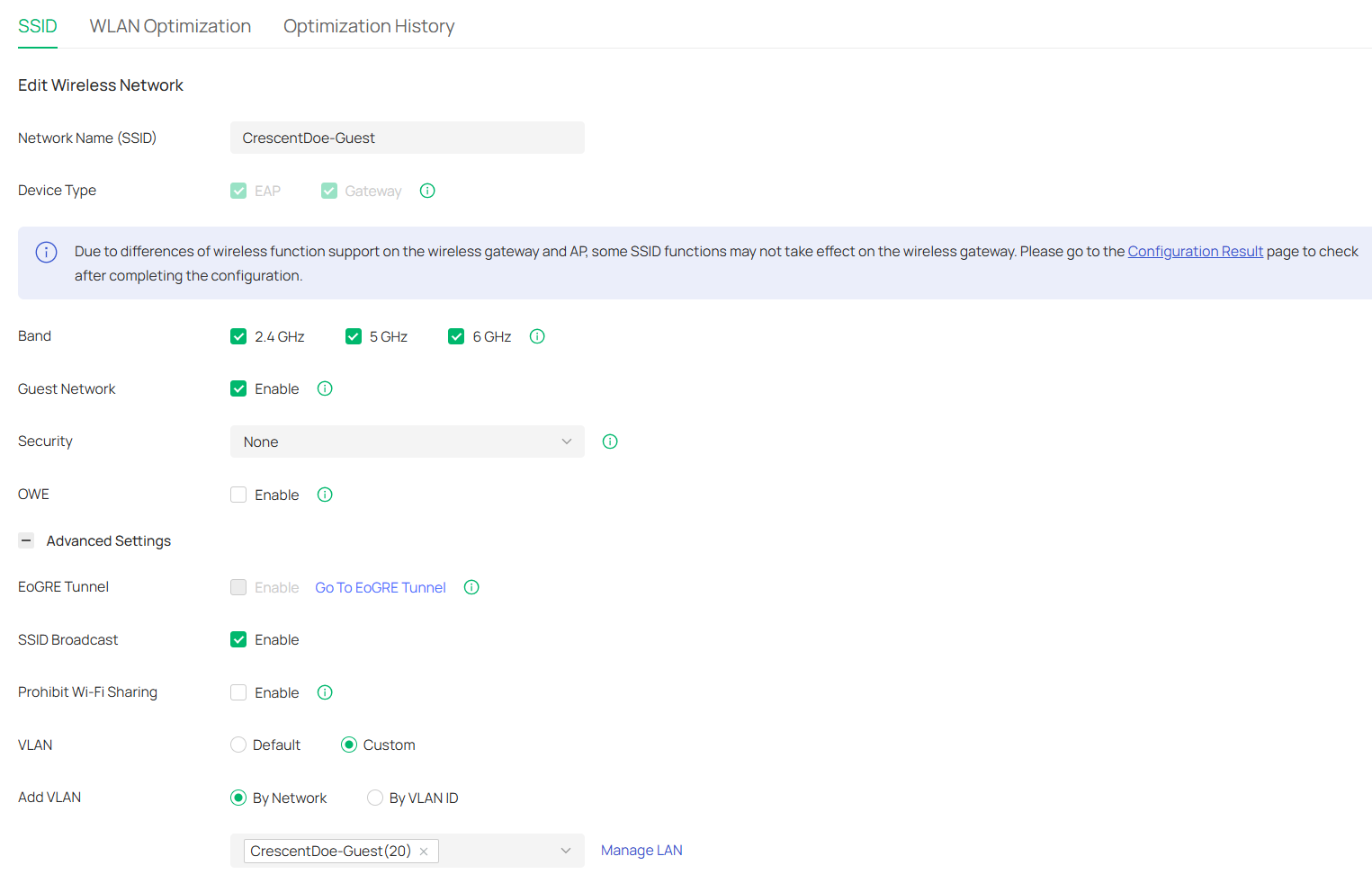
Omar then opens the advanced settings for the network as well, and enables the WLAN Scheduler feature. He sets the Guest Network to only turn on during business hours, from 6:00 AM to 4:00 PM on weekdays. This way, the network is not available when the shop is closed, increasing security.
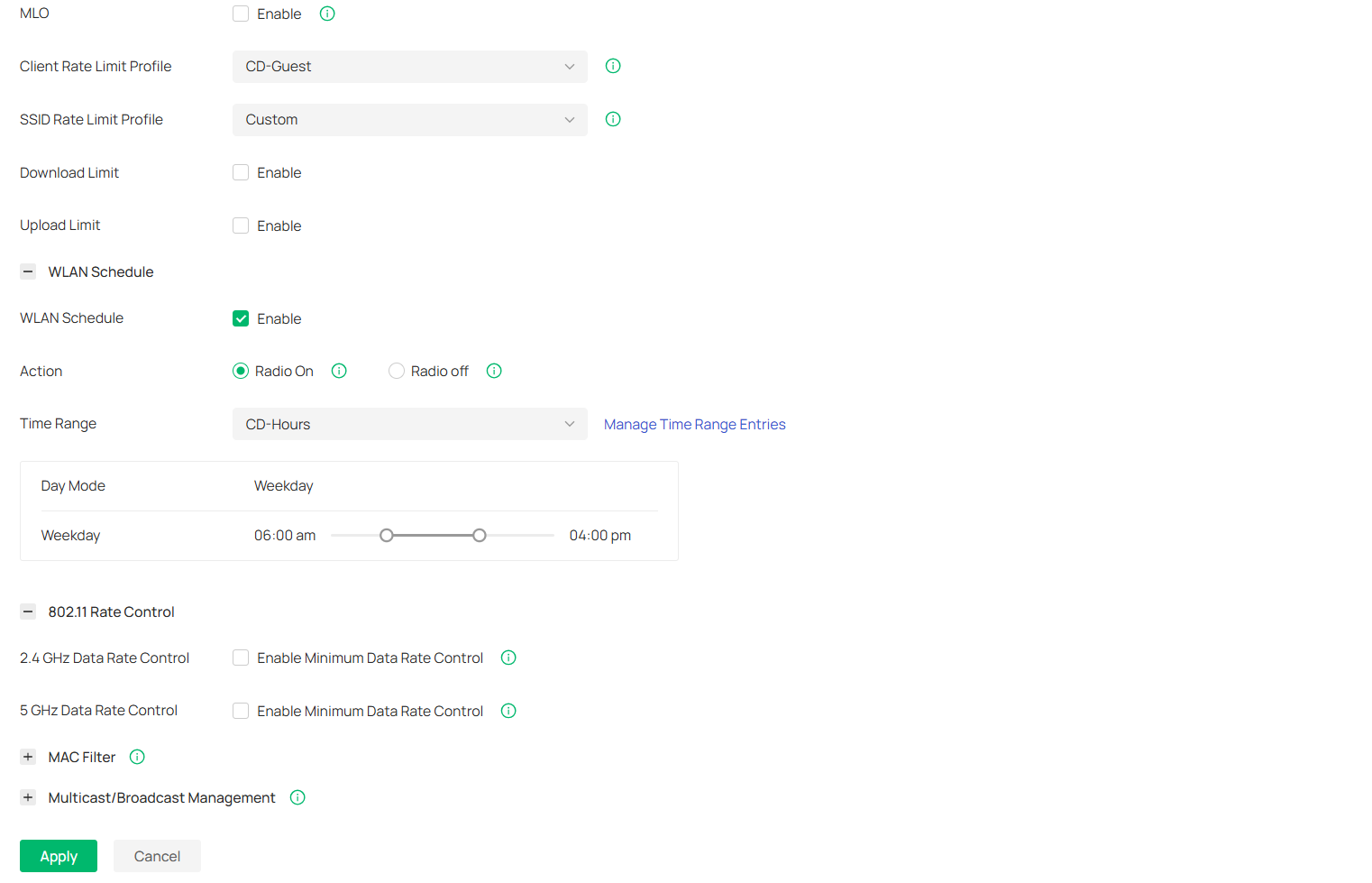
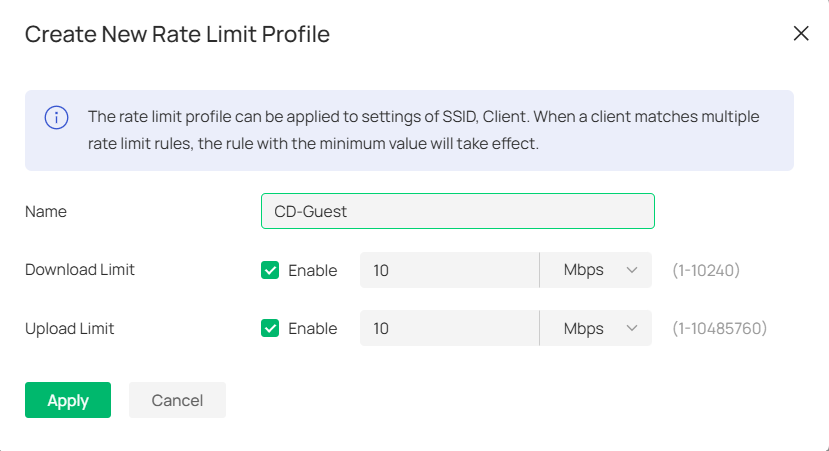
Lastly, he sets a rate limit profile for the guest network to prevent any one client from consuming too much bandwidth.
After saving the configuration and waiting a few minutes, Omar can see the Guest Network pop up as an available Wi-Fi Network. Next, he moves to configuring the Captive Portal function on the controller.
Configuring the Captive Portal
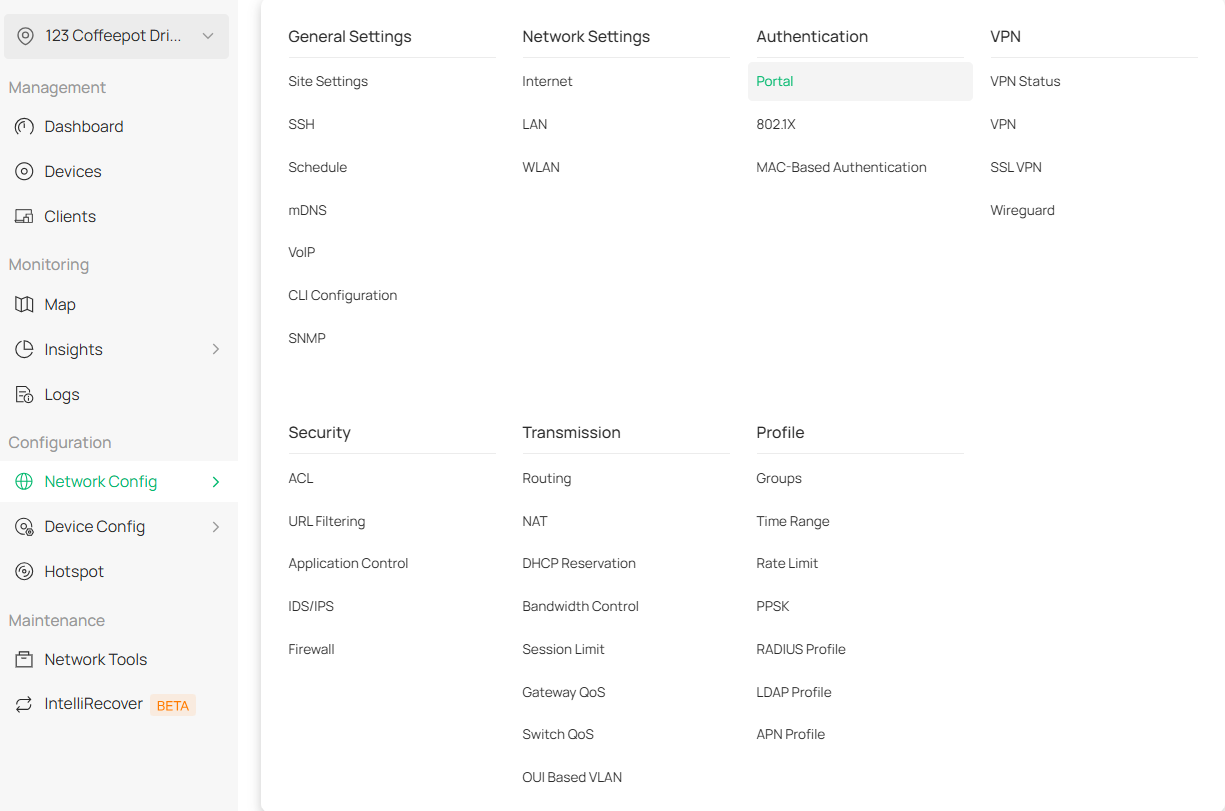
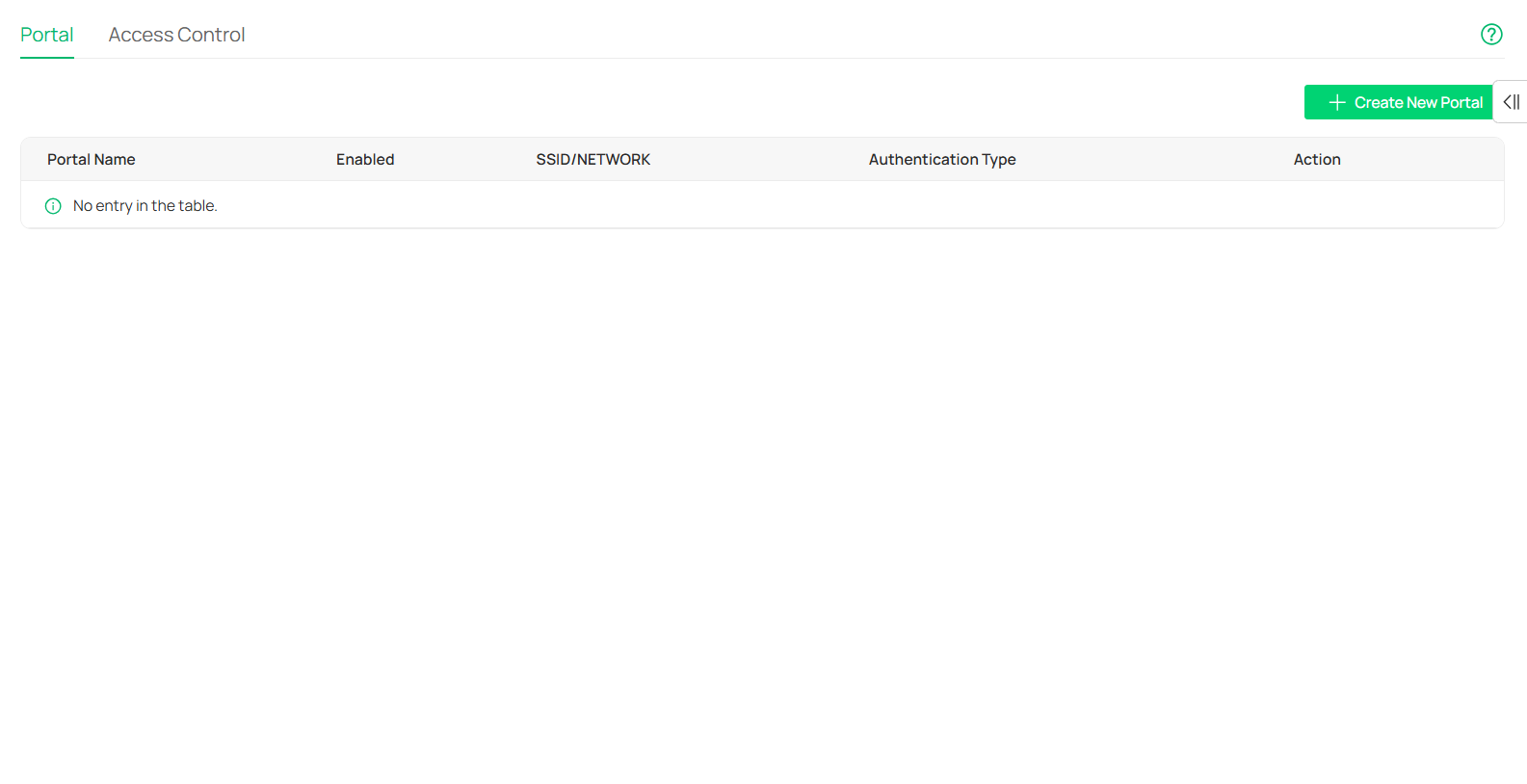
Following the instructions on another FAQ, Omar proceeds to navigate to the Captive Portal settings on the Controller.
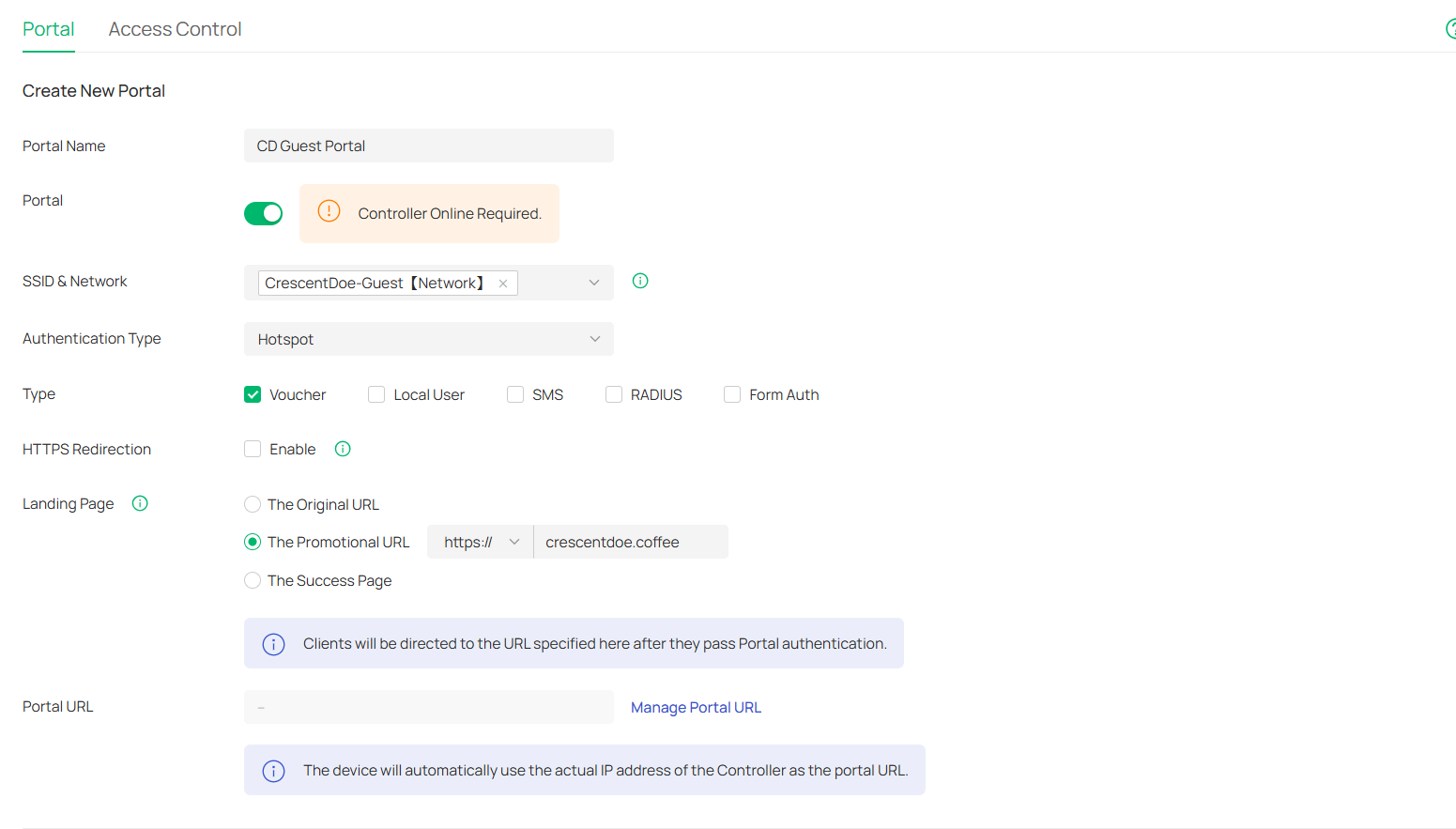
He sets SSID & Network to the Guest Network he created previously, the Authentication Type to Hotspot → Voucher, and the Landing Page to the shop's website. Among the Authentication Types available, Omar determined that the Voucher type was most suitable to Fred's business needs, as it would allow him to include a voucher for the Wi-Fi with every purchase.
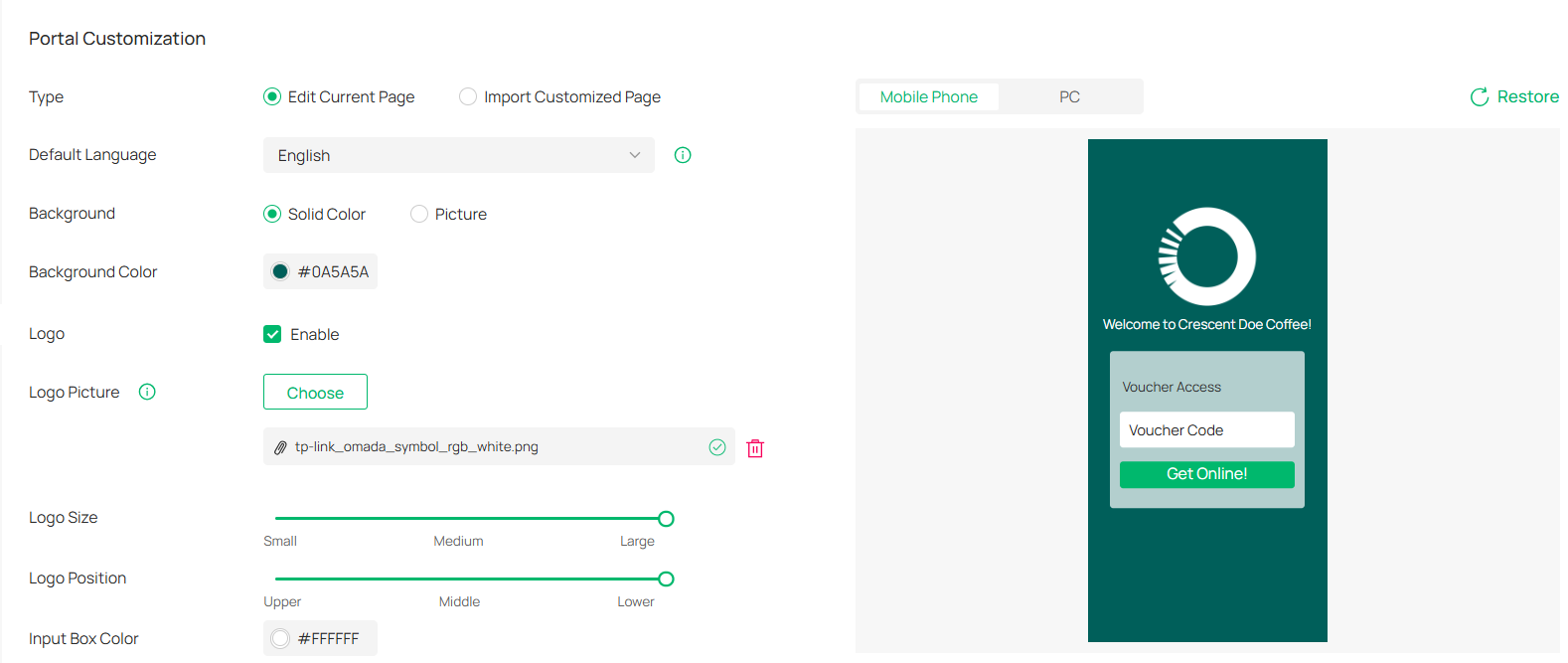
Omar quickly configures the login portal, with the idea that Fred can customize the look of the page later.
He then moves on to configuring the voucher settings, according to the FAQ.
Voucher Settings
Omar navigates to the Hotspot Manager function within the Omada Controller.
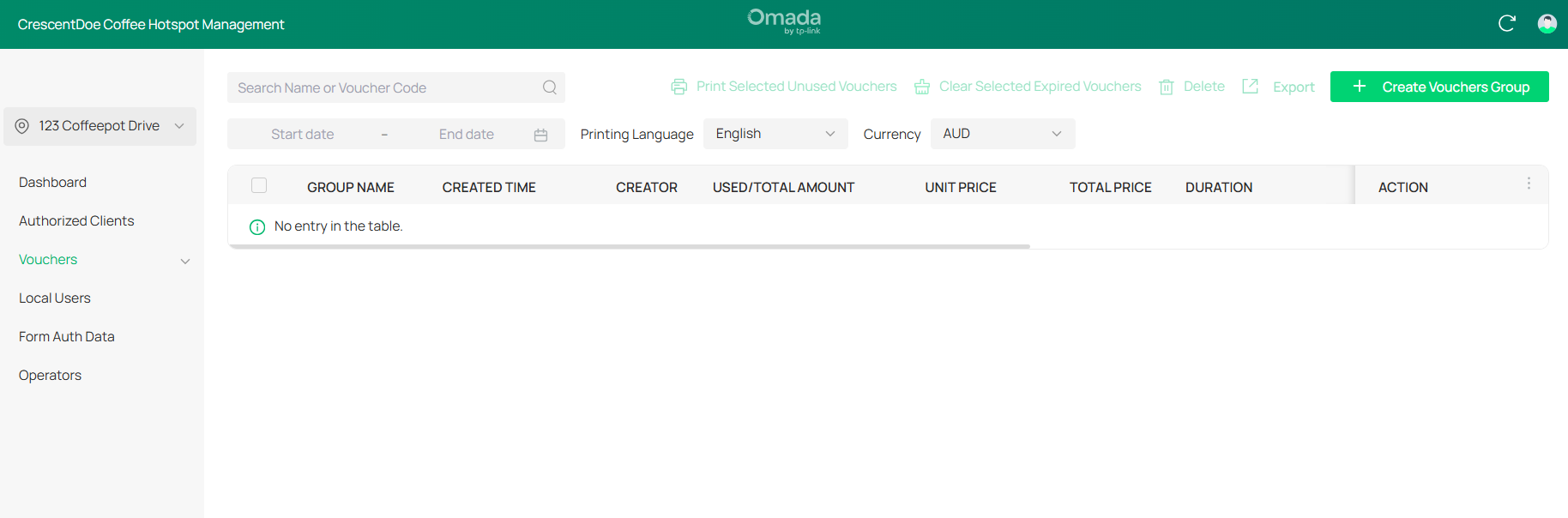
He associates the voucher group with the Portal he created earlier and sets the settings as below.
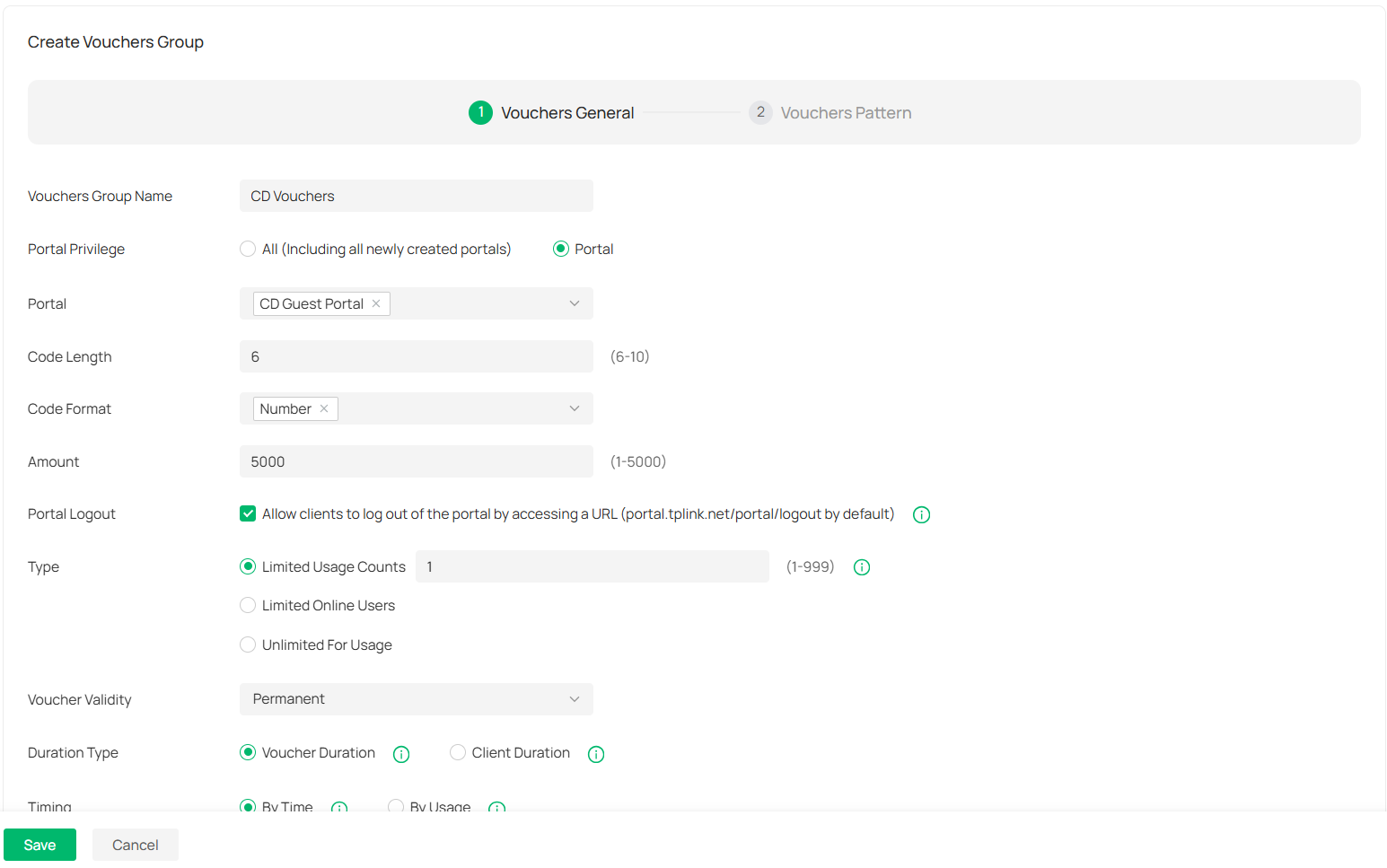
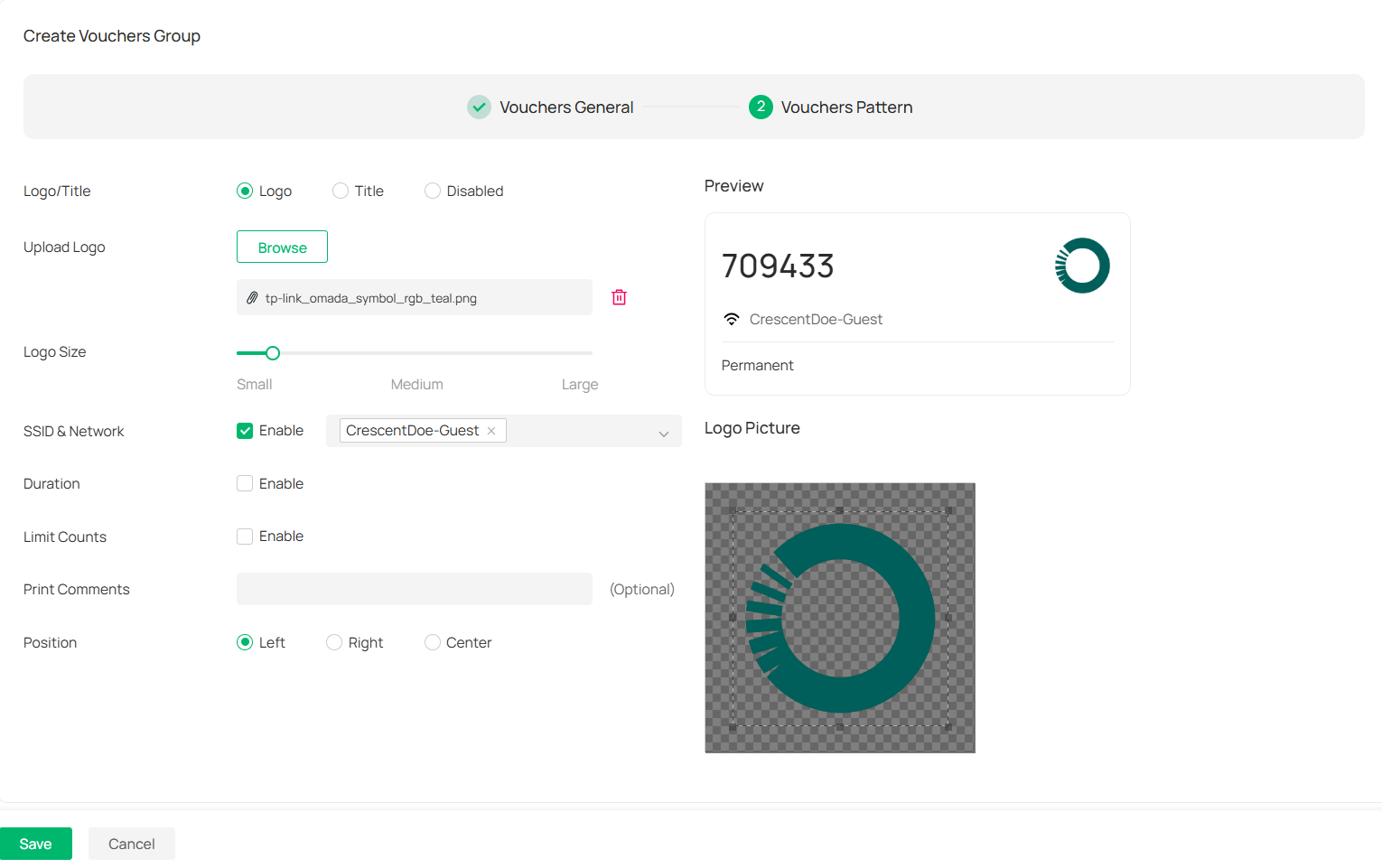
With the settings below, each customer will only be able to use the Voucher once. Omar sets the expiry time of the vouchers to 8 hours, then saves the configuration.

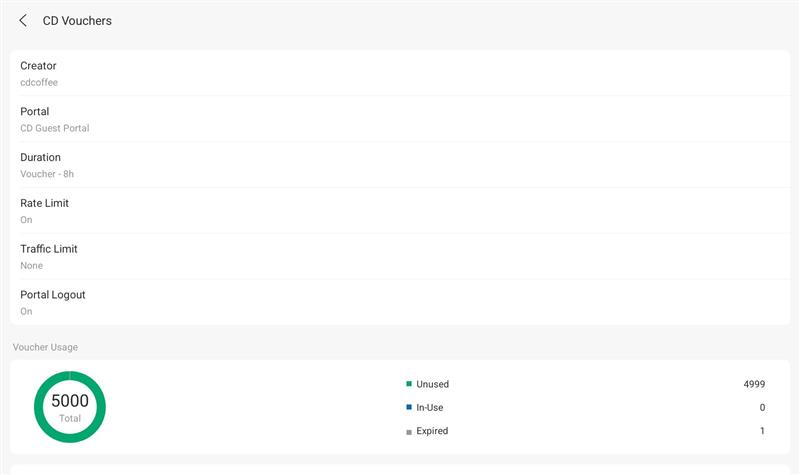
He then sets up a local Controller account with access to manage the vouchers called Hotspot-Manager so that the on-shift manager can still create vouchers when Fred is gone. Logging the account into the Omada App on a tablet Fred has available, he verifies that the account has the correct permissions.
Verification
Omar connects his phone to the guest network and is met with the login prompt.
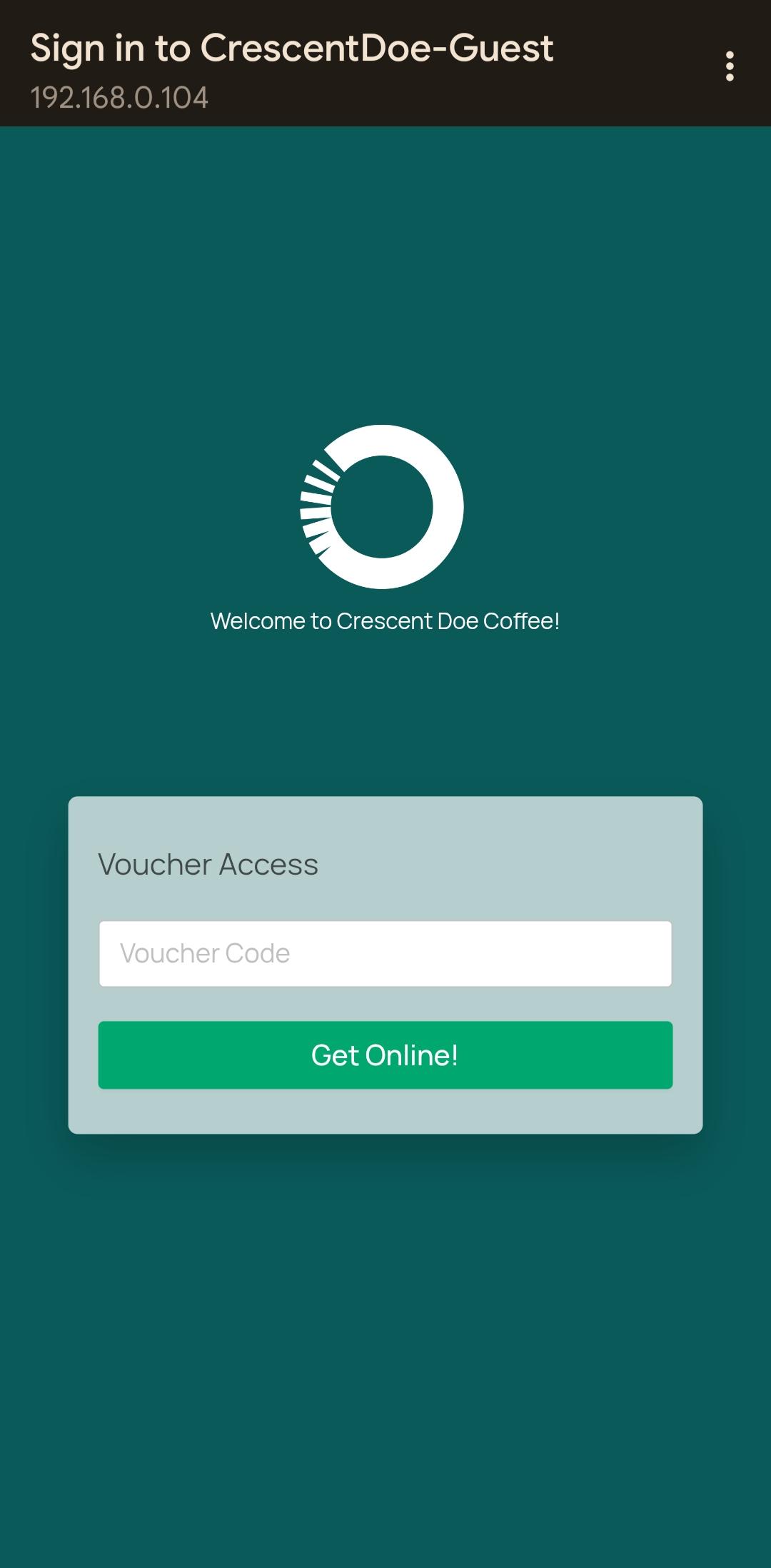
After inputting a voucher code, he is able to verify from the Controller's dashboard that his device is connected to the guest network.

Technical Difficulties
A few days later, Omar gets a call from Fred, who is having trouble with the guest network. He heads over to the shop, and lets Fred explain the issue.
"Some customers are complaining about their vouchers not working if they step out to get something from their car or if their connection drops for even a second. When they leave the shop and come back and try to use the internet, customers are being prompted to sign-in again. However, the voucher does not work the second time, and I have to give them a second voucher. I'm able to recreate the issue on both my brand new iPhone and my wife's iPhone, but my employees all tested the guest network and it works just fine. And yes, we tried restarting our phones, updating, all the standard techy stuff."
Omar first checks the specific vouchers being used, and verifies that none of them are expired or revoked. He also checks to make sure that the phones are not using any VPN connection apps or subscriptions like iCloud Private Relay.
He takes some time to think. What could possibly be forcing specifically iPhones to re-authenticate with a new voucher...
Solution
Solving the Technical Problem
Omar decides to authenticate Fred's iPhone with another Voucher and checks the Authenticated Clients list in the Hotspot Manager.

He notices that the iPhone is listed in the Authenticated Clients list, but it's showing a different MAC address than the one used during initial authentication. Omar realizes that the iPhone is using a different MAC address when connecting to the network, which requires it to authenticate with a new voucher. Checking Fred's iPhone settings, he sees that private Wi-Fi addresses are enabled for the network. He turns it off on Fred's phone, and confirms that the issue is resolved.
Omar relays this information to Fred, but unfortunately, Fred is less than pleased.
"I don't want to turn off private Wi-Fi addresses, and I don't expect my loyal customers to be inconvenienced by this either. Is there another way to solve the issue that doesn't require each and every one of my customers to change their settings just to use the network at my shop?"
Solving the Customer's Problem
With this information, Omar checks the settings of the voucher group to see what can solve Fred's problem. One promising setting is the Voucher Type setting. Hovering over it, he is presented with the following information.
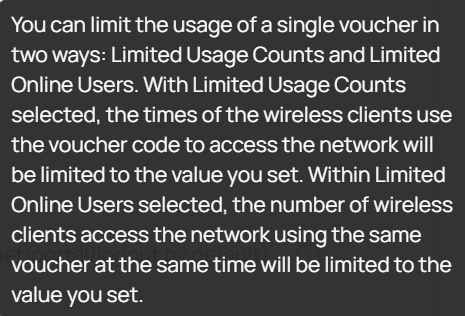
Omar realizes that by changing the voucher type from Limited Usage Counts to Limited Online Users, he can achieve exactly what Fred is asking. By ignoring the number of times a voucher is used but instead restricting the number of people who can use a voucher at a time, the voucher can be used by any customer even if their MAC address changes in the middle of usage. He makes the change and tests it on Fred's iPhone, verifying that even after turning private Wi-Fi addresses on, Fred can still use the same voucher without issue.
A core principle for keeping customers satisfied is not only to focus on solving the technical problem, but the customer's problem as well. Even though the issue was discovered with a clear solution, it was not satisfactory to the client. By taking the time to understand Fred's concerns, Omar was able to find the right path to success.
What do you think? Do you agree with Omar's solution? If not, how would you have approached the problem differently? Please leave your comments and feedback below!
Want to learn more? Check out our Community Knowledgebase or the Frequently Asked Questions on our website.
Interested in checking out more Omada products for yourself? Please visit the Omada Store to find solutions that fit your needs.
| Community Knowledgebase |
| Frequently Asked Questions |
| Official Omada Store |