
How to hairpin* NAT in Omada?
 israel-saba


Stop Fighting Your Own Public IP: Hairpin NAT on Omada (The Easy Way)
Tested on: Omada Software Controller v6.0.0.25 + ER605 v2.0 (firmware v2.3.3).
Not tested with VPNs: this guide covers LAN-side clients only. If you rely on VPN clients reaching services via your public FQDN, treat that as untested and validate separately.
What problem are we solving?
Hairpin NAT (a.k.a. NAT loopback / NAT reflection) is what you need when:
- You have services published to the internet (via port forwarding / NAT)
- You access them from inside your LAN using the same public domain name
- But you skip routing traffic through your domain resolution service, like my CloudFlare Zero Trust setup where I would otherwise spend on bandwidth
- Traffic goes directly to your device, using the full speed and low latency of the hardware-offloaded ASICS of your internal network
Goal: LAN clients can use the same URL as external users and still reach your internal server at 10.10.x.x.
Omada-friendly approach (recommended): “Split DNS” using LAN DNS
Instead of relying on NAT reflection, we’ll make Omada answer internal DNS queries with internal IP addresses.
Example:
- Outside your network:
domain→ your public IP (normal public DNS) - Inside your network: domain→ 10.10.0.5 (your server)
This gives you “hairpin behavior” for most real-world cases with less fragility.
Common use cases (why you want this)
You’ll benefit if you run any of the following at home/office:
- Reverse proxy (Nginx Proxy Manager, Traefik, Caddy) accessed by FQDN internally
- Homelab dashboards (Homepage, Dashy) using friendly URLs
- NAS services (Synology/QNAP apps, WebDAV, photo apps)
- Self-hosted apps (Nextcloud, Jellyfin/Plex web UI, Bitwarden/Vaultwarden, Git, Docker registry)
- Home automation (Home Assistant, Node-RED) with TLS certs bound to a domain
- Mail/web panels (Roundcube, admin panels) that must match the certificate name
- Internal APIs used by apps that expect the public hostname
- SSO/OAuth apps where redirect URLs must match the public domain exactly
- Mobile apps that hardcode the public domain (so you can’t easily use a “local URL”)
Bonus: this method also avoids routing traffic out to the internet and back in, which is often slower and can break TLS or firewall expectations.
Before you start (prerequisites)
- Your internal service has a stable LAN IP:
- Preferably a DHCP reservation (e.g.,
10.10.0.5)
- Preferably a DHCP reservation (e.g.,
- You know the hostnames you want internal clients to resolve locally:
domain, etc.
- Your clients are using Omada gateway/DHCP-provided DNS (or at least the Omada DNS feature applies to their LAN/VLAN).
Step-by-step: Create LAN DNS entries in Omada
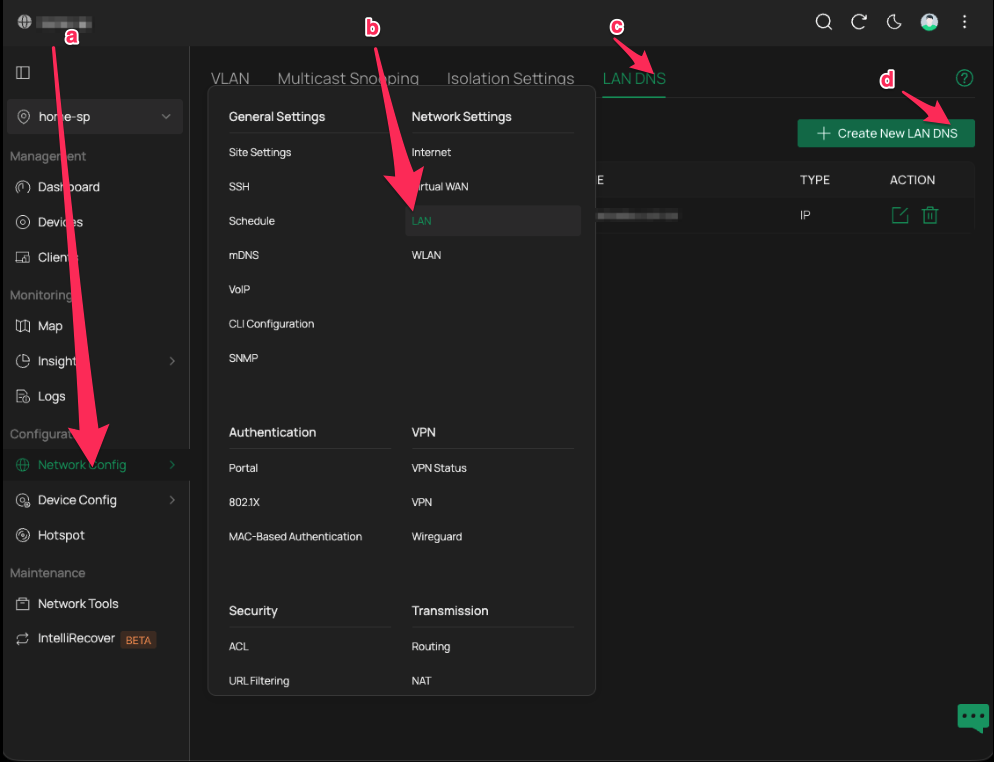
1) Navigate to LAN DNS
Open your Omada Controller and go to:
Network Config → LAN → LAN DNS → Create New LAN DNS
2) Create a LAN DNS profile for your internal service
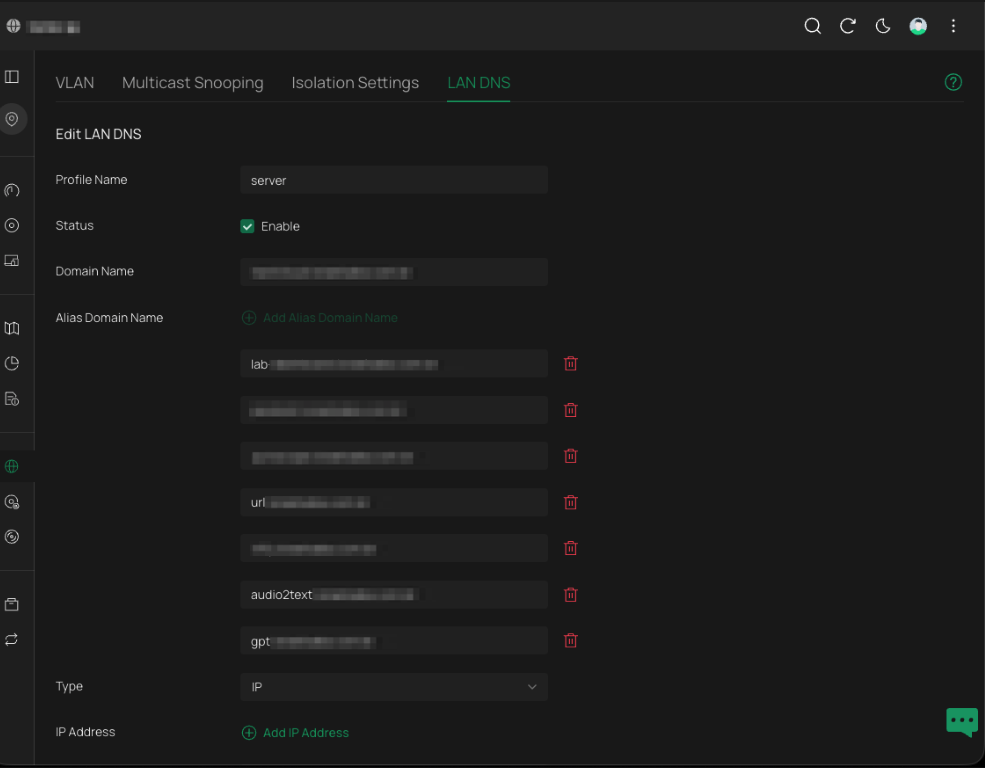
In the Edit LAN DNS screen, fill in:
- Profile Name: something descriptive (e.g.,
server,homelab,internal-services) - Status: Enable
- Domain Name: the public domain you want to override internally
- Alias Domain Name: add the internal records you want overridden
- Type:
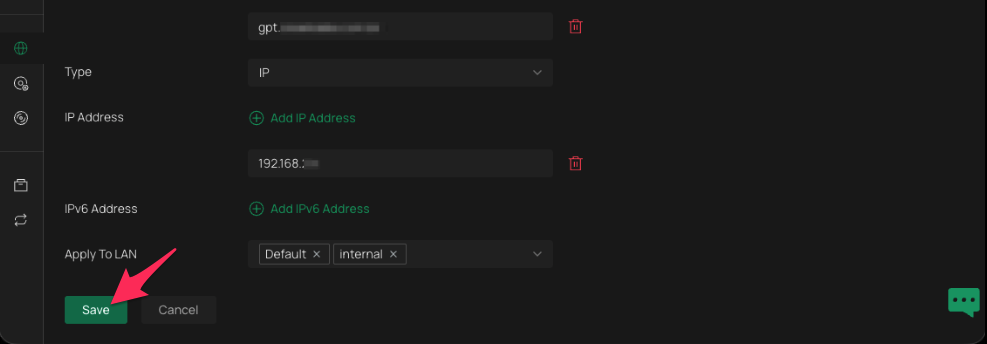
IP - IP Address: your internal server IP (e.g.,
192.168.8.10) - Apply To LAN: select the LAN(s)/VLAN(s) that should use this override (e.g.,
Default,internal)
Important limit / tip: each LAN DNS profile entry can carry up to 8 DNS (alias) entries.
If you need more than 8 hostnames, you can create an additional LAN DNS profile and point it to the same IP address (effectively: multiple “8-alias blocks” for the same server).
3) Save the profile
Click Save.
Validate it works (quick tests)
From a LAN client:
Test DNS resolution
- Windows:
nslookup domain
- macOS/Linux:
dig +short domain
You should see it resolve to your internal IP (e.g., 192.168.8.10), not your public IP.
Test the service
- Open in a browser:
domain - Confirm it loads the same service you expect, using the same URL as outside.
If it doesn’t work
- Flush DNS cache on the client:
- Windows:
ipconfig /flushdns - macOS:
sudo dscacheutil -flushcache; sudo killall -HUP mDNSResponder
- Windows:
- Confirm the client is using the correct DNS server (DHCP options).
- Confirm you applied the LAN DNS profile to the correct LAN/VLAN.
Practical patterns (how people typically set this up)
Pattern A — One reverse proxy for everything
If you run a reverse proxy at 192.168.8.10:
- Map many hostnames → same internal IP (proxy decides where to route)
- This is the most common use and fits Omada’s “8 aliases per entry” model well.
Pattern B — Multiple servers, multiple entries
If services live on different IPs:
- Create one LAN DNS profile per IP target, each with up to 8 aliases.
- Example:
192.168.8.10for proxy/web apps192.168.8.20for Home Assistant192.168.8.30for NAS
Pattern C — VLAN-specific behavior
Apply overrides only to certain VLANs:
- “Trusted” VLAN resolves domain internally
- “Guest” VLAN does not (or resolves to public, or not at all)
Notes & limitations
- This guide is not tested with VPNs. If your VPN clients rely on the same internal DNS override, verify:
- What DNS server VPN clients actually use
- Whether Omada LAN DNS applies to that VPN interface/subnet
- If you use DoH/DoT on clients (e.g., browsers using Cloudflare/Google secure DNS), they may bypass your local DNS overrides. Disable DoH for the test or enforce DNS policy.
- If your public DNS uses
CNAMEchains, your internal override should still work as long as clients ultimately query the overridden name (test withdig).
Why this is better than relying on NAT reflection
Many routers implement NAT loopback inconsistently (especially across VLANs, firewall rules, or with TLS/SNI-based reverse proxies). Split DNS avoids those pitfalls and keeps local traffic local.
Done
LAN DNS is fairly recent on this stack (5/2025), and finding this was quite beneficial for me as I could switch out of a custom local DNS service to reach my server where I host multiple services in the LAN. There's nothing compared to the agility it gets on the LAN
*technically not hairpin, but split DNS