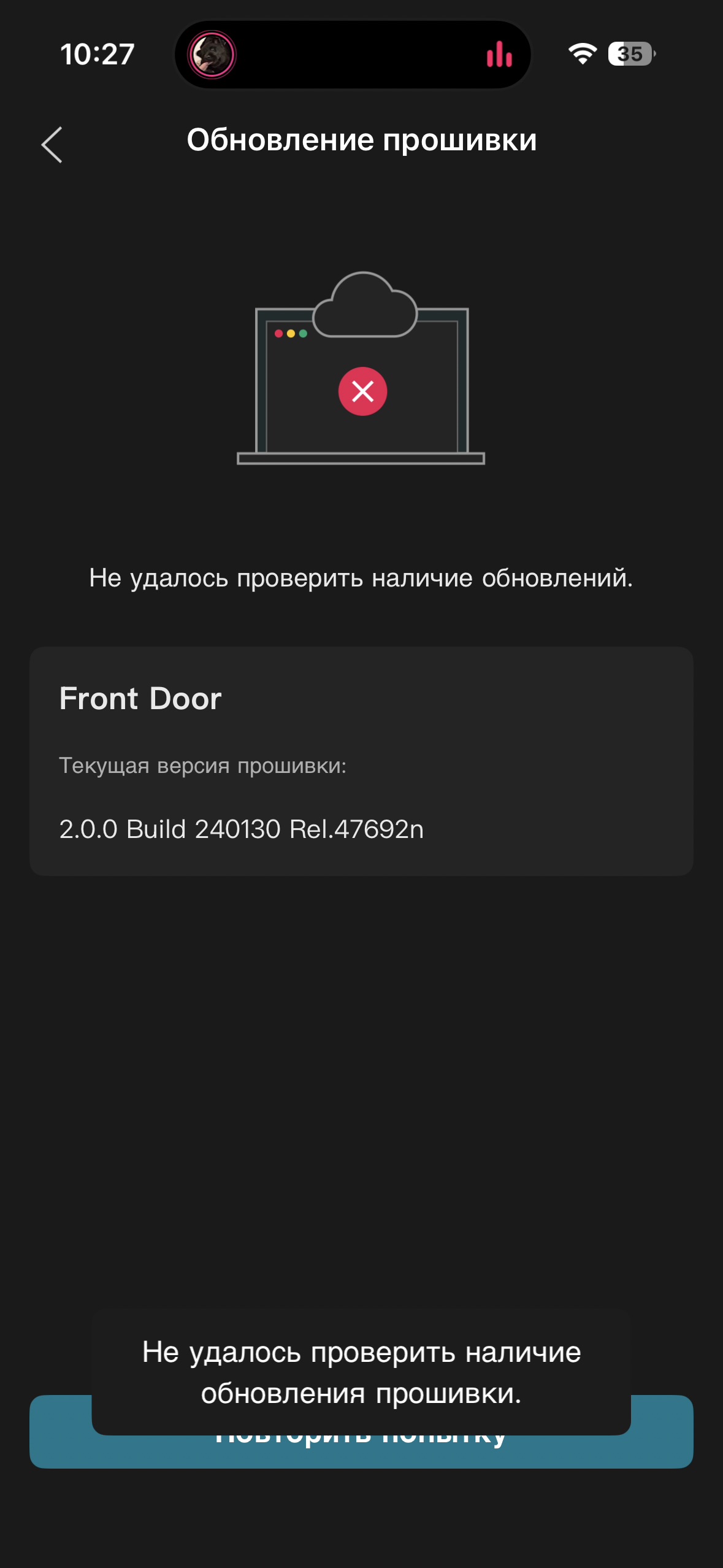
Stuck on Firmware 2.0.0 — "Failed to check for updates" error on PC and Mobile⁠

Stuck on Firmware 2.0.0 — "Failed to check for updates" error on PC and Mobile⁠

Stuck on Firmware 2.0.0 — "Failed to check for updates" error on PC and Mobile⁠
Yesterday
Model: VIGI C540-W  
Hardware Version: V2
Firmware Version: 2.0.0 Build 240130 Rel.47692n⁠

Hi everyone,

I'm having a persistent issue trying to update my camer. It's currently running on version 2.0.0 Build 240130 Rel.47692n, but whenever I check for a firmware update on both my mobile app and via PC, it immediately fails. 

The error message reads: "Failed to check for updates" 

Here is what I've tried so far to isolate it:
- Replicated the error on both an iOS device and a Windows PC web interface. Tried all apps from official website all same failed to check updates
- Manually changed my router’s connection settings to use Google DNS (8.8.8.8 / 8.8.4.4) to bypass any potential ISP restrictions.
- Performed a full power cycle on the camera unit.

Because it's happening simultaneously on entirely different devices, it feels like either a cloud handshake block or a regional server issue (I am located in Georgia/GE). 

Has anyone else dealt with this specific 2.0.0 build being blocked from the update server, or is there a known manual workaround for this? 

Any advice or moderator help would be highly appreciated. Thanks!

  1      
1
#1
Options
1 Reply
Re:Stuck on Firmware 2.0.0 — "Failed to check for updates" error on PC and Mobile⁠
Yesterday

Hi,  @Axiddd 

Thank you for posting on our business forum.

Please try the troubleshooting steps outlined below:

1.Please confirm that your camera has been properly connected to the cloud server. As the in-app check for updates function relies on cloud access, please verify that your camera maintains a normal connection to the cloud.
2.Disable the firewall or antivirus setting on the router if there is one.
3.Please test whether your camera supports remote access to the Live View interface: to complete this test, open the VIGI app on your mobile device, turn off Wi-Fi and enable cellular data to access the live feed.


Should you still encounter firmware update-related issues after completing the steps above, please try manually upgrading your camera's firmware. Please refer to the steps below for detailed guidance:(Method 3: Via the VIGI IPC's Web UI)How to upgrade the firmware of VIGI cameras | TP-Link


  0  
0
#2
Options