
Setup Wireguard server on ER605

Hello all,
i am trying to setup a travel router using a TP link BE3600 (TL-WR3602BE) that supports wireguard. i am really new in setting up WireGuard and not sure if am doing it correct on my ER605 gateway. was wondering if anyone can help with the setup?
Here is my set up on my ER605
WireGuard setup:
Name: WireGuard-Test
MTU: 1420
Listen Port: 51820
Private Key: ZZZZZZZZZZZZZZZ
Public Key: YYYYYYYYYYYYYYY
Local IP Address: 192.168.30.1
Status: Enable
Peer:
Interface: WireGuard-Test
Public Key: VVVVVVVVVVVVV
Endpoint: ISP Static IP address
Endpoint Port: 51820
Allowed Address: 192.168.30.0/24
Preshard Key: (Blank)
Persistent Keepalive: 25
Status: Enable
Also, i have issue with portforard to allow 51820. not sure how to set that up and where to point it. i have allow other portforard for my gaming servers but not sure to do for VPN server.
as for the wireguard on my travel router, i also need help linking the system together but i first need to make sure the wireguard works on my ER605 first.
- Copy Link
- Subscribe
- Bookmark
- Report Inappropriate Content


Hi, @Stitch177
Thank you for posting on our business forum.
Please find the complete step-by-step WireGuard configuration guide for your devices below:
- Configuration on ER605 side
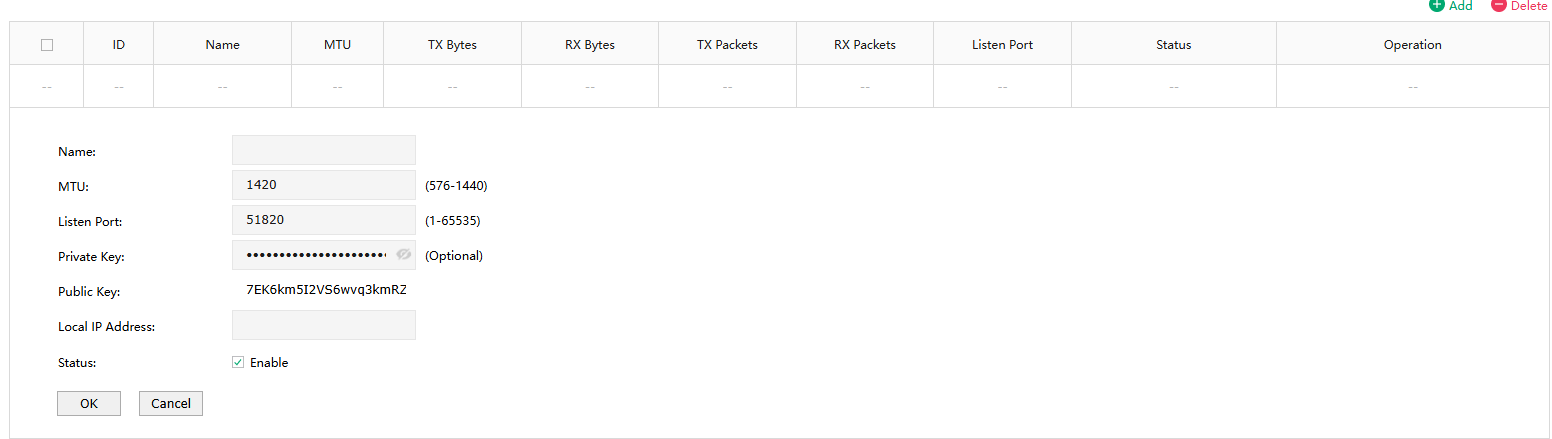
1.Go to VPN > WireGuard, then click Add on the right side to create and configure a new WireGuard interface. Specify a name for the interface. If you do not have special configuration requirements, you may leave MTU, Listen Port, Private Key and Public Key at their default settings. For the Local IP Address field, please enter the virtual IP for this WireGuard interface. (You may use any valid IP address here; we recommend choosing an address that is not already in use by any other device on your network.) After filling in all required fields, click OK and copy the generated public key for later use.
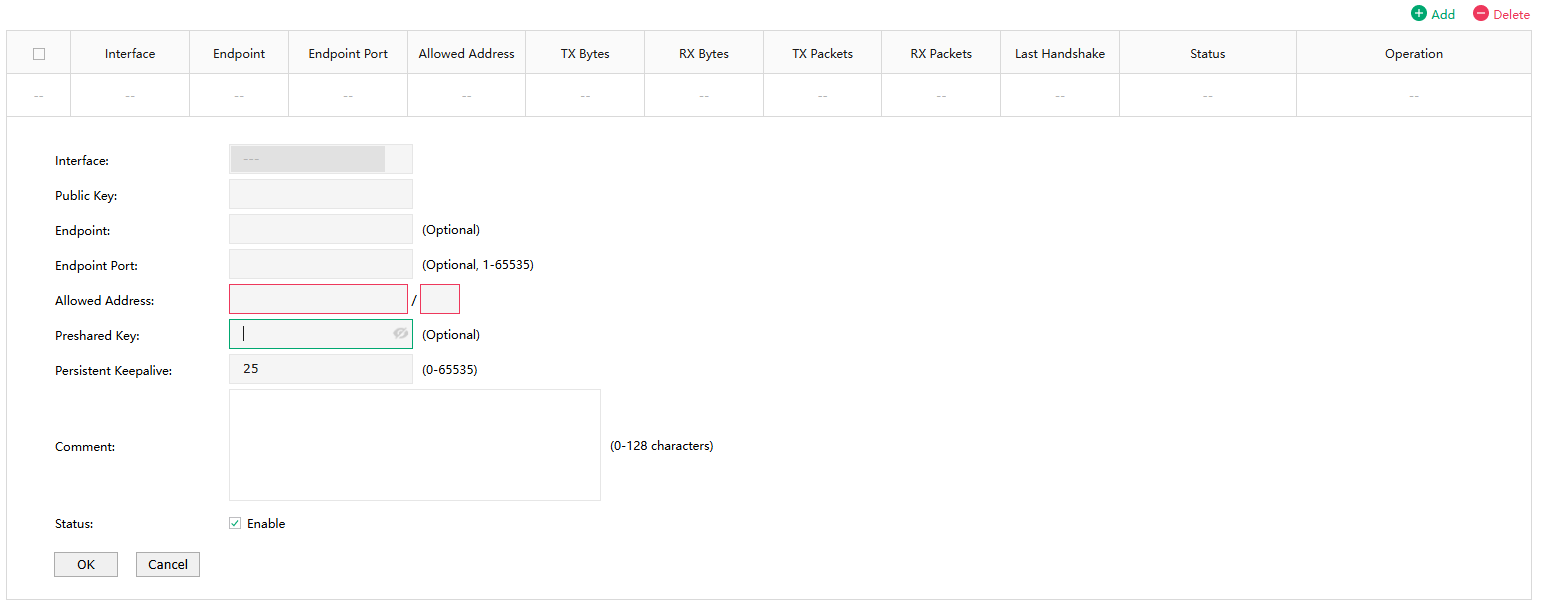
2.Next, configure the Peer entry on ER605: Go to VPN > WireGuard, navigate to the Peers section, then click Add to start configuration. For the Public Key field, please enter the public key generated from your TL-WR3602BE. For Allowed Addresses, please enter the LAN IP range of your TL-WR3602BE. For Endpoint, you may enter the WAN IP of your TL-WR3602BE. Click Save to confirm the configuration.
- Configuration on TL-WR3602BE side
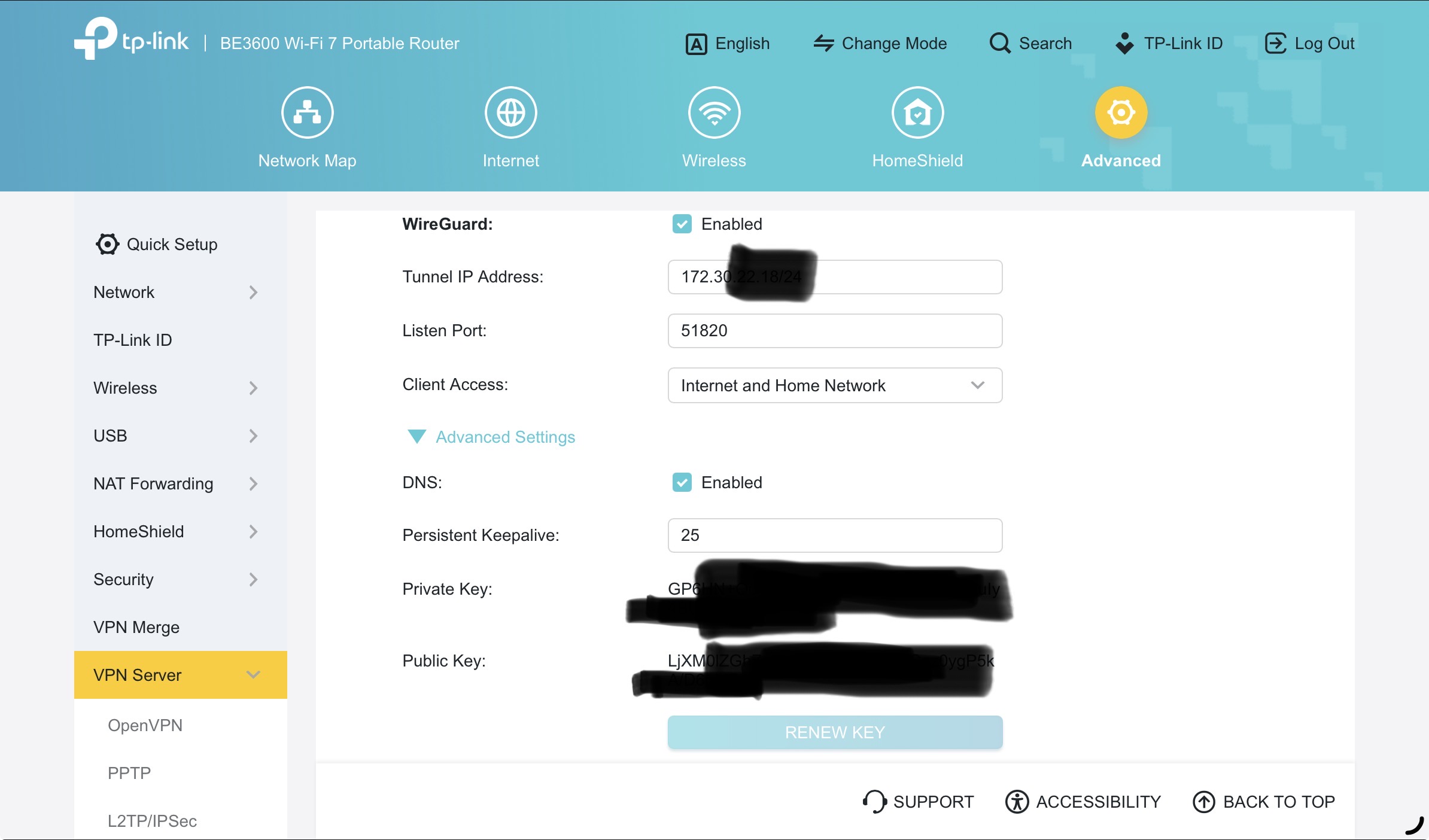
1.First, log into the local management interface of your TL-WR3602BE, navigate to Advanced > VPN Server > WireGuard VPN, locate the public key generated on this page, and enter this public key into the Peer configuration of your ER605 (as noted in step 2 of the ER605 configuration above).
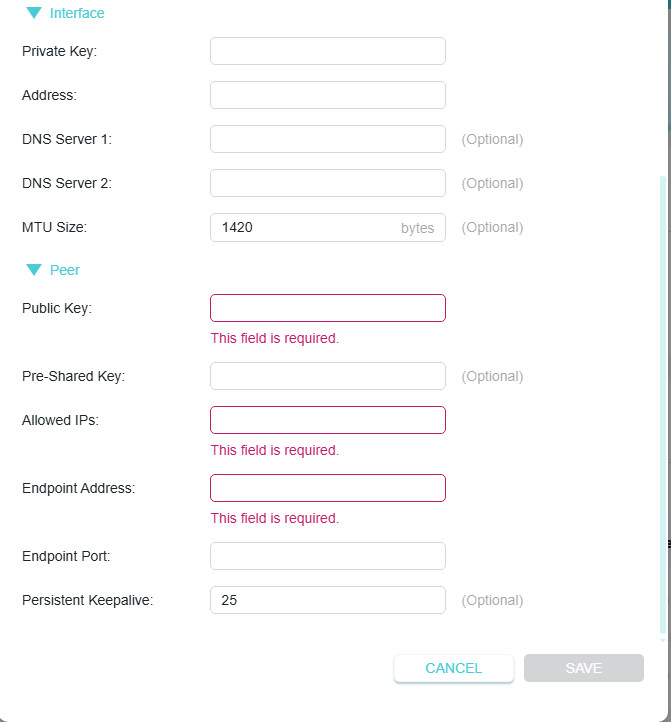
2.Next, navigate to VPN Merge > Server List, click Add, then select set manually to fill in the required connection parameters:
For the Private Key and Public Key fields: Please enter the corresponding keys generated from your ER605 side.
For the Address field: Please enter an IP address that does not conflict with your existing local LAN IP range.
For the Allowed IP Addresses field: Please enter the LAN IP range of your ER605.
For the Endpoint Address field: Please enter the WAN IP of your ER605.
For the Port field: You may use any available valid port here.
(For the TL-WR3602BE side, we suggest you‘d better contact our Archer support team to double confirm the configuration if the connection is failed.)
- Copy Link
- Report Inappropriate Content
- Copy Link
- Report Inappropriate Content
Hi, @Stitch177
Thank you for posting on our business forum.
Please find the complete step-by-step WireGuard configuration guide for your devices below:
- Configuration on ER605 side
1.Go to VPN > WireGuard, then click Add on the right side to create and configure a new WireGuard interface. Specify a name for the interface. If you do not have special configuration requirements, you may leave MTU, Listen Port, Private Key and Public Key at their default settings. For the Local IP Address field, please enter the virtual IP for this WireGuard interface. (You may use any valid IP address here; we recommend choosing an address that is not already in use by any other device on your network.) After filling in all required fields, click OK and copy the generated public key for later use.
2.Next, configure the Peer entry on ER605: Go to VPN > WireGuard, navigate to the Peers section, then click Add to start configuration. For the Public Key field, please enter the public key generated from your TL-WR3602BE. For Allowed Addresses, please enter the LAN IP range of your TL-WR3602BE. For Endpoint, you may enter the WAN IP of your TL-WR3602BE. Click Save to confirm the configuration.
- Configuration on TL-WR3602BE side
1.First, log into the local management interface of your TL-WR3602BE, navigate to Advanced > VPN Server > WireGuard VPN, locate the public key generated on this page, and enter this public key into the Peer configuration of your ER605 (as noted in step 2 of the ER605 configuration above).
2.Next, navigate to VPN Merge > Server List, click Add, then select set manually to fill in the required connection parameters:
For the Private Key and Public Key fields: Please enter the corresponding keys generated from your ER605 side.
For the Address field: Please enter an IP address that does not conflict with your existing local LAN IP range.
For the Allowed IP Addresses field: Please enter the LAN IP range of your ER605.
For the Endpoint Address field: Please enter the WAN IP of your ER605.
For the Port field: You may use any available valid port here.
(For the TL-WR3602BE side, we suggest you‘d better contact our Archer support team to double confirm the configuration if the connection is failed.)
- Copy Link
- Report Inappropriate Content
Hello @Jeremy_12
Thank you for the replay. i have tired to do your steps and end with issue that it does not connect, just show connecting. i am assuming since it still show connecting meaning it does not work.
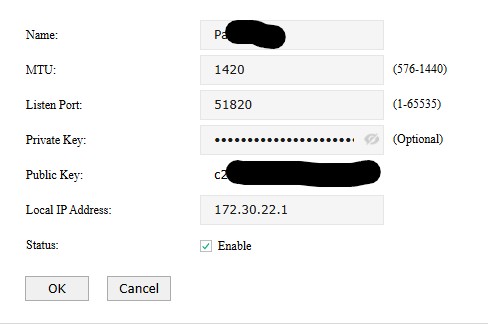
here is my setup for ER605:
WireGuard:
Peer:
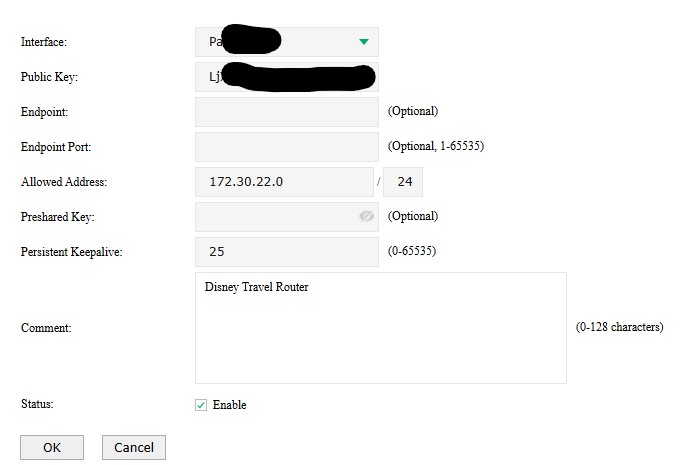
WR3602BE: i am not able to change any setting
- Copy Link
- Report Inappropriate Content
Hi, @Stitch177
Thank you very much for your reply.
As you mentioned in your previous response that you can successfully connect to the ER605 when using your computer as a VPN client, this confirms that the WireGuard VPN configuration on the ER605 is working correctly.
Should you still be unable to connect your Archer Router to the ER605, we would recommend contacting our Home Router Support team for further specialized assistance.
- Copy Link
- Report Inappropriate Content
Information
Helpful: 0
Views: 675
Replies: 4
Voters 0
No one has voted for it yet.