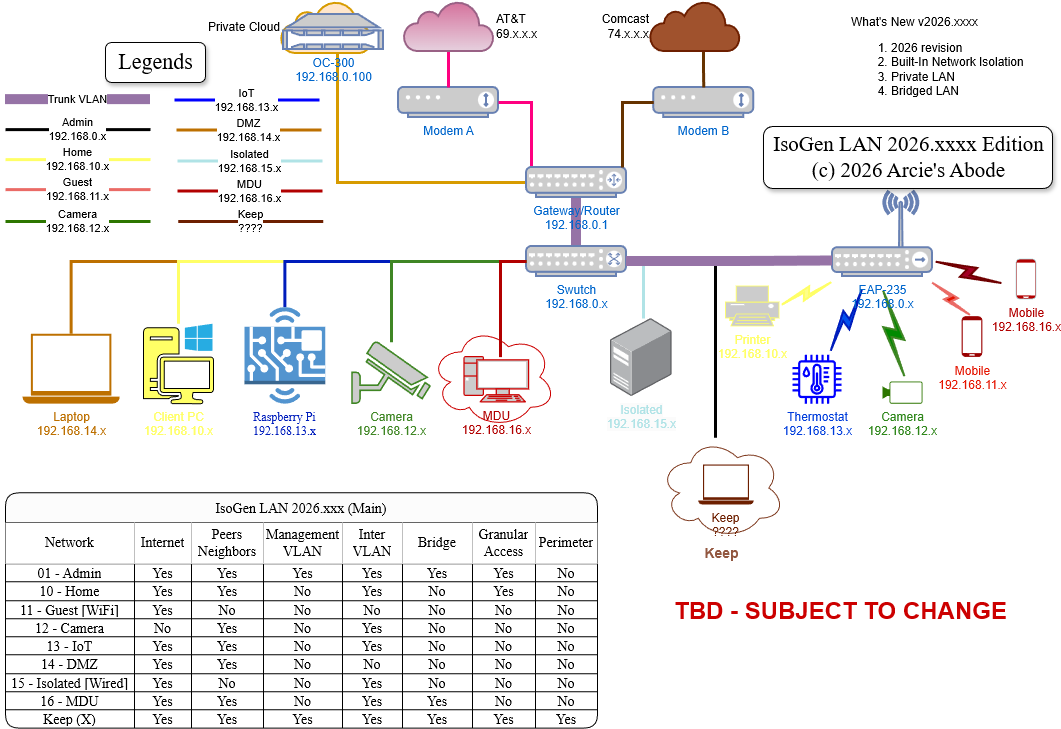
Sharing my Network Isolation Configuration (9-VLAN use cases)

Hello All,
It's been awhile since I last shared my design in this community. In the past, I have shared
- Using an Omada Switch as a Layer 3 Switch (intervlan routing), prior to this posting, the accepted and most known answer to question if Omada Switch can do routing has always been "no" (there was no guide, info, etc).
- I have shared a few other guides, such as how to use 802.1x without relying on 3rd party RADIUS; accessing Guest WiFi client which is supposed to be isolated and unreachable; as well as implementing One IP network across multiple VLANs [reddit] (traditionally, One VLAN = One IP network).
- Prior to Gateway Stateful ACL (one-way ACL), I have also shared a pseudo-one way ACL by combining Switch ACLs and Gateway ACLs, using Switch's IP port-based ACL. And even when the Gateway Stateful ACL was implemented, I also shared using Switch ACL as an alternative or work around. I shared it because many are not aware of how to do one-way ACL prior to Gateway Stateful ACL, and even discount Omada because the YT videos at the time were "misleading" and only showing denying a VLAN, but didn't clarify that without Granular ACL, the block is two-way/both-ways,
- And prior to the built-in "Network Isolation", I have tried to create something similar by sharing how to Implement Auto VLAN Blocking, which ensure that ALL VLANs (current and future) can't communicate with each other, including VLANs that haven't been added yet.
The last 2 bullets above are the "inspiration" for this new post, because prior to TP Link's network isolation feature, many "interesting" configuration requires a lot of ACLs. Network Isolation also makes "Port Isolation" more useful, I still feel it's lacking, but it is better now. TP Link also implemented granular Gateway ACL which reduce, if not completely remove, the reliance on Switch-based ACL which resulted in the ACL list shown below (edit note: added bold to stress wthat I consider, are very important new capabilities/features).
::NOTE::::
- For the VLANs below, the important part are the "Use Case"(s). I may call the VLANs "Home" but the use case can be applied to your "Lab". Or I may call the VLAN IoT, but it could be applicable to your IP cameras.
- To add a VLAN to "Isolated Network", go to Network Config> LAN > Isolation Settings > Click "+" under the "Interconnected Network" right column.
- To add a VLAN to "Interconnected Network", go to Network Config> LAN > Isolation Settings > Click "-" under the "Isolated Network" middle section.
- If you see any mistake or if I have mis understood anything, feel free to correct me and point me in the right direction. Any help is appreciated!
VLAN Use Cases (refer to attached image for Use-Case matrix)
- VLAN 1- Default / Admin / Management (192.168.0.x)- Full access except "KEEP VLAN". Tag as Isolated (see note 2 above).
- VLAN 10-Home(192.168.10.x) - Access to Internet, Granular Access to IoT VLAN 13 via ssh, access to DMZ VLAN 14. Denied to all other VLANs. Tag as Isolated (see note 2 above).
- VLAN 11-Guest (192.168.11.x)- Access to Internet only, no access to same-VLAN devices. Wireless ONLY. Denied to all other VLANs. Tag as Interconnected (see note 3 above).
- VLAN 12-Cameras (192.168.12.x)- Access to same-VLAN devices, and DMZ VLAN 14, no Internet. Denied to all other VLANs. Tag as Isolated (see note 2 above).
- VLAN 13-IoT (192.168.13.x)- Access to same-VLAN devices, and DMZ VLAN 14, with Internet. Denied to all other VLANs. Tag as Isolated (see note 2 above).
- VLAN 14-DMZ (192.168.14.x)- Access to Internet and to same-VLAN devices. Denied to all other VLANs. Tag as Interconnected (see note 3 above).
- VLAN 15-Isolated (192.168.15.x)- Access to Internet and DMZ VLAN 14, no access to same-VLAN devices in the same Switch. Wired ONLY. Denied to all other VLANs. Tag as Isolated (see note 2 above). Enable "Port Isolation" on a selected single switch.
- VLAN 16 + 17-MDU (192.168.16.x)- Access to Internet only, access to same-VLAN ID devices, and DMZ VLAN 14. Denied to all other VLANs. Tag as Isolated (see note 2 above).
- VLAN X - KEEP (Any unique Private IP) - Full Access to ALL VLANs. Attach any router/gateway with NAT support, and connect it's WAN port to any Management VLAN port. You can connect any client PC here.
- Guests WiFi, make sure the Guest Network check box for Wifi is checked
Device List:
- ER-605 v2.x
- OC-220 v6.x SDN
- SG-2210MP v1
- EAP-235 v1
::WARNING::::WARNING::::WARNING::::
- Back Up your SDN Configuration
- A slight mistake can result in full network lockdown!
::WARNING::::WARNING::::WARNING::::
Gateway ACLs:
- Direction: LAN to LAN
Policy: Permit
Protocols: All
Source > Network > Admin
Destination > IP Group > IP Group Any - Permit All to DMZ
Direction: LAN to LAN
Policy: Permit
Protocols: All
Source > IP Group > IP Group Any
Destination > Network > DMZ - Deny Camera to iNet
Direction: LAN to WAN
Policy: Deny
Protocols: All
Source > Network > Camera
Destination > IP Group > IP Group Any - Permit "Admin LAN to All"
Permit Home ssh to IoT
Direction: LAN to LAN
Policy: Permit
Protocols: TCP
Source > Network > Home
Destination > IP-Port Group > (Subnet 192.168.13.0 /24 Port 22)
If you prefer a video guide, I have also uploaded a full guide on my YT Channel.