
Enhance Your Tapo App Experience: Introduction to Several Practical Features
 Solla-topee

The Tapo app is essential for managing Tapo devices and offers a wide range of features. However, many users are familiar with only some common features and may overlook others that could enhance their experience. Mastering these features will help you manage your Tapo devices more effectively and improve your overall usage.
This article introduces these features to ensure a smoother, more enjoyable experience with your Tapo app.
Case 1. Quickly Select the Appropriate Display Page for Your Tapo Device
Features: Relocate, Favorite, and Unfavorite
The Tapo app offers convenient features like Home and Room to simplify controlling your devices based on their location. Below are instructions for using these features.
How to use the Home feature and Room feature in the Tapo App
Additionally, if you need to relocate a device or add/remove it from your Favorites page, the following instructions will guide you.
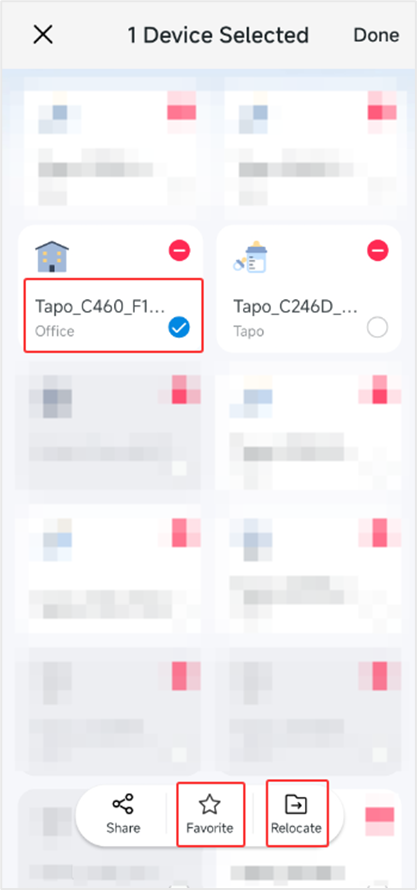
1. Accessing the Home Tab: Go to the Home tab in the Tapo app. Press and hold the device until the minus icon appears.
2. Relocating a Device: Select the device you wish to relocate. Tap the Relocate icon to move it to a different home or room.
3. Adding a Device to Favorites: Choose the device you want to add to your Favorites. Tap the Favorite icon, and it will appear on your Favorites page.
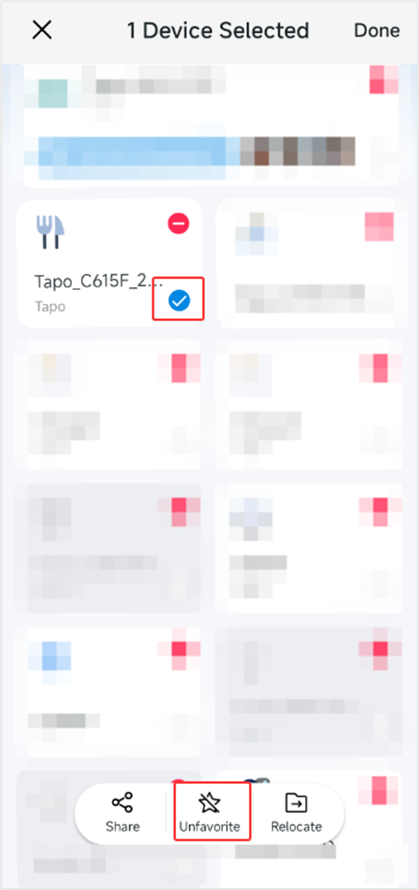
4. Removing a Device from Favorites: Go to the Favorites page and press the device until the minus icon appears. Select the device and tap the Unfavorite icon to remove it from your Favorites page.
Case 2. Smart Action Related Features
Here are the instructions for setting up the Smart Action feature in the Tapo app.
How to create Smart Action (Automation or Shortcut) on Tapo app
Feature 1: Quickly Access Shortcuts on the Home Page
If you frequently use specific shortcuts and want to display them at the top of the Tapo app’s Home tab for easy access, follow these steps:
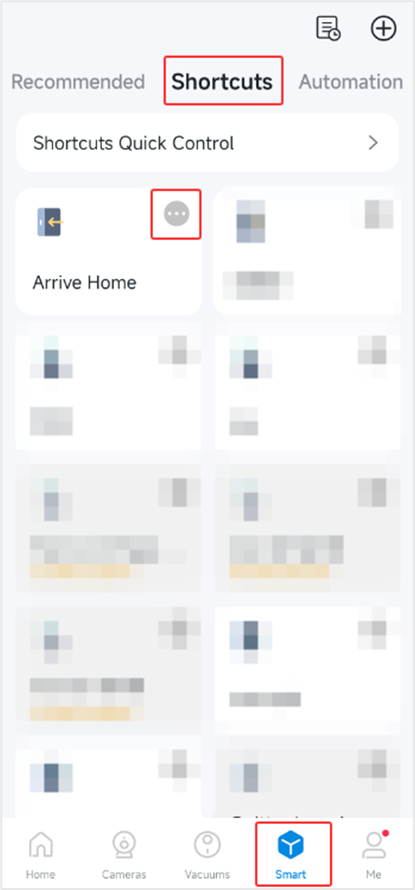
1. Go to the Smart tab > Shortcut page, tap the three-dots icon next to the desired shortcut entry.
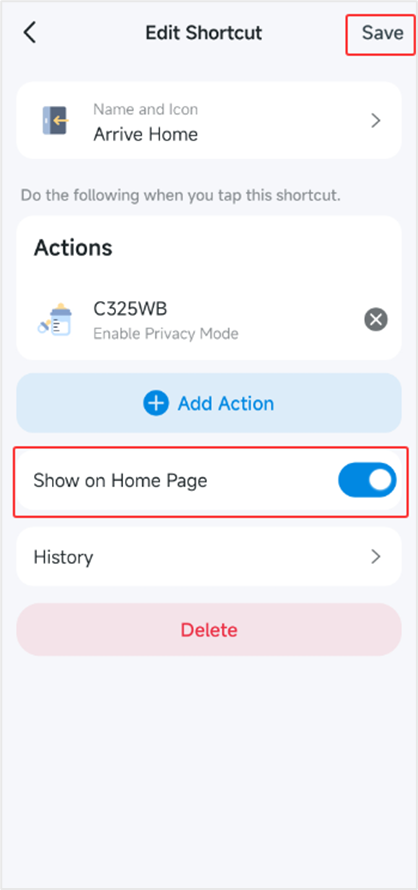
2. Enable the Show on Home Page option and click Save. The shortcut will now be visible on the Home page for quick execution.
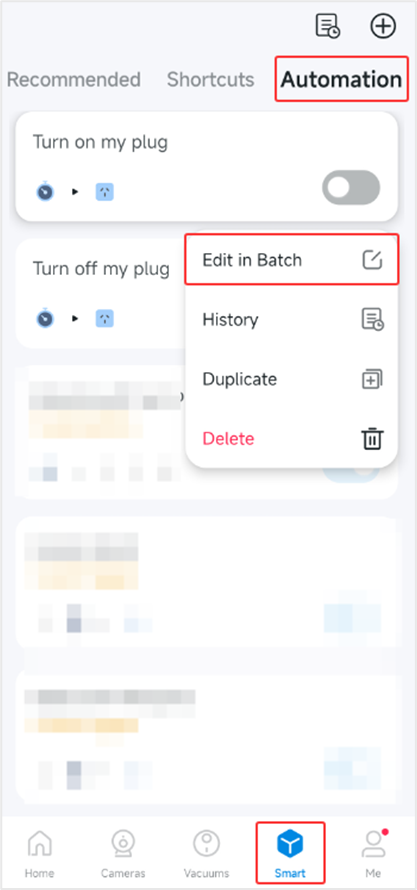
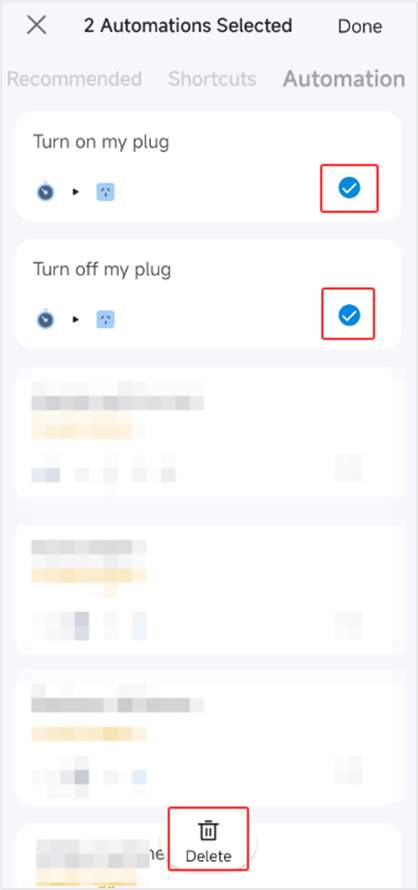
Feature 2: Batch Delete Shortcut/Automation Entries
If you have multiple shortcuts or automations that need to be deleted for various reasons (e.g., invalid triggers or actions), you can easily do this by following these steps (using the Automation page as an example):
1. Press and hold the entry you wish to delete and select Edit in Batch.
2. Choose the entries you want to remove and tap Delete to delete all selected entries at once.
Feature 3: Duplicate Shortcut/Automation Entries
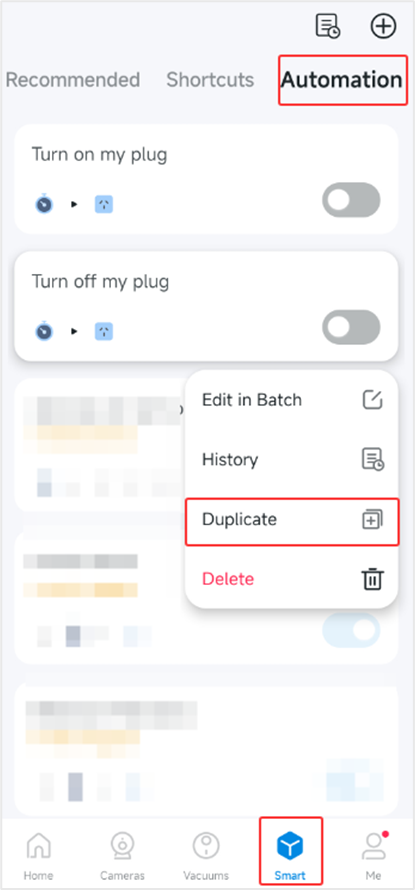
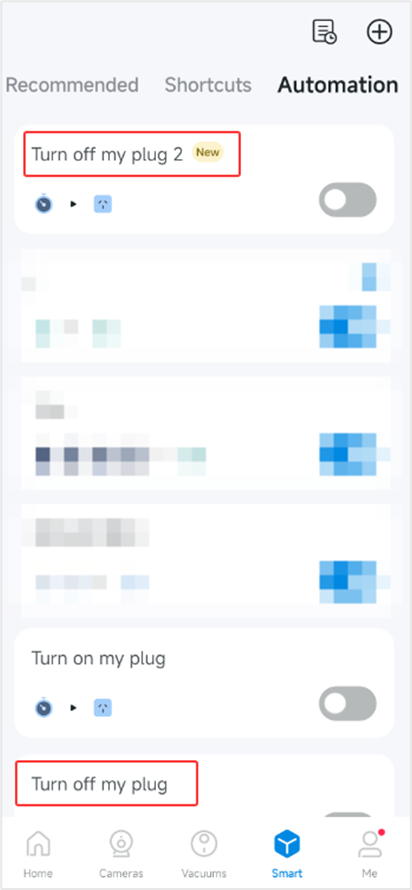
When you need to create similar triggers or actions, such as toggling a camera’s privacy mode at specific times, the Duplicate function allows for quick entry replication. Here’s how to use it (again using the Automation page as an example):
1. Press and hold the entry you want to duplicate and tap Duplicate.
2. The new entry will appear at the top of the Automation page. Tap it to edit the name, triggers, and actions as needed.
Case 3: Customizable Cameras Sorting & Views
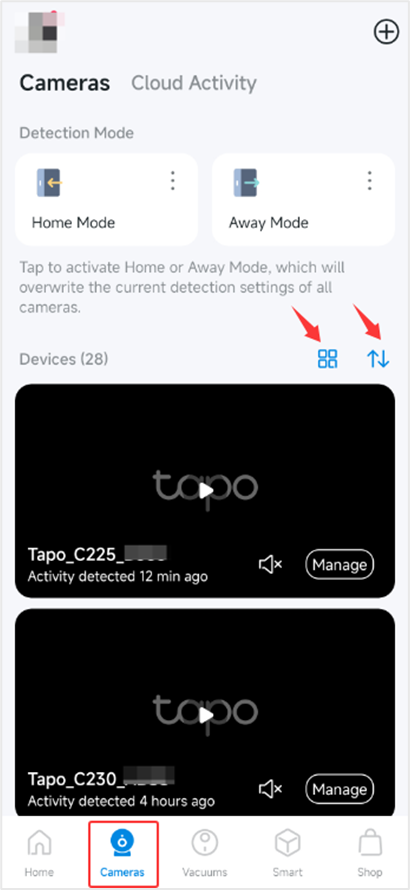
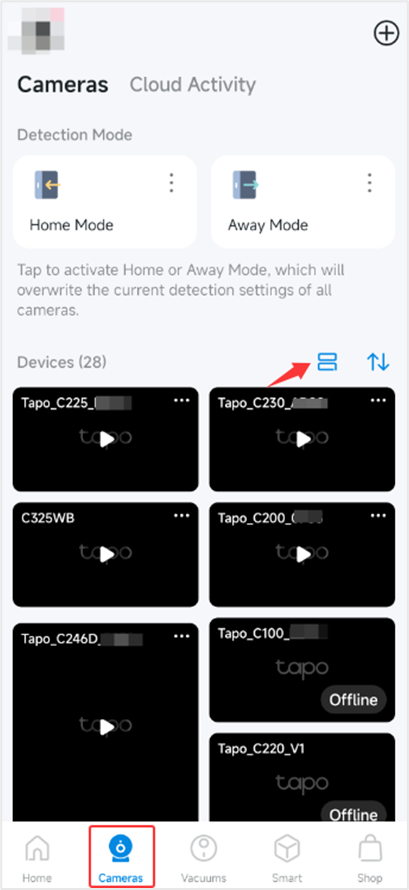
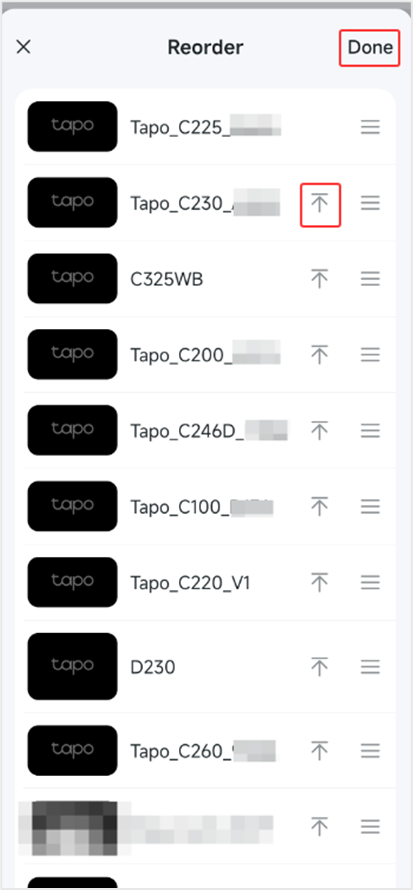
In the latest version of the Tapo app (v3.15.x and later), the Cameras tab introduces new Layout and Reordering features. This allows for easy switching between different viewing layouts and rearranging the order of your cameras, enhancing your user experience and making it more convenient to monitor your spaces.
Case 4: Adjusting the Tapo App's Appearance
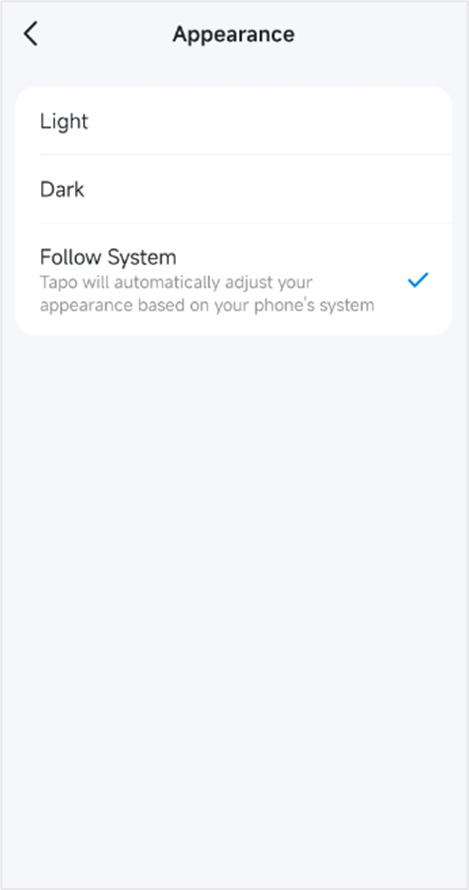
In the Tapo app, navigate to Me > Appearance, then select Light, Dark, or Follow System mode based on your preference. This allows you to customize the visual experience of the app based on your environment or personal taste.
We encourage users to explore and utilize these features to enhance their Tapo app use experience!