
I can not enter in my TPlink web page login
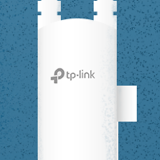
When I try to enter in the web login page of my router through my PC is loading and loading but never open the page and using different browser I only can see a blue page without letters
- Copy Link
- Subscribe
- Bookmark
- Report Inappropriate Content

1. Force HTTP instead of HTTPS
Modern browsers often try to force an https:// connection. Since the router uses a local self-signed certificate, the browser might block the UI scripts from loading.
- The Fix: Manually type
http://192.168.0.1(make sure it's HTTP, not HTTPS) in the address bar. - If you see a "Not Secure" warning, click Advanced and then Proceed to 192.168.0.1 (unsafe).
2. Clear Browser Cache or Use Incognito
Old data from a previous firmware version might be stuck in your browser.
- The Fix: Open an Incognito/Private window and try to log in again. This ignores all saved cookies and cache.
3. Disable Browser Extensions
Some Ad-blockers or "Dark Mode" extensions can break the router's JavaScript-heavy interface.
- The Fix: Temporarily disable all extensions or try a clean browser like Firefox or Edge if you usually use Chrome.
4. Access via the Tether App
If the web interface remains stuck, try the TP-Link Tether app on your phone.
- If the app works, the issue is strictly a browser/PC setting.
- If the app also fails, the router's management service might be hung, and a Hard Reboot (unplugging for 60 seconds) is required.
5. DNS/VPN Conflicts
Ensure that any VPN on your PC is turned off. A VPN will prevent your computer from seeing the local gateway address of the router.
- Copy Link
- Report Inappropriate Content
1. Force HTTP instead of HTTPS
Modern browsers often try to force an https:// connection. Since the router uses a local self-signed certificate, the browser might block the UI scripts from loading.
- The Fix: Manually type
http://192.168.0.1(make sure it's HTTP, not HTTPS) in the address bar. - If you see a "Not Secure" warning, click Advanced and then Proceed to 192.168.0.1 (unsafe).
2. Clear Browser Cache or Use Incognito
Old data from a previous firmware version might be stuck in your browser.
- The Fix: Open an Incognito/Private window and try to log in again. This ignores all saved cookies and cache.
3. Disable Browser Extensions
Some Ad-blockers or "Dark Mode" extensions can break the router's JavaScript-heavy interface.
- The Fix: Temporarily disable all extensions or try a clean browser like Firefox or Edge if you usually use Chrome.
4. Access via the Tether App
If the web interface remains stuck, try the TP-Link Tether app on your phone.
- If the app works, the issue is strictly a browser/PC setting.
- If the app also fails, the router's management service might be hung, and a Hard Reboot (unplugging for 60 seconds) is required.
5. DNS/VPN Conflicts
Ensure that any VPN on your PC is turned off. A VPN will prevent your computer from seeing the local gateway address of the router.
- Copy Link
- Report Inappropriate Content
Information
Helpful: 0
Views: 209
Replies: 1
Voters 0
No one has voted for it yet.