@FiftyCookie
Basicly to be able to use the WoL feature you should follow this guide.
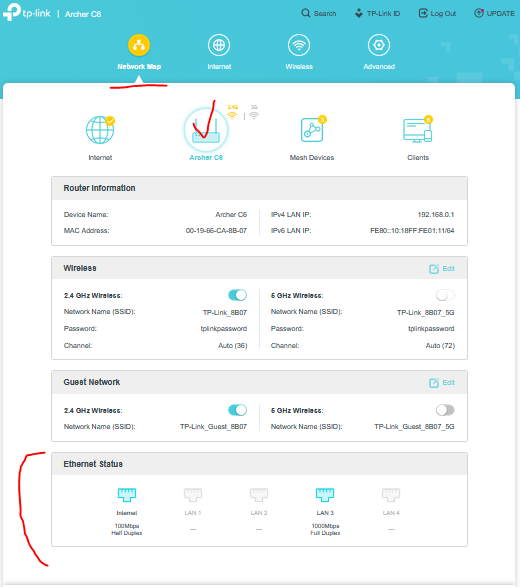
A TP-Link router port negotiating at 10 Mbps Half-Duplex while trying to use Wake-on-LAN (WoL) is often a symptom of the computer entering a low-power state (sleep/hibernation) where the network adapter drops to its lowest possible power setting to maintain a "link" without full speed capabilities.
Here is a breakdown of why this happens and how to fix it based on common TP-Link troubleshooting:
Causes
- Low-Power State Negotiation: When the PC shuts down, the network card lowers its power usage, often dropping from 1Gbps to 10Mbps to conserve energy while still listening for the "Magic Packet".
- Driver Settings: The network adapter driver may be configured to maximize power savings over connection speed, as detailed in this Reddit thread.
- Cable/Port Issues: Poor quality or damaged Cat5 cable can cause auto-negotiation to fall back to lower speeds, suggest discussions on the TP-Link Community forum.
Troubleshooting Steps
- Force Speed in Windows: Go to Device Manager > Network Adapters > [Your Adapter] > Advanced. Look for "Speed & Duplex" and set it to "100 Mbps Full Duplex" or "Auto Negotiation". Note: Forcing speed can sometimes disable WoL, so ensure "Wake on Magic Packet" is enabled in the Power Management tab.
- Update/Reinstall Driver: Ensure you have the latest Realtek or Intel network drivers.
- Use a Different Port: If your TP-Link router has multiple LAN ports, try a different one.
- Check Power Saving: Disable "Energy Efficient Ethernet" (EEE) or "Green Ethernet" in the network adapter advanced properties.
If the 10Mbps connection only happens when the computer is off, but WoL works, it is normal behavior for some, particularly 2.5G, adapters. If it happens when the computer is on, the issue is likely a bad cable or a faulty port