
Slow transfer speed USB Share
Slow transfer speed USB Share

Similarly to the thread https://community.tp-link.com/en/home/forum/topic/165054
Hi,
I have tried with both HDD and SATA SSD with USB 3.0. I have tested on my local machine, given the copy speed is 120 MB/s and 500 MB/s locally, if connected directly to my computer.
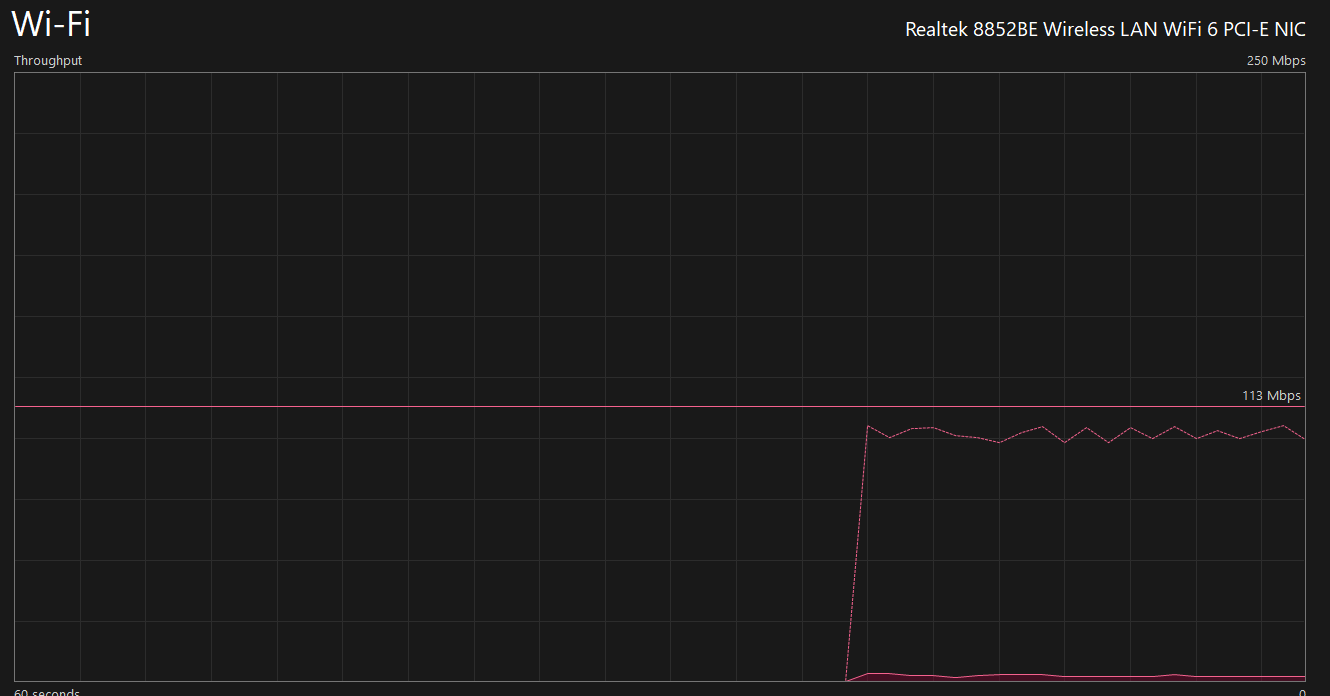
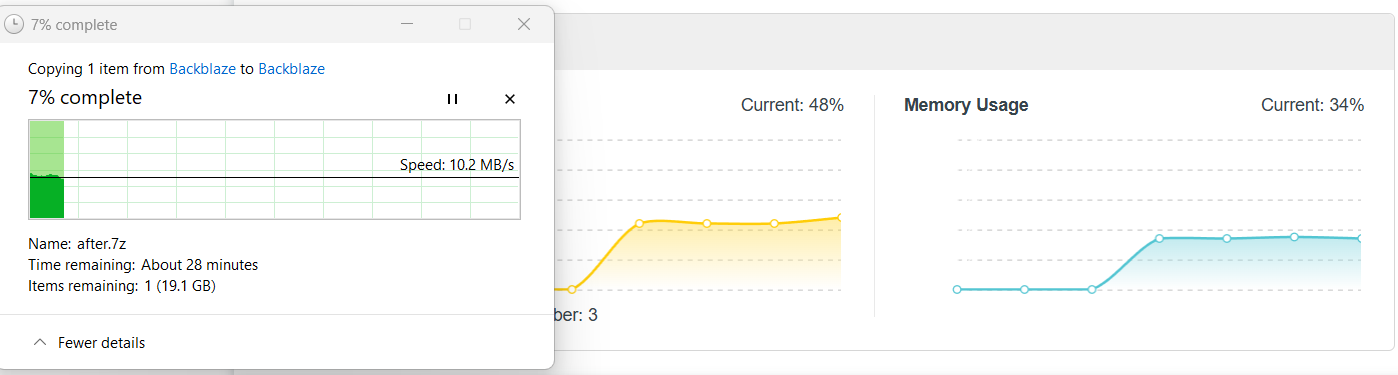
Unfortunately, the speed I get when using the USB Storage in TPLink is peaked at 10.2 MB/s with below utilization during copy despite the storage is HDD or SSD. I have tried both filesystem exFAT and NTFS, but the result is same. Issue exists when I connect with router both through WiFi (5G) and cable. As you could see, we are not throttle by any possible devices, suggesting the low optimized software of TPLink is the culprit.
Please advice on how could I troubleshoot and resolve the issue.
Best Regards,
Ichiru Pham
- Copy Link
- Subscribe
- Bookmark
- Report Inappropriate Content


Hi @Ichiru_Pham,
Thank you for contacting our community.
Is the local machine you mentioned a PC? What are the specific models of HDD and SATA SSD you tested?
Do these hard drives have independent power supplies? Because in the case of insufficient power supply, the transfer speed may also drop.
In addition, these suggestions may help you:
- Restart the router to release resources;
- Turn off unnecessary background tasks (such as QoS, traffic monitoring);
- Optimize the network environment
- Choose a channel with less interference for 5GHz to ensure stable signal strength
- Make sure that the routers, switches, network cables, and PC network cards in the network topology support Gigabit (1 Gbps) and use Cat5e or Cat6 network cables.
- Copy Link
- Report Inappropriate Content
Hello Joseph,
The local machine I am talking here are 2 laptops (Asus TUF A15 2023 and Dell Precision 5530 2018) and a PC with 14700K, they do not have any strong or PD cable attached. I have tested on all possible I/O ports (including directly from the motherboard and side panel). All laptops and PC as mentioned connected directly over the CAT 5e cables, and Wifi at both interference (2.4GHz and 5GHz). The HDD and SSD are not throttle py power supplies because they can easily achieve the advertised speed at any I/O ports. I have done over 300 tests to validate the issue.
All are conducted independently from both isolated and noisy environments to confirm the root cause from the TPLink software, rather than some improper setup like traffic throttle, or network congestion. Even the reason of background tasks and things, or too long uptime are not correct because the CPU and MEM are less than 40% and my router is rebooted weekly , and I only have have at most 6 connected devices (during the testing, either the laptop or PC are connected at one time to exclude any "noisy" network congestion).
As mentioned, there is another similar thread that met the issue, and he claimed the issue is not fixed yet.
Best Regards,
Ichiru Pham
- Copy Link
- Report Inappropriate Content
Hi@Ichiru_Pham,
Thank you for getting back to me with a detailed reply.
If the wireless signal is interfered with by the environment, the actual file transfer speed may be reduced to 10MB/s.
For a wired connection, please make sure that you are not testing in a Mesh network. Also, make sure that the PC being tested is directly connected to the Archer AX73 running USB sharing, without passing through a switch or relay device.
If the speed is not improved, please refer to the FAQs below to collect system logs and backup files of the router:
How to view and save System Log of TP-Link wireless router
How to create and restore from a backup file on your TP-Link Router
Then email the logs and backup files to support.forum@tp-link.com, attaching [Forum ID 829174] and details, and we will have a dedicated person to assist in analysis and follow-up.
- Copy Link
- Report Inappropriate Content
Hello Joseph,
From based on what I see, TP-Link are trying to shift the blame to improper setup. Here are the several reasons:
- For the hardware, with the advertised USB 3.0 port on the router, theoretically only the SATA SSD Adata get throttled by this bandwidth. But changing from HDD to SSD does not receive any performance boost, and the provided performance in the screenshot (from HDD connected to AX73 router on 5G interference directly connected to laptop and PC, no Mesh or Switch here) is below the HDD performance.
- For the connected device, the laptop and PC here are very modern, and I also try SMB Server between them, both direct mode or thorugh one router (again, no Mesh or Switch here, tested on both wired and wireless with 4 scenearios) does not throttle on HDD and only capped at peak SSD performance.
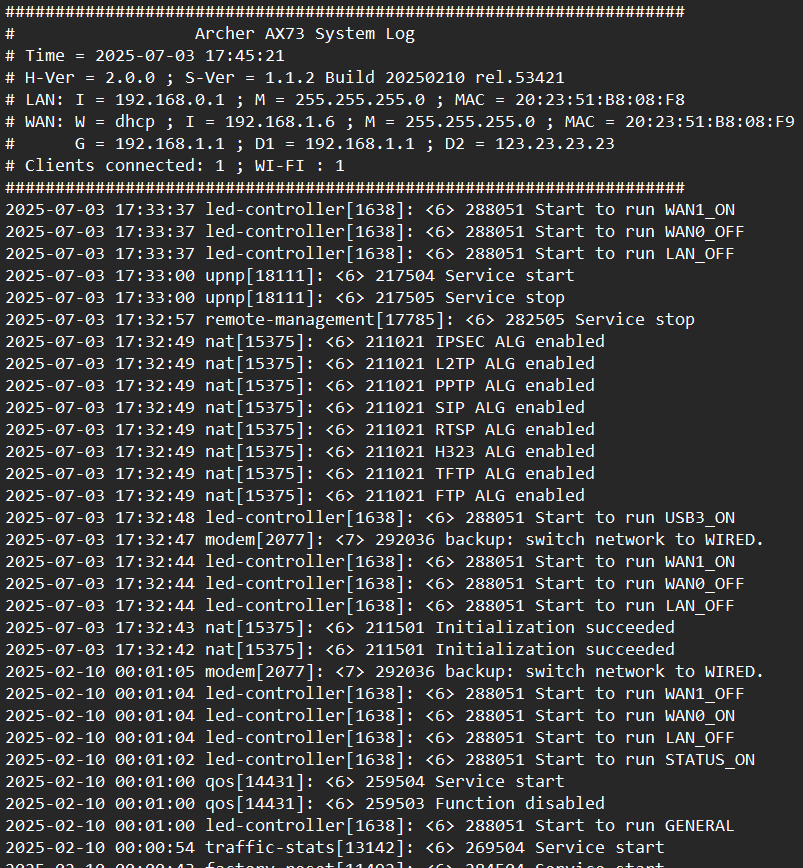
- For the System Log request, all I see from the export file is service ON and OFF. No report on any transfer, performance, or even the log on "USB Storage Device" . I have worked and made setup on network IT domain to acknowledge something wrong.
- For the network setup, I can download resources from Google Cloud to my home PC, which typically must pass from GCP datacenter, through the wire to my ISP, then traverse far away to my modem, and to my router, and to my PC, and I still getting 16 - 30+ MB/s. Even the same from downloading game from Steam account, gaining the speed of 20 - 30 MB/s minimum. My network interface card is having the minimum standard of AC, and the highest is AX/BE (my laptop is Realtek 8852BE network interface card), and across 3 devices in this thread, the download and upload speed is not throttle by any of my local devices.
Those are the reasons I believed the software in the TPLink USB server is not optimized, but TPLink try to avoid to respond. Another thread I push here get the same error and he still does not get the issue resolved.
Best Regards,
Ichiru
- Copy Link
- Report Inappropriate Content
- Copy Link
- Report Inappropriate Content
- Copy Link
- Report Inappropriate Content
Have you received the reply that I sent as below? Please help collect the following information, and we will consult relevant personnel to do a more in-depth analysis to locate your problem?
Joseph-TP wrote
Hi@Ichiru_Pham,
Thank you for getting back to me with a detailed reply.
If the wireless signal is interfered with by the environment, the actual file transfer speed may be reduced to 10MB/s.
For a wired connection, please make sure that you are not testing in a Mesh network. Also, make sure that the PC being tested is directly connected to the Archer AX73 running USB sharing, without passing through a switch or relay device.
If the speed is not improved, please refer to the FAQs below to collect system logs and backup files of the router:
How to view and save System Log of TP-Link wireless router
How to create and restore from a backup file on your TP-Link Router
Then email the logs and backup files to support.forum@tp-link.com, attaching [Forum ID 829174] and details, and we will have a dedicated person to assist in analysis and follow-up.
- Copy Link
- Report Inappropriate Content
Hello @Joseph-TP,
As you advice, I have already sending a support ticket to the desired email, but getting relative low and inactive response.
And the issue is not resolved. I have also conducted tests on over 5 diferent drives on it (NVME Gen4x4 Portable and USB Drive 3.2), confirming the hypothesis.
The last email sent is nearly three days, and I still get no response from them.
Best Regards,
Ichiru Pham
- Copy Link
- Report Inappropriate Content
Engineers sometimes need some time to analyze your case.
I noticed that you have resumed normal communication. Please keep in touch with the engineers and believe that the engineers will do their best to help you solve the problem.
Thank you for your understanding and support.
- Copy Link
- Report Inappropriate Content

@Joseph-TP
I'm having the exact same issue. I recently upgraded my AX1800 to an AX73 for the express purpose of obtaining the USB3 port and the increased transfer rates that come with it.
With the new router setup with the same SSD and USB 3.0 SATA adapter, my write speeds are lower than they were with the AX1800 and USB2.
Write rates are capping out ~5-7MB/s and read rates are capping out ~50MB/s
I thought there might be an issue or incompatibility with the SATA adapter, so I upgraded it to a USB3.1 SATA adapter and transfer speeds are identical.
CPU and Memory load during write procedures are reported ~28% CPU and ~35% RAM
As @Ichiru_Pham previously mentioned, this appears to be some sort of limitation within the router itself, since both wired and wireless transfer speeds across the network, whether internal or external, all disgustingly eclipse the transfer speeds to and from devices on the USB port. Has there been any sort of progress on this issue? Does engineering want my hardware? I'll happily send it in, since it's useless to me in it's current state. My AX1800 peformed better.
- Copy Link
- Report Inappropriate Content
Information
Helpful: 1
Views: 2569
Replies: 15
Voters 0
No one has voted for it yet.