AX18 slow upload speed
Hi,
I use my AX18 in Access Point mode and the upload speed is terrible. I switched to router mode, the same. Rest to factory defaults, the same. I checked and changed the internet-cable, no success. If I use another access point at the same spot, everything is fine. Here are the last results:
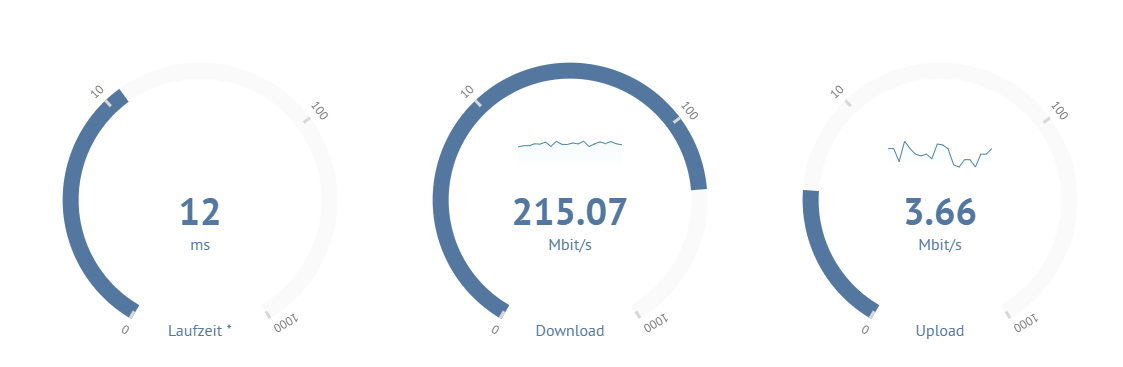
This is the result from a PC, which is directly attached to the internet cable:
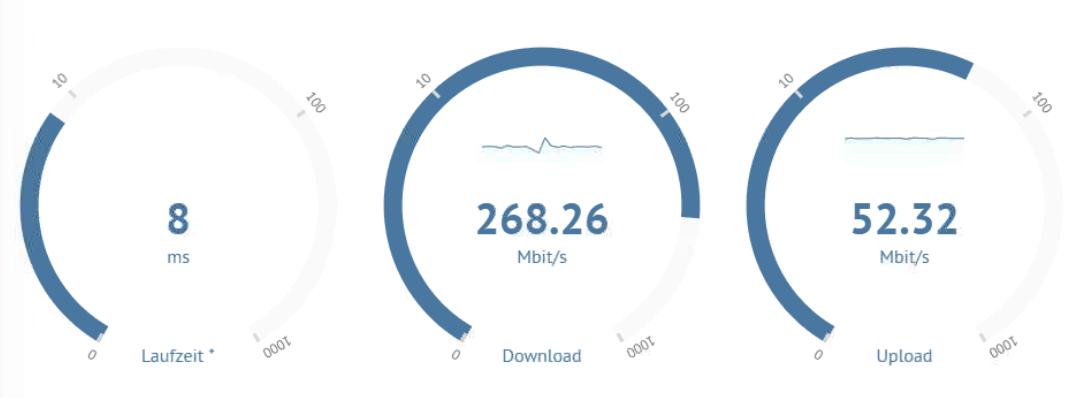
My ISP is our local distributor (GW Halstenbek, Germany), fiber optic connection, down 250, up 50, wlan tested with 2,4GHz and 5GHz
- Copy Link
- Subscribe
- Bookmark
- Report Inappropriate Content
Hello @Karsten52 ,
Welcome to our community.
For your case, please ensure that wireless and wired testing are performed using the same device (connect via a USB/Type-C to Ethernet adapter) to rule out issues with the device's network card.
Close all background applications (such as cloud sync and P2P downloads) to prevent them from occupying upload bandwidth.
- Test by frequency band: If the 5GHz upload speed is normal (close to 50Mbps), the problem is with the 2.4GHz band. If the 5GHz band also exhibits abnormalities, the issue lies with the 2.4GHz band.
- Scan the wireless environment: Use a mobile app (such as WiFi Analyzer) to check for 2.4GHz channel congestion. Avoid overlapping channels other than channels 1, 6, and 11, and choose a channel with minimal interference. For 5GHz, it's recommended to prioritize DFS channels (such as 36-64, 100-144) to avoid radar interference, but make sure your router supports this.
- Optimize the physical environment: Place the router in an open area, away from interference sources such as microwave ovens, Bluetooth devices, and wireless cameras.
Adjust the antenna angle to a vertical position (optimal coverage for 2.4GHz omnidirectional antennas).
- Copy Link
- Report Inappropriate Content
Hello @Karsten52 ,
Welcome to our community.
For your case, please ensure that wireless and wired testing are performed using the same device (connect via a USB/Type-C to Ethernet adapter) to rule out issues with the device's network card.
Close all background applications (such as cloud sync and P2P downloads) to prevent them from occupying upload bandwidth.
- Test by frequency band: If the 5GHz upload speed is normal (close to 50Mbps), the problem is with the 2.4GHz band. If the 5GHz band also exhibits abnormalities, the issue lies with the 2.4GHz band.
- Scan the wireless environment: Use a mobile app (such as WiFi Analyzer) to check for 2.4GHz channel congestion. Avoid overlapping channels other than channels 1, 6, and 11, and choose a channel with minimal interference. For 5GHz, it's recommended to prioritize DFS channels (such as 36-64, 100-144) to avoid radar interference, but make sure your router supports this.
- Optimize the physical environment: Place the router in an open area, away from interference sources such as microwave ovens, Bluetooth devices, and wireless cameras.
Adjust the antenna angle to a vertical position (optimal coverage for 2.4GHz omnidirectional antennas).
- Copy Link
- Report Inappropriate Content
Information
Helpful: 0
Views: 152
Replies: 1
Voters 0
No one has voted for it yet.