
2.4 Ghz slowness - not working

Hey!
I was reading a lot of forums, but there were only workarounds (turn off-turn on settings), which are not working for me.
A few months ago, my 2.4Ghz channel performance is super poor.
I can see the network, I can connect, but the connection speed is changing. The average is:
Download 11.5 Mbps; Upload: 20.7 Mbps.
Wired connection is perfect, 939/64Mbps
5Ghz is perfect: 585/60 Mbps
I am sitting next to the router in a village, there is close to 0 interference.
I have played with these settings:
wireless settings: I have changed everything, password, mode, channel width, channel, etc...
disabled smart connect,
disabled OneMesh,
installed older firmware,
factory reset the device.
Is this in the end a hardware issue, which cannot be fixed?
This error is so annoying, if this cannot be fixed, I will never ever but a TP-link again. Sorry.
Thanks for the feedback tho!
- Copy Link
- Subscribe
- Bookmark
- Report Inappropriate Content


Hello @FreshPrince ,
Thanks for getting back to me.
The 2.4GHz band is susceptible to interference from other Wi-Fi, Bluetooth, and microwave oven devices. Please place the router in an open area, away from metal objects, microwave ovens, and load-bearing walls.
Also, please try the following suggestions:
- Try placing it in the center of the house to avoid signal obstruction.
- Adjust the antenna angle to a vertical position (this provides wider horizontal signal coverage).
- Try connecting multiple devices (phone, tablet, laptop, etc.) to the Wi-Fi and observe if speed fluctuations occur on all devices.
- Also, compare the 2.4GHz speed of other routers in the same environment to see if they operate stably.
If these steps don't help, please contact local support for further help.
- Copy Link
- Report Inappropriate Content
Hello@FreshPrince ,
Welcome to our community.
Please open a web browser and log in to your router's management page at http://tplinkwifi.net using your admin password.
Go to Advanced > Wireless > Wireless Settings:
1.Set up different Wi-Fi names for each frequency band (2.4GHz, 5GHz, 6GHz):
2.Change Wi-Fi channel and channel width for a try:Changing Channel and Channel Width on a TP-Link Router (new logo). (You may change 2.4G channel width to 40MHZ, channels 1, 6 and 11 are generally best)
- Copy Link
- Report Inappropriate Content
Hello @Joseph-TP , thank you for your quick reply.
I have done the suggested changes (names were different already for the 2 channels), but it did not help.
I am still testing it, it is really strange. It starts at 1 Mbps, goes to 10 slowly, jumps to 100, back to 50.
Next speedtest: it starts with 1 Mbps, , then goes to 50.
Next one: it is stuck on 2Mbps the whole time.
Next one: starts at 2Mbps, then jumps to 70 and slowly decays.
Next one: stuck on 2 Mbps
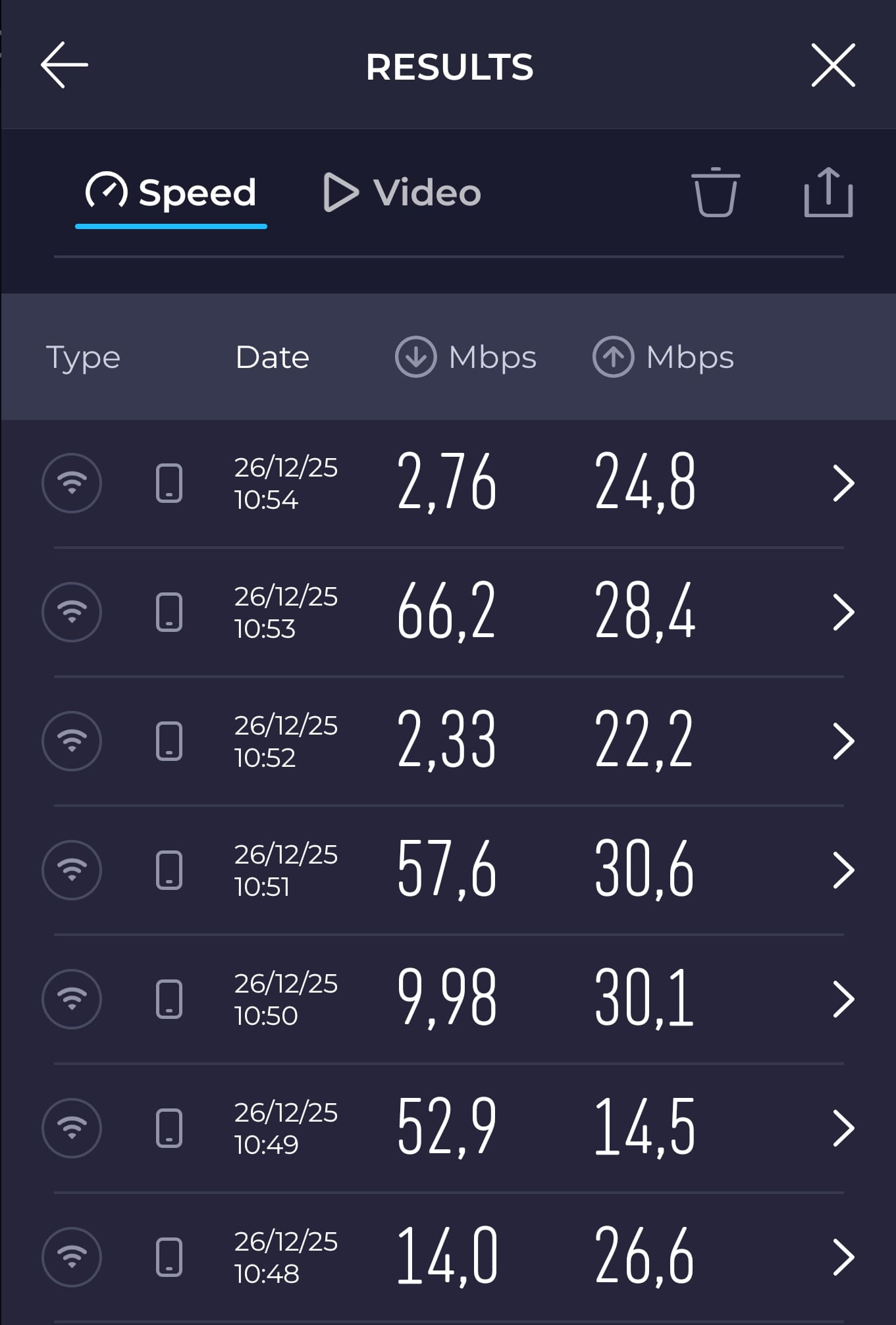
- Copy Link
- Report Inappropriate Content
Hello @FreshPrince ,
Thanks for getting back to me.
The 2.4GHz band is susceptible to interference from other Wi-Fi, Bluetooth, and microwave oven devices. Please place the router in an open area, away from metal objects, microwave ovens, and load-bearing walls.
Also, please try the following suggestions:
- Try placing it in the center of the house to avoid signal obstruction.
- Adjust the antenna angle to a vertical position (this provides wider horizontal signal coverage).
- Try connecting multiple devices (phone, tablet, laptop, etc.) to the Wi-Fi and observe if speed fluctuations occur on all devices.
- Also, compare the 2.4GHz speed of other routers in the same environment to see if they operate stably.
If these steps don't help, please contact local support for further help.
- Copy Link
- Report Inappropriate Content
Information
Helpful: 0
Views: 448
Replies: 3
Voters 0
No one has voted for it yet.