USB 3 Wi-Fi adapter always shows as USB 2 on Windows, tried everything
Hi everyone,
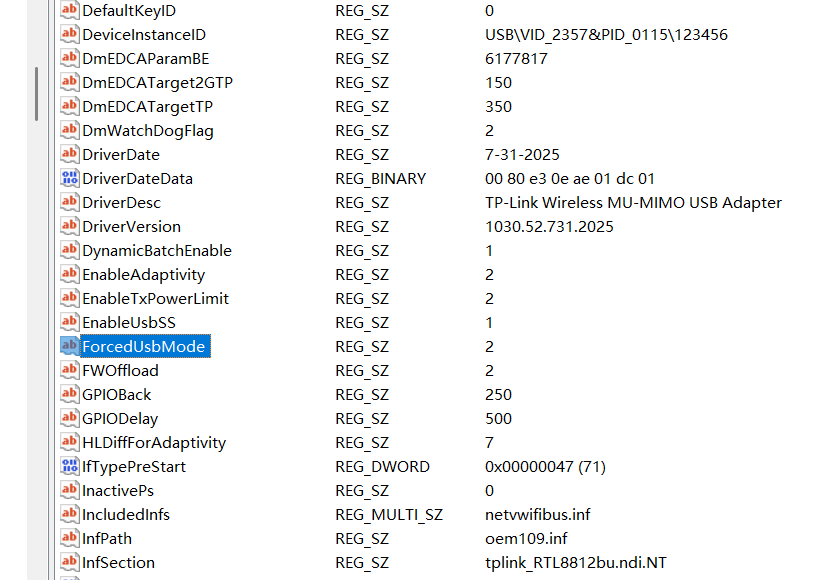
I’m trying to figure out why my TP-Link USB Wi-Fi adapter (Realtek chipset, USB 3 capable) always connects as USB 2.0 / High-Speed (480 Mbps) on Windows, even when plugged into USB 3 ports.
The adapter works fine, but it never switches to SuperSpeed, so I’m wondering if this is just a driver limitation or if I’m missing something obvious.
My setup
-
Windows (fully updated)
-
MSI H410M-A PRO motherboard
-
Using rear motherboard USB 3 ports only
-
Latest official TP-Link / Realtek driver
Things I already tried
-
Rear USB ports only (no front panel, no hubs, no monitor USB)
-
Disabled USB power saving / selective suspend in Windows
-
Disabled power saving for USB Root Hub in Device Manager
-
Forced 5 GHz Wi-Fi only (Preferred Band = 5 GHz, Wireless Mode = 802.11a/n/ac)
-
Unplugged / replugged after connecting to Wi-Fi
-
Uninstalled the driver completely, rebooted, reinstalled TP-Link driver
-
Checked BIOS:
-
USB 3 / XHCI handled automatically
-
Fast Boot disabled
-
Legacy USB enabled
-
-
Checked with USB inspection tools:
-
Device is SuperSpeed capable
-
But always connects at High-Speed
-
Result
No matter what I do, it always shows as USB 2.0 on Windows.
I've checked all of these topics solutions with no luck
https://community.tp-link.com/en/home/forum/topic/584856
https://community.tp-link.com/en/home/forum/topic/744350
https://community.tp-link.com/en/home/forum/topic/741150
https://community.tp-link.com/en/home/forum/topic/275074
https://community.tp-link.com/en/home/forum/topic/257168
Question
Is this expected behavior on Windows with Realtek drivers?
Is USB 3 mode disabled for stability reasons, or is there any newer/beta driver or known workaround?
If anyone with the same adapter managed to get USB 3 working on Windows, I’d love to know how.
Thanks!