
Wifi connected but no internet only with one device

Hello support, please your help with this issue.
I am having trouble connecting to the Wi-Fi network. It looks to be connected normally to the Wifi, but there is
no internet connection. The strange thing is that this only happens with one laptop. Another laptop and several
cell phones are able to connect to the TP-Link router´s internet signal without any problems.
I don't know if it's a compatibility issue between the laptop's Wi-Fi network adapter hardware and the router,
because the same laptop connects to the internet on other Wi-Fi networks.
The connection is:
ISP provider cable modem --> TP Link router (with Ethernet cable) --> Laptop
The laptop connects to the internet via the cable modem's Wi-Fi signal, but it does not connect to the internet via the TP Link router's Wi-Fi.
The same laptop connects to the internet via the mobile hotspot Wi-Fi of several mobile phones. The problem is only with the TP Link router.
I tried changing the wireless security type from WPA2-PSK with AES encryption to WPA-PSK with automatic encryption, but it didn't work.
I´ve tried to update firmware but it seems is the latest what is installed.
What else can I do to solve or identify the problem? Is there any kind of trace or what do you recommend?
Thank you in advance.
- Copy Link
- Subscribe
- Bookmark
- Report Inappropriate Content

You can narrow down the issue to your laptop wireless adapter if you connect your laptop by an ethernet cable to the TP-Link router and see if there's an Internet connection.
If that's the case, forget (in Windows network settings) the TP-Link router wireless SSID and re-connect it again so you can refresh your wireless settings.
- Copy Link
- Report Inappropriate Content
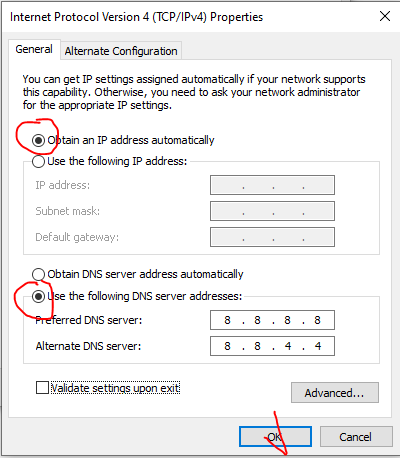
Well, we tried. By the way, you have an option to set only the DNSs and leave the IP address to be received by the router DHCP server like this:
- Copy Link
- Report Inappropriate Content
You can narrow down the issue to your laptop wireless adapter if you connect your laptop by an ethernet cable to the TP-Link router and see if there's an Internet connection.
If that's the case, forget (in Windows network settings) the TP-Link router wireless SSID and re-connect it again so you can refresh your wireless settings.
- Copy Link
- Report Inappropriate Content
I did exactly how you said and it works with ethernet cable, then forget SSID and when connect again the internet works.
Do you know why this kind of things happen with wifi connection?
Thanks so much.
- Copy Link
- Report Inappropriate Content
Yes, I know, that's why I pointed you to these steps. That's what happened to me a while ago and that was the solution.
- Copy Link
- Report Inappropriate Content
Hu, Today I turned on the laptop and the cannot connect to wifi again. I did "forget" to the SSID, connect again entering the password and doesnt work. No internet connection.
I don’t know what else to do to fix this.
Thanks for any advice.
Regards
- Copy Link
- Report Inappropriate Content
- Copy Link
- Report Inappropriate Content
Yes, the dell laptop has latest driver for wirwless adapter. My initial troubleshooting was update tp link firmware but the latest version available in that link you shared is from 2018. Then, I was unable to update it, not sure if I can use a recent version of 3rd partyor open source firmware.
- Copy Link
- Report Inappropriate Content
By openning the link I sent you should see the following release from 2026 (click on that): TL-WR841N(EU)_V14_260303 to download the latest FW release for WR841N v14.
- Copy Link
- Report Inappropriate Content
Hello, thanks but the firmware upgrade failed and I got thie error:
Error Code: 4503
The uploaded file was not accepted by the device.
I think is because the version you shared belongs to another region. My region is Central América.
Maybe you can help me saying if there is a way to upgrade to a more recent firmware for my device model and region.
When I search in my region I get this link below and the latest version is from 2018.
https://www.tp-link.com/cac/support/download/tl-wr841n/#Firmware
I see these suggestions within website.
IMPORTANT: Model and hardware version availability varies by region. Please check your regional TP-Link website for product availability.
-
To Upgrade
IMPORTANT: To prevent upgrade failures, please read the following before proceeding with the upgrade process
- Please upgrade firmware from the local TP-Link official website of the purchase location for your TP-Link device, otherwise it will be against the warranty. Please click here to change site if necessary.
Thanks
- Copy Link
- Report Inappropriate Content
- Copy Link
- Report Inappropriate Content
Thank you, but I got again the same error with your last firmware version.
Error Code: 4503
The uploaded file was not accepted by the device.
The language in the router is in spanish and region should be Central America, not USA in my understanding, but when I go
to my region in TP-link website, the latest firmware version is from 2018.
Regards
- Copy Link
- Report Inappropriate Content
Information
Helpful: 0
Views: 1612
Replies: 27
Voters 0
No one has voted for it yet.