
Wifi connected but no internet only with one device

Hello support, please your help with this issue.
I am having trouble connecting to the Wi-Fi network. It looks to be connected normally to the Wifi, but there is
no internet connection. The strange thing is that this only happens with one laptop. Another laptop and several
cell phones are able to connect to the TP-Link router´s internet signal without any problems.
I don't know if it's a compatibility issue between the laptop's Wi-Fi network adapter hardware and the router,
because the same laptop connects to the internet on other Wi-Fi networks.
The connection is:
ISP provider cable modem --> TP Link router (with Ethernet cable) --> Laptop
The laptop connects to the internet via the cable modem's Wi-Fi signal, but it does not connect to the internet via the TP Link router's Wi-Fi.
The same laptop connects to the internet via the mobile hotspot Wi-Fi of several mobile phones. The problem is only with the TP Link router.
I tried changing the wireless security type from WPA2-PSK with AES encryption to WPA-PSK with automatic encryption, but it didn't work.
I´ve tried to update firmware but it seems is the latest what is installed.
What else can I do to solve or identify the problem? Is there any kind of trace or what do you recommend?
Thank you in advance.
- Copy Link
- Subscribe
- Bookmark
- Report Inappropriate Content

You have Internet connection through your WR840N actually. But you have a DNS issue for some reason with the WR840N or your laptop.
The ping command results are clearly showing this issue - your laptop can't resolve a domain name to its IP address.:
1.When pinging google.com - " Ping request could not find host google.com "
2.When pinging 8.8.8.8 you have received a reply from google DNS server.
Now while you're connected to WR840N in CMD issue the ipconfig/all command and post the result for the wireless adapter Intel(R) Wi-Fi 6E AX211.
- Copy Link
- Report Inappropriate Content
This is the print connected to Tp-Link after changes in DHCP config..
Wireless LAN adapter Wi-Fi:
Connection-specific DNS Suffix . :
Description . . . . . . . . . . . : Intel(R) Wi-Fi 6E AX211 160MHz
Physical Address. . . . . . . . . : A0-59-50-23-58-9D
DHCP Enabled. . . . . . . . . . . : Yes
Autoconfiguration Enabled . . . . : Yes
Link-local IPv6 Address . . . . . : fe80::1f29:3b0e:4f26:cd5%22(Preferred)
IPv4 Address. . . . . . . . . . . : 192.168.1.100(Preferred)
Subnet Mask . . . . . . . . . . . : 255.255.255.0
Lease Obtained. . . . . . . . . . : Thursday, March 12, 2026 1:41:46 PM
Lease Expires . . . . . . . . . . : Thursday, March 12, 2026 3:41:47 PM
Default Gateway . . . . . . . . . : 192.168.1.1
DHCP Server . . . . . . . . . . . : 192.168.1.1
DHCPv6 IAID . . . . . . . . . . . : 111171920
DHCPv6 Client DUID. . . . . . . . : 00-01-00-01-2E-61-55-F5-CC-96-E5-5A-8A-09
DNS Servers . . . . . . . . . . . : 10.220.31.37
10.220.221.59
10.182.107.62
NetBIOS over Tcpip. . . . . . . . : Enabled
- Copy Link
- Report Inappropriate Content
Did you restart the WR840N after the DHCP settings change ?
If you didn't then your laptop DNSs should look like:
DNS Servers . . . . . . . . . . . : 10.220.31.37
10.220.221.59
10.182.107.62
If you did they should look like:
DNS Servers . . . . . . . . . . . : 8.8.8.8
8.8.4.4
Which means either WR840N doesn't pass the DHCP settings you just changed or your laptop wireless adapter is set with a static IP address.
But from the same output I can see: DHCP Enabled. . . . . . . . . . . : Yes
So your laptop shouldn't have a static IP address settings, it should receive its IP address by DHCP (will you check that to confirm).
Which leads to an issue with the laptop itself.
Apart from that these three DNS servers are received from your cable modem, but they can't resolve google.com domain which is strange - that's why you can't open any page in your browser.
Another approach would be to set your laptop wireless adapter with a static IP adress like so:
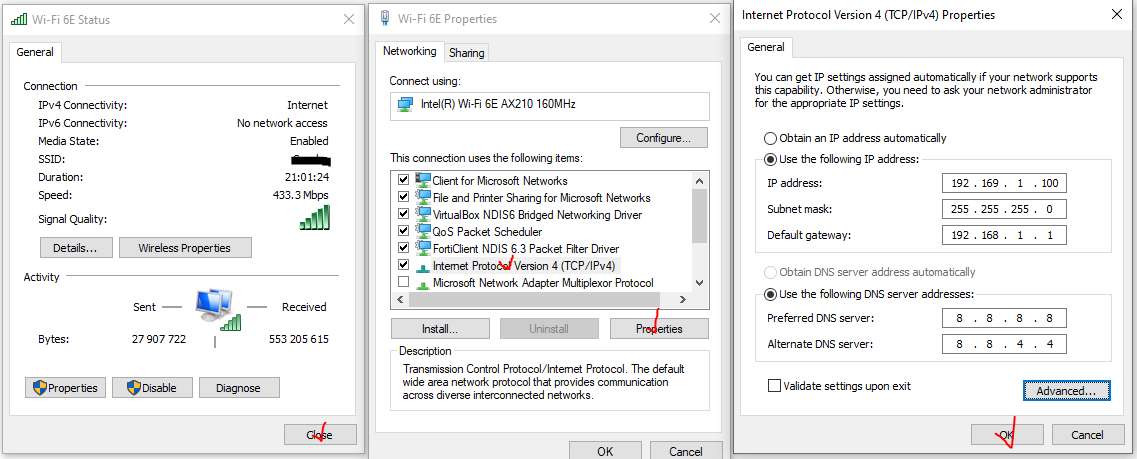
Then test if you have an Internet connection.
- Copy Link
- Report Inappropriate Content
Yes. I unplugged the router and I made a reboot from interface too.
I tried with other laptop for which internet works and tthe DNS looks like you said
DNS Servers . . . . . . . . . . . : 8.8.8.8
8.8.4.4
But in the problematic laptop still looks like this
DNS Servers . . . . . . . . . . . : 10.220.31.37
10.220.221.59
10.182.107.62
I'll try to request help to set a static IP like you says since I don´t have admin privileges to edit wireless adapter settings,
but what I see so far is that the Automatic is set in DHCP settings of thie WiFi adapter.
Thanks so much again for your awesome support.
Regards
- Copy Link
- Report Inappropriate Content
If you obtain an administrative privileges, issue the following commands in CMD:
ipconfig /flushdns (this command doesn't need administrative privileges)
ipconfig /registerdns (this command needs administrative privileges)
and check if the DNSs are correct, before setting up a static IP address.
If they are OK then skip setting the static IP address on your wireless adapter.
- Copy Link
- Report Inappropriate Content
Hi again,
My job's support helped me to send the commands in CMD you said (flush the DNS, registerDNS, etc) and even run other troubleshooting commands in the command prompt, but it didn't work. They told me they couldn't define static IPs because it could conflict with my VPN. They also suggested it might be a synchronization problem between the router and my laptop. I think I'll give up, but I'm very grateful for your support and your time.
Best regards
- Copy Link
- Report Inappropriate Content
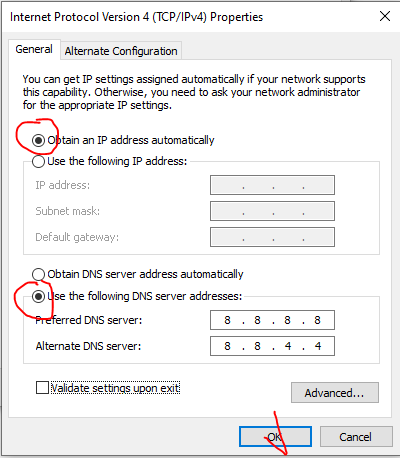
Well, we tried. By the way, you have an option to set only the DNSs and leave the IP address to be received by the router DHCP server like this:
- Copy Link
- Report Inappropriate Content
Information
Helpful: 0
Views: 1982
Replies: 27
Voters 0
No one has voted for it yet.