ER7206 Firewall Block IP addresses

ER7206 Firewall Block IP addresses

ER7206 Firewall Block IP addresses
a week ago - last edited Wednesday
Tags: #ACL
Model: ER7206 (TL-ER7206)  
Hardware Version: V2
Firmware Version: 2.1.0 Build 20231220 Rel.37684

Is there a simple way to enter multiple external IP addresses to block access to?


In my case, I am attempting to block DNS over HTTPS (DoH) to known servers - eg 1.1.1.1 8.8.8.8 etc.


At present, I can only see that I can add one single address at a time - eg as a /24 - in the Preferences / IP Group section.

The range option in there obviously won't suit for this basic purpose.


Thanks

0
0
#1
1 Accepted Solution
Re:ER7206 Firewall Block IP addresses-Solution
a week ago - last edited Wednesday

Hi @Kadybee 


Thanks for reaching out to TP-Link Business Forums.


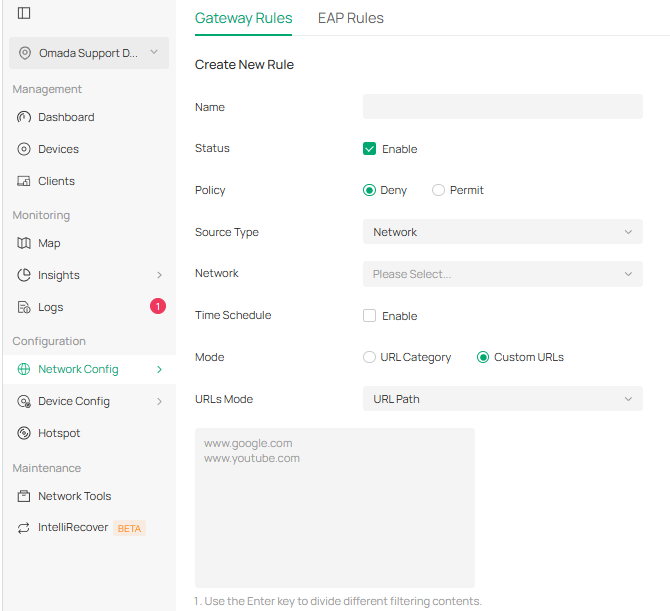
You may configure URL Filtering. How to Configure URL Filtering on Omada Gateway via Omada Controller(v5.15 and above) | Omada Network Support

However, if you are saying to configure an ACL rule to block certain IP addresses or domain names, then at present, on the Omada gateway, IP addresses/domain names used in ACL must be defined through IP Groups/domain group, and each entry generally needs to be added manually. There is currently no built-in feature to directly paste or import multiple discrete external IP addresses in bulk. You can create a single IP Group and add multiple individual IP addresses one by one, e.g., 1.1.1.1/32.

Recommended Solution
0
0
#2
1 Reply
Re:ER7206 Firewall Block IP addresses-Solution
a week ago - last edited Wednesday

Hi @Kadybee 


Thanks for reaching out to TP-Link Business Forums.


You may configure URL Filtering. How to Configure URL Filtering on Omada Gateway via Omada Controller(v5.15 and above) | Omada Network Support

However, if you are saying to configure an ACL rule to block certain IP addresses or domain names, then at present, on the Omada gateway, IP addresses/domain names used in ACL must be defined through IP Groups/domain group, and each entry generally needs to be added manually. There is currently no built-in feature to directly paste or import multiple discrete external IP addresses in bulk. You can create a single IP Group and add multiple individual IP addresses one by one, e.g., 1.1.1.1/32.

Recommended Solution
0
0
#2