Access printer while on a guest network with VX420-G2h AX5400

This thread has been locked for further replies. You can start a new thread to share your ideas or ask questions.

Access printer while on a guest network with VX420-G2h AX5400

This thread has been locked for further replies. You can start a new thread to share your ideas or ask questions.

Access printer while on a guest network with VX420-G2h AX5400
2025-07-18 10:21:54 - last edited 2025-07-31 01:28:51
Model: VX420-G2h  
Hardware Version:
Firmware Version:

I am helping somebody configure this router. We can't get in with the default password after a reset yet. However I was wondering if devices on a wifi guest network can access the printer connected to a port on the switch still ? 

I have yet to try it. But need to know before enabling it.

  0      
  0      
#1
Options
1 Accepted Solution
Re:Access printer while on a guest network with VX420-G2h AX5400-Solution
2025-07-18 23:23:58 - last edited 2025-07-31 01:28:51

  @electroteque 


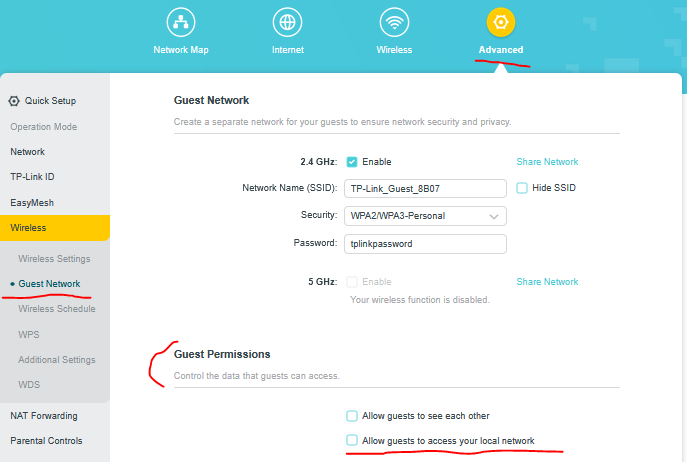
If you want guest users to be able to access your main router network enable this setting:


This setting should allow a guest user to gain access to a wired printer.

If this was helpful click on the arrow pointing upward to make it blue. If this solves your issue, click the star to make it blue as a "Recommended Solution". Tips:149wubkkfoLmNDjDbiTxx4ZU8mpcMA5CJt
Recommended Solution
  2  
  2  
#2
Options
1 Reply
Re:Access printer while on a guest network with VX420-G2h AX5400-Solution
2025-07-18 23:23:58 - last edited 2025-07-31 01:28:51

  @electroteque 


If you want guest users to be able to access your main router network enable this setting:


This setting should allow a guest user to gain access to a wired printer.

If this was helpful click on the arrow pointing upward to make it blue. If this solves your issue, click the star to make it blue as a "Recommended Solution". Tips:149wubkkfoLmNDjDbiTxx4ZU8mpcMA5CJt
Recommended Solution
  2  
  2  
#2
Options