
The device stopped working after updating it.
 This thread has been locked for further replies. You can start a new thread to share your ideas or ask questions.
The device stopped working after updating it.
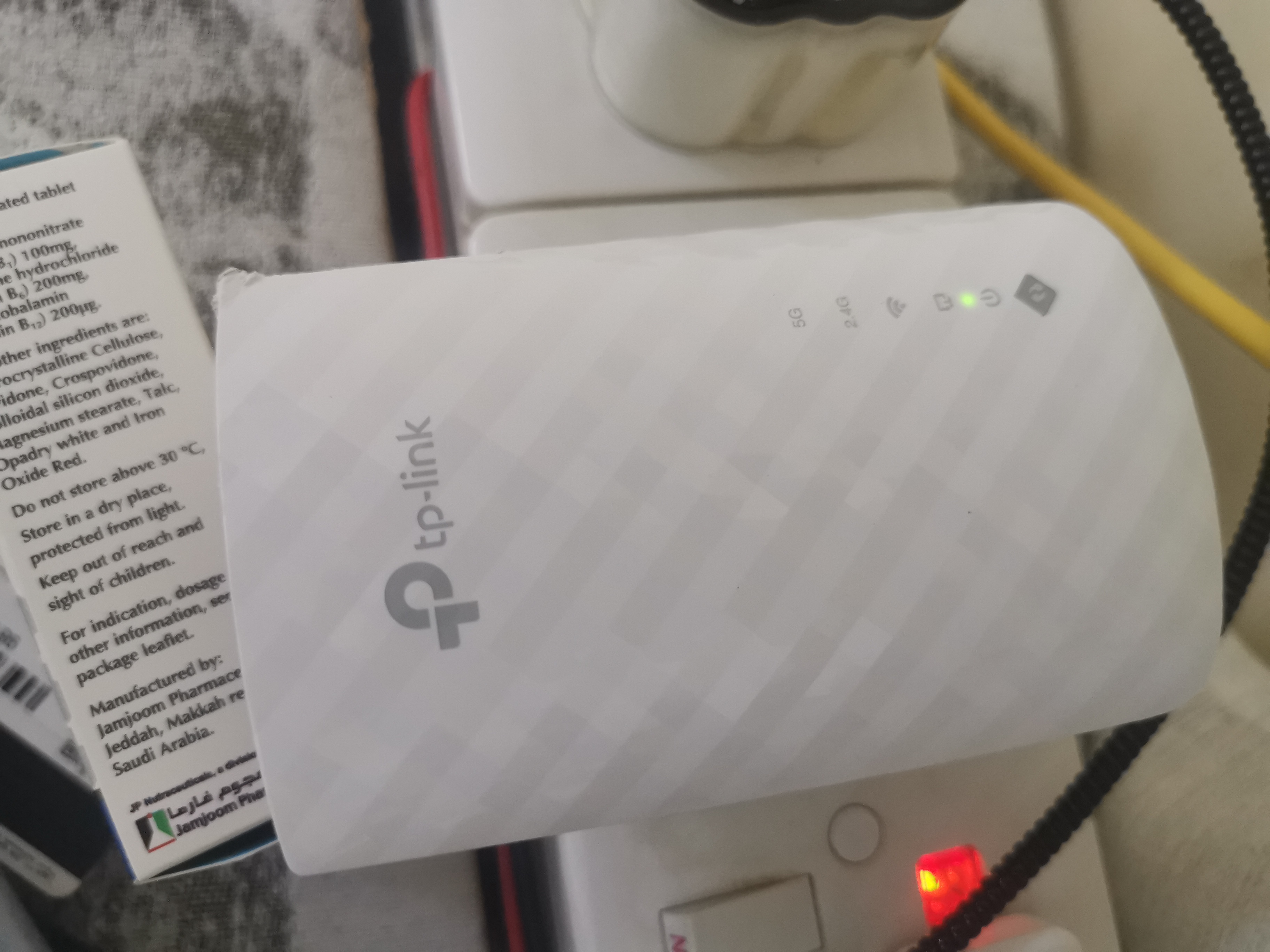 Caption
- Copy Link
- Subscribe
- Bookmark
- Report Inappropriate Content

Hello @Abdullahkinanah ,
Welcome to our community.
If the extender failed to connect to the host router or lost Internet connection suddenly, the following troubleshooting steps can be helpful:
1. Try restarting both the router and the extender.
2. Ensure the router's Wi-Fi network is working properly.
3. Ensure that your extender is within range of the router.
4. Keep the extender away from interfering devices like metal objects, fish tanks, microwaves, Bluetooth devices, and so on.
5. Use a pin to press the reset hole for 1-8 seconds to restore the extender to factory default. All lights will turn on momentarily when the extender resets. Then launch the Tether App, click the top right "+" button to add it. Check this FAQ to view comprehensive instructions.
- Copy Link
- Report Inappropriate Content
Hello @Abdullahkinanah ,
Welcome to our community.
If the extender failed to connect to the host router or lost Internet connection suddenly, the following troubleshooting steps can be helpful:
1. Try restarting both the router and the extender.
2. Ensure the router's Wi-Fi network is working properly.
3. Ensure that your extender is within range of the router.
4. Keep the extender away from interfering devices like metal objects, fish tanks, microwaves, Bluetooth devices, and so on.
5. Use a pin to press the reset hole for 1-8 seconds to restore the extender to factory default. All lights will turn on momentarily when the extender resets. Then launch the Tether App, click the top right "+" button to add it. Check this FAQ to view comprehensive instructions.
- Copy Link
- Report Inappropriate Content
Information
Helpful: 0
Views: 589
Replies: 1
Voters 0
No one has voted for it yet.