Archer C80 in WDS Mode: Internet Works for Clients but Router Shows Offline

I’m facing an issue with my TP-Link Archer C80 router.
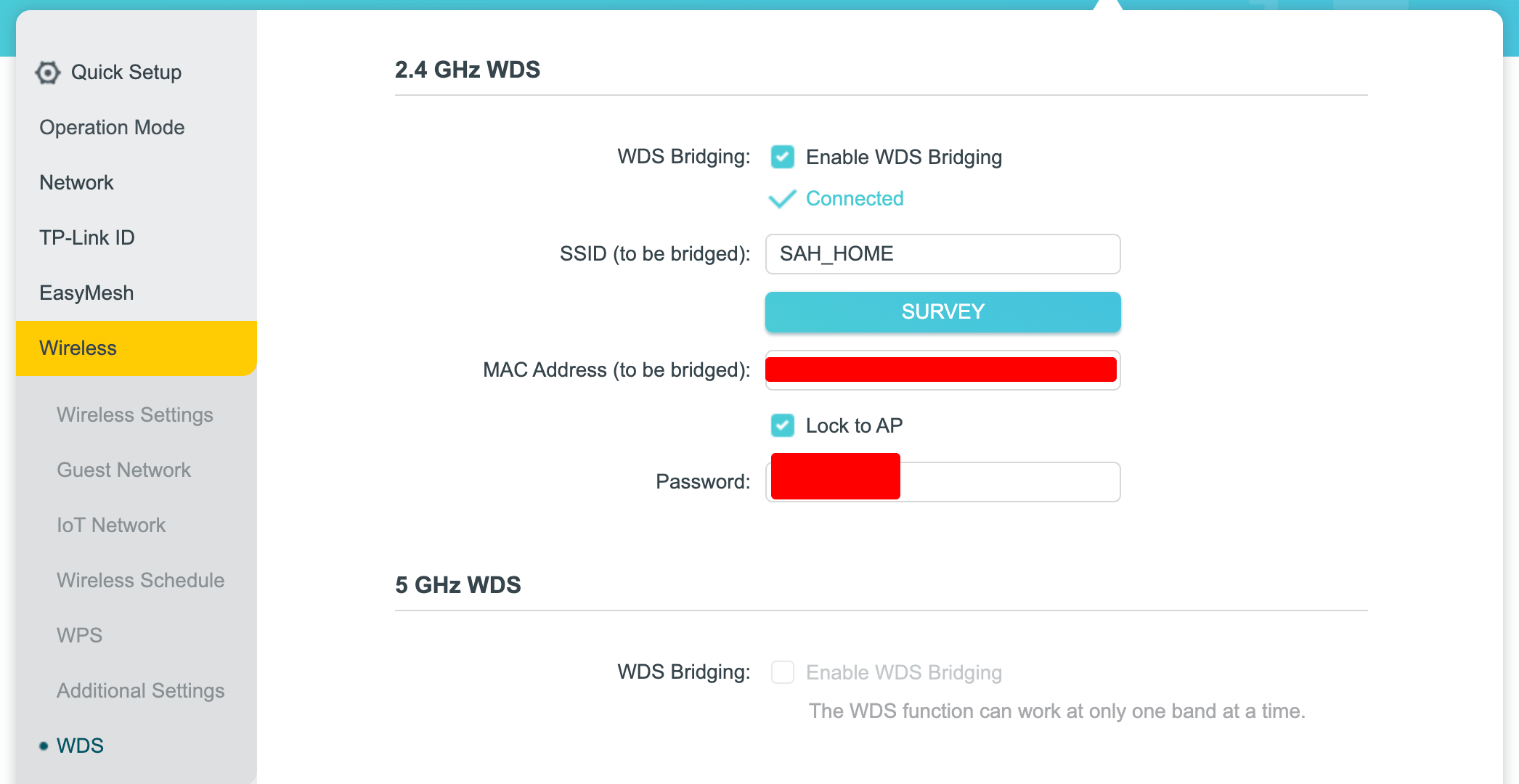
My main (root) router uses the IP range 192.168.18.2 – 192.168.18.254. I’m using the TP-Link Archer C80 as a secondary router in WDS mode, connected over 2.4 GHz WDS.
I’ve configured the Wireless Settings, and devices connected to the Archer C80 are able to access the internet without any problems. I followed this official TP-Link FAQ to set everything up: https://www.tp-link.com/it/support/faq/1555/
However, I’m facing a tricky issue:
Even though all connected devices can browse the internet normally, the router itself shows “Not connected to the Internet.” Because of this:
-
I cannot access the router via the TP-Link Tether mobile app
-
The router appears as offline
-
I’m unable to configure VPN or Dynamic DNS, as these features require the router to detect an active internet connection
So basically, the router works for clients, but internally it thinks it’s offline.
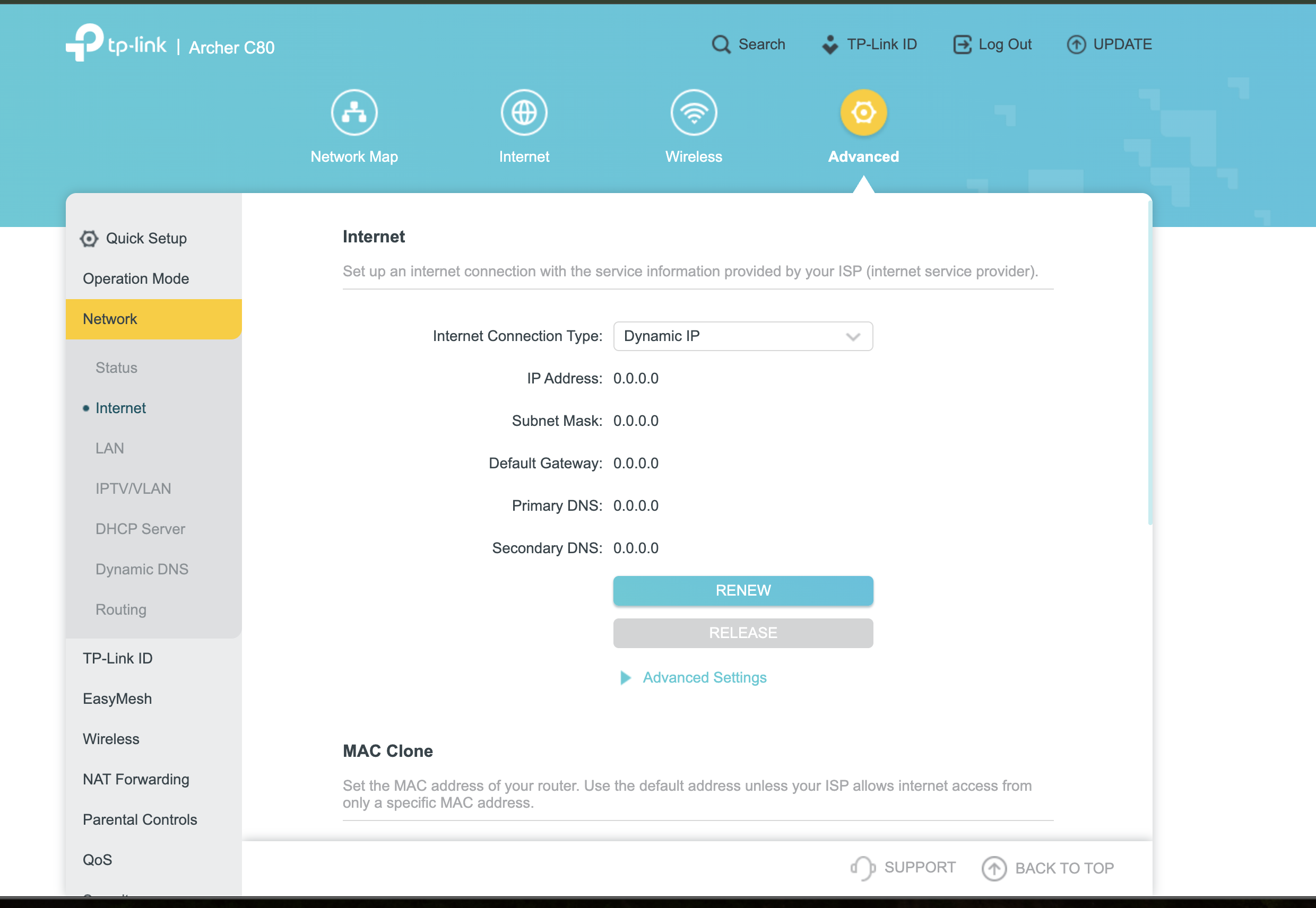
In Network → Internet settings:
-
I have not configured anything manually
-
Connection type is set to Dynamic IP only
I couldn’t find any documentation or solution addressing this specific scenario (WDS working for clients but router reporting no internet).
How can I fix this so the router correctly detects the internet connection and allows features like Tether, VPN, and DDNS to work?
Any help would be appreciated. Thanks!