
Random +300ms Ping Spikes on 192.168.0.1 – Archer C6 V4

Hello!
I’ve been experiencing random ping spikes of +300ms when pinging my router (192.168.0.1) using an Archer C6 V4.
This happens:
-
Randomly, both when devices are connected and when none are connected.
-
Both when actively using the internet and when idle.
It seems completely random, and I can’t find a clear pattern. My current firmware version is 1.13.6 Build 240430 Rel.54880n(5553).
I have Ping Plotter data showing these spikes and can share it if needed.
Has anyone experienced similar issues, or are there known fixes or troubleshooting steps for these random local network latency spikes?
Thanks in advance!
- Copy Link
- Subscribe
- Bookmark
- Report Inappropriate Content


Hello @3mperor ,
Welcome to our community.
May I know if your network topology diagram is as follows:
ISP modem—router )))((( client devices
(Note: — stands for wired connection,)))((( stands for wireless connection )
Looks like that you're experiencing significant latency spikes (300-1000ms) when pinging your router's IP address (192.168.0.1) from your wired LAN connection, and these spikes only occur when WiFi is enabled on either 2.4GHz or 5GHz bands. When you disable WiFi completely, the latency returns to normal (0.5-3ms). You've already tried firmware updates, different cables, and factory reset without success.
Here are some steps that may help:
1. Check WiFi channel interference:
• Log into your router's web interface (http://tplinkwifi.net)
• Go to Advanced > Wireless > Wireless Settings
• Try different WiFi channels to avoid interference from nearby networks. Test various channels to find the best one for your environment
• For 2.4GHz, set the channel width to 20MHz
• For 5GHz, set the channel width to 80MHz or 40MHz
2. Adjust WiFi settings to reduce CPU load:
• In the web interface, go to Advanced > Wireless Settings
• Consider reducing the transmit power if you have a small area to cover
• Disable any bandwidth-intensive features like guest networks if not needed
3. Check for continuous high CPU usage:
• Access the web interface and monitor if the CPU usage remains at or near 100% continuously (not just brief spikes)
• Brief CPU spikes are normal
4. Disable certain features that may affect performance:
• Go to Advanced > QoS and ensure QoS is disabled
• Go to Advanced > NAT Forwarding > UPNP and disable UPNP
• Go to Advanced > Security and disable SIP ALG
- Copy Link
- Report Inappropriate Content
Hello @3mperor ,
Welcome to our community.
May I know if your network topology diagram is as follows:
ISP modem—router )))((( client devices
(Note: — stands for wired connection,)))((( stands for wireless connection )
Looks like that you're experiencing significant latency spikes (300-1000ms) when pinging your router's IP address (192.168.0.1) from your wired LAN connection, and these spikes only occur when WiFi is enabled on either 2.4GHz or 5GHz bands. When you disable WiFi completely, the latency returns to normal (0.5-3ms). You've already tried firmware updates, different cables, and factory reset without success.
Here are some steps that may help:
1. Check WiFi channel interference:
• Log into your router's web interface (http://tplinkwifi.net)
• Go to Advanced > Wireless > Wireless Settings
• Try different WiFi channels to avoid interference from nearby networks. Test various channels to find the best one for your environment
• For 2.4GHz, set the channel width to 20MHz
• For 5GHz, set the channel width to 80MHz or 40MHz
2. Adjust WiFi settings to reduce CPU load:
• In the web interface, go to Advanced > Wireless Settings
• Consider reducing the transmit power if you have a small area to cover
• Disable any bandwidth-intensive features like guest networks if not needed
3. Check for continuous high CPU usage:
• Access the web interface and monitor if the CPU usage remains at or near 100% continuously (not just brief spikes)
• Brief CPU spikes are normal
4. Disable certain features that may affect performance:
• Go to Advanced > QoS and ensure QoS is disabled
• Go to Advanced > NAT Forwarding > UPNP and disable UPNP
• Go to Advanced > Security and disable SIP ALG
- Copy Link
- Report Inappropriate Content
@Joseph-TP
I have already tried all that and pings still does not get stable until i totally disabled both WIFI band.
And I was told to give some information and do some test in mail from
Ahmed sharara
TP-LINK Middle East & Africa
support.pk@tp-link.com
Here are the results :
Network Topology : ISP Ethernet Cable -> Archer C6 V4 WAN Port -> PC
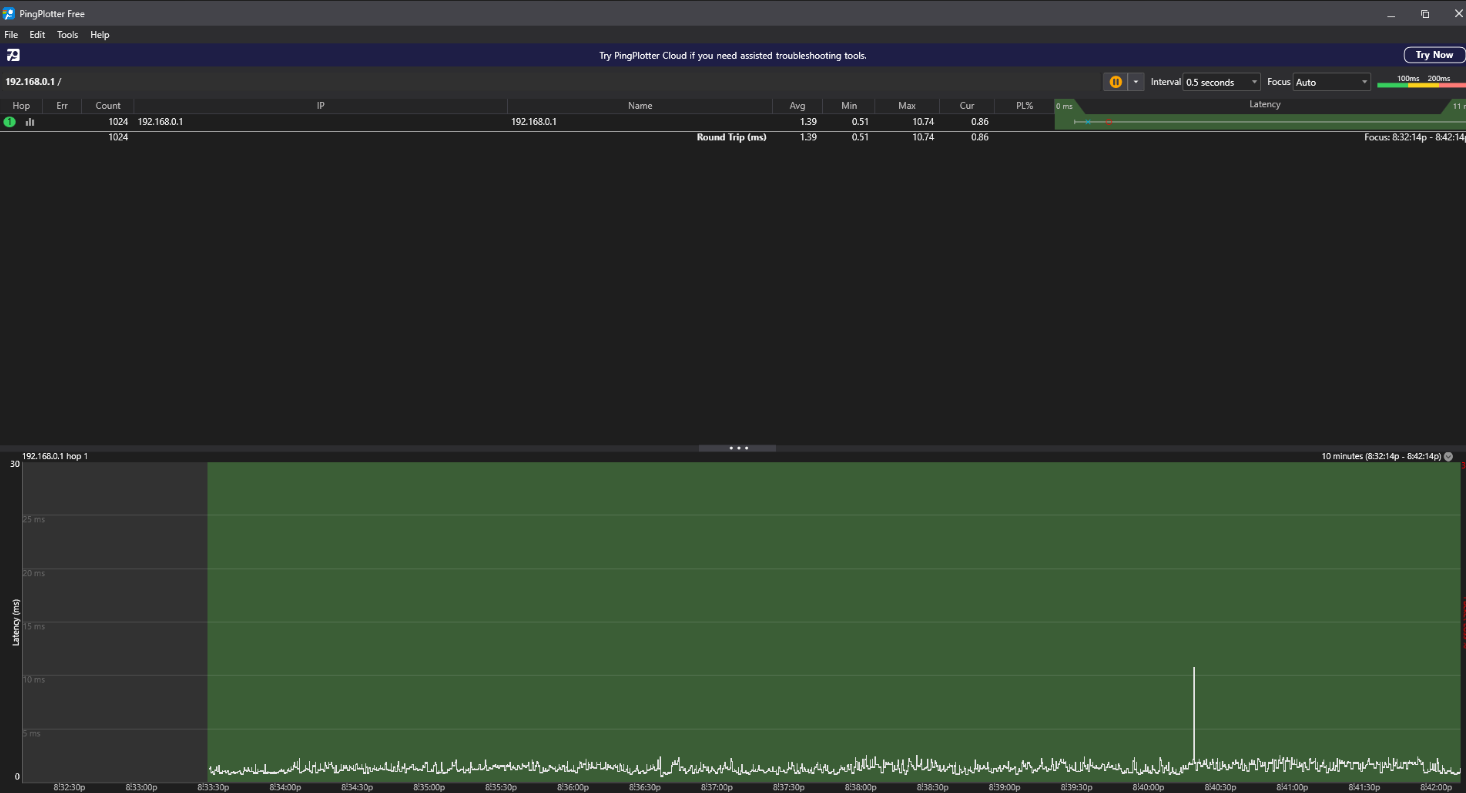
Test 1 - Ping with WAN Cable Unplugged
1) WAN Cable Unplugged ( NO MASSIVE PING SPIKES OBSERVED )
Ran this test for almost 20 mins
Test 2 - PC Directly Dialing PPPoE
I have already tested it before and the ping does not spike when directly connected.
Test 3 - Band Isolation
1) Only 2.4 GHz enabled ( PING SPIKES OBSERVED )
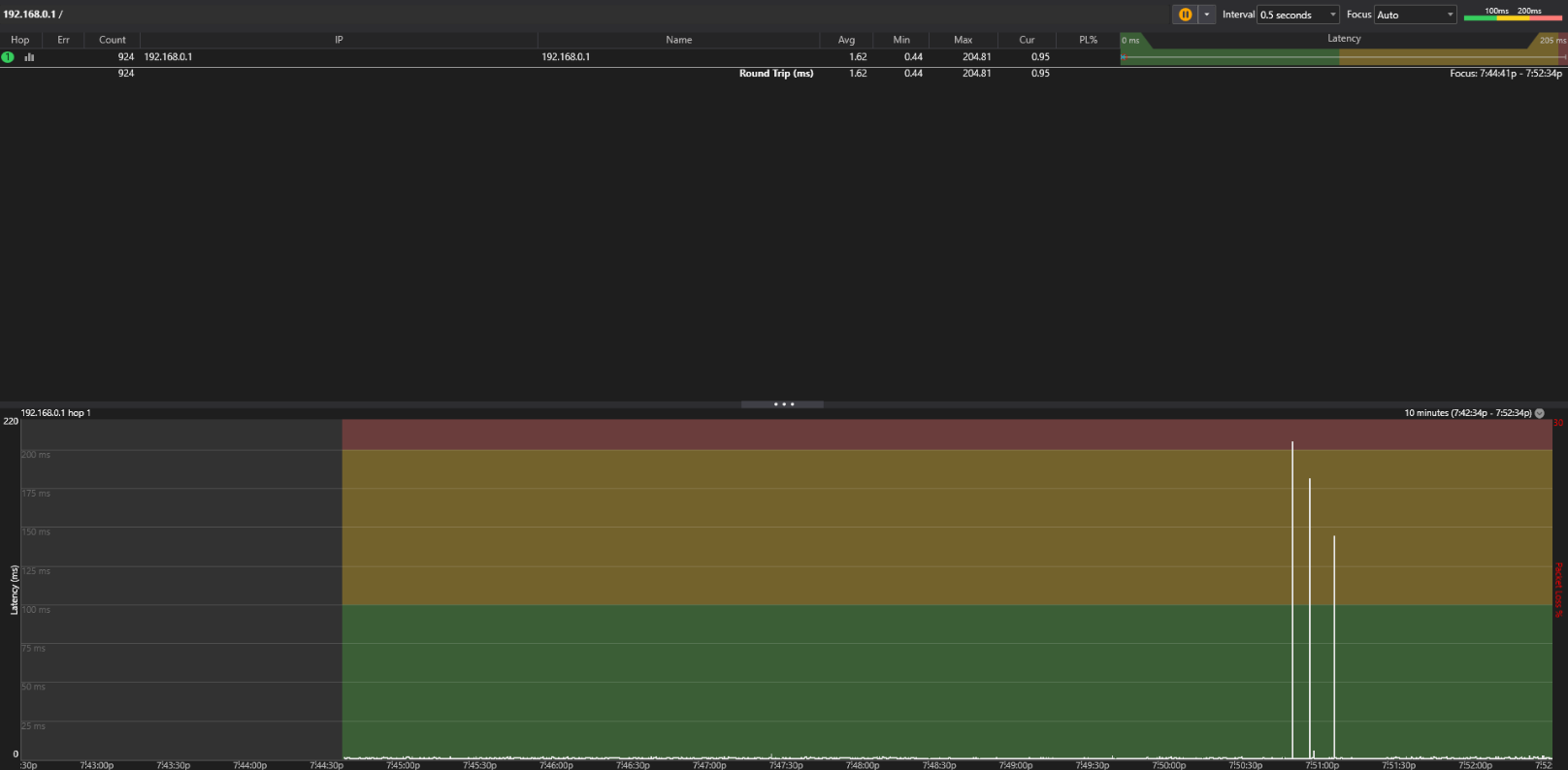
2) Only 5 GHz enabled ( PING SPIKES OBSERVED )
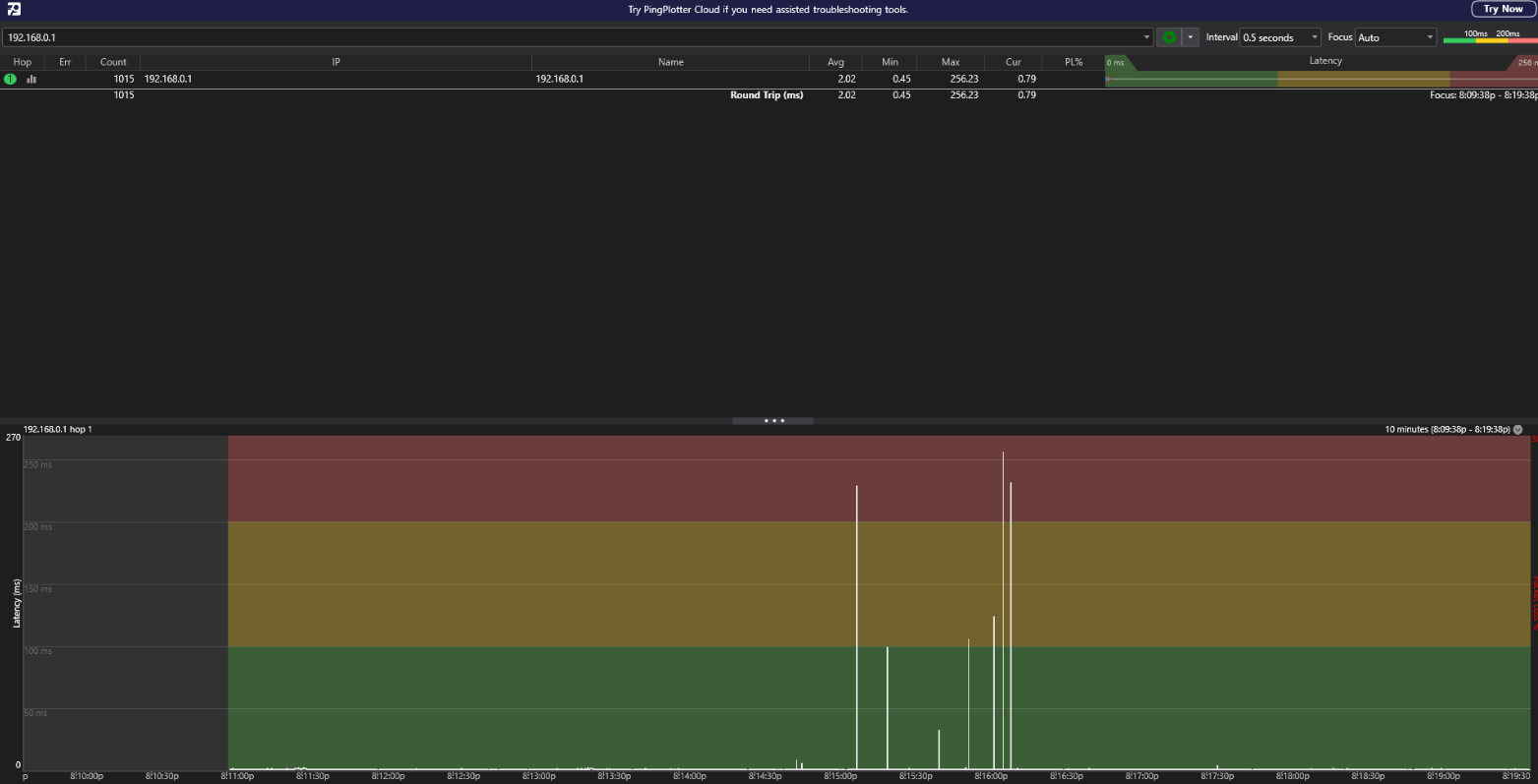
3) Both Wi‑Fi bands disabled ( NO PING SPIKES OBSERVED LIKE BEFORE )
I HAVE ALREADY SENT THIS DATA IN EMAIL TOO
- Copy Link
- Report Inappropriate Content
Hello @3mperor ,
Thanks for getting back to us.
If so, your case will likely be escalated. Please feel free to update here if you get any solutions.
- Copy Link
- Report Inappropriate Content
Information
Helpful: 0
Views: 361
Replies: 3
Voters 0
No one has voted for it yet.