Archer AX18 | AX1500 Gigabit Wi-Fi 6 Router - 100% CPU usage - high ping

Archer AX18 | AX1500 Gigabit Wi-Fi 6 Router - 100% CPU usage - high ping

Archer AX18 | AX1500 Gigabit Wi-Fi 6 Router - 100% CPU usage - high ping
2026-03-08 23:24:11 - last edited 2 weeks ago
Model: Archer AX18  
Hardware Version: V1
Firmware Version: 1.2.1 Build 20250729 Rel. 73566(4555)

Hey!


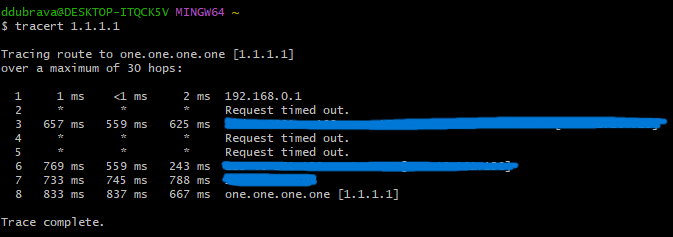
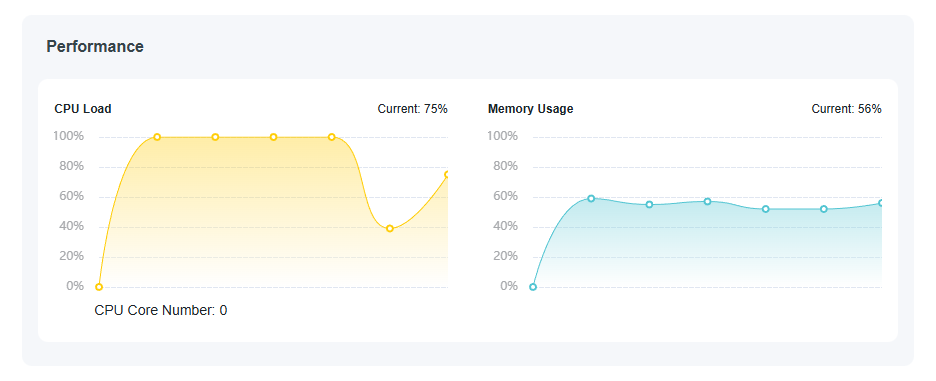
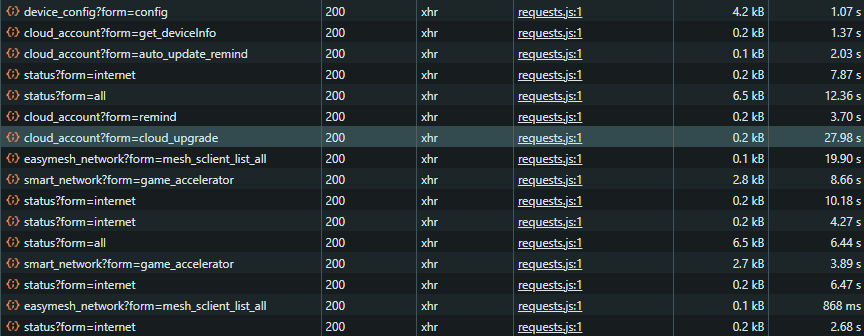
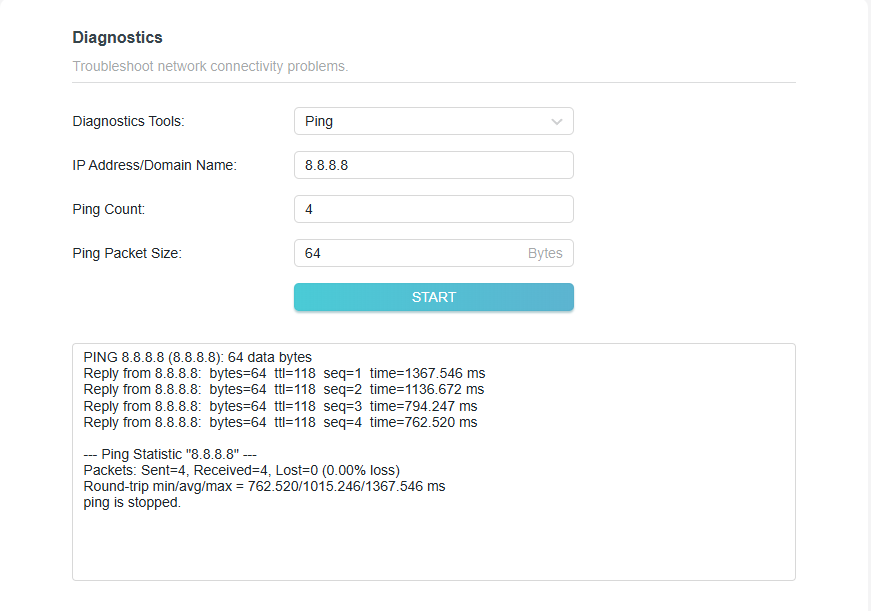
I’m having an issue with the Archer AX18 | AX1500 Gigabit Wi-Fi 6 Router. The CPU usage suddenly jumps to 100%, and the network becomes very slow. When this happens, ping to the internet goes up to ~1000 ms. It affects both Wi-Fi and LAN devices, and the spikes happen almost every day at random times.


My setup is an ISP modem in bridge mode, with the router connected to it. My PC is connected via LAN, and several other devices use Wi-Fi.


I’ve tested ping from Wi-Fi devices, LAN devices, and directly from the router diagnostics, and the results are the same everywhere.


When I ping the router itself, the latency is <1 ms, so the local network seems fine. The high latency only appears between the router and the internet.


Restarting the router fixes the issue immediately. If I just wait, it usually goes back to normal after about 5-10 minutes.


Does anyone know how I can fix this?


Thanks!
0
0
#1
1 Accepted Solution
Re: Archer AX18 | AX1500 Gigabit Wi-Fi 6 Router - 100% CPU usage - high ping-Solution
2026-03-12 09:48:24 - last edited 2 weeks ago

Hello @ddubrava ,

Welcome to our community.


For the WAN connection instability causing high latency:
1) Verify your ISP connection: Connect a PC directly to your ISP modem (take it out of bridge mode temporarily if needed) to verify if your ISP Internet is stable and not experiencing similar latency spikes.
2) Check the physical connection: Make sure the Ethernet cable between your modem and the router is connected properly. Replace old cables with new ones (CAT5E or higher).
3) Change the DNS Server: Log into the web management interface of the router, go to Advanced > Network > Internet > Advanced Settings, and change the two DNS Servers to 1.1.1.1 and 8.8.8.8.
4) Check for interference or performance-affecting features:
   • Go to Advanced > QoS and make sure QoS is disabled
   • Open the Tether app, go to Parental Control, and ensure no parental control profiles are configured
   • Go to Advanced > NAT Forwarding > UPNP to disable UPNP
   • Go to Advanced > Security to disable SIP ALG
 

Welcome to Our Community! Get the latest posts: △New Firmware for Archer GE550/GE650 V1 Introduces AI-QoS, EasyMesh IoT Expansion, and More! △New Firmware Releases for Archer BE805 V1/BE450 V1 to Support VPN Merge, New ECO Mode, and More! More posts, please see: △ Get the Ongoing Pre-release Firmware for Wi-Fi Routers Here— Subscribe for Updates! Urgent problems with your Wi-Fi Router, Range Extender, or DSL Modem? Please reach out via private Messages or @Joesph-TP in your new thread directly. Click Or ☆Recommended Solution if the post/answer helps.
Recommended Solution
0
0
#2
1 Reply
Re: Archer AX18 | AX1500 Gigabit Wi-Fi 6 Router - 100% CPU usage - high ping-Solution
2026-03-12 09:48:24 - last edited 2 weeks ago

Hello @ddubrava ,

Welcome to our community.


For the WAN connection instability causing high latency:
1) Verify your ISP connection: Connect a PC directly to your ISP modem (take it out of bridge mode temporarily if needed) to verify if your ISP Internet is stable and not experiencing similar latency spikes.
2) Check the physical connection: Make sure the Ethernet cable between your modem and the router is connected properly. Replace old cables with new ones (CAT5E or higher).
3) Change the DNS Server: Log into the web management interface of the router, go to Advanced > Network > Internet > Advanced Settings, and change the two DNS Servers to 1.1.1.1 and 8.8.8.8.
4) Check for interference or performance-affecting features:
   • Go to Advanced > QoS and make sure QoS is disabled
   • Open the Tether app, go to Parental Control, and ensure no parental control profiles are configured
   • Go to Advanced > NAT Forwarding > UPNP to disable UPNP
   • Go to Advanced > Security to disable SIP ALG
 

Welcome to Our Community! Get the latest posts: △New Firmware for Archer GE550/GE650 V1 Introduces AI-QoS, EasyMesh IoT Expansion, and More! △New Firmware Releases for Archer BE805 V1/BE450 V1 to Support VPN Merge, New ECO Mode, and More! More posts, please see: △ Get the Ongoing Pre-release Firmware for Wi-Fi Routers Here— Subscribe for Updates! Urgent problems with your Wi-Fi Router, Range Extender, or DSL Modem? Please reach out via private Messages or @Joesph-TP in your new thread directly. Click Or ☆Recommended Solution if the post/answer helps.
Recommended Solution
0
0
#2