
How to Use the VPN Feature on My Portable Travel Router
Overview
Portable Travel Routers offer convenience, security, and privacy, making it a practical tool for travelers to enhance their online experience.
A travel router doesn’t just help keep your devices secure on public Wi-Fi by acting as a firewall against any other device connected to the same public Wi-Fi. You can also keep your data private using the travel router's VPN capabilities to create a secure, encrypted tunnel to a VPN server.
VPN Configuration Guide
1. Preparation:
Important: Travel Routers need to be configured in Router/USB internet mode or Hotspot mode to support OpenVPN, Wireguard, L2TP/IPSec VPN, and VPN Server/Client.
Please ensure you have selected the operation mode that meets your needs and configured the travel router correctly. Please refer to: How to select the operating mode of TP-Link wireless multiple modes devices?
If the router does not work correctly after configuration, please learn: What should I do if my Nano or Travel router cannot work well?
2. Configuration Steps:
For configuration instructions, you can directly refer to How to set up a VPN Server/VPN Client on TP-Link Travel Router?
Alternatively, you can also refer to the VPN configuration steps for your router:
- Search for your model directly on the official website.
- Go to its Support page, and select the corresponding hardware version.
- Click on the User Guide of your router for detailed steps.
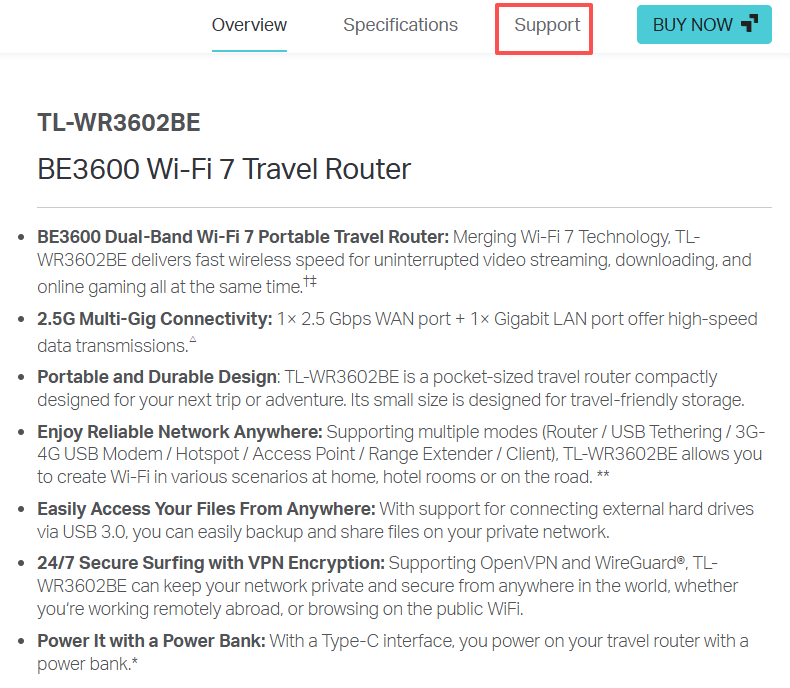
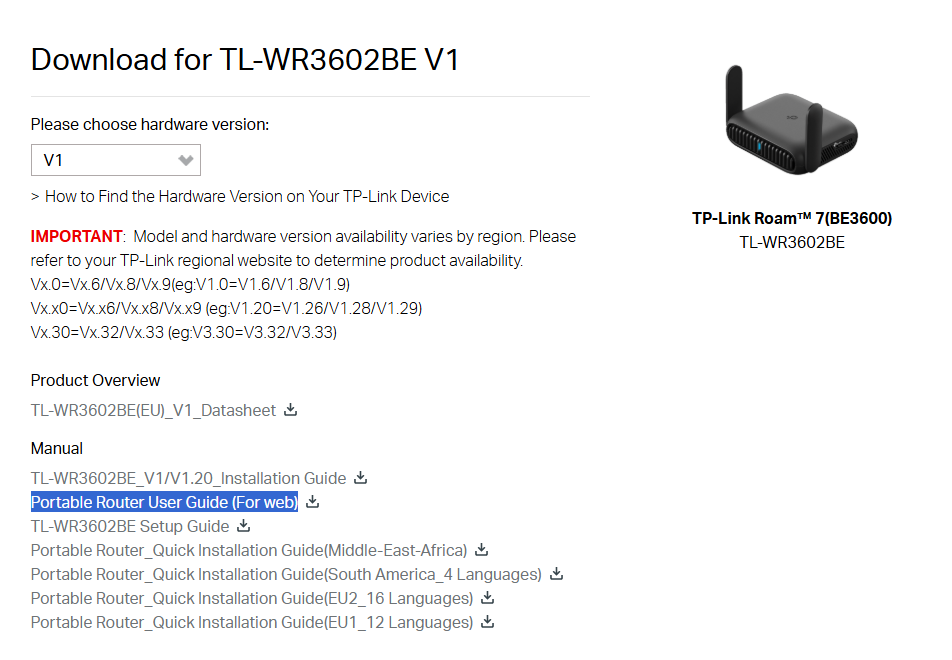
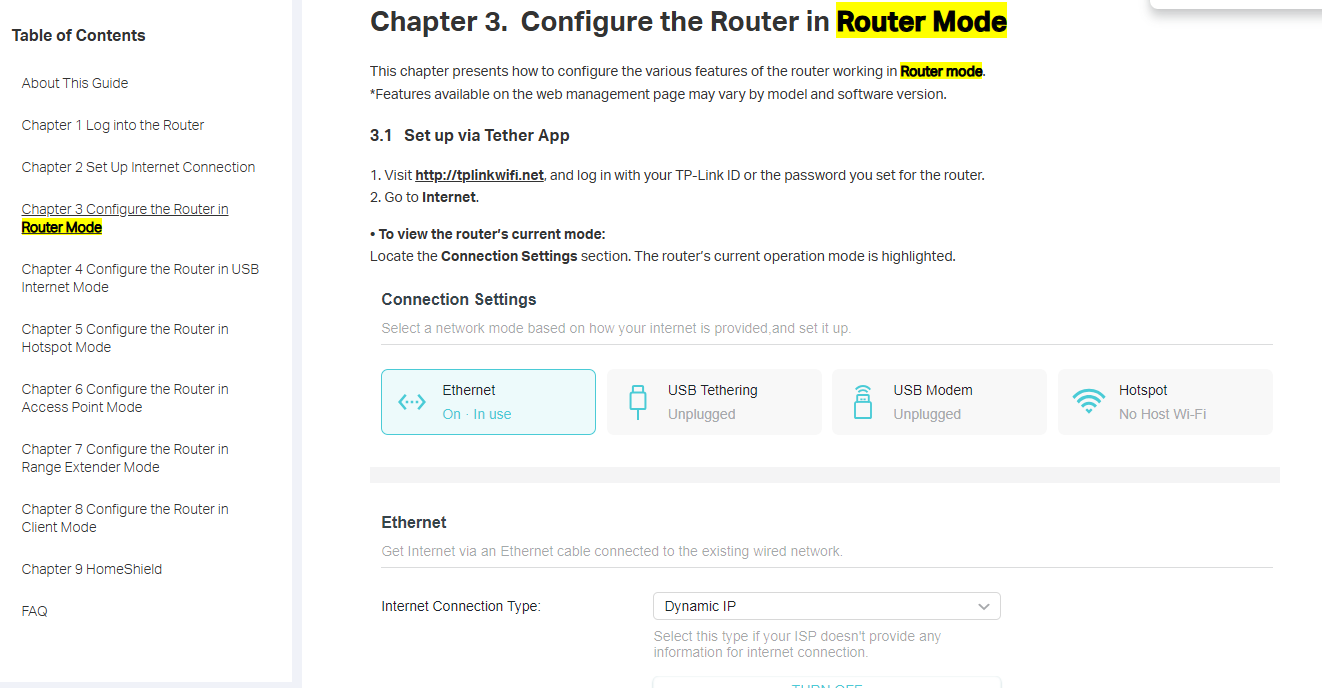
For example, on the TL-WR3602BE Support page, you can find the Portable Router User Guide (For web). Click it, then navigate to the corresponding operation mode, such as Configure the Router in Router Mode. Then proceed to the VPN Server & Client configuration guide.
 |
|
 |
Highlight Feature (VPN Merge):
The VPN types supported by different Travel Router models are as follows:
| Model | TL-WR3602BE | TL-WR3002X | TL-WR1502X |
| Appearance | 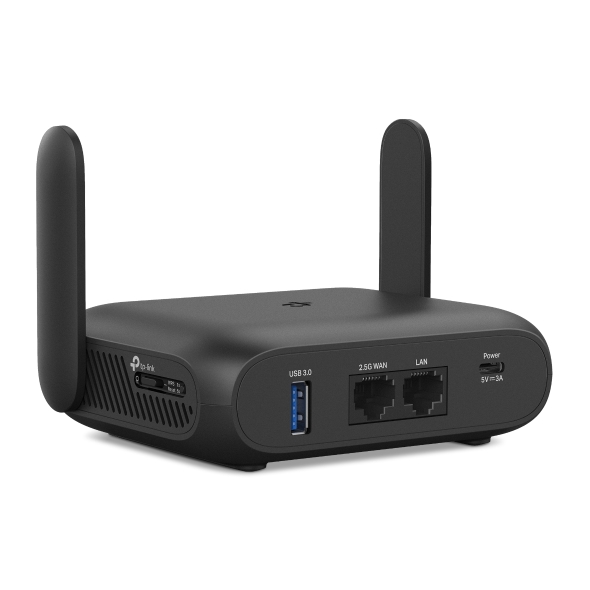 |
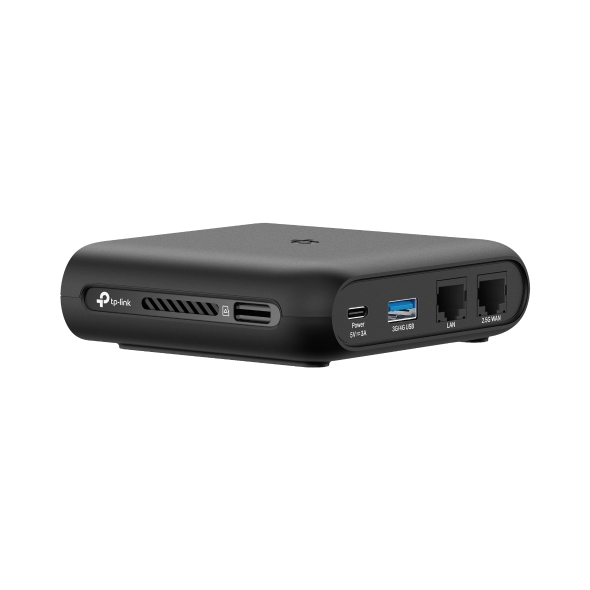 |
 |
| Supported VPN | OpenVPN + Wireguard + L2TP/IPSec VPN and VPN Merge | OpenVPN+Wireguard+L2TP/IPSec VPN and VPN Server/Client | OpenVPN+Wireguard+L2TP/IPSec VPN and VPN Server/Client |
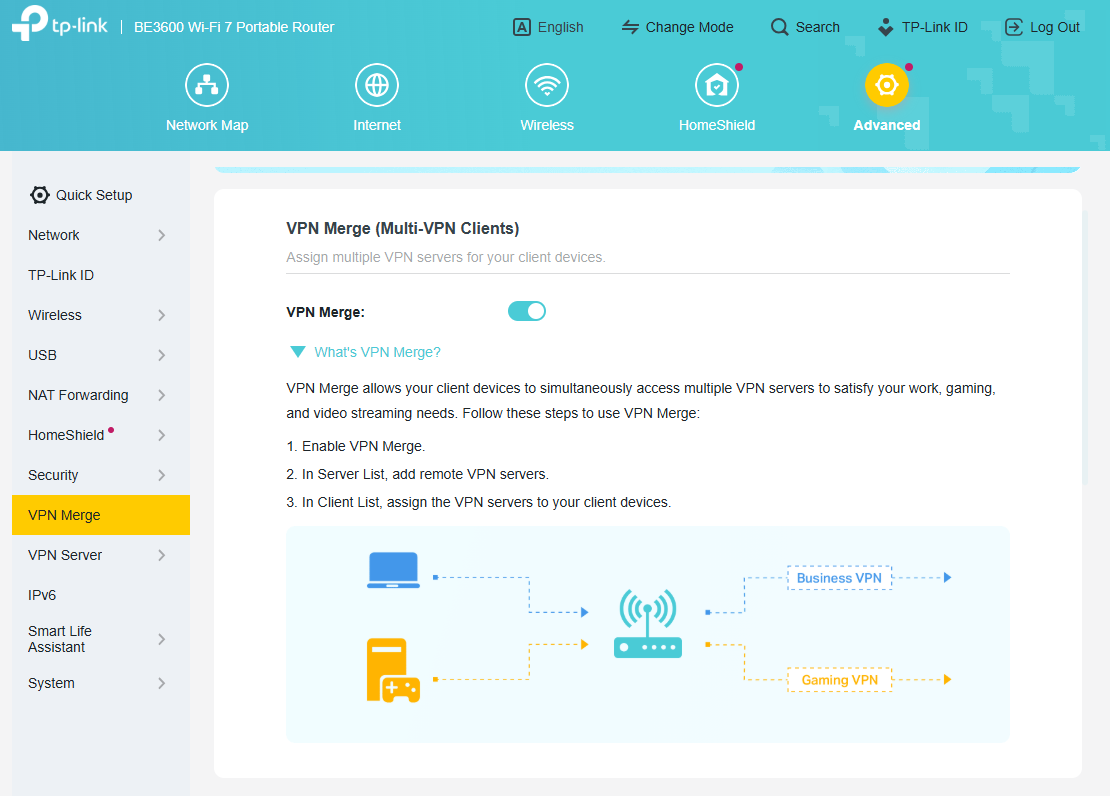
As you can see, our travel router TL-WR3602BE already supports VPN Merge!
So, what is VPN Merge?
When the Travel router is used as a VPN Client, it can connect to multiple VPN Servers at the same time, and different VPN Servers can be selected for different clients. For example, if you need PC1 to connect to OpenVPN for work, but the TV to connect to Wireguard VPN. At this time, TL-WR3602BE can connect to two VPN servers at the same time as VPN Client and assign appropriate VPN servers to them.
Q&A:
1. What if I can't see the VPN function on the Web management page?
Please ensure your Travel router is configured in Router mode or Hotspot mode.
2. What should I do if I receive multiple OpenVPN files from a VPN provider?
You need to merge them before importing them to the router. Please refer to this FAQ for merging instructions: Manually create the unified format for OpenVPN profile(CyberGhost OpenVPN Server).
3. What should I do if my VPN client configuration keeps getting stuck on "connecting"?
Please ensure your VPN configuration settings (server address, username, and password) are correct.
For more suggestions, please refer to VPN Client on Wi-Fi Router Is Not Working.
If you have any other questions about the VPN feature, your feedback and discussion are welcome.
Welcome to > Start a New Thread < and leave your comment for assistance.
Related Articles:
Introduction and Configuration Guide of VPN Function on TP-Link Wireless Routers
VPN Server Doesn't Work Properly on TP-Link Wi-Fi Routers