
Helpful Tips for Saving Power on USB and PCIe Devices
If your Wi-Fi connection drops after sleep, reconnects slowly, or becomes unstable over time, Windows power-saving features may be affecting your network hardware. This can impact PCIe Wi-Fi cards, USB Wi-Fi adapters, and USB hubs alike.
This article outlines common Windows power and sleep settings that can influence Wi-Fi stability and USB Peripheral Connectivity.
PCIe Wi-Fi Network Card Sleep Settings
PCIe Wi-Fi adapters rely on both driver-level and system-level power management. To reduce power usage, Windows may limit power to the network card during idle periods or when the system enters sleep.
These behaviors can result in slow or failed reconnections after waking from sleep, temporary loss of network connectivity, or reduced performance after long idle periods.
USB Sleep Settings (Wi-Fi Adapters and Hubs)
USB-based Wi-Fi adapters are commonly affected by Windows USB power management. When enabled, Windows may suspend USB ports or hubs it considers inactive.
This may cause USB Wi-Fi adapters to disconnect unexpectedly, hubs to enter low-power states, or adapters to fail to wake correctly after sleep.
Windows Power Plans
System-wide power plans strongly influence how networking hardware behaves during sleep and idle states.
Features such as wireless adapter power-saving modes, connected standby behavior, and the selected power plan (Balanced vs Performance) can all affect Wi-Fi reliability.
Where to Find These Settings
Device Manager:
- Network adapters → Wi-Fi adapter → Power Management and Advanced tabs
- Universal Serial Bus controllers → USB Root Hub → Power Management tab
Power Options (Control Panel):
- Advanced power settings → Wireless Adapter Settings
- Advanced power settings → USB settings
- Advanced power settings → PCI Express
Windows Power & Battery Settings:
- Power mode selection
- Sleep and idle behavior
Adapter Advanced Settings: Transmit Power and MIMO Power Saving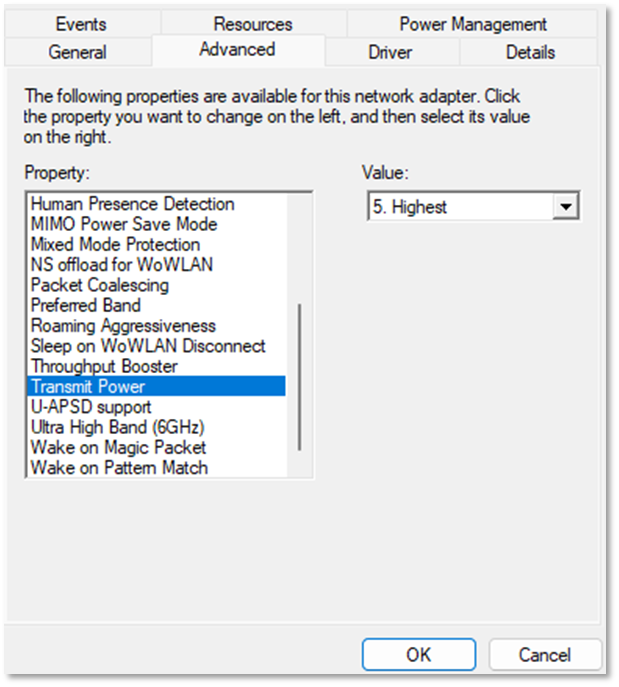
Many Wi-Fi drivers offer client-side power controls that reduce radio/antenna usage during idle or low-throughput scenarios. Two common options are Transmit Power (reduces the adapter’s transmit output level) and MIMO Power Save / SMPS (limits the number of spatial streams/receive chains used). These can extend battery life and reduce power draw, but may also lower throughput, reduce range, and, in some environments, make roaming or reconnect behavior less reliable.
Tip: If you're using these features to save power, but notice drops/slow wake, consider testing with these set to higher-performance values.
Where to find:
- Device Manager → Network adapters → (your Wi-Fi adapter) → Advanced tab → settings such as Transmit Power, MIMO Power Save Mode, SMPS, VHT/HE SMPS, or Maximum Performance/Power Saving
- Power Options (Control Panel) → Advanced power settings → Wireless Adapter Settings → Power Saving Mode (applies at the OS policy level; driver options still vary by vendor)
Note: Names and available options vary by chipset/vendor (Intel/Realtek/MediaTek/Broadcom) and driver version. As a general approach, use Maximum Performance (or higher transmit power/disabled SMPS) when prioritizing stability and throughput, and use Medium/Low Power options when prioritizing battery life and overall power savings.
Did You Know?
If Wi-Fi issues occur only on one computer, even after trying the adapter in multiple systems, the cause is often related to local power or system driver settings rather than the adapter hardware itself. Reviewing the settings above is a recommended first step before replacing hardware.
Related Articles
TP-Link Earth Day 2026 ― Make Your Home Wi-Fi Greener with Wi-Fi Power Saving Options