Get Started with Tapo’s Privacy Mode and Automatic Activation
Get Started with Tapo’s Privacy Mode and Automatic Activation
For many users, Tapo cameras have become an essential for continuous home monitoring – but not everyone is comfortable being filmed all day long. For this reason, Tapo cameras all have a ‘Privacy Mode’ feature, ensuring your privacy goes undisturbed when needed.
Note: Before getting started, ensure your camera's firmware and Tapo app are updated to the latest version.
How to Activate the Privacy Mode on Tapo Cameras
Automations – Scenes and Smart Actions
Throughout the Automation features of the Tapo App (Tapo App > Smart > Automations) there are controls to enable/disable a camera’s privacy mode.
Check your Automations to see if one of these actions is included in your smart actions or scenes.
How to create Smart Action (Automation or Shortcut) on Tapo app
Home / Away Modes (Camera Tab > Home/Away Mode)
The Home and Away Modes also allow you to toggle a camera’s privacy mode for multiple cameras at once.
- On the Tapo app, go to the Cameras tab, and review the Home and Away Mode settings.
- Check if your camera is included in these settings. If so, tap on the camera to verify if Privacy Mode is enabled. If enabled, switching to Home Mode or Away Mode from the Cameras tab may apply the preset configuration, which activates Privacy Mode.
- To avoid this, consider removing your camera from Home/Away Mode or ensuring your camera's Privacy Mode is disabled in both the Home and Away configurations.
How to edit Home and Away Mode for Tapo Cameras on the Tapo app
Auto-Privacy Mode (Battery Cameras Only)
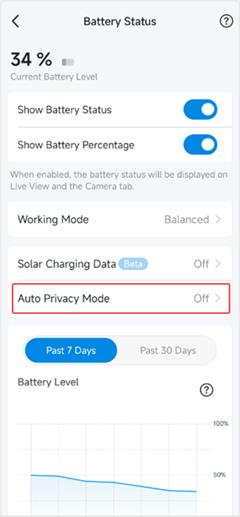
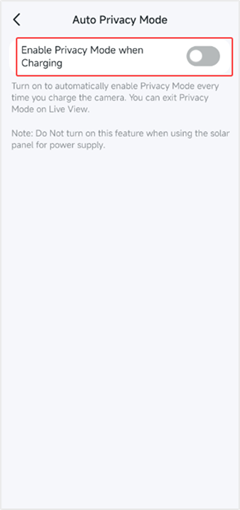
- Some Tapo battery-powered cameras have an Auto Privacy Mode feature in the Tapo app > Camera Device Settings > Battery Status page. If this feature is enabled, the camera will automatically enter Privacy Mode when charging.
- If your battery-powered camera activates Privacy Mode during charging, try disabling this feature.
Note: Do not enable this feature when using a solar panel for power supply.
Physical Privacy Buttons
- Some Tapo camera models (e.g., C125 and C225) feature a physical Privacy button. Accidental pressing of this button can block or hide the camera lens, activating Privacy Mode.
- If the camera's privacy mode is automatically enabled, it is recommended to consider whether the physical privacy button was accidentally pressed.
Account Sharing
- If others have their TP-Link account, they can log in to the Tapo app using it and unintentionally toggle Privacy Mode without your knowledge.
- To avoid this, change your account password and refrain from sharing it with others. Then, check if Privacy Mode continues to activate automatically.
What can I do if I forget my password for the cloud account?
Common Questions
Does the Automatic Privacy Mode Turn Itself Off After Charging?
- When enabled, Privacy Mode automatically turns ON when the camera begins charging.
- After removing the camera from the charger, or when the battery begins to deplete, Privacy Mode is automatically turned OFF, and normal detection, live view, and recording resume.
What Should I Do If I Cannot Figure Out Why My Privacy Mode Keeps Activating?
If you have gone through all the configuration options from above and cannot determine why the camera’s privacy mode is being activated, we recommend sending an email to our forum support team with the following information:
US Users: Send an Email to forumsupport.usa@tp-link.com
Subject: [Forum Escalation] [ID 855540] Tapo Camera's Privacy Mode Automatic Activation
Forum Nickname: [User Provided]
Thread URL: https://community.tp-link.com/us/smart-home/kb/detail/412988, and the link to your original post
Model & Version: [User Provided]
Description: [User Provided]
- A brief description of the phenomenon you experienced, and the troubleshooting you did.
- The camera's MAC address. You can find the camera's MAC address on its Device Settings > Device Info page.
- Collect the camera log and send it to us: How to get the log of Tapo Camera