
Smart action c120 light question.

Picked up a c120 and smart bulb back in early may, they're both brilliant and better than anticipated!
I have a question about my smart action.
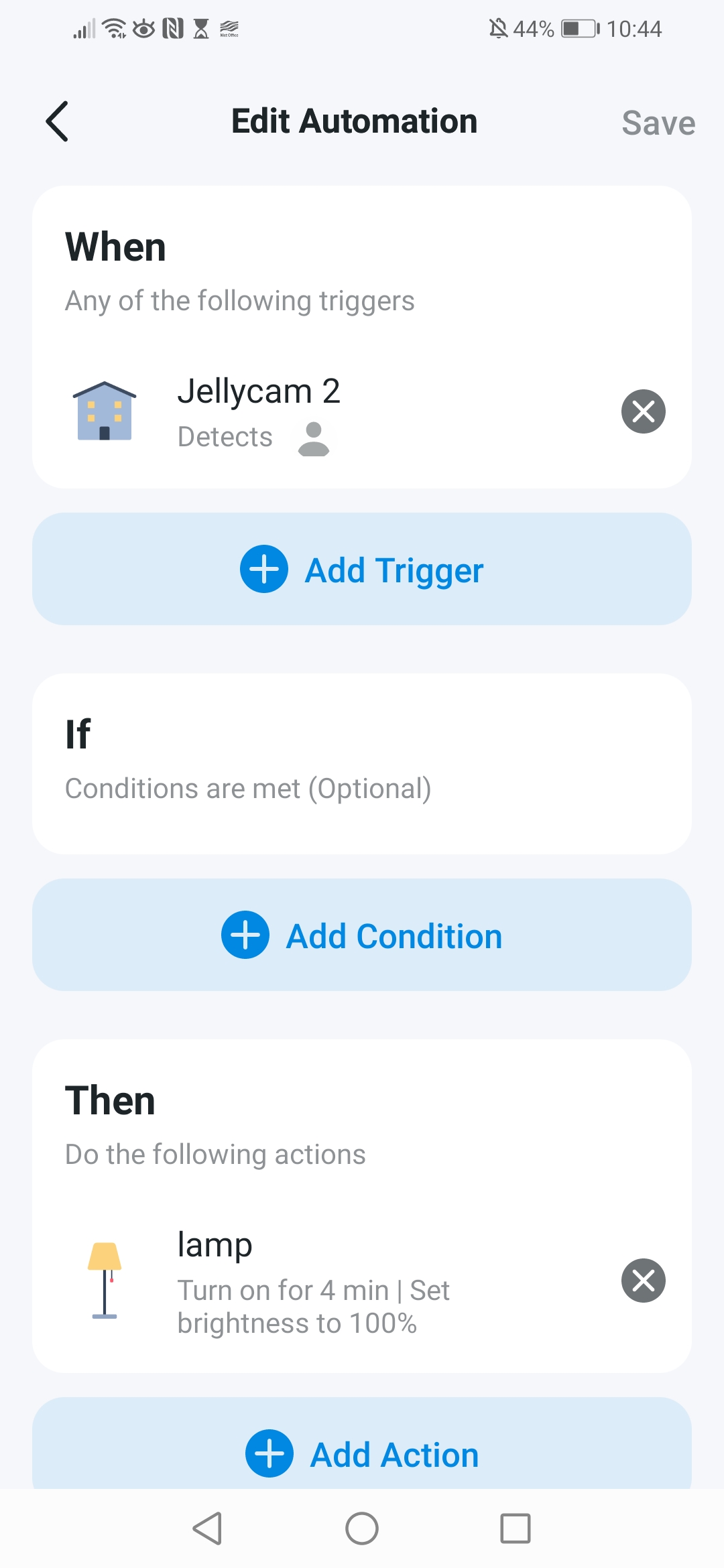
When "jellycam 2" detects a person, it turns on the smart bulb in my lamp at 100 percent brightness for 4 minutes. Works great, however, after those 4 minutes are up, it switches it off, which is fine, except for the fact that for a couple of hours after sunset I have the bulb coming on at 50 percent, and if it's triggered in this time, after 4 minutes it doesn't return to 50 percent brightness, it switches off, even if it was on prior.
Is there a way to make it go to the previous state : so bulb on at 50percent, c120 detects a human, puts bulb to 100 percent, and after 4 minutes switches it back to 50 percent if it was already on OR off if it was off previously?
Thanks so much. Mark.
- Copy Link
- Subscribe
- Bookmark
- Report Inappropriate Content


Hi,
Welcome to the TP-Link community.
@Vendex Thank you as well for your thoughtful suggestion. Currently, when using the camera as a trigger for automation, the system does not support setting a condition such as “When motion is no longer detected for XX time.”
The behavior you’re seeing is expected based on how your current Smart Actions are configured. Since the execution time is set to “Always,” both automation rules are triggered independently under their respective conditions, resulting in the situation you described.
As you mentioned, to achieve your desired behavior, we recommend splitting the automation into separate Smart Actions by time period. This way, you can better control how the bulb behaves under specific conditions.
If you wish to set up a scenario where the light turns on at 100% brightness when the camera detects a person, and then automatically dims back to 50% after a period of time, you can set up the actions in the automation as follows:
- Turn on the bulb at 100% brightness (immediately when motion is detected).
- Delay for XX minutes (this is where you set the duration you want the light to remain at 100% brightness).
- Turn on the bulb at 50% brightness (after the delay, it will adjust to this level).
Best Regards,
- Copy Link
- Report Inappropriate Content

@Mark84 the issue happens because tapo’s "turn on for X minutes" timer lacks a built-in memory to check the bulb's previous state. Once the 4 minutes are up, its default command is simply to turn the bulb completely off, even if it was already on at 50%. Since tapo doesn't support conditional logic (if/else) within a single rule yet, the best workaround is to split your automation into two rules using the effective time setting.
Rule 1 (daytime & late night): set the trigger when jellycam 2 detects a person. Set the action to turn on the lamp at 100% for 4 minutes. Set the effective time to run only during the day and late at night (e.g. 8:00 AM to sunset, and 11:00 PM to 8:00 AM).
Rule 2 (sunset evening hours): Set the trigger when jellycam 2 detects a person. Set the action to just turn the lamp to 100% brightness, without using the "for 4 minutes" timer. Set the effective time to your specific evening hours (e.g. sunset to 11:00 PM).
To make the bulb drop back down to 50% automatically after you leave the area during those evening hours, you need a separate rule. Set the trigger to when jellycam 2 stops detecting a person for 4 minutes. Set the action to turn the lamp to 50% brightness. Apply the exact same evening effective time to this rule as well. This completely bypasses the timer limitation. Hope this helps!
- Copy Link
- Report Inappropriate Content
@Vendex thanks for the detailed reply! Much appreciated
- Copy Link
- Report Inappropriate Content
Hi,
Welcome to the TP-Link community.
@Vendex Thank you as well for your thoughtful suggestion. Currently, when using the camera as a trigger for automation, the system does not support setting a condition such as “When motion is no longer detected for XX time.”
The behavior you’re seeing is expected based on how your current Smart Actions are configured. Since the execution time is set to “Always,” both automation rules are triggered independently under their respective conditions, resulting in the situation you described.
As you mentioned, to achieve your desired behavior, we recommend splitting the automation into separate Smart Actions by time period. This way, you can better control how the bulb behaves under specific conditions.
If you wish to set up a scenario where the light turns on at 100% brightness when the camera detects a person, and then automatically dims back to 50% after a period of time, you can set up the actions in the automation as follows:
- Turn on the bulb at 100% brightness (immediately when motion is detected).
- Delay for XX minutes (this is where you set the duration you want the light to remain at 100% brightness).
- Turn on the bulb at 50% brightness (after the delay, it will adjust to this level).
Best Regards,
- Copy Link
- Report Inappropriate Content
Information
Helpful: 0
Views: 184
Replies: 3
Voters 0
No one has voted for it yet.