
Devices Fail to Access the Internet After Updating Firmware on Archer AX55 AND AX73
 This thread has been locked for further replies. You can start a new thread to share your ideas or ask questions.
Hi,
I have one AX55 in our vacation house and one AX73 at home.
Both are now having the same issue. The devices are connected to the Wifi but doesn't have internet connection. It looks like it, but nothing will load.
Sometimes devices will also loose connection to the Wifi all togehter, for a few seconds.
I have tried Smart Connect and splitting bands. I have tried creating a guest network (on AX55) with no better result, guest network didn't have internet connection at all. I have rebooted...
AX55 V1 has 1.3.3
AX73 V2 has 1.1.1
We cannot have it like this! Please help!
- Copy Link
- Subscribe
- Bookmark
- Report Inappropriate Content


Hi @mericsson,
Thank you for your reply.
May I know is the internet light on and green?
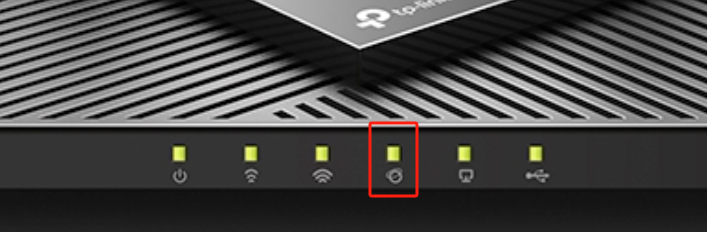
If yes, please try:
1. Log in to the web management interface of the router (http://tplinkwifi.net), go to Advanced > Network > Internet > Advanced Settings > Change the DNS Servers into 1.1.1.1 and 8.8.8.8.
2. Turn off the Modem and the Router, then power on the Router, Turn on the modem once the router is fully powered on.
Get more detailed steps from the FAQ: What should I do if I cannot access the internet through Wi-Fi router?
If it is off, please check if the cable is connected to WAN port of router? Try different cables, and try different LAN ports of modem.
- Copy Link
- Report Inappropriate Content
Hi@mericsson,
Thank you for your reply.
We haven't received the feedback that both routers cannot access websites after firmware update. Did you try to reboot or reset the routers?
Do other clients have normal network usage? Like your IoT clients, mobile phone with Apps, etc.
Please check if you enable parental control so that some websites are set in the block list.
If the old router can access websites normally, try a Mac Clone for your router: How do I configure MAC Address Clone on my TP-Link Archer Router?
- Copy Link
- Report Inappropriate Content
Hi @mericsson,
Thank you for contacting our community.
Please tell me what is the LED status now? Does the internet light turn red?
Have you tested the wired connection? Is it working?
If only the wireless connection is unstable, please try:
1) Make sure the Router is properly placed, it should be put in an open area instead of inside a cabinet or shelf.
2) Login the web management interface of the Router, go to Advanced > Wireless > Wireless Settings, change the wireless channel into another one.
3) For 2.4GHz wireless client devices, adjust 2.4GHz channel width into 20MHz, for 5G wireless client devices, adjust 5GHz channel width into 80MHz or 40MHz to avoid interference.
- Copy Link
- Report Inappropriate Content
@Joseph-TP thanks for your reply
No red lights. I have my old router connected to the same modem, and whenever the TP-Link router fail to give med Internet, I switch over to the old one and Internet works. I switch back and I have no Internet again. So I would say yes, it works when I go directly through the modem. (I did it like this because I have no device with RJ-input to connect directly to the modem)
1) Yes, that's not an issue. I have it on my workstation desk next to me.
2) Done this two times, no change.
3) Same here, no change.
Thanks again
- Copy Link
- Report Inappropriate Content
Hi @mericsson,
Thank you for your reply.
May I know is the internet light on and green?
If yes, please try:
1. Log in to the web management interface of the router (http://tplinkwifi.net), go to Advanced > Network > Internet > Advanced Settings > Change the DNS Servers into 1.1.1.1 and 8.8.8.8.
2. Turn off the Modem and the Router, then power on the Router, Turn on the modem once the router is fully powered on.
Get more detailed steps from the FAQ: What should I do if I cannot access the internet through Wi-Fi router?
If it is off, please check if the cable is connected to WAN port of router? Try different cables, and try different LAN ports of modem.
- Copy Link
- Report Inappropriate Content
@Joseph-TP hi again,
The internet light is green the whole time... so strange.
I just had a 5 min downtime. I took a bunch of screen shots of sites that didn't work (facebook, tp-link, reddit, laravel etc).
But Google and Youtube seemed to work the whole time!! And, this on both Chrome and Safari. I can't even begin to understand how that could be... I could search on Google and get responses, but couldn't access any of the result pages.
1. I already have 8.8.8.8 and 8.8.4.4 according to TP-Link suggestion
2. I did this, just appr 30 min before I had the latest downtime
So extremely frustrating. And I know it sounds impossible so I really have no clue.
- Copy Link
- Report Inappropriate Content
Hi@mericsson,
Thank you for your reply.
We haven't received the feedback that both routers cannot access websites after firmware update. Did you try to reboot or reset the routers?
Do other clients have normal network usage? Like your IoT clients, mobile phone with Apps, etc.
Please check if you enable parental control so that some websites are set in the block list.
If the old router can access websites normally, try a Mac Clone for your router: How do I configure MAC Address Clone on my TP-Link Archer Router?
- Copy Link
- Report Inappropriate Content
Information
Helpful: 0
Views: 813
Replies: 5
Voters 0
No one has voted for it yet.