
WiFi connectivity
 This thread has been locked for further replies. You can start a new thread to share your ideas or ask questions.
Could not connect my existing router.
- Copy Link
- Subscribe
- Bookmark
- Report Inappropriate Content


Hello @4St_Uv8 ,
Here’s how you can set up your router in Access Point Mode:
1) Connect your TP-Link router’s WAN port to the LAN port of your existing router using an Ethernet cable. Then, connect your computer to the TP-Link router via Ethernet or Wi-Fi.
2) Open a web browser and go to http://tplinkwifi.net to access the router’s web management interface. Log in with your credentials.
3) Navigate to Advanced > System > Operation Mode. Select "Access Point Mode" and save your changes.
4) Alternatively, you can use the TP-Link Tether app. Download and open the app, log in to your router, go to Tools > Operation Mode, choose "Access Point Mode," and apply the changes.
- Copy Link
- Report Inappropriate Content
Hello @4St_Uv8 ,
Here’s how you can set up your router in Access Point Mode:
1) Connect your TP-Link router’s WAN port to the LAN port of your existing router using an Ethernet cable. Then, connect your computer to the TP-Link router via Ethernet or Wi-Fi.
2) Open a web browser and go to http://tplinkwifi.net to access the router’s web management interface. Log in with your credentials.
3) Navigate to Advanced > System > Operation Mode. Select "Access Point Mode" and save your changes.
4) Alternatively, you can use the TP-Link Tether app. Download and open the app, log in to your router, go to Tools > Operation Mode, choose "Access Point Mode," and apply the changes.
- Copy Link
- Report Inappropriate Content

@4St_Uv8 Same problem. I have TP-Link main router and am adding TP-Link router for access point. AP is connected by ethernet cable to main router. When I go to log in to AP router I connect with main router. How do I log in to get to control panel of AP router?
- Copy Link
- Report Inappropriate Content

Hi,
If you have more than one TP-Link router and http://tplinkwifi.net opens the login page of the "wrong" router, then you need to use the LAN IP address of the router you want to access instead. For example, if the IP address of the AP router was 192.168.0.100, then enter http://192.168.0.100 (or just 192.168.0.100) into the address bar of the web browser. If you don't know what the IP address of the AP router currently is, then log into the main router and see if you can find the IP address of the AP router in its "Clients" list.
- Copy Link
- Report Inappropriate Content
@woozle OK, I found the ip address of my new router, http://192.168.0.105, connected to it and changed mode to Access Point. Once mode was changed I typed http://192.168.0.105 into the browser and it changed to
http://192.168.0.105/webpages/login.html?v=62c60c5d
This site can’t be reached
192.168.0.105 took too long to respond.
How do I access my AP router?
- Copy Link
- Report Inappropriate Content
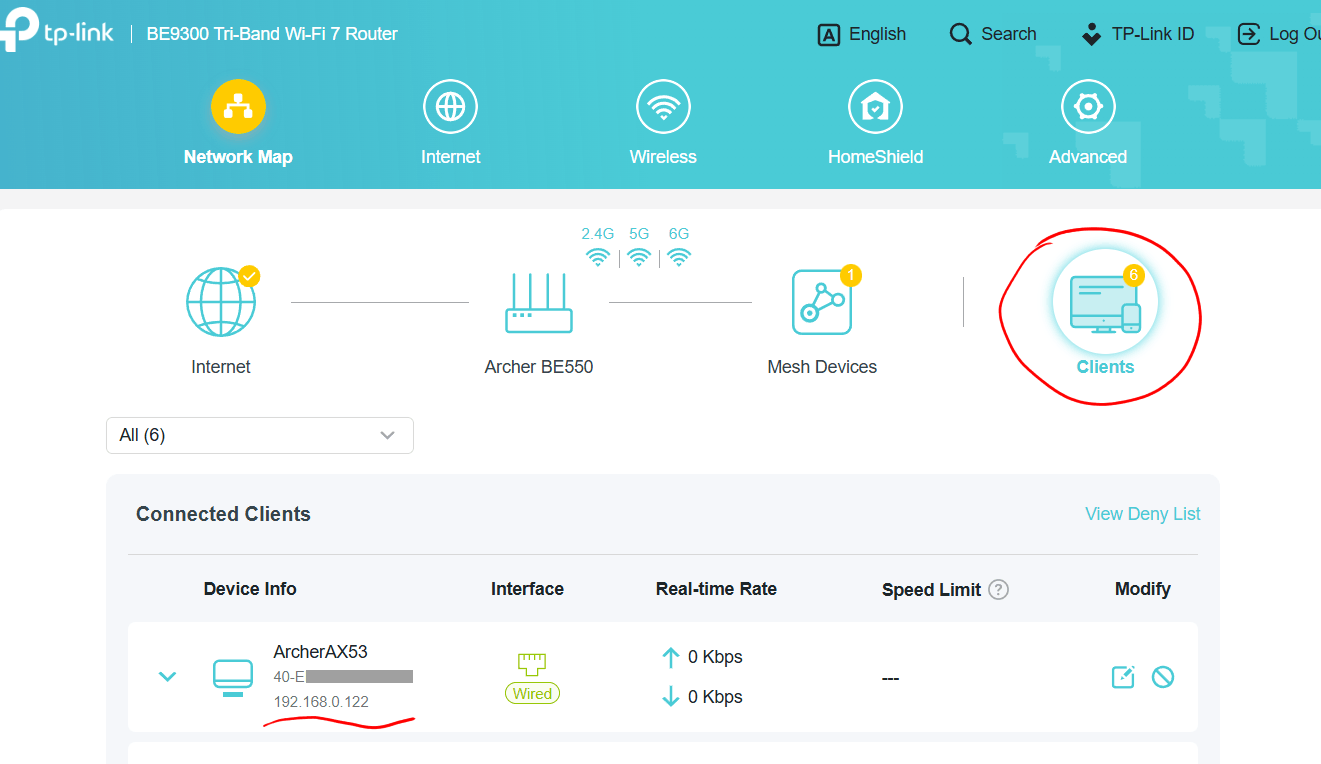
It is normal that changing the operation mode also results in the IP address changing.
To find the new IP address you will need to check again on the main router to which the AP router is connected to.
Below as example a screenshot of a BE550 router that has an Archer AX53 router in AP mode connected to it.
- Copy Link
- Report Inappropriate Content
@woozle Yeah, but now I can't log into my main router. Tried all of the following to now avail:
http://TP-LINK_OCDF
and
http://tp-link_ocde_5g/
and
https://tplinkwifi.net/
and
http://192.168.0.101/
- Copy Link
- Report Inappropriate Content
@kleem I got in by switching browser to Firefox (was using Brave).
- Copy Link
- Report Inappropriate Content
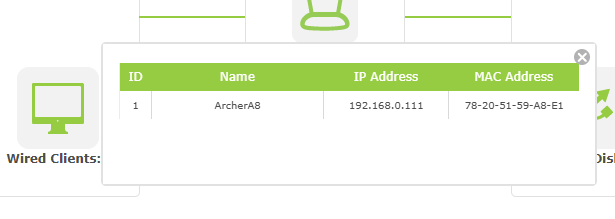
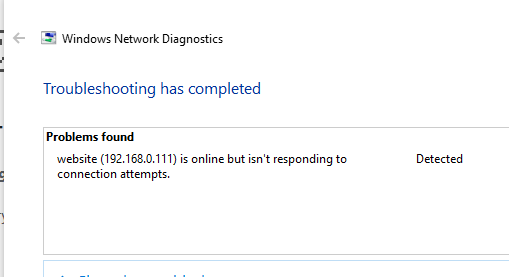
@kleem . . . but can't connect to AP router, client 1. Type http://192.168.0.111/ in Firefox and get
"The server at 192.168.0.111 is taking too long to respond."
- Copy Link
- Report Inappropriate Content
- Copy Link
- Report Inappropriate Content
Are you absolutely sure the Archer A8 is presently in Access Point mode?
If you were previously able to access the Archer A8 via http://192.168.0.105, then this sounds to me like the Archer A8 was in Access Point mode before you switched the operation mode.
If you can't get anywhere from the current situation, then I suggest you reset the Archer A8 via its "Reset" button and the set it up again as per TP-Link's user guide.
- Copy Link
- Report Inappropriate Content
Information
Helpful: 0
Views: 1027
Replies: 10
Voters 0
No one has voted for it yet.