
Knowledge Base Making the Most of the MLO Network Feature on a Wi-Fi 7 Router


MLO Network Wireless Setup Tips
On Wi-Fi 7 Archer Routers, there are two ways to set up and benefit from the MLO Network. For detailed steps, you can refer to
Introduction and Usage of MLO Network.
Did you know?
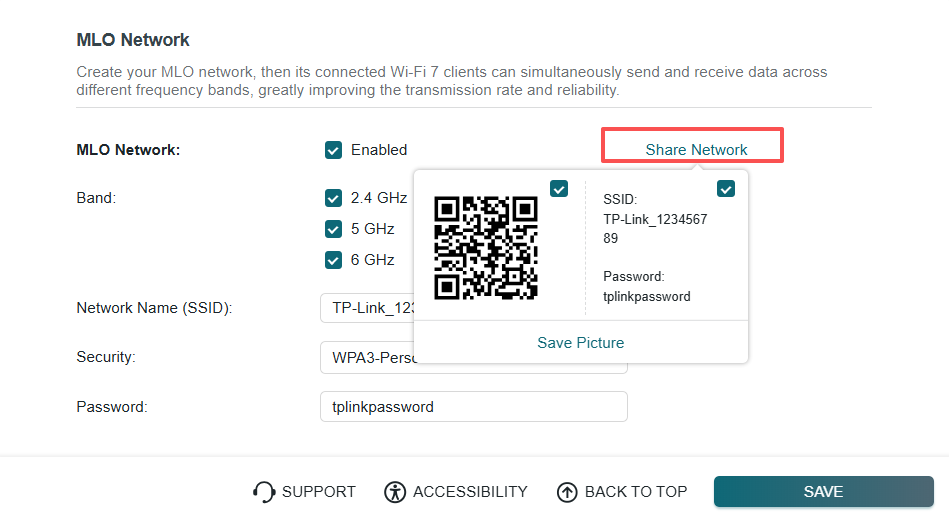
You can click Share Network to quickly and conveniently share the SSID and passwor with your guests.
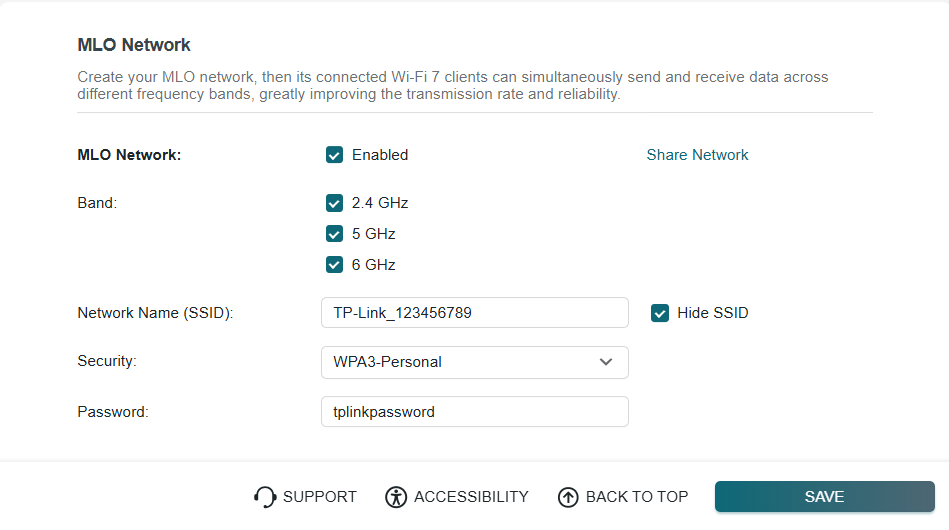
If you click Hide SSID, your SSID won’t display when you scan for local wireless networks on your wireless device; you will need to join the MLO network by manually entering the network name when adding a new device.
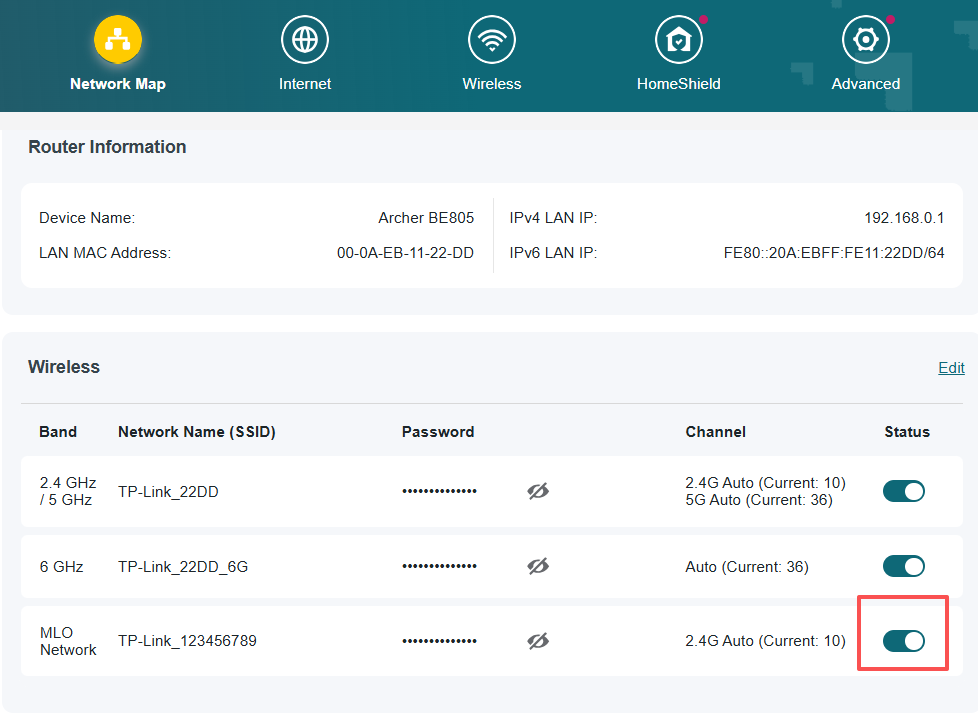
To view the MLO network information, open Network Map, click on the router, and navigate to the Wireless section. You can quickly toggle the MLO Network, along with your other SSIDs, by switching the toggle in the ‘Status’ column.
Possible MLO Network Band Combinations
Depending on the router's supported wireless protocols across its bands, deploying an MLO network may result in one of four combinations:
2.4 GHz + 5 GHz | 5 GHz + 6 GHz | 2.4 GHz + 6 GHz | 2.4 GHz + 5 GHz + 6 GHz
Here are a few examples of different router models and their supported Wi-Fi Band Combinations on the MLO Network:
| Model |
|
|
|
| Wi-Fi Speed | 5 GHz: 5764 Mbps (802.11be) 2.4 GHz: 688 Mbps(802.11be) |
6 GHz: 5760 Mbps (802.11be) 5 GHz: 2880 Mbps (802.11be) 2.4 GHz: 574 Mbps (802.11ax) |
6 GHz: 11520 Mbps (802.11be) 5 GHz: 5760 Mbps (802.11be) 2.4 GHz: 1376 Mbps (802.11be) |
| Band Combinations | 2.4 GHz + 5 GHz | 5 GHz + 6 GHz | 2.4 GHz+5 GHz 5 GHz+6 GHz 2.4 GHz+6 GHz 2.4 GHz+5 GHz+6 GHz |
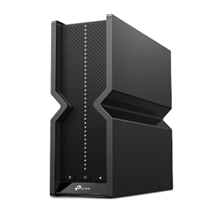
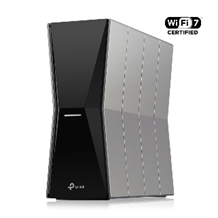
*The MLO network on the Archer BE550_V1 supports a 5 GHz + 6 GHz combination only due to its 2.4 GHz band operating via the 802.11ax standard.
In other words, to enable the MLO Network, the Wi-Fi bands designated for the main network must support the 802.11be standard.
For detailed information on the wireless protocols supported by a specific router model, please visit our official website, search for the model number, and review the hardware version specifications.
Q&A:
1. Why is the MLO Network Option Greyed Out?
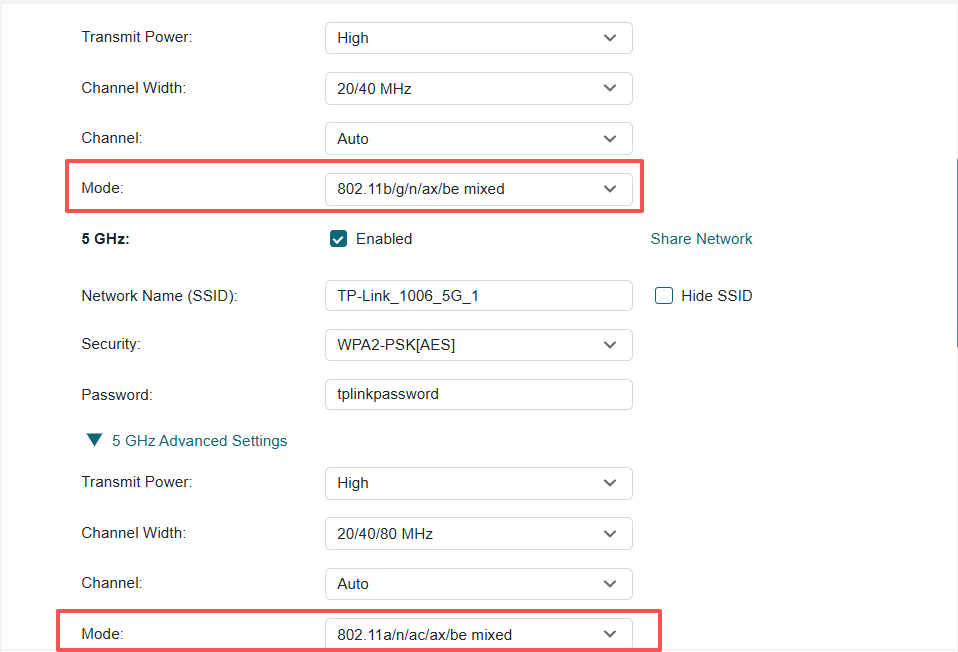
If you want to use MLO, at least two main network Wi-Fi bands must be enabled and configured to the 802.11be standard on wireless modes.
Note: If you can’t find individual settings for the 2.4 GHz and 5 GHz wireless bands, please disable Smart Connect first, then revisit the wireless settings for each band.
2. Why Can't my Device Find the MLO Network?
Currently, only MLO-compatible devices support MLO network connectivity. Please ensure your device supports MLO network connections.
Note: Check whether the "Hide SSID" option is enabled on the MLO network.
Additionally, ensure that the SSID assigned to the MLO network is distinct from that of the Main network.
3. Can I Expand the MLO Network for my EasyMesh Network?
Currently, only the Archer BE550 V2 supports MLO Backhaul. That is, the MLO network still cannot be extended in an EasyMesh setup for most models. As a result, the MLO network will not be available for extension on satellite devices using EasyMesh.
Our teams are actively exploring the possibility of extending this feature to more EasyMesh Network devices.
If you would like to learn more about the MLO network or have any questions, please leave a comment to discuss!
RELATED ARTICLES:
Enhanced EasyMesh Support with Extended Guest/IoT/MLO Networking and Advanced Features for BE550 V2