Optimizing WireGuard VPN Client Connectivity on the M8550

Optimizing WireGuard VPN Client Connectivity on the M8550

Optimizing WireGuard VPN Client Connectivity on the M8550
2026-01-28 07:01:06 - last edited 2026-02-12 01:40:07
Model: M8550  
Hardware Version:
Firmware Version:

This Article Applies to:

M8550(EU/US)_V1.0/1.6


Hi All,
To address critical reliability and performance issues with the WireGuard VPN client on the M8550, our engineering team has developed a targeted firmware update. This update resolves configuration parsing errors, enhances connection stability, and improves traffic routing efficiency.


It is recommended to install this beta firmware if you happen to experience the following situations:

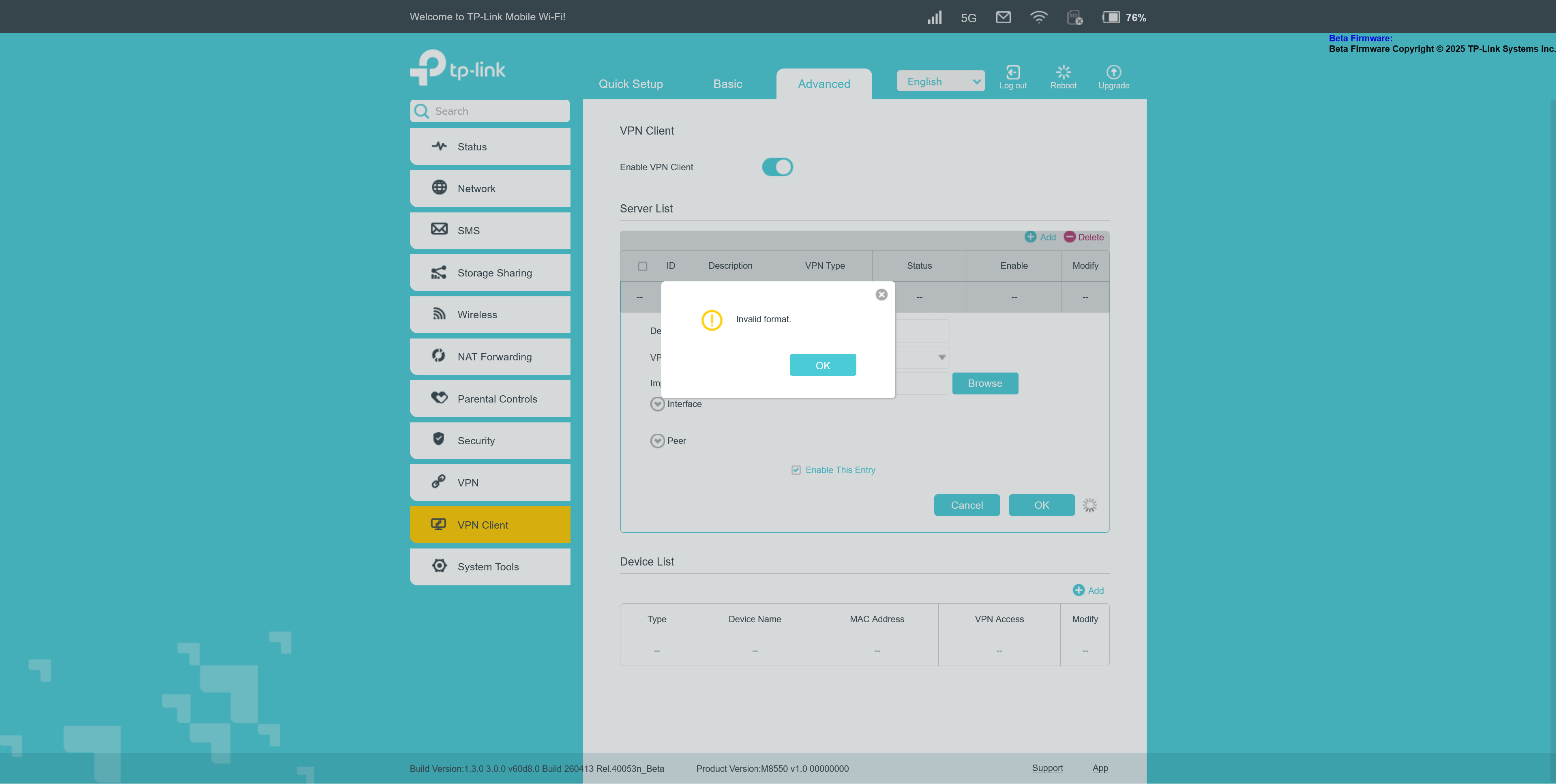
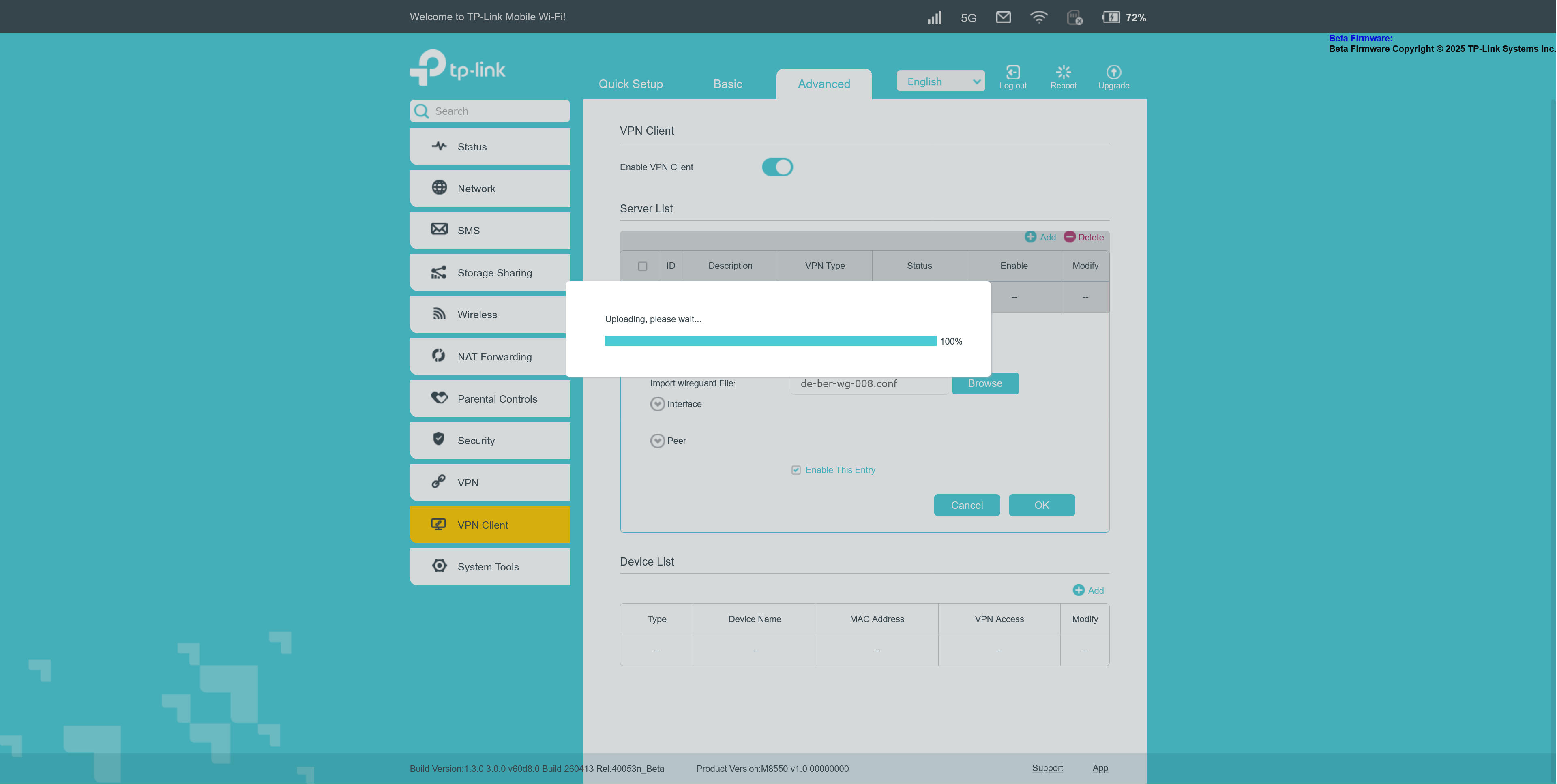
  • Configuration File Import error: Users are unable to import WireGuard VPN configuration files due to parsing errors or unsupported parameters.
  • Connection Failures: After the configuration file is imported successfully, the VPN tunnel fails to establish a stable connection.
  • Traffic Routing Issues: VPN Client status may display "connected", but VPN traffic can't pass  properly between the client and the remote WireGuard VPN server. 


Firmware Download Link:

M8550(US)_V1.6 1.2.0_3.0.0_Build_20260121_Beta
M8550(EU)_V1.0 1.3.0_3.0.0_Build_20260126_Beta

Update Notice:


Please feel free to comment below whether the 1.2.0 firmware helps to ensure stable VPN connectivity.
If you still experience any issues with WireGuard VPN Connection on M8550, please feel free to comment below and include a detailed description of the behavior and as much information as possible regarding the specific conditions that seem to trigger it.

Your input helps us continue to improve and provide the best possible products and support.

1
1
#1
5 Reply
Re:Optimizing WireGuard VPN Client Connectivity on the M8550
2026-02-27 08:55:57

Hi, doesn't work for me. I'm trying to setup WireGuard with my Asus Router using the tether app. When importing the config file and reentering the dialog, it resets the endpoint IP-adress with an adress from the WireGuard range with subnet mask like 10.6.0.2/32. The title on this section is also VPN-Server and not VPN-Client.

So looks not finished. It shows as connected but no real data went through.

1
1
#3
Re:Optimizing WireGuard VPN Client Connectivity on the M8550
2026-02-28 06:54:07

  @tobiasw 

Hi, welcome to the community.

Did you plan to set M8550 as a WireGuard VPN Client for the Asus VPN Server?

(PS: M8550 doesn't support LAN-to-LAN VPN connection.)

As for the VPN Client range, you mentioned M8550 resets it to 10.6.0.2/32. Is this not the VPN client range reserved on the Asus router?

-By the way, can I have the model number of your Asus router?


Could you please send an email to support.forum@tp-link.com with the following details:

  • A copy of the WireGuard VPN config file
  • A copy of the web UI system log on the M8550
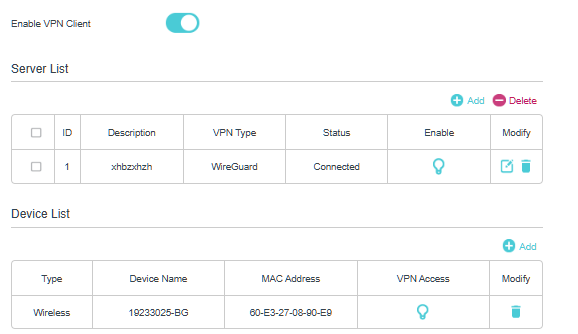
  • A screenshot of the WireGuard VPN status, such as:

Best regards.


0
0
#4
Re:Optimizing WireGuard VPN Client Connectivity on the M8550
2026-03-26 16:53:17

  @David-TP 

Wann kommt denn das offizelle Update?

4
4
#8
Re:Optimizing WireGuard VPN Client Connectivity on the M8550
a week ago

  @David-TP 
Is there a future update planned? For me the VPN (even tough it says connected doesnt do anything)
And is Lan to Lan VPN really impossible with the M8850?? Because with the much cheaper AX3000 it worked somehow? Why is this?

Kind Regards

0
0
#10
Re:Optimizing WireGuard VPN Client Connectivity on the M8550
Yesterday

  @David-TP 


Subject: Issue with WireGuard VPN Client - AllowedIPs Configuration


Hello,


I purchased this router specifically for the WireGuard VPN Client feature.


However, it isn't working.

When setting up the VPN using the configuration file, the AllowedIPs line includes the following three addresses: 0.0.0.0/0, 192.168.27.64/27, 192.168.1.0/24.

On the stable firmware, it is impossible to save the configuration with all three addresses; it forces me to enter only one to validate the tunnel, which naturally causes the connection to fail.


I have since installed the BETA version for the EU model.


With this version, I was able to enter all three addresses in the AllowedIPs field.

While I can now establish a connection, it still doesn't actually work.

Upon further inspection of the settings, I discovered that only one address was actually saved in the field—0.0.0.0/0—while the others were dropped.

This explains why the connection is failing.


I bought this router specifically for this functionality, and I am very disappointed that I cannot use it as intended.


I have already opened Ticket #73299 with support, providing screenshots and additional technical details.


Thank you in advance for your help.


Jerome


------


Version originale en Français :


Bonjour,


J'ai acheté ce routeur pour la fonction VPN Client Wirguard. 


Mais cela ne fonctionne pas. Lors du paramétrage de VPN avec le fichier de configuration, il est indiqué sur la ligne AllowedIP les 3 adresses suivantes : 0.0.0.0/0, 192.168.27.64/27, 192.168.1.0/24. Mais il est impossible de valider la configuration avec ces 3 adresses IP. Il faut en indiquer une seule afin de pouvoir valider la configuration du tunnel, mais du coup, la connexion ne fonctionne pas. 


J'ai installé la versio BETA pour le modèle EU.


Avec cetter version, j'ai pu paramétrer ma connection avec les 3 adresses IP sur la ligne AllowedIP : 0.0.0.0/0, 192.168.27.64/27, 192.168.1.0/24.

J'arrive à établir une connexion, mais elle ne fonctionne pas.

Après vérification du paramétrage de ma connexion, il s'avère qu'une seule adresse IP a été renseingée sur le champs Allowed IP, à savoir 0.0.0.0/0. La connexion ne pourra donc pas fonctionner.


J'ai acheté ce routeur pour cette fonctionnalité et je suis très décus de ne pas pouvoir l'utiliser.


J'ai ouvert le ticket #73299 auprès de l'assistance avec des captures d'écran et plus de précisions.


Merci par avance de votre aide.


0
0
#11