
AX3000 VPN Client setup help with Cyberghost VPN
I am trying to setup my Cyberghost VPN with my Archer AX3000 router.
I follow all the setup direction on both the cyberghost and tp-link forums to no avail.
I currently have a connection status that is always connecting.
I have tried to put all the CA, Client Cert and Key all on the .ovpn file with the same out come.
can someone please assist me in setting up this vpn.
Thank you
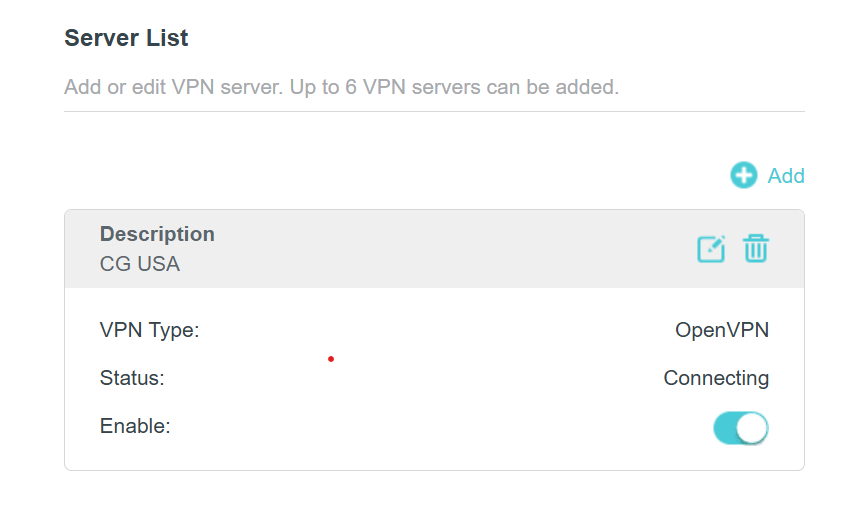
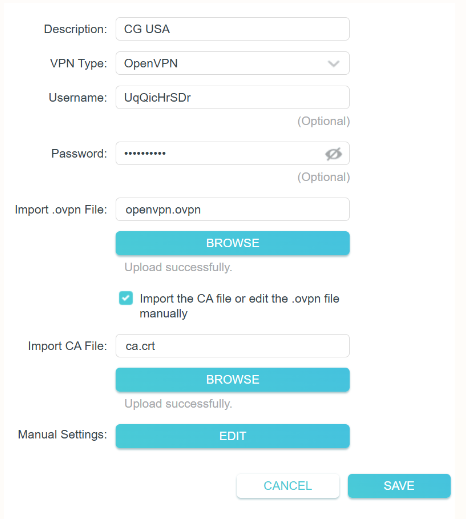
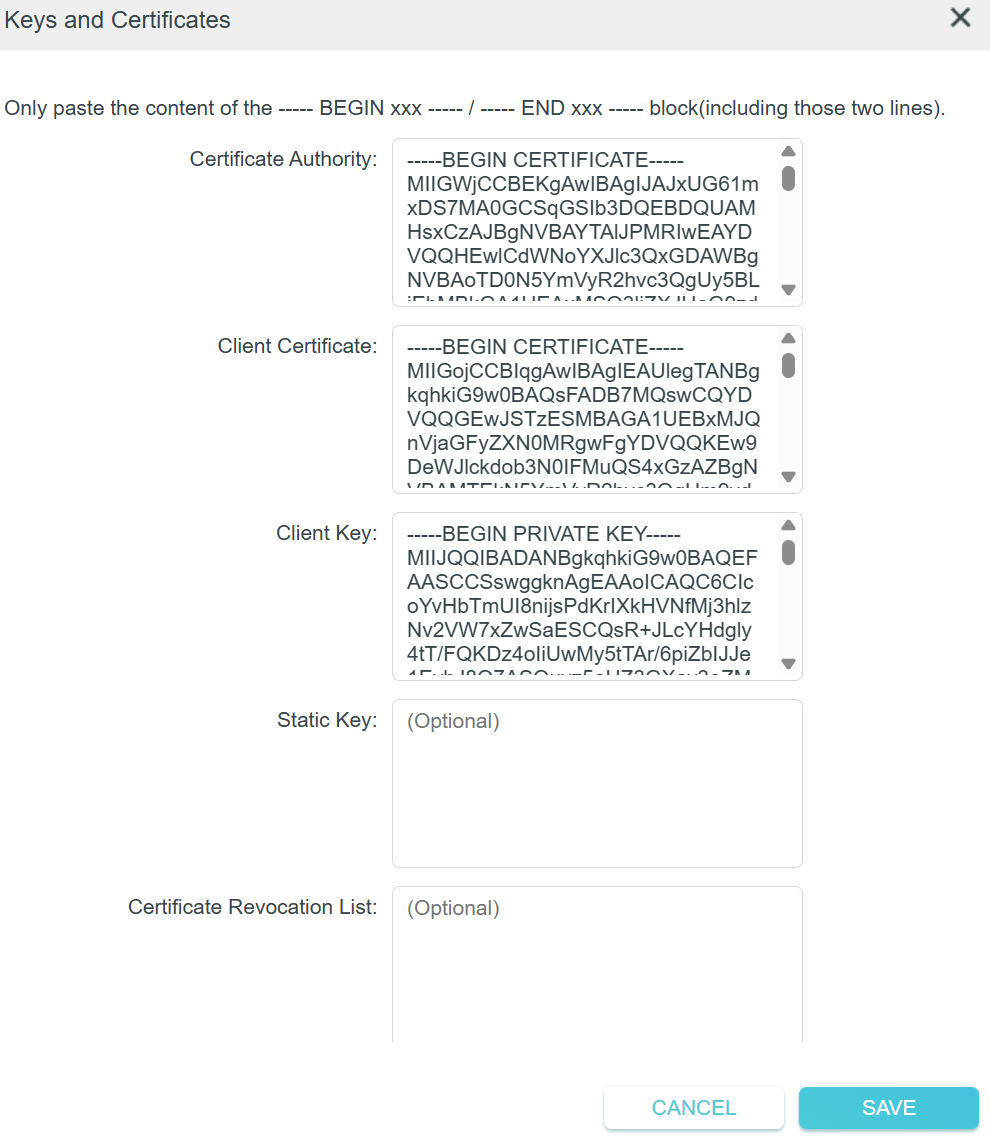
- Copy Link
- Subscribe
- Bookmark
- Report Inappropriate Content


Hello @13thSamuria ,
Welcome to our community.
Since you've already attempted the file merging step, let's make sure the overall setup is correct and then move on to targeted troubleshooting.
Verify your OpenVPN Client Setup:
1. Log in to your router's management interface and go to Advanced > VPN Client, make sure it is enabled and OpenVPN Client is selected.
2. Confirm you have the following from CyberGhost:
• VPN username and password
• VPN server address (domain name or IP)
• The merged .ovpn configuration file
3. Make sure all required fields are filled in correctly and the merged .ovpn file is properly imported.
4. Select the client devices you want to route through the VPN tunnel.
> Important Note: Before importing the .ovpn file into the router, it's recommended to test the configuration file on your computer first to confirm it works properly. If it doesn't work on your computer either, the issue may lie with the configuration file itself or your CyberGhost credentials.
For further troubleshooting on VPN Client issues, please refer to this dedicated guide which covers common VPN Client problems including connection failures:
👉VPN Client on Wi-Fi Router Is Not Working
- Copy Link
- Report Inappropriate Content
Hello @13thSamuria ,
Welcome to our community.
Since you've already attempted the file merging step, let's make sure the overall setup is correct and then move on to targeted troubleshooting.
Verify your OpenVPN Client Setup:
1. Log in to your router's management interface and go to Advanced > VPN Client, make sure it is enabled and OpenVPN Client is selected.
2. Confirm you have the following from CyberGhost:
• VPN username and password
• VPN server address (domain name or IP)
• The merged .ovpn configuration file
3. Make sure all required fields are filled in correctly and the merged .ovpn file is properly imported.
4. Select the client devices you want to route through the VPN tunnel.
> Important Note: Before importing the .ovpn file into the router, it's recommended to test the configuration file on your computer first to confirm it works properly. If it doesn't work on your computer either, the issue may lie with the configuration file itself or your CyberGhost credentials.
For further troubleshooting on VPN Client issues, please refer to this dedicated guide which covers common VPN Client problems including connection failures:
👉VPN Client on Wi-Fi Router Is Not Working
- Copy Link
- Report Inappropriate Content
Information
Helpful: 0
Views: 207
Replies: 1
Voters 0
No one has voted for it yet.