
The Archer TX20U Nano cannot be enabled

I plugged it straight to the back of my pc, and not only I can't enable it in network settings, it made issues like when I shutdown my pc it won't completely shutdown but only the screen went black, showing error message DRIVER_POWER_STATE_FAILURE when I try to reboot.I have tried manually download the driver from the website and resetting my network setting.It is really frustrating as it is not only I am not able to use the adapter but it is affecting my pc now.Also Im on Win10.
- Copy Link
- Subscribe
- Bookmark
- Report Inappropriate Content


Hello @benso0919,
Welcome to our community.
This error code "DRIVER_POWER_STATE_FAILURE" indicates a driver power management conflict. Here are the steps to resolve this:
1. Completely uninstall the current driver:
• Open Control Panel > Uninstall a program
• Find and remove any TP-Link adapter software
• Then go to Device Manager, find the adapter under Network Adapters, right-click and select "Uninstall device"
• Make sure to check "Attempt to remove the driver for this device" if that option appears
• Restart your PC
2. Download and reinstall the latest driver:
• Visit the TP-Link official website: https://www.tp-link.com/support/download/
• Find your exact adapter model and download the latest Windows 10 driver
3. Try installing in Safe Mode:
• This helps avoid conflicts with other software
• Follow this guide to enter safe mode: https://www.tp-link.com/support/faq/791/
• Install the driver while in safe mode
4. Check Microsoft's solutions for this specific error:
• Visit: https://support.microsoft.com/en-us/topic/error-codes-in-device-manager-in-windows-524e9e89-4dee-8883-0afa-6bca0456324e
5. Disable power-saving mode (if adapter appears in Device Manager):
• Open Device Manager > Universal Serial Bus controllers (usually at the bottom)
• Double-click each "USB Root Hub"
• Go to the "Power Management" tab > Uncheck "Allow the computer to turn off this device to save power".
• After performing this operation on each USB Root Hub, save and restart your computer.
The Archer TX20U Nano remains disabled. Please try the following troubleshooting steps:
1. Disable your computer's existing network adapter:
• In Device Manager, locate your motherboard's built-in network adapter.
• Right-click and select "Disable device".
• This avoids conflicts with TP-Link adapters.
2. Test on another computer:
• If possible, test the adapter on another computer to confirm that the hardware is working properly.
- Copy Link
- Report Inappropriate Content

Hi,
Have you tried the Archer TX20U Nano in other USB ports of your PC yet?
It is quite common for PCs to have more than one USB controller operating the many USB ports and occasionally one might handle a certain device better than the other. (to find out open the Device Manager and look for "[brand name] USB 3.0 eXtensible Host Controller" under "Universal Serial Bus controllers")
Also, does Archer TX20U Nano show some error message in the Device Manager?
- Copy Link
- Report Inappropriate Content
@woozle
Hello,
Yes, I have tried plugging it in other USB ports. Once I plugged in, the device manager can recognize the device very quickly, however not in the window settings, and the PC will lost connection to the internet. After rebooting, the Archer TX20U Nano will be recognized as "TP Link Wireless USB Adapter" both in the device and window settings, but still can not be enabled. I have never seen some error message in the device manager but something mentionable is once I unplug the Archer TX20U Nano, it stays on the device manager unless I reboot (which will trigger the blue screen thing).
- Copy Link
- Report Inappropriate Content
What kind of Wi-Fi adapter did you use before you got the Archer TX20U Nano? In case it also was an USB adapter, was it working fine?
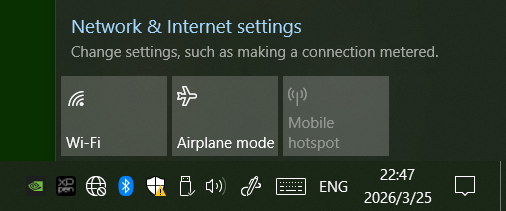
When you say the Wi-Fi cannot be enabled, do you mean the "Wi-Fi" button shown in the picture below? Is the button inactive or is it active, but when clicked nothing happens?
Do you have speakers or headphones connected to the PC? If yes, is there some sound when you enable the Wi-Fi, like the sound when a USB devices is plugged in or removed?
- Copy Link
- Report Inappropriate Content
Sorry for mixing it up, I meant the Archer TX20U Nano cannot be enabled in the Network connections settings. It only shows the original one from my motherboard (which has poor performance, that's why i need the Archer TX20U Nano to work) is enabled, no matter how much time I right-click the Archer TX20U Nano and press enable, it just stays disabled.
- Copy Link
- Report Inappropriate Content
Hello @benso0919,
Welcome to our community.
This error code "DRIVER_POWER_STATE_FAILURE" indicates a driver power management conflict. Here are the steps to resolve this:
1. Completely uninstall the current driver:
• Open Control Panel > Uninstall a program
• Find and remove any TP-Link adapter software
• Then go to Device Manager, find the adapter under Network Adapters, right-click and select "Uninstall device"
• Make sure to check "Attempt to remove the driver for this device" if that option appears
• Restart your PC
2. Download and reinstall the latest driver:
• Visit the TP-Link official website: https://www.tp-link.com/support/download/
• Find your exact adapter model and download the latest Windows 10 driver
3. Try installing in Safe Mode:
• This helps avoid conflicts with other software
• Follow this guide to enter safe mode: https://www.tp-link.com/support/faq/791/
• Install the driver while in safe mode
4. Check Microsoft's solutions for this specific error:
• Visit: https://support.microsoft.com/en-us/topic/error-codes-in-device-manager-in-windows-524e9e89-4dee-8883-0afa-6bca0456324e
5. Disable power-saving mode (if adapter appears in Device Manager):
• Open Device Manager > Universal Serial Bus controllers (usually at the bottom)
• Double-click each "USB Root Hub"
• Go to the "Power Management" tab > Uncheck "Allow the computer to turn off this device to save power".
• After performing this operation on each USB Root Hub, save and restart your computer.
The Archer TX20U Nano remains disabled. Please try the following troubleshooting steps:
1. Disable your computer's existing network adapter:
• In Device Manager, locate your motherboard's built-in network adapter.
• Right-click and select "Disable device".
• This avoids conflicts with TP-Link adapters.
2. Test on another computer:
• If possible, test the adapter on another computer to confirm that the hardware is working properly.
- Copy Link
- Report Inappropriate Content
Information
Helpful: 0
Views: 785
Replies: 5
Voters 0
No one has voted for it yet.