Hello @Zinmoor ,
Welcome to our community.
This appears to be a wireless stability problem specific to the satellite router. Here are some troubleshooting steps thtat may help:
For the satellite router's wireless settings:
1. Replace Ethernet Cable: Verify the Ethernet cable between the main router and satellite device is functioning properly and try using a different cable if possible
2. Router placement: Make sure the satellite router is properly placed in an open area instead of inside a cabinet or shelf, as this can affect wireless performance.
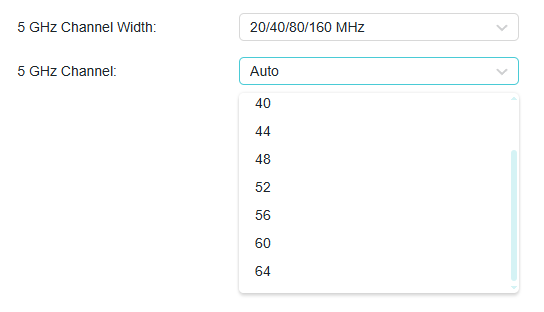
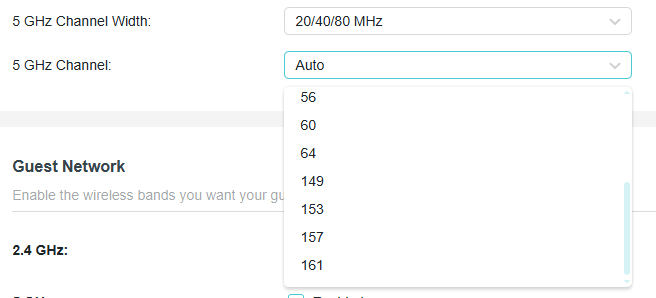
3. Change Wi-Fi channel manually: In the satellite router's web interface, go to Advanced > Wireless > Wireless Settings. Instead of using Automatic channel selection, try manually selecting a specific 5GHz channel to avoid nearby interference. Test different channels (like 36, 40, 44, 48, 149, 153, 157, 161) to find the best one for your environment that maintains 160 MHz width.
4. Verify channel width settings: Keep the 5GHz channel width set to 20/40/80/160 MHz as you have it. The router should automatically select the appropriate width, but interference or regulatory restrictions in your area might be causing it to fall back to 20 MHz.
5. Check for interference: Use your WiFi Analyzer app to check if there are many neighboring networks on the same or overlapping channels. Heavy interference can force the router to reduce channel width. If you find significant interference, try channels in the higher range (149-161) or lower range (36-48) depending on which is less congested.
6. Disable certain features: Go to the web interface > Advanced > NAT Forwarding > UPNP to disable UPNP, and go to Advanced > Security to disable SIP ALG. These features may affect Wi-Fi performance.
7. Check Parental Controls: Open the Tether app, go to Parental Control, and ensure no parental control profile is configured for the affected devices.
8. Update client device drivers: Make sure the network adapter drivers, system, or firmware on your client devices (e.g., PC, phone, or smart devices) are up to date.
Best Regards.