
OpenVPN Client - import ovpn file error Upload failed.
 This thread has been locked for further replies. You can start a new thread to share your ideas or ask questions.
I-ve tried different .ovpn profiles prom another ax23 router and from omada er605 router - it always finish with error
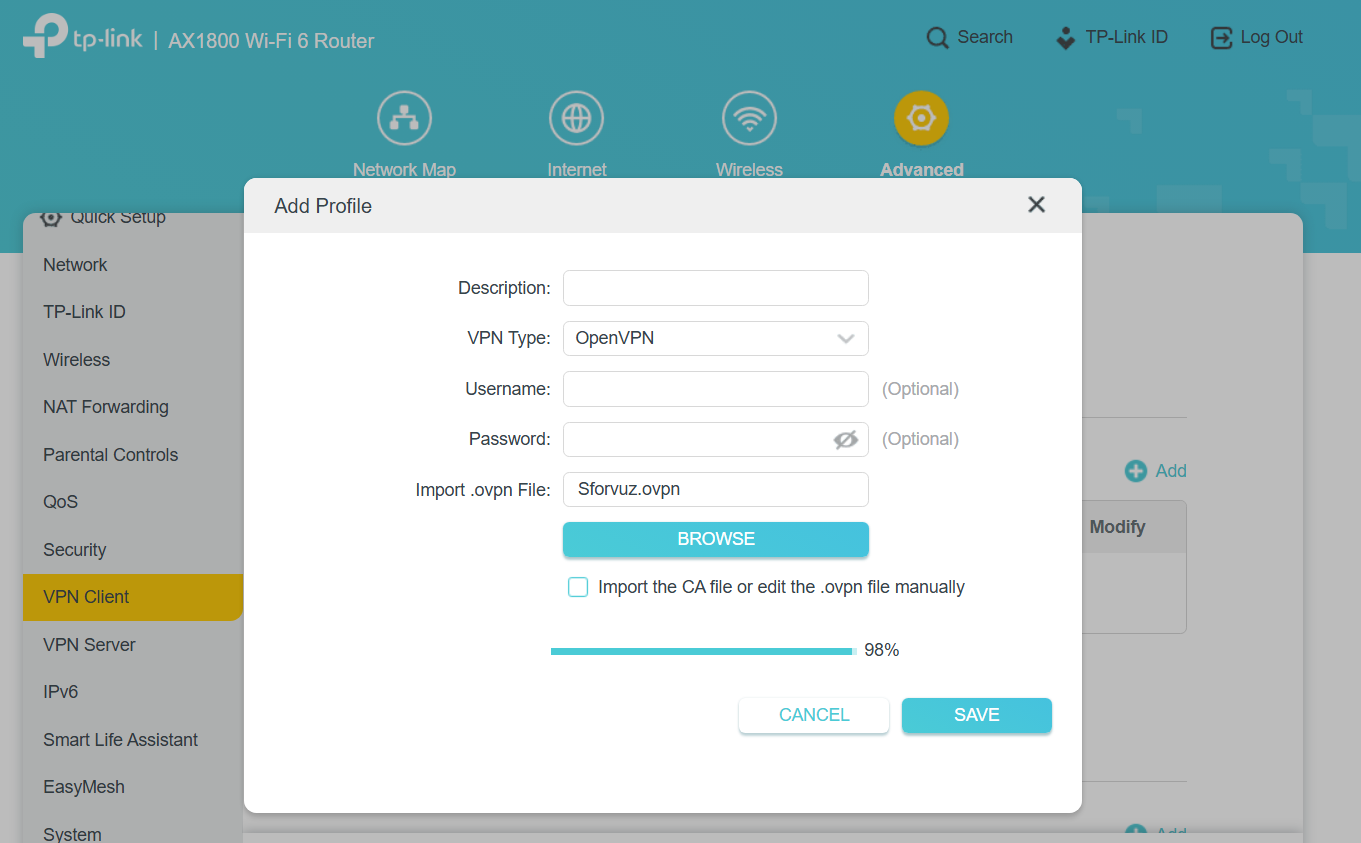
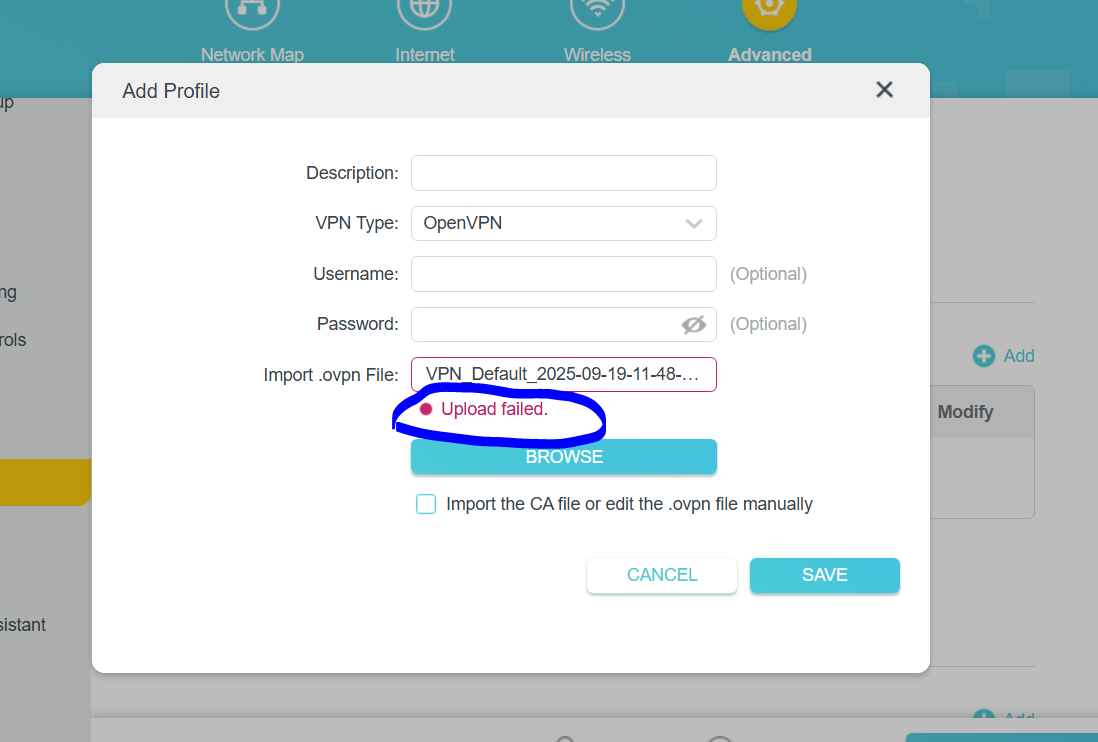
- Copy Link
- Subscribe
- Bookmark
- Report Inappropriate Content


Hello @YuriyB ,
Thanks for contacting our community.
Before configuring the VPN Client on the Router, you will need these details from your VPN provider:
1) VPN username and password.
2) VPN server address (domain name or IP address).
3) OpenVPN configuration file, the file usually ends with .ovpn.
4) Test the ovpn configuration file on your computer, make sure it works properly.
Please note that if your VPN Provider provides multiple OpenVPN-related files (including .ovpn, .crt, .key, etc.), you will have to merge the files before importing them into the Router. Please follow this FAQ to merge the files first: Manually create the unified format for the OpenVPN profile.
For detailed instructions, please take a look at this FAQ: How to install a VPN on TP-Link Wi-Fi Router.
When you try to import the configuration file, are you accessing the router's management interface via the WAN IP (e.g., 123.45.67.89)?
If the answer is 'yes,' the following reasons may be causing your inability to log in and import the file:
- Remote management is not enabled: The router blocks access to the management interface from the external network (WAN) by default.
- Firewall blocking: The external HTTP/HTTPS ports (80/443) may be blocked by your carrier or the router itself.
Please do the following:
- Log in to the router from the LAN using the LAN IP (e.g., 192.168.1.1).
- Retry importing the .ovpn file.
- If the error persists, please provide: A screenshot of the specific error message during the import
- Copy Link
- Report Inappropriate Content
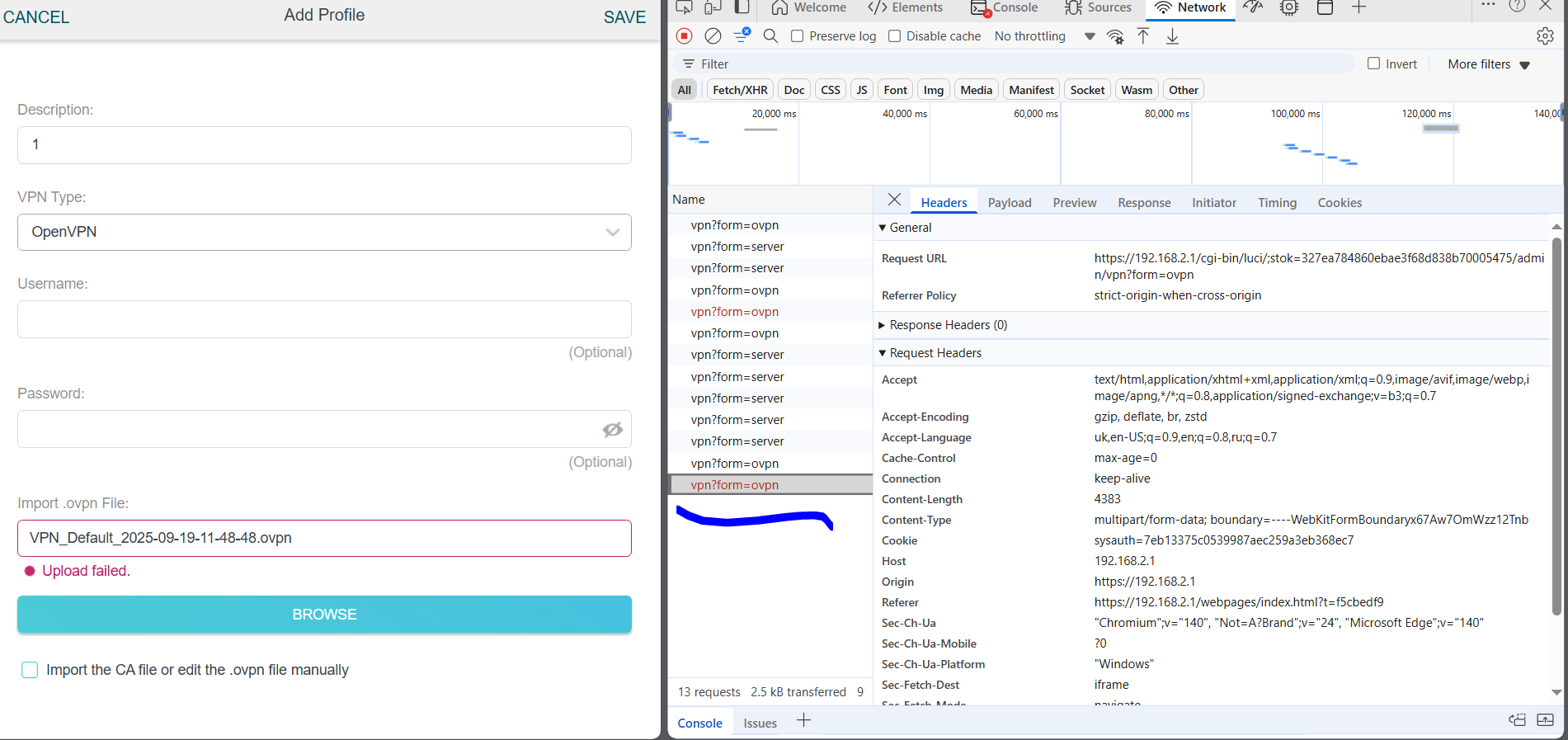
- Copy Link
- Report Inappropriate Content
Edge and Chrome failed
- Copy Link
- Report Inappropriate Content
manual enter all other creds always get error.
you guys from tplink dont test firmware before post it to users????
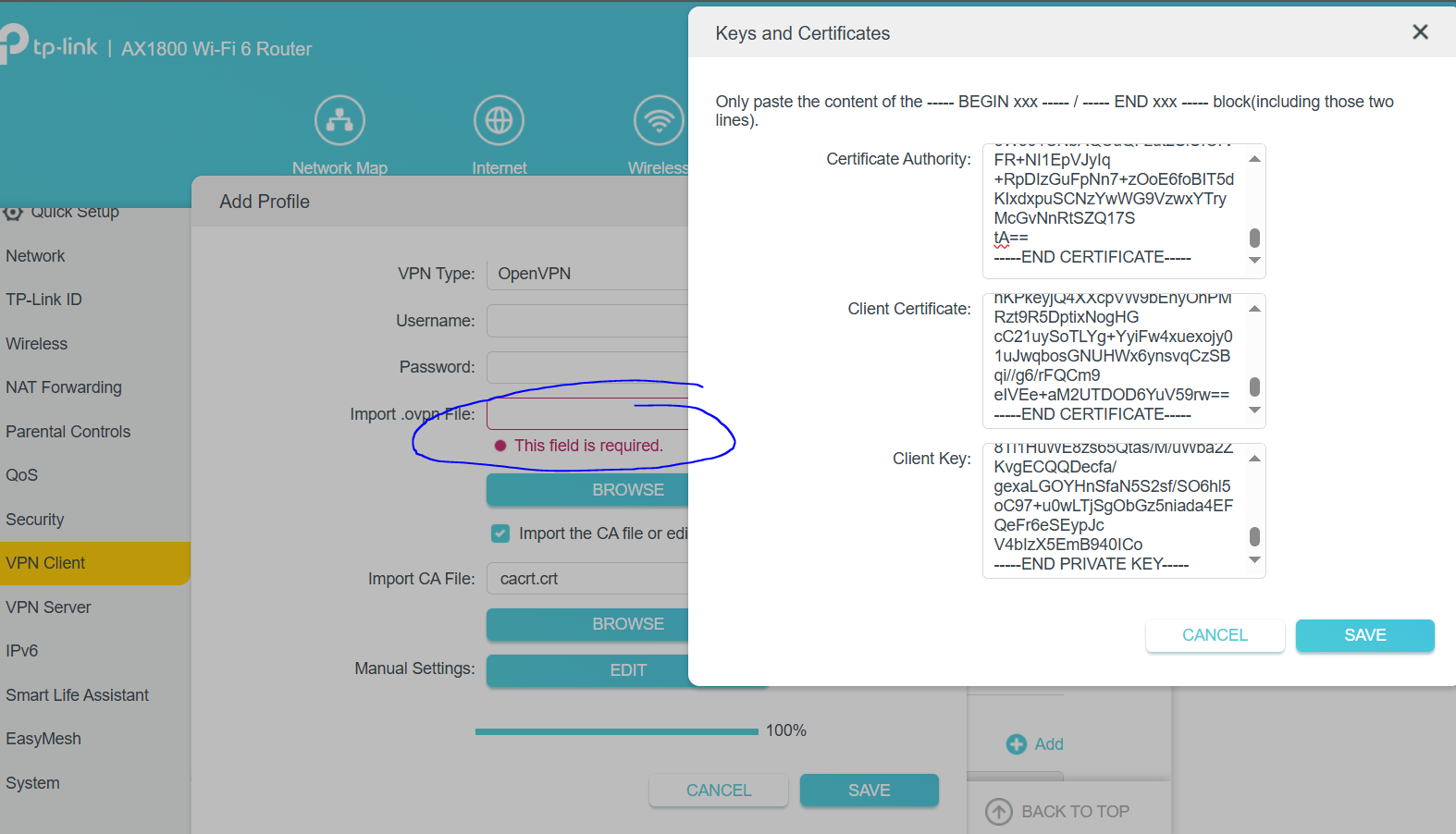
- Copy Link
- Report Inappropriate Content
Hello @YuriyB ,
Thanks for contacting our community.
Before configuring the VPN Client on the Router, you will need these details from your VPN provider:
1) VPN username and password.
2) VPN server address (domain name or IP address).
3) OpenVPN configuration file, the file usually ends with .ovpn.
4) Test the ovpn configuration file on your computer, make sure it works properly.
Please note that if your VPN Provider provides multiple OpenVPN-related files (including .ovpn, .crt, .key, etc.), you will have to merge the files before importing them into the Router. Please follow this FAQ to merge the files first: Manually create the unified format for the OpenVPN profile.
For detailed instructions, please take a look at this FAQ: How to install a VPN on TP-Link Wi-Fi Router.
When you try to import the configuration file, are you accessing the router's management interface via the WAN IP (e.g., 123.45.67.89)?
If the answer is 'yes,' the following reasons may be causing your inability to log in and import the file:
- Remote management is not enabled: The router blocks access to the management interface from the external network (WAN) by default.
- Firewall blocking: The external HTTP/HTTPS ports (80/443) may be blocked by your carrier or the router itself.
Please do the following:
- Log in to the router from the LAN using the LAN IP (e.g., 192.168.1.1).
- Retry importing the .ovpn file.
- If the error persists, please provide: A screenshot of the specific error message during the import
- Copy Link
- Report Inappropriate Content
Information
Helpful: 0
Views: 1059
Replies: 4
Voters 0
No one has voted for it yet.