
Smart Actions to turn off motion tracking

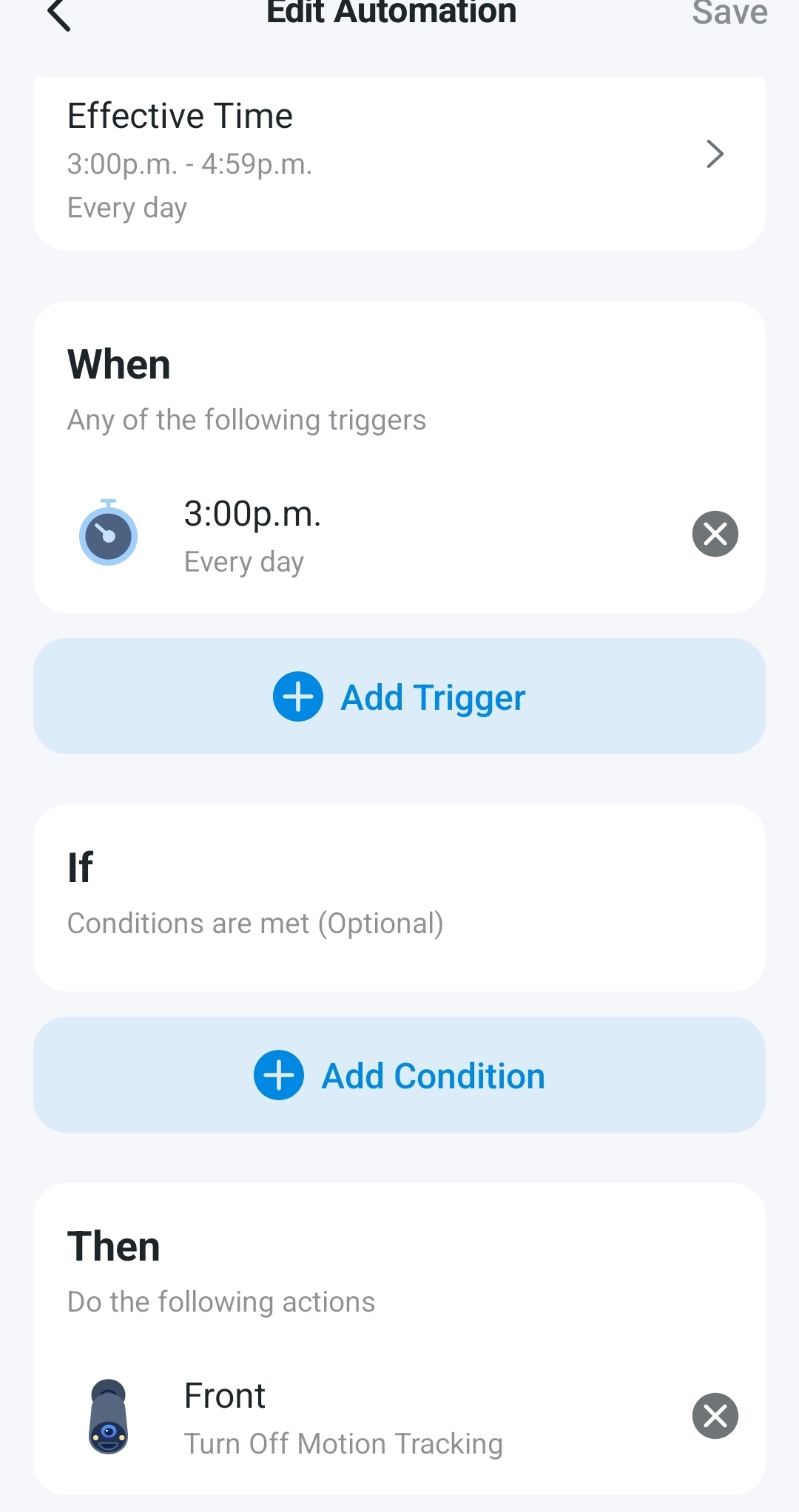
I'd like to turn off tracking for certain times during the day but it doesn't work.
Any ideas why?
I have Tracking all enabled but it should turn off when Automation is active
- Copy Link
- Subscribe
- Bookmark
- Report Inappropriate Content


Hello,
Welcome to the community, and thank you for explaining what you’re trying to achieve with your Tapo C560WS.
If Tracking continues to operate while the Automation is active, it is usually related to how the Automation is configured or applied. We kindly suggest checking the following points:
1. Ensure the automation rule is enabled in the Tapo App.
2. Confirm the device is remotely controllable via the app (e.g., over mobile data).
3. Double-check the Effective Time of the automation rule.
4. If using Time as a trigger, resync your location and time zone at: Tapo APP > Me > Tapo Lab > Location and Time.
5. Ensure there are no other Automations or Smart Actions that may conflict with this rule.
6. Also, please note that Motion Tracking and Patrol Mode are different features. If Patrol Mode is enabled, the camera may still move even when Motion Tracking is disabled.
If the issue still persists, please provide the specific date and time when the camera continued tracking after detection (for example, which day and at what time). We also kindly ask you to share the tracking video and the camera’s MAC address. For privacy reasons, please send this information to me via private message (backend direct message).
Best Regards.
- Copy Link
- Report Inappropriate Content
Hello,
Thank you for the detailed follow‑up and for confirming the checks you’ve already completed. We also appreciate you sharing the MAC address and the video/screenshots — this information is very helpful.
As a temporary workaround, we recommend trying the following approach:
1. Keep Motion Tracking enabled on the camera. Please set Track all activities
2. Create a Smart Action that is triggered after a short delay (for example, 2 minutes) to turn Motion Tracking off.
3. Once the Smart Action is triggered, please check the camera’s Motion Tracking setting in the app to confirm whether it has been successfully disabled.
This test will help determine whether the Automation is correctly applying the tracking state change. If Motion Tracking cannot be turned off, or if it appears to be disabled but the camera still continues tracking, please let me know.
This case seems to require further investigation. To assist with this case, a specialist will help to follow it up through email. Please check your inbox later to confirm.
If the email you used to register for the TP-Link community is not your contact email or you cannot access it, please send me your contact email through private message.
Best Regards.
- Copy Link
- Report Inappropriate Content
Hello,
Hope you are doing well. Our support team reported that they haven't received your email reply .
Have you ever received the support email who case ID is TKID260434451? Or was your concern resolved on your own finally?
We are looking forward to hearing from you again.
Best Regards.
- Copy Link
- Report Inappropriate Content
Information
Helpful: 0
Views: 171
Replies: 3
Voters 0
No one has voted for it yet.