
How to Save Power by Scheduling Your Wi-Fi Bands



Earth Day is a great reminder that small, everyday choices can add up to meaningful impact. One often-overlooked area in the home is networking equipment. Routers and range extenders run 24/7, quietly supporting everything from smart lights to late-night streaming.
With compatible TP-Link Archer routers, you can take a smarter approach by scheduling Wi-Fi bands, setting schedules, and using ECO Mode, keeping performance where you need it while reducing unnecessary power use when you don’t.
Note: The layout and options of Wi-Fi Scheduling may vary depending on your router model. Please refer to your router’s web interface for the exact settings available for your device.
Why Schedule Your Wi-Fi Bands?
Not all devices need full-speed Wi-Fi all the time. By adjusting which bands are active throughout the day, your network can:
- Reduce unnecessary power draw during low-usage hours
- Prioritize the right band for the right devices
- Minimize congestion on high-performance bands
- Extend the lifespan of networking hardware
Scheduling helps your network adapt to your routine instead of running at full capacity around the clock.

Understanding Wi-Fi Bands and Their Roles
Each Wi-Fi band serves a different purpose. Using them intentionally is key to balancing performance and efficiency.
|
|
|
|
|
|
|

Recommended Wi-Fi Band Schedules
Below are example schedules you can adapt to your household using Archer routers and supported extenders.
Late Night (Mon-Fri | 2:00 AM - 8:00 AM)
Active Bands: 2.4 GHz + 5 GHz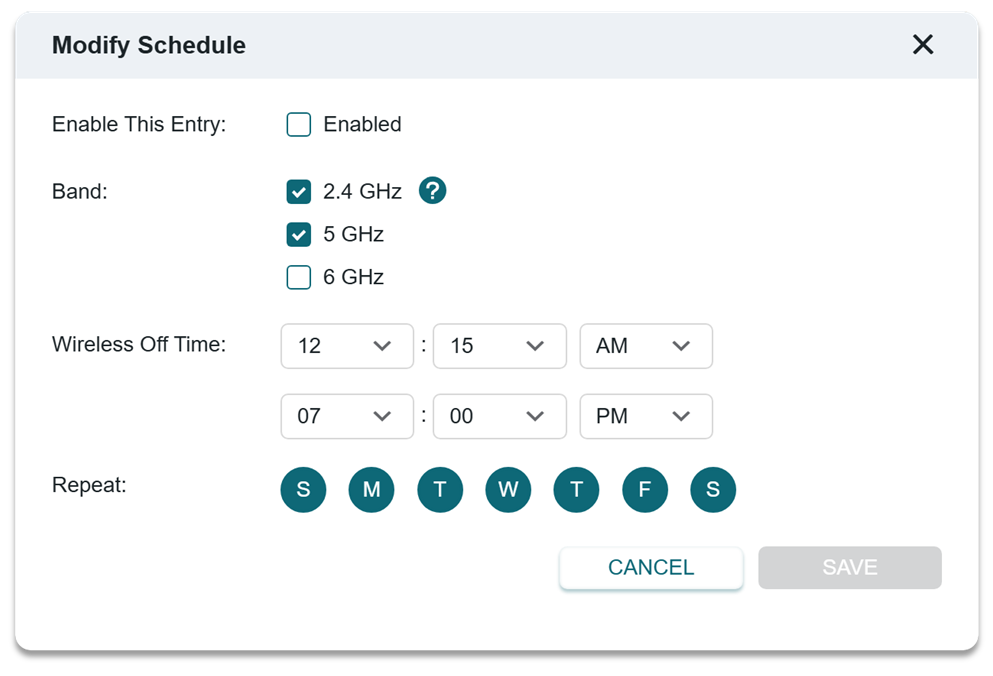
Best For: Late-night media streaming, Sleep tracking and smart home devices
Why it Works: Most high-performance devices are idle, so reducing reliance on bandwidth-heavy configurations helps conserve energy.
School Days
Active Bands: 2.4 GHz + 5 GHz
Best For: Online classes, Homework and light streaming, Smart home automation
This keeps reliable connections available for essential devices without fully engaging high-performance modes.
Work Hours
Active Bands: 5 GHz + 6 GHz
Best For: Video calls, File transfers, Productivity devices
Higher-performance bands are available when they deliver the most value.
Weekends
Active Bands: 2.4 GHz + 5 GHz + 6 GHz
Best For: Gaming, Streaming, Multiple devices active at once
Weekends tend to be high-usage periods, making this the ideal time to enable full network capability.
 The Expected Impact
While scheduling Wi-Fi bands won’t transform your energy bill overnight, the long-term benefits add up:
- Lower idle-time energy usage
- Less heat and wear on hardware
- Smarter use of high-performance spectrum
- More stable connections for the devices that need them most
This simple change can help align convenience, performance, and sustainability.
A Small Change for Earth Day, and Every Day
This Earth Day, consider letting your Wi-Fi work smarter, not harder. With Archer routers and TP-Link range extenders, a few thoughtful schedule adjustments can reduce waste while keeping your network fast, reliable, and ready when you need it.
Efficient networking is smart living, and every smart choice makes a difference.
Related Articles
What is ECO Mode and How to Configure It on TP-Link Wireless Router?
How to Set Up Wireless Schedule on a TP-Link Router