
ARCHER GE800 V1 BIG BUG (GIVE PRIORITY TO FIX)
ARCHER GE800 V1 BIG BUG (GIVE PRIORITY TO FIX)

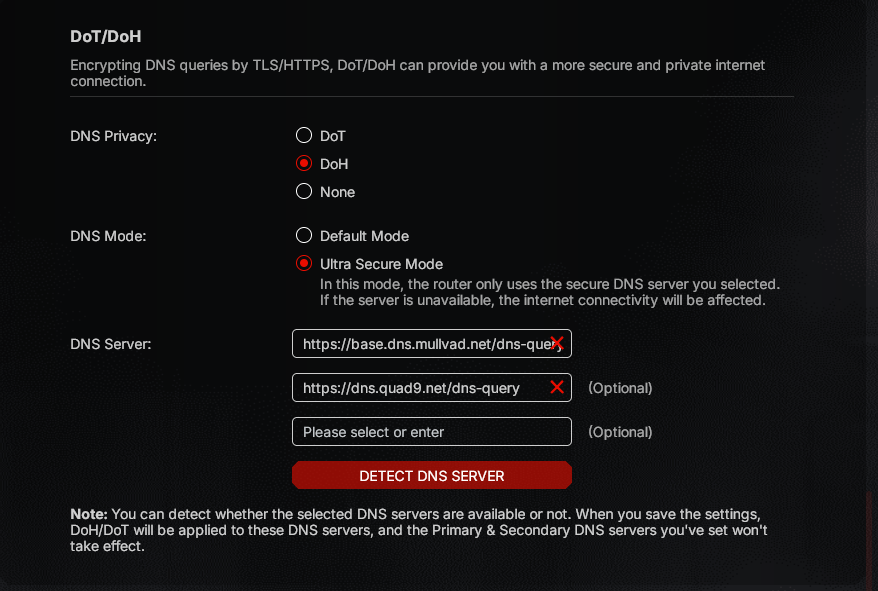
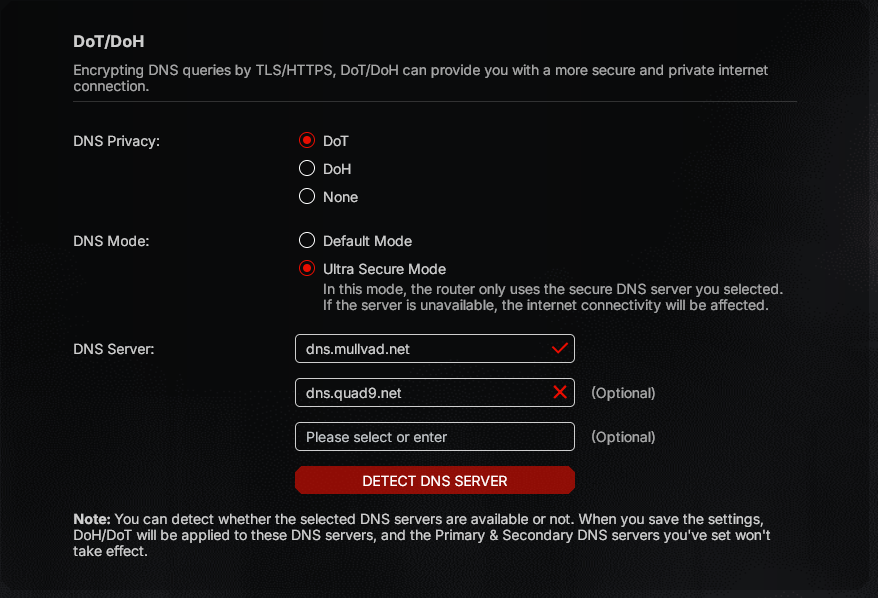
DOH and DOT are bugged, doing Check, it see X state but they are correct.
DOH with QUAD9, NEXTDNS and so on doesnt work.
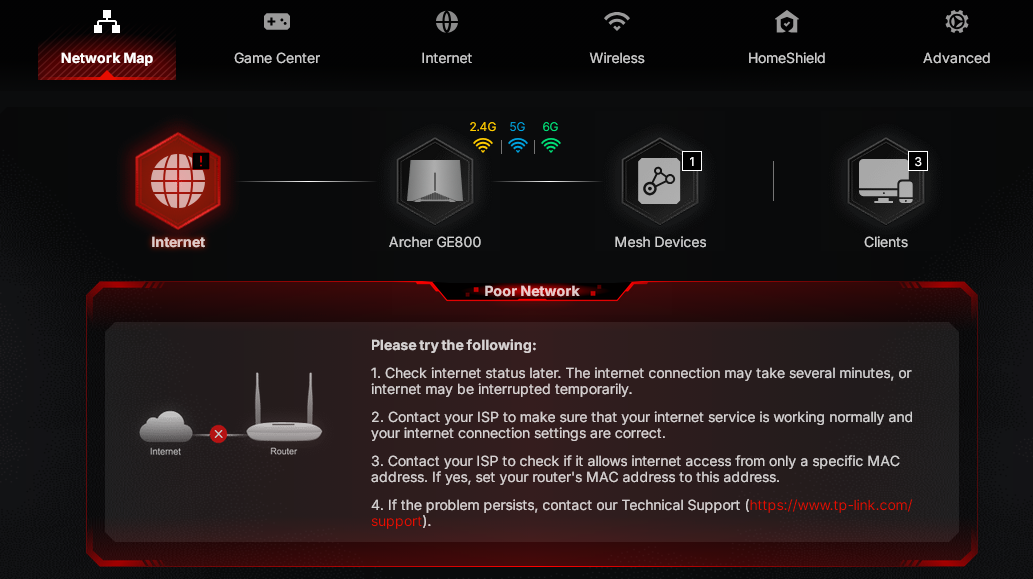
Using DOT instead always X State but they work, but router cant connect to TPLINK ID because say is offline, but there is internet, internet work.
It network map it say also is offline, but i repeat internet work, i can navigate with WIFI and CABLE.
- Copy Link
- Subscribe
- Bookmark
- Report Inappropriate Content


Hello @Toriga ,
We are very pleased to announce the pre-release of the Archer GE800 V1 firmware! This update introduces comprehensive VPN enhancements, EasyMesh IoT/Guest Expansion, critical bug fixes, and various system optimizations. We encourage you to try this firmware and take advantage of the added features.
New Firmware for Archer GE800 V1 Introduces VPN Enhancements, EasyMesh IoT/Guest Expansion, and More
Thank you for your feedback and suggestions.
- Copy Link
- Report Inappropriate Content
Hello @Toriga ,
Welcome to our community.
Here are some Troubleshooting steps that may help:
1. Try Default Mode instead of Ultra Secure Mode: In Advanced > Network > Internet > DoH/DoT section, if you're using "Ultra Secure Mode", try switching to "Default Mode". In Default Mode, the router will use your specified secure DNS servers first, but if these are unavailable, it will fall back to the default DNS server.
2. Temporarily disable DoH/DoT: To verify this is causing the TP-Link ID connection issue, temporarily set the DoH/DoT option to "None" and check if the router can connect to TP-Link ID and shows online in Network Map.
3. Verify DNS server addresses:
• For DoT, make sure you're using the correct server name format (e.g., "dns.quad9.net" or "dns.nextdns.io" with your configuration ID)
• For DoH, verify the complete URL format (e.g., "https://dns.quad9.net/dns-query")
- Copy Link
- Report Inappropriate Content
Hi @Toriga
Is there any update for your case?
To help you efficiently, I've forwarded your case to the TP-Link support engineers, who will reach out to you using your registered email address later. Please keep an eye on your email inbox for follow-up.
Best Regards.
Joseph-TP wrote
Hello @Toriga ,
Welcome to our community.
Here are some Troubleshooting steps that may help:
1. Try Default Mode instead of Ultra Secure Mode: In Advanced > Network > Internet > DoH/DoT section, if you're using "Ultra Secure Mode", try switching to "Default Mode". In Default Mode, the router will use your specified secure DNS servers first, but if these are unavailable, it will fall back to the default DNS server.
2. Temporarily disable DoH/DoT: To verify this is causing the TP-Link ID connection issue, temporarily set the DoH/DoT option to "None" and check if the router can connect to TP-Link ID and shows online in Network Map.
3. Verify DNS server addresses:
• For DoT, make sure you're using the correct server name format (e.g., "dns.quad9.net" or "dns.nextdns.io" with your configuration ID)
• For DoH, verify the complete URL format (e.g., "https://dns.quad9.net/dns-query")
- Copy Link
- Report Inappropriate Content
- Copy Link
- Report Inappropriate Content
Hello @Toriga ,
May I know if you've been keeping in touch with the engineers? Please feel free to share any updates here!
- Copy Link
- Report Inappropriate Content
Still no updates.
4 months without a firmware update, tp link what is happening?
- Copy Link
- Report Inappropriate Content

@Toriga - If you happen to find out what happened PLEASE let all of us other GE800 users know too because we have the most buggiest, broken and outdated firmware from all the rest of their products. This is suppose to be one of their "flagship" routers lol!
What I also find funny is that they marked a solution on their own and based on your reply, it doesn't seem like you got a solution.
No new proper firmware and if they release something, several other things will break in the process. At this point we are just being ignored in hopes that we go away.
- Copy Link
- Report Inappropriate Content
Hello @Toriga ,
We note that your previous case was escalated to the engineering team and that you should have received a beta firmware to fix this unexpected behavior—is that correct? Is there any progress you can share?
- Copy Link
- Report Inappropriate Content
Hello @LokiLatency
Thank you for sharing your feedback with us; we fully understand your concerns regarding the current firmware issues on the GE800 router.
We would like to clarify a few points regarding the issues mentioned in your post:
First, the content marked as "Recommended Solution" in some forum posts usually consists of suggestions—verified by other users through practical experience—that can alleviate or resolve certain issues; they are not official, final fixes. We understand that these may not fully resolve the specific problems every user encounters, but we hope these interim suggestions help improve the experience for some users while they await the official update.
Regarding the issues you have encountered, please feel free to share the specific details with us at any time, or email them directly to forumsupport.usa@tp-link.com. The relevant departments will continue to collect this information and relay it to the technical team.
Second, regarding the progress of firmware updates: while we are not the engineering team directly responsible for development and cannot provide an exact timeline immediately, we are actively compiling user feedback from various channels (including the potential new issues you mentioned arising after updates). We have repeatedly reported these matters to the relevant departments for priority investigation and resolution. The release of an official firmware version requires a comprehensive development, testing, and validation process to ensure stability and compatibility, which inevitably takes time. Please be assured that the relevant teams are working hard on this and are not ignoring user feedback.
We greatly value users like you who provide detailed feedback; every specific detail you share (such as the actions taken when an issue occurred or specific error messages) helps us pinpoint the root cause more accurately. If you are willing to provide further details, we will include them in our follow-up list.
We will continue to push for progress and share updates with everyone as soon as public information becomes available. Thank you again for your patience and support. Please let us know if you have any further questions or require assistance.
- Copy Link
- Report Inappropriate Content
I didnt receive nothing.
Where is this beta
- Copy Link
- Report Inappropriate Content
Hello @Toriga ,
Your case ID is TKID260425743. Please check the reply from the engineer.
- Copy Link
- Report Inappropriate Content
Information
Helpful: 0
Views: 601
Replies: 11
Voters 0
No one has voted for it yet.