Solution Windows System 1030.52.731.2025 May Cause Signal Drop and Instability with WiFi 4/5 USB Adapters


This Article Applied to:
All WiFi 4/5 USB network adapters
Phenomenon:
Hello! We have received some user feedback that after the Windows Update automatically pushed and installed driver version 1030.52.731.2025, the WiFi 4/5 USB adapter may exhibit the following abnormal behaviors:
- Abnormal Signal Strength Display: WiFi signal strength drops suddenly from full bars (100%) to approximately 2 bars, indicating a weak signal.
- Unstable Connection: The wireless connection becomes severely unstable, which may involve frequent disconnections, reduced throughput, or inability to connect to specific bands.
Typically, one of these behaviors might occur after the driver’s Auto Update.
Available Solutions:
Our relevant departments have been working on feasible long-term solutions. They have also provided some temporary solutions for the situations mentioned above.
1. Check the current driver version
Please follow the steps below to check the current driver version to confirm if the anomaly is caused by the Windows update:
1) Right-click the Start icon on the Windows taskbar and select "Device Manager.
2) Expand the "Network adapters" list.
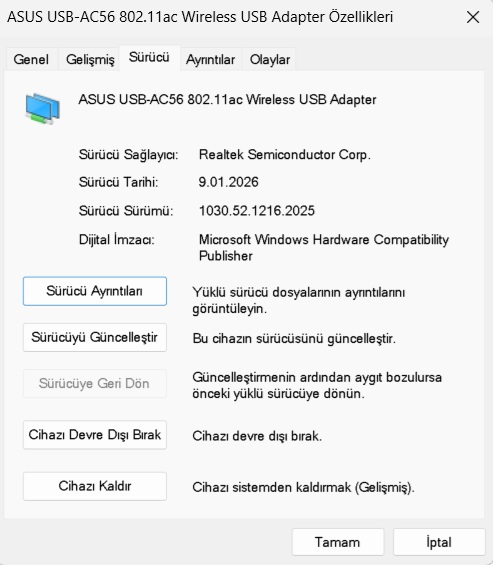
3) Find TP-Link Wireless MU-MIMO USB Adapter (or other names like Realtek 8821CU Wireless LAN 802.11ac USB NIC), right-click it, and select "Properties".
4) Switch to the "Driver" tab and check the "Driver Version":
- If the version is 1030.52.731.2025: Confirmed as the problematic driver pushed by Windows. Please proceed with the subsequent repair steps.
- If the version is 1030.44.XXXX.XXXX or other: This is the normal driver. If you still encounter the unexpected behavior described above, other causes need to be investigated.
2. Upgrade Driver
Through the efforts of relevant departments, we have released a universal driver. Here are the detailed steps for downloading and installing the driver:
1) Click the link below to download the updated driver package: https://static.tp-link.com/upload/beta/2026/202601/20260108/RTWlanUSB_WindowsDriver.zip
2) Locate the downloaded zip file, right-click it, and select Extract All to unzip the contents.
3) Open the extracted folder, find the Setup.exe file, and double-click it to run the installation program.
4) Once the installation is complete, restart your computer to apply the changes.
5) Check if the upgraded to 1030.52.1110.2025.
If you encounter other anomalies after automatically updating your Windows system to version 1030.52.731.2025, please provide more details. This includes, but is not limited to:
1) The specific model and hardware version, and the current adapter driver version.
2) Detailed description of the situation.
Any other convenient troubleshooting steps or suggestions are welcome!!