
Story [Smart Home Hack] The Status Checker: Never Wonder ‘Did I Leave It On?’ Again


Inspired by inquiries from user @Intecofreds in thread Creating an intruder alarm and user @friese387 in thread Intelligente Aktion "Erinnerung an offen gelassene Tür"
, we find that it would be useful to have a way to learn about the current status of our smart home devices or automation, especially in the ‘Did I leave it on’ moments. In this article, we’d like to share an automation trick, helping you to set up alerts to check your devices and automation, either on a daily schedule or anytime you need confirmation. You will receive notifications to your phone if any unexpected states are detected.
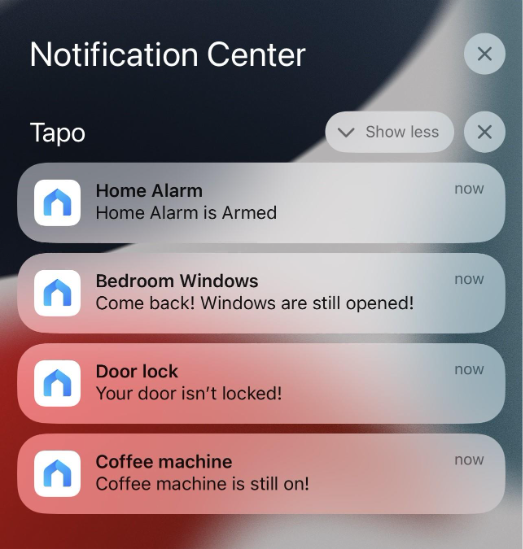
This trick is perfect for those who tend to be forgetful or need definitive answers about their smart home status. I don’t know about you, but like many of my friends, I often have those ‘sudden memory blanks’, constantly second-guessing whether I actually closed all the lights and windows, even though I just checked them before leaving. Or that classic hair curler anxiety for girls: did I actually turn it off before leaving? (Letting hot tools run unattended all day is… not ideal).
Here’s when this trick comes in handy:
- In those “Did I leave it on?” moments. When you’re halfway to work suddenly wonder, did I actually turn off all the lights?’ (We’ve all been there!) For smart home enthusiasts with dozens of devices, checking them one by one is even more of a hassle.
- Automation Error Detection. Occasionally, the automation may not be fully executed due to network or cloud server glitches. When you have doubts, it’s better to get an answer.
How to Set This Up
The key to this trick is using the “If” condition in automation to check the status of smart devices or automation rules. Combined with a customized notification, you’ll get custom alerts straight to your phone.
Here are two types of configurations you can choose:
1. Scheduled Checks
Create a time-based automation that checks the status of your devices or other automations. This method is ideal for those with regular routines -- set a fixed daily time to receive a status report on all devices/automations. For example:
5 minutes before arriving home: Get an alert if your security system is still armed.
10 minutes before bedtime: A reminder if any lights or appliances were left on.
Create separate status-check automations for each device or rule you want to monitor. For larger setups, group devices by zone or area within the same automation. This way, if any device in the group deviates from its expected state, Tapo will instantly flag the affected group in the notification. You can then focus your troubleshooting on just that specific group, saving you the hassle of checking every single device.
[Automation Configuration]
When: 'Time of Day'
If: ‘Device Status’ or/and ‘Automation Status’ (is the set state)
*Two rules available when adding multiple conditions: AND or OR. Execute the action if ‘all conditions are met’, or ‘any condition is met’.
Then: 'Send Me Notifications'
Examples:
- Everyday at 22:30, if the Kitchen light is on , then send me a notification: Kitchen light is still on!
- Everyday at 22:30,if the door is unlocked, then send me a notification: Your door isn’t locked!
- [When] At 07:30, Everyday, [If] Any following condition is met, [Then] Send me a notification: Hey! Your bedroom needs some attention!
- Humidifier is on.
- Bedroom light is on.
- Bedroom window is opened.
2. Ask-anytime (Manual Check)
Get instant confirmation whenever you are in the “Did I forget?” moments. To set this up, you’ll need to use one of your Tapo smart devices as a trigger. By changing its status (like turning it on/off), you can check the state of other devices or automations.
Ideally, use a spare smart device as your ‘status checker.’ But don’t worry if you don’t have one, you can repurpose an existing device that rarely changes states. Just pick one where the control action has minimal impact, like turning on a smart plug that’s always left on anyway.
All the settings can use the same ‘status checker’, you just need to change the content of the notification.
[Automation Configuration]
When: 'Device Status Change'
If: ‘Device Status’ or/and ‘Automation Status’ (is the set state)
*Two rules available when adding multiple conditions: AND or OR. Execute the action if ‘all conditions are met’, or ‘any condition is met’.
Then: 'Send Me Notifications'
Examples:
- When plug A is turned on, if Backyard Alarm is disabled , then send me a notification: Hey! The backyard alarm is still disabled!
- [When] Double-tap smart button, [If] All following conditions are met, [Then] Send me a notification: Nice work, everything is done in kitchen!
- Coffee machine is off.
- Toast is off.
- Kitchen light is off
Tips
1. For quick access, create a Tapo shortcut to control the ‘status checker’. Pin it to the Tapo app’s homepage or add a widget to your phone’s home screen for one-tap control.
2. If you prefer a physical device for status checks, a smart button like Tapo S200B or Tapo S200D is a great option. With support for four distinct actions (single-press, double-press, rotate clockwise, and rotate counterclockwise), it can also serve as a trigger for other automations.
Related Articles
How to create Smart Action (Automation or Shortcut) on Tapo app