Solution How to Fix: Tapo Local Smart Action Not Creating or Unexpectedly Inactive


This Article Applies To
Tapo devices and configurations that follow Tapo Local Smart rules.
*Automations under Tapo H110's control aren't affected.
Description
Recently, you may have noticed that some Tapo devices are unable to create Local Smart rules successfully, even when the devices and settings meet the creation requirements. Alternatively, previously created Local Smart rules may have suddenly become inactive, with the house icon no longer displayed.
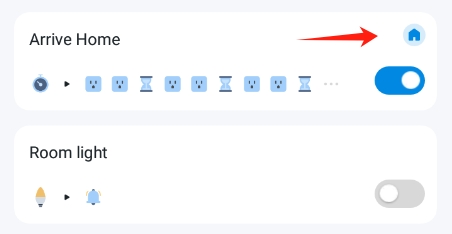
Before you go further, make sure your setup follows the rules for Local Smart. If the devices or rules configured do not comply with the requirements, failure to create the automation is expected behavior.
1. Supported Firmware: The Tapo hub's firmware must support this feature. *The latest firmware for Tapo models H100, H110, H200, and H500 all support local smart automation. Update your Tapo hub if it is not in the latest version. How to update the firmware of the Tapo devices on the Tapo App
2. Compatible Devices & automation skills: The trigger and action devices and the selected skills must be of a supported type for Tapo Local Smart. If you select an unsupported device type or skill, the automation will not qualify for local smart creation.
▷ Check this FAQ to verify your setup: What is Local Smart Action?
3. Same Hub and Network Subnet: All selected devices in the same automation must be sub-devices under the same Tapo hub. Additionally, Wi-Fi devices should be on the same subnet as the hub. Local smart automation cannot be created if you include a device from a different Tapo hub or a Wi-Fi device from a different subnet.
Workaround
Our R&D team has provided beta firmware that can address this issue. If you would like to test it out, refer to the steps below to apply the beta firmware.
How to Apply Beta Firmware
1. Find the Mac address of your Tapo hub: Open the Tapo app and navigate to the smart hub's Device Settings page > Device Info.
2. Send a private message to @Wayne-TP with the following information.
[ID 853096][Tapo Local Smart Creation Failure] + Model & Mac address of the Tapo hub
**For users from the United States, send your request to forumsupport.usa@tp-link.com with:
1. A brief summary of the product issue you encountered, along with your request for beta firmware. *You may also include a link to this community post for the support team’s reference.
2. The Mac address of your Tapo hub.
Before the Upgrade
(1) Please be sure you have read the Beta Test Agreement before upgrading the Pre-release firmware!
(2) How to update the firmware of the Tapo devices on the Tapo App
(3) Firmware downgrade is not supported. When a new official version is released, updating it will overwrite the beta version.