
the automations I created do not work
the automations I created do not work

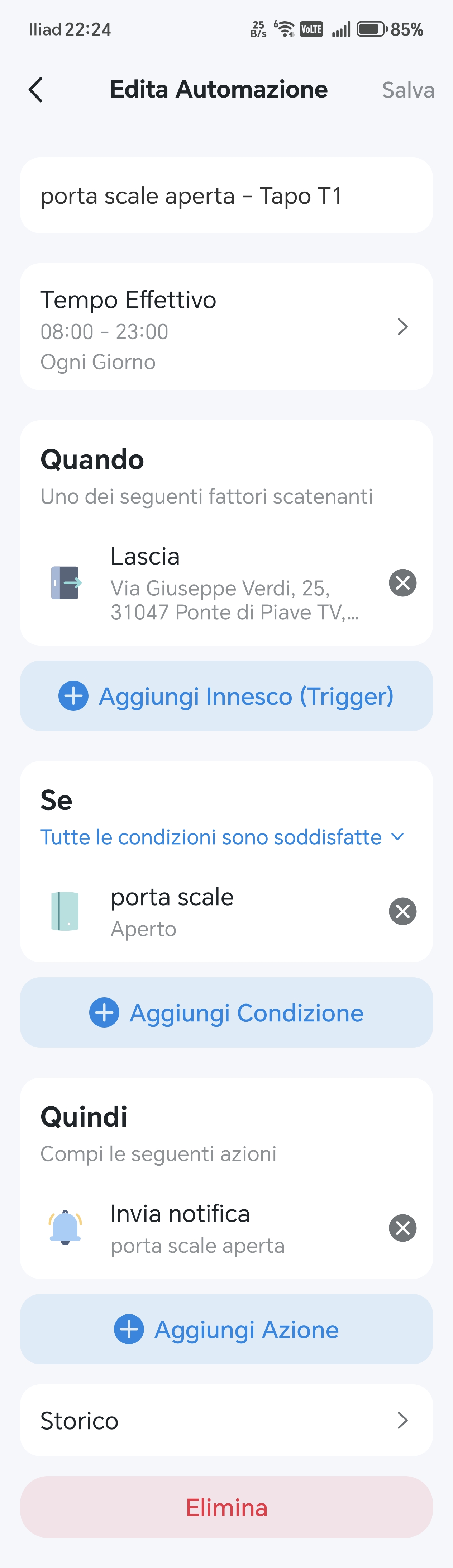
1) I have set up the following automation (Tapo T110): Every day, between 8 and 23, when I am away from home, if the staircase door is open then send me a notification.
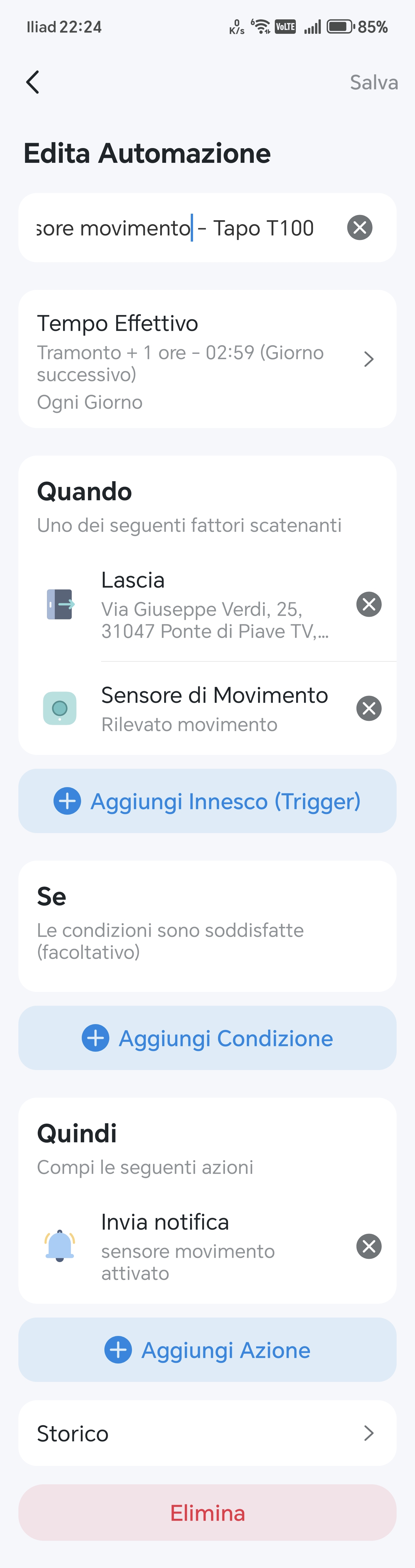
2) I also set up another automation (Tapo T100): every day, 1 hour after sunset, when I am away from home, if
smart motion sensor detects motion then send me a notification.
However, both automations do not work, they always send notifications.
Where am I wrong?
- Copy Link
- Subscribe
- Bookmark
- Report Inappropriate Content
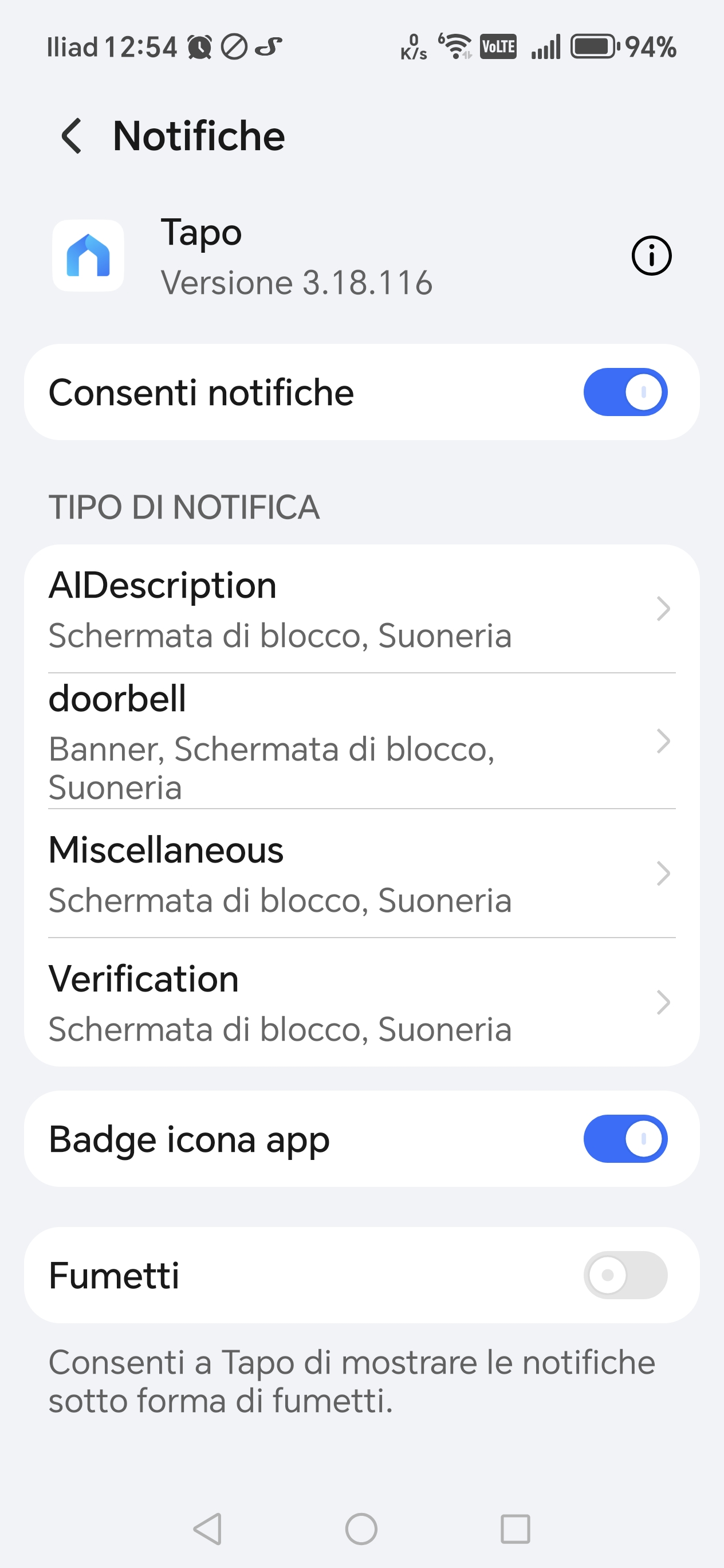
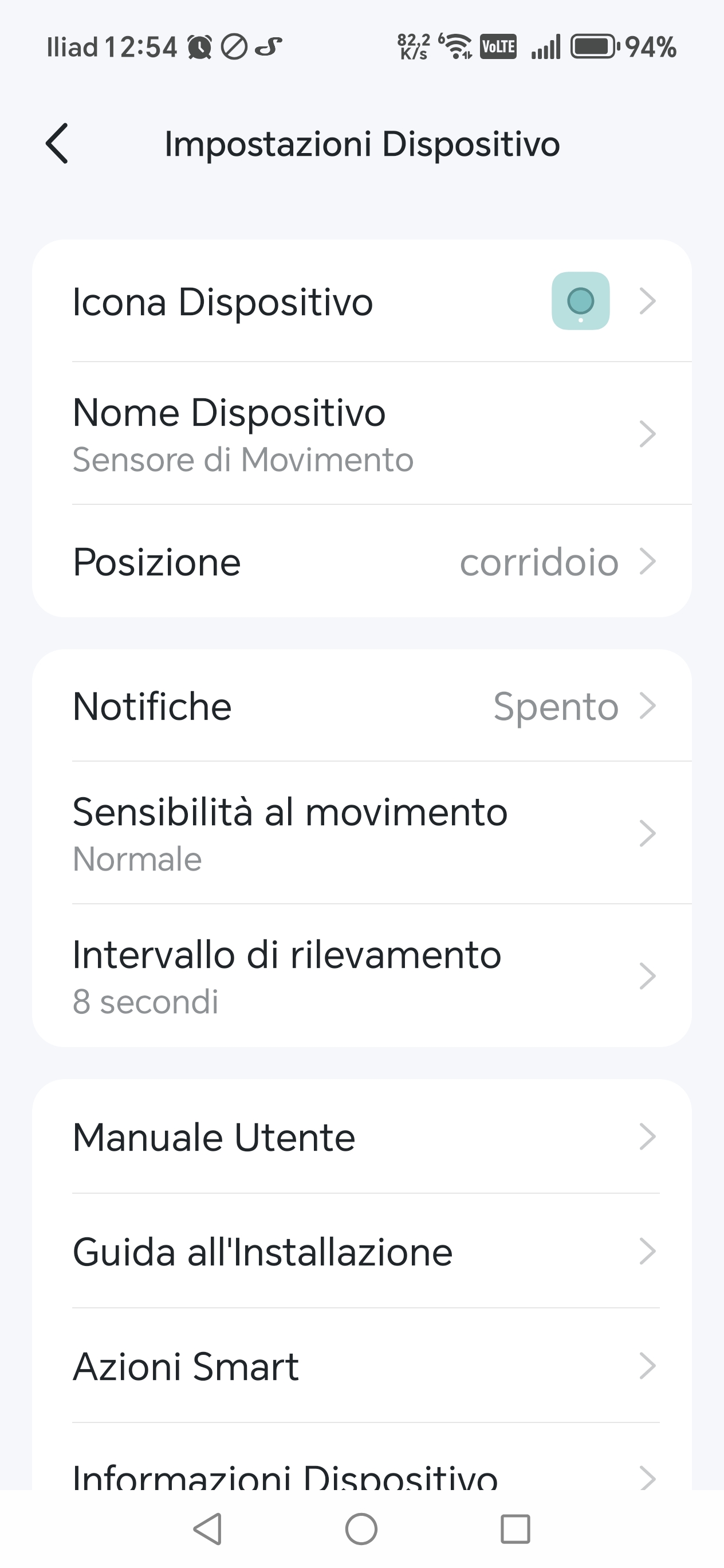
@Wayne-TP @Wayne-TP I put order and recreated 3 rules but notifications always arrive whether I'm at home or away, it's as if I hadn't created automations
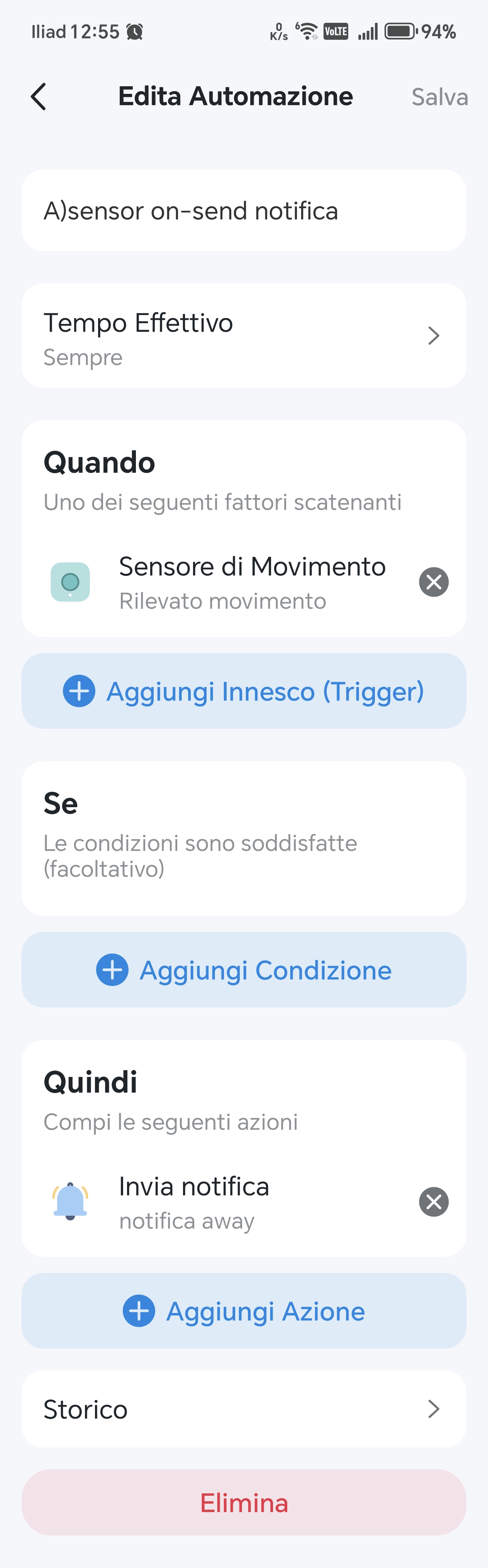
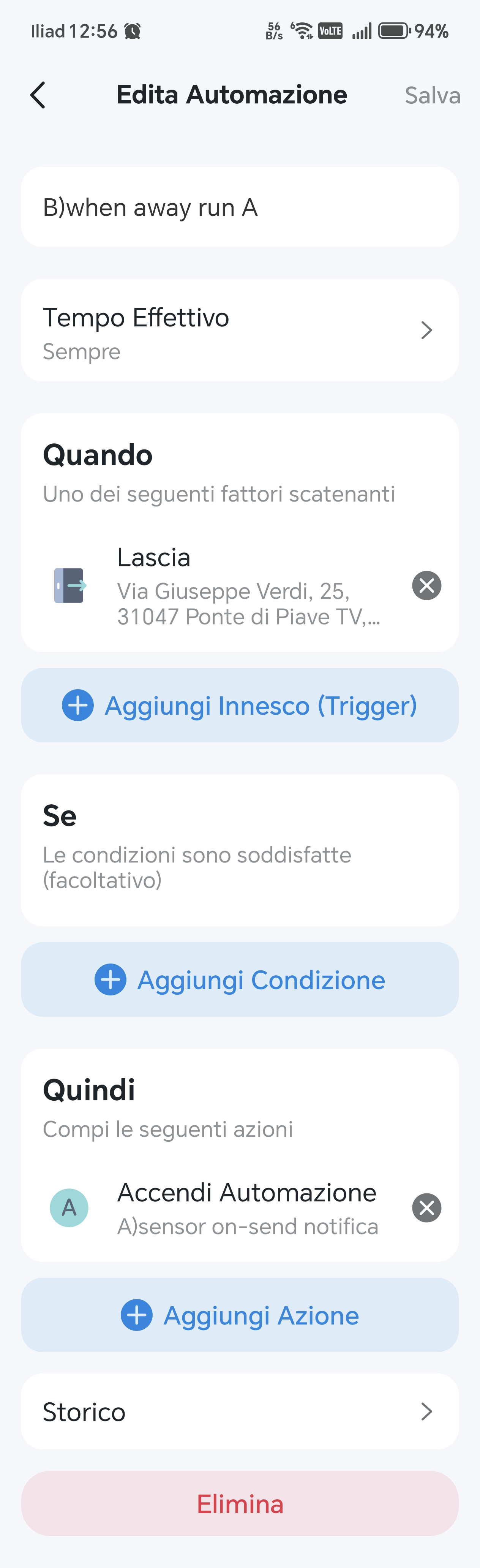
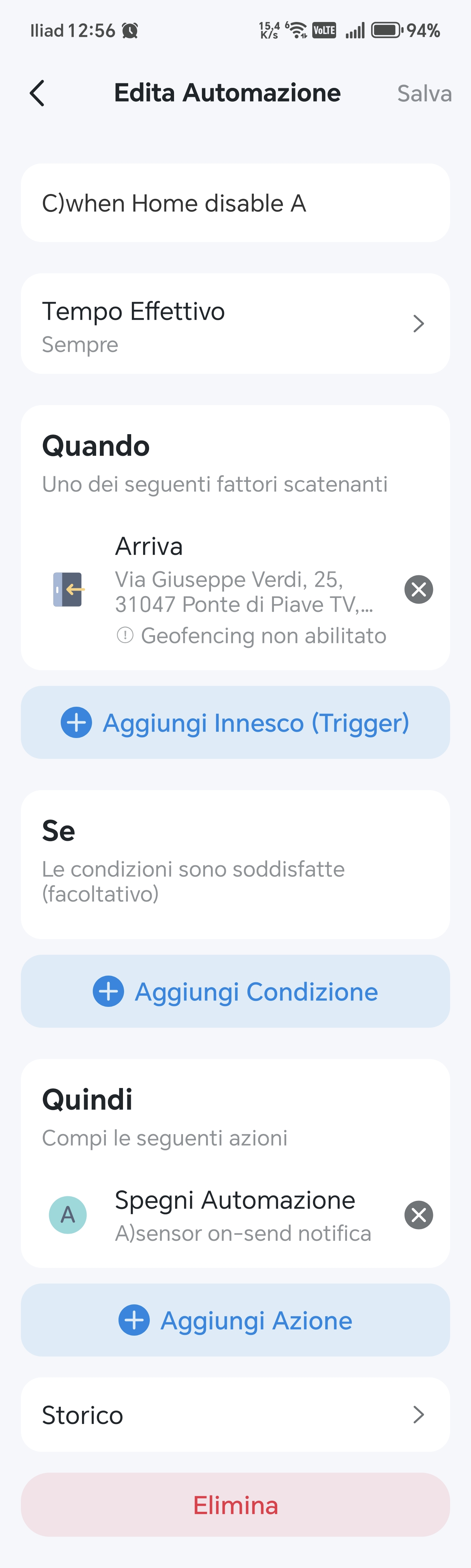
- Copy Link
- Report Inappropriate Content

The geofencing feature isn't enabled for your phone in this automation. You need to enable 'This Phone/Tablet' in this trigger setting.
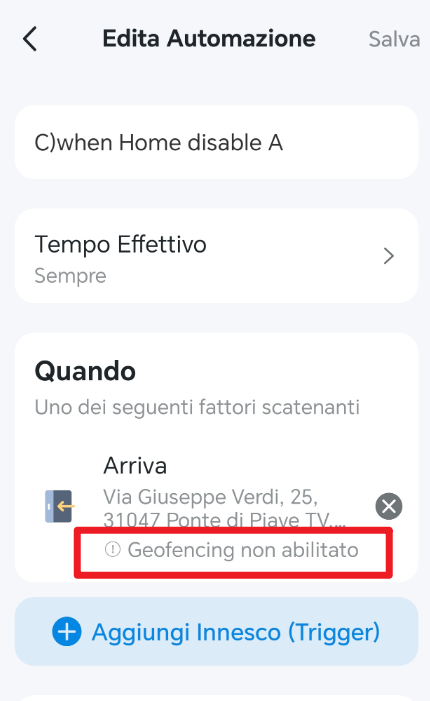
- Copy Link
- Report Inappropriate Content
@gulluwing_1- it does not matter in fact in the rule A in geofencing is enabled and I have done the tests with both the C rule enabled and uninhabited
- Copy Link
- Report Inappropriate Content

gulluwing_1- wrote
@gulluwing_1- it does not matter in fact in the rule A in geofencing is enabled and I have done the tests with both the C rule enabled and uninhabited
Actually, this does matter. As mentioned before, without Rule C, the sensor notification automation (Rule A) will remain enabled when you arrive home, unless you turn it off manually. Based on your screenshot, Rule A doesn’t have geofencing enabled — and even if it did, that wouldn’t meet your needs anyway.
Just to clarify: Rule A successfully enables when you leave home, but it doesn’t automatically disable when you return — is that correct?
Additionally, please note that your phone must physically leave or return home to trigger the geofencing automation. If you stay at home the whole time after setting up the rules, all automations remain active, so you’ll continue to receive sensor notifications even while at home. In this case, for Rule C to work, which disables Rule A to stop the sensor notifications, you need to first leave home and then come back. That return trip is what triggers the automation to turn off the sensor alerts.
- Copy Link
- Report Inappropriate Content
Since we haven’t received any updates from you for a while, here’s a summary of our suggestions regarding the issue you reported.
Based on your description, the issue seems to be strongly related to the geofencing feature. There are a few important points that should be checked first:
- If the “Leave Home” automation works normally but the “Arrive Home” automation does not, please verify that the “Arrive Home” automation has been configured correctly. In particular, make sure that 'This Phone/Tablet' is enabled in the Trigger setting. If it is not enabled, the system will not know where to obtain the location information or which location data should be used to run the automation, so the rule will not take effect.
- If neither geofencing automation is working, then all related settings should be reviewed. This includes not only the automation configuration itself, but also the location permissions granted to the Tapo app in your phone’s system settings. For more detailed troubleshooting steps, please refer to Q4 in the related article. General Questions about Tapo/Kasa Geofencing
If all settings have been confirmed to be correct and the geofencing automations still fail to work properly, then further investigation by the support team may be required. Click here to contact TP-Link technical support team.
- Copy Link
- Report Inappropriate Content
Information
Helpful: 0
Views: 736
Replies: 15
Voters 0
No one has voted for it yet.