How to force wired backhaul - XE75 mesh

How to force wired backhaul - XE75 mesh

How to force wired backhaul - XE75 mesh
Friday
Model: Deco XE75  
Hardware Version:
Firmware Version: 1.3.0 Build 20250722 Rel. 38703

Hello,

I have a four-node XE-75 mesh. Everything appears to be working properly and I am enjoying higher download speeds than I have ever seen, >500mbps on the main node.

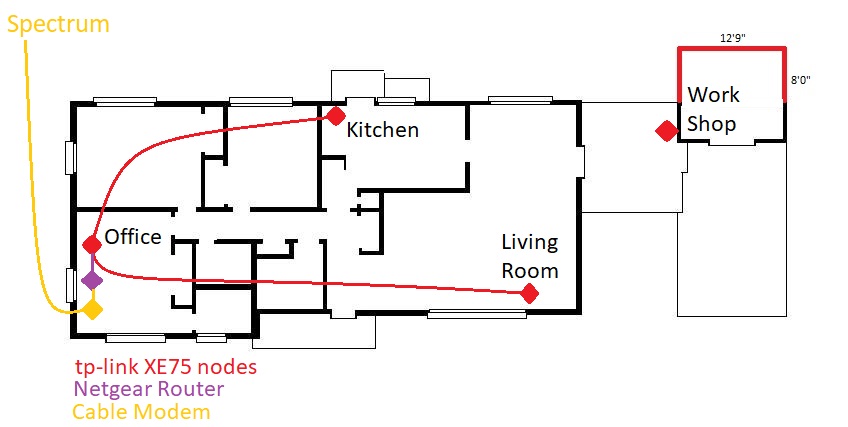
The main node is in my Office, directly connected to my Netgear wireless router, the firewall which protects my LAN.

Two of the nodes are in other rooms, each connected with the same Cat-6e cable, same length (50ft).


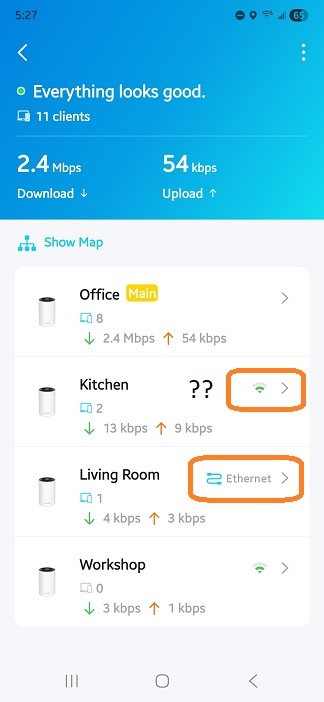
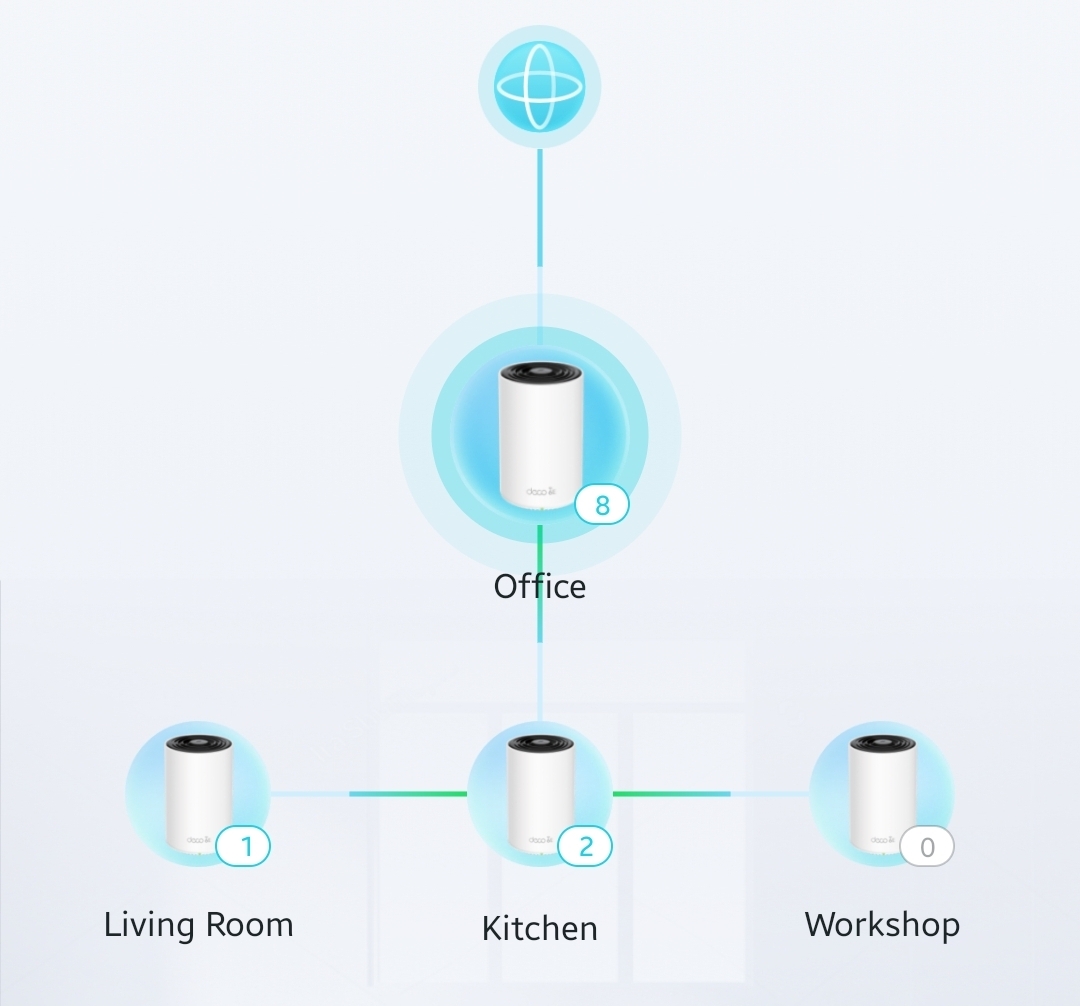
One of the nodes, Living Room, has recognized its wired backhaul to Office. The other, however, in the Kitchen, has never been wired, rather insists on remaining on WiFi backhaul. Is that because the Kitchen node is physically closer to the Living Room node than to the Office node? 


How do I force the Kitchen node to recognize and connect with the wired backhaul and connect directly to Office?


Thx,
07e3434618664035897fec3f834c63a9


cfef9580d93c46abb7d80e508503378f   ab28bc36fca34907bdb6682cd974a0dd

  0      
  0      
#1
Options
1 Reply
Re:How to force wired backhaul - XE75 mesh
14 hours ago

  @KSTinMB 


Thanks for reaching out. I understand that you have a Deco Mesh system with four nodes, and while your Living Room node correctly recognizes its wired (Ethernet) backhaul connection, your Kitchen node remains on Wi-Fi backhaul despite being connected via the same type of Ethernet cable. You're wondering if this could be due to the Kitchen node's physical proximity to the Living Room node, and how you can force it to use the wired backhaul directly to the Office (main node).

Here's some guidance on Ethernet backhaul and troubleshooting steps:

1. Ethernet Backhaul Overview:
Ethernet backhaul allows your Deco Mesh units to communicate using wired connections instead of Wi-Fi, which can increase network speed and stability. Once a Deco unit detects a proper Ethernet connection, it should automatically switch from Wi-Fi backhaul to Ethernet. The Deco app will display the backhaul status as "Ethernet."

2. Troubleshooting Steps:
• Check the Ethernet Cable: Ensure the Cat-6e cable connected to the Kitchen node is functioning properly and securely plugged in at both ends. Try swapping cables or ports to rule out a faulty cable or port.
• Network Topology: If the Kitchen node is connected to the Living Room node via Ethernet (instead of directly to the main Office node), it may be using the Living Room node as its uplink. This is normal in a mesh system, but if you want the Kitchen node to connect directly to the Office node, make sure the Ethernet cable runs directly between those two units, or that your network switch is properly configured.
• Switches: If you are using a network switch, ensure it supports gigabit speeds and is not causing any network loops. Improper switch configuration can affect backhaul detection.
• Power Cycle: After confirming the wiring, try rebooting the Kitchen node and the main node to force the system to re-detect the backhaul connection.

3. Additional Notes:
• Use CAT5E or higher-rated Ethernet cables for optimal performance.
• Improperly connected Ethernet cables or network loops can cause severe network issues.
• For more detailed instructions and diagrams, you can visit: https://community.tp-link.com/en/home/forum/topic/98898

Summary:
To ensure your Kitchen node uses Ethernet backhaul, double-check the physical connection and network topology. If the wiring is correct and the issue persists, try rebooting the devices. If you continue to have trouble, please provide more details about your network layout for further assistance.

Note: The above recommendations are for reference. Actual performance may vary based on your home's layout, obstacles, and distances between Deco units.

Need help with the Deco app, setup, Ethernet backhaul, network switch or rolling back firmware? Router or AP mode? https://community.tp-link.com/us/home/forum/topic/699816?page=1
  0  
  0  
#2
Options