Early Access New Firmware for Archer BE800 V1 to Support VPN Merge,Guest/IoT Network Extend in EasyMesh, and More


Hello everyone!
We are pleased to announce the latest firmware update for the Archer BE800 V1, which introduces a range of new features, especially significant enhancements to the VPN Feature and EasyMesh Network usage.
We encourage all users to upgrade to the latest firmware and share your feedback with us. Your valuable opinions are crucial to our continued product improvement! We look forward to your experience!
Download the update now and experience your router's new features!
New Features/Enhancements:
1. Enhanced VPN feature
(1) VPN Merge
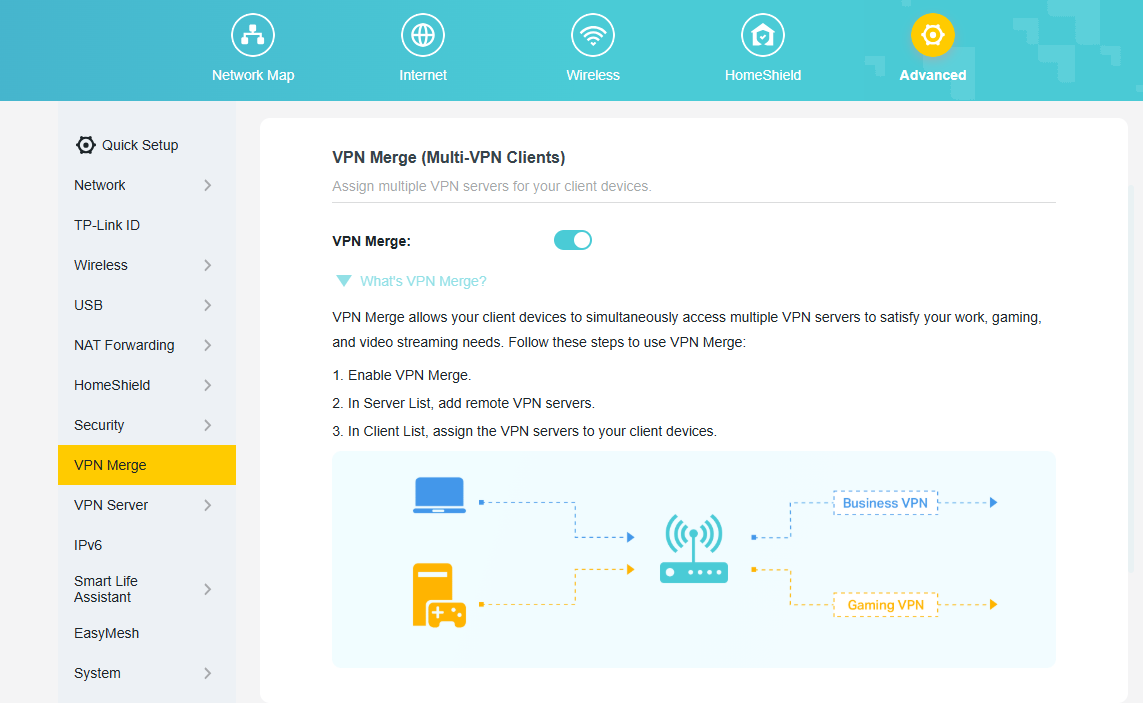
We have officially upgraded the previous VPN Client feature to the new, more powerful VPN Merge. This optimization significantly enhances the flexibility of your network. With VPN Merge, you can now connect different devices on your network to multiple VPN servers simultaneously. For example, your work laptop can connect to a corporate VPN while your smart TV uses another VPN for video streaming. To use this feature, simply enable VPN Merge, add your desired servers to the Server List, and assign them to specific devices in the Client List.
(2) VPN Kill Switch
The VPN Kill Switch to improve your network security. When you enable this feature for a VPN server, it will continuously monitor the connection status. If your VPN connection drops unexpectedly, the Kill Switch will immediately block internet access for all devices using that VPN. This protection remains active until the connection to the VPN server is safely restored, preventing potential data leaks.

(3) Other Enhancements:
- Supports DDNS synchronization during OpenVPN server configuration.
- Add third-party VPN support when configuring the VPN Client: IPVanish, PureVPN.
2. Enhanced EasyMesh Network
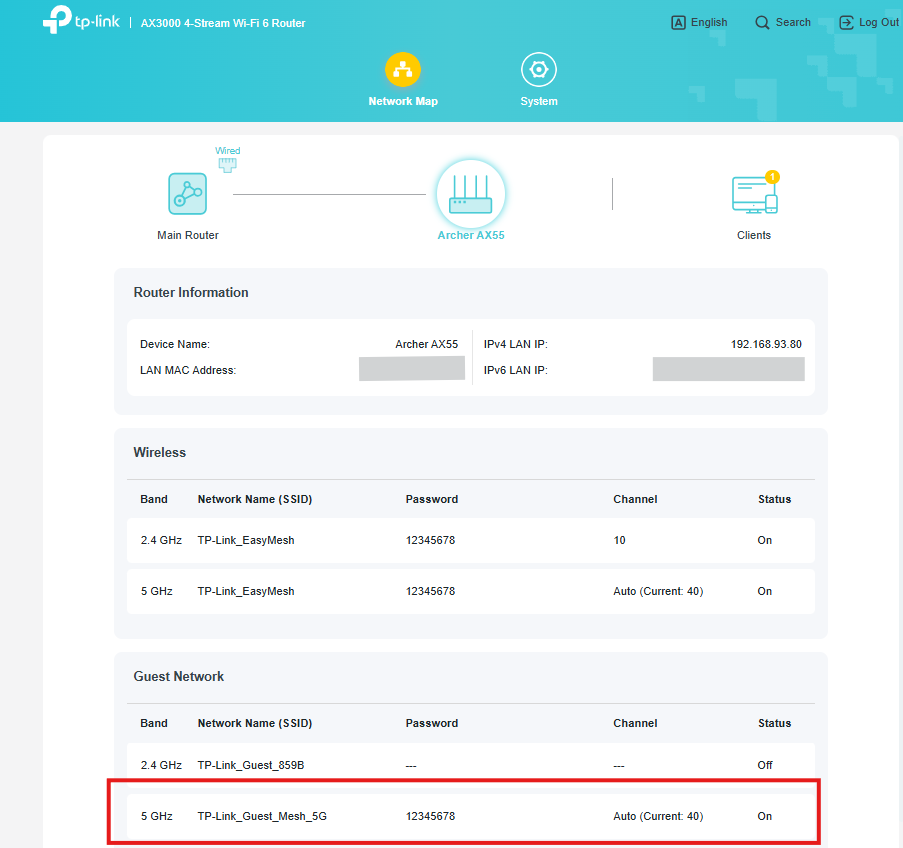
(1) EasyMesh Traffic Separation (*Extend Guest Network)
We have introduced the Traffic Separation feature within the EasyMesh R3 protocol, enabling the synchronous extension of the main router's Guest Network capabilities to satellite devices. This enhances the security of your main network.
(2) IoT Network configuration synchronization
We have introduced the capability to synchronize certain IoT Network configurations from the main router to satellite devices, further enhancing the performance of EasyMesh satellite units.
(3) EasyMesh Client Binding
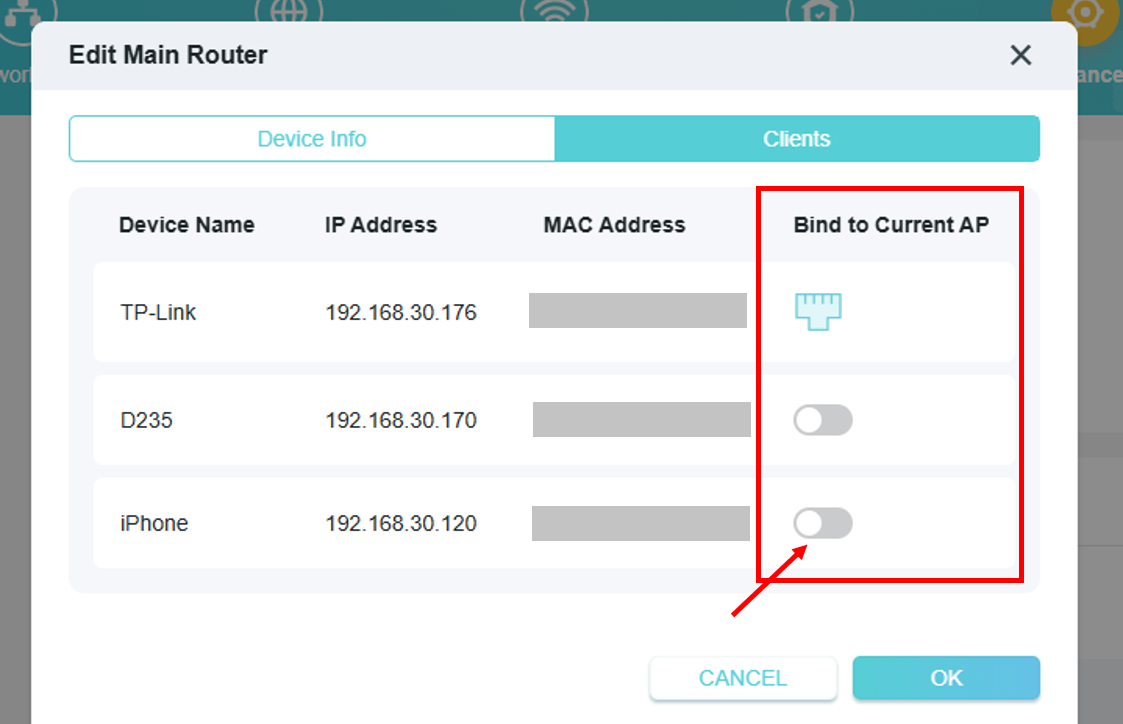
EasyMesh Client Binding allows you to pin specific devices (e.g., smart TVs or IoT sensors) to a designated EasyMesh node, preventing unnecessary roaming and improving connection stability for latency-sensitive or stationary clients.
(4) EasyMesh Satellite Node Binding
EasyMesh Satellite Node Binding allows you to manually specify which upstream node a satellite should connect to.
3. ECO Mode V2
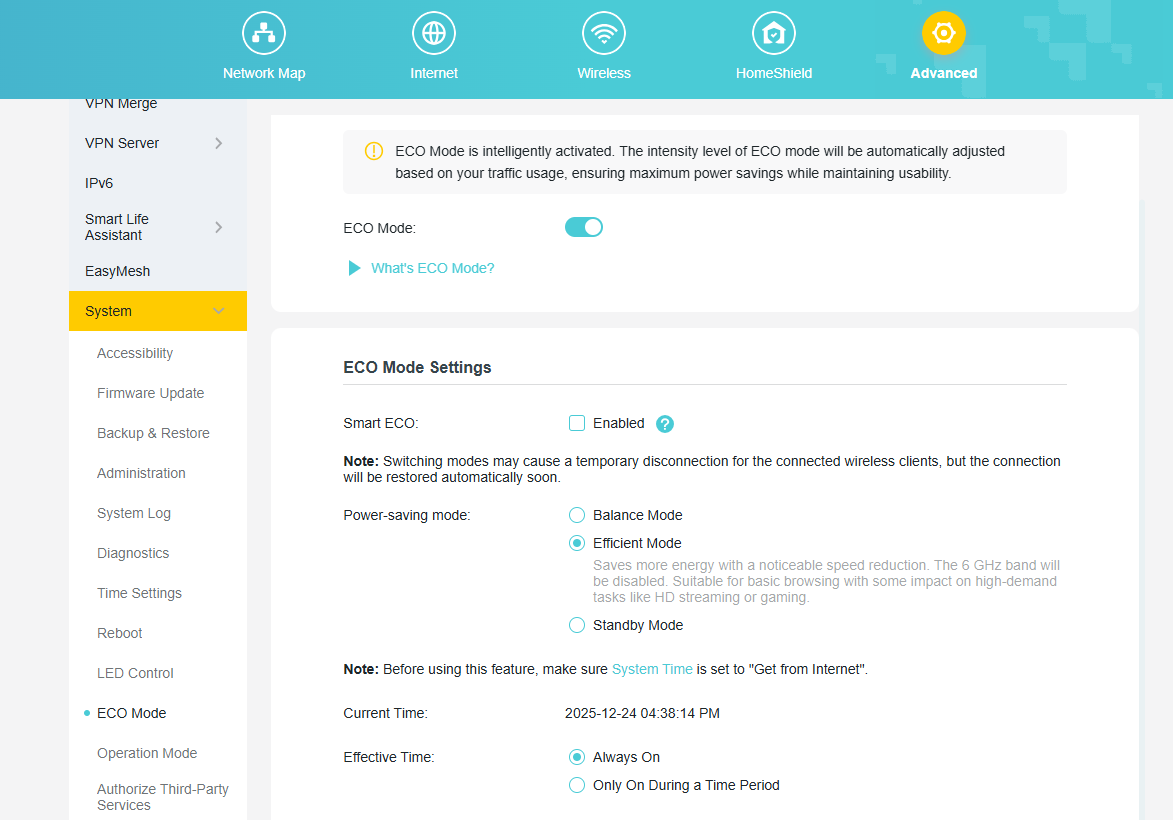
The new ECO Mode Feature is designed to help you save power intelligently. You can select the default Smart ECO mode, which automatically adjusts power consumption based on your real-time traffic usage and turns off the LEDs. This minimizes the impact on your regular internet activities while reducing energy use. For more personalized control, you can also choose from several other power-saving modes and even schedule them to be active only during a specific time period.
4. Admin Password Recovery
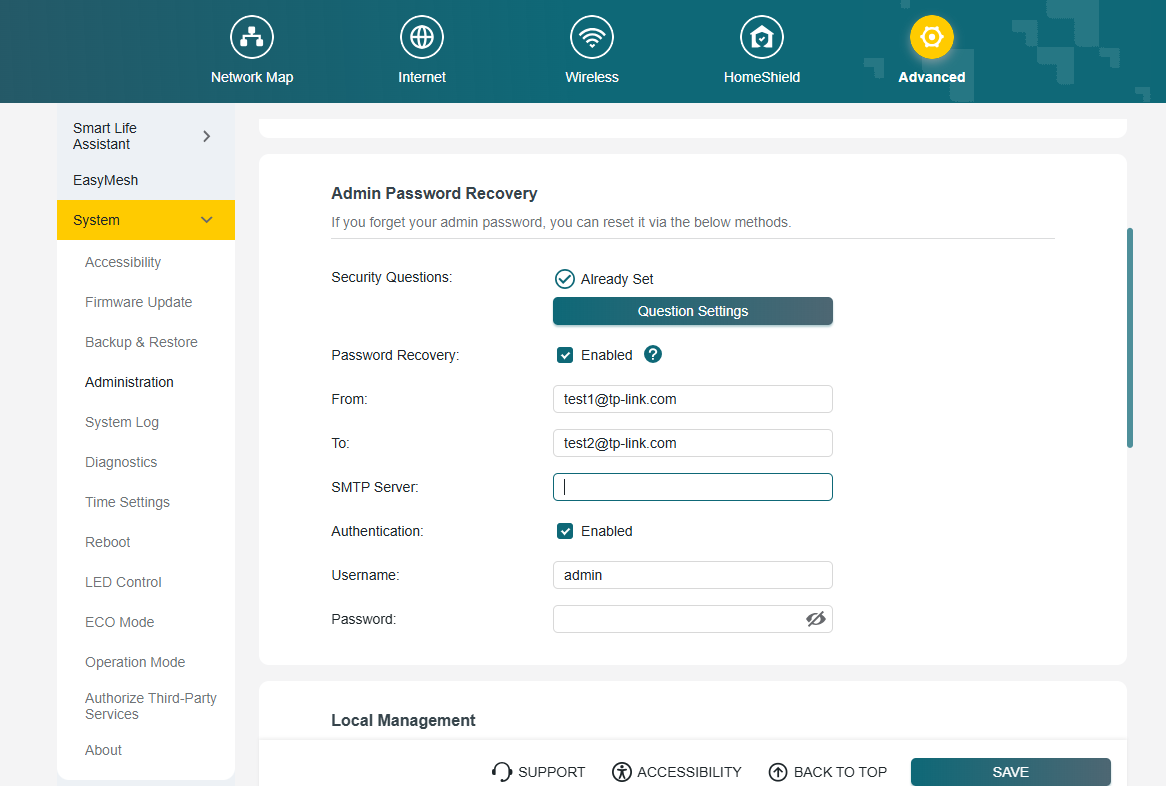
We have introduced new methods to recover your local administrator password, ensuring you never lose access to your router's settings. You can now choose between two secure recovery options. You can enable and configure these options under System > Administration.
(1) Security Questions
Set up answers to predefined security questions. This allows you to verify your identity and reset your password quickly.
(2) Email Recovery
Configure a designated email address and your own SMTP server to receive password recovery instructions directly to your inbox.
5. Advanced USB Feature
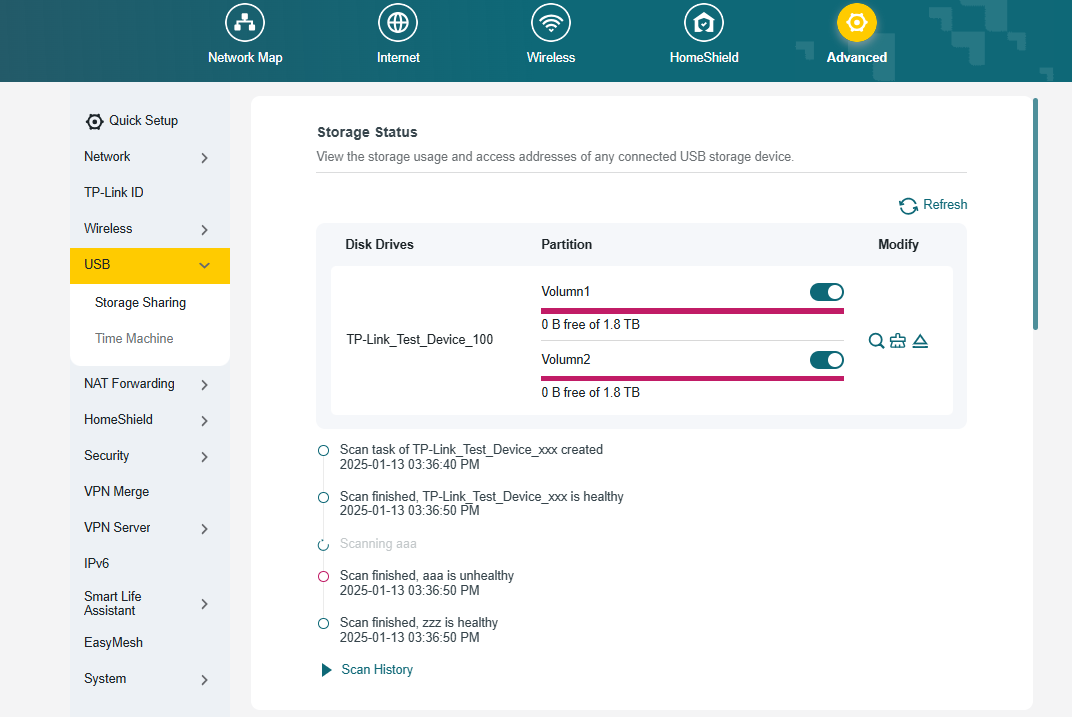
We have upgraded the USB Sharing feature with two powerful new management tools. First, you can now perform a Disk Scan to verify the health of your connected drive. This can be triggered manually or scheduled to run automatically at regular intervals for proactive data protection. Second, we have integrated a Format function, allowing you to format a USB drive directly from the router's interface without the need for a computer. These features provide greater convenience and control over your network storage.
6. Backup & Restore
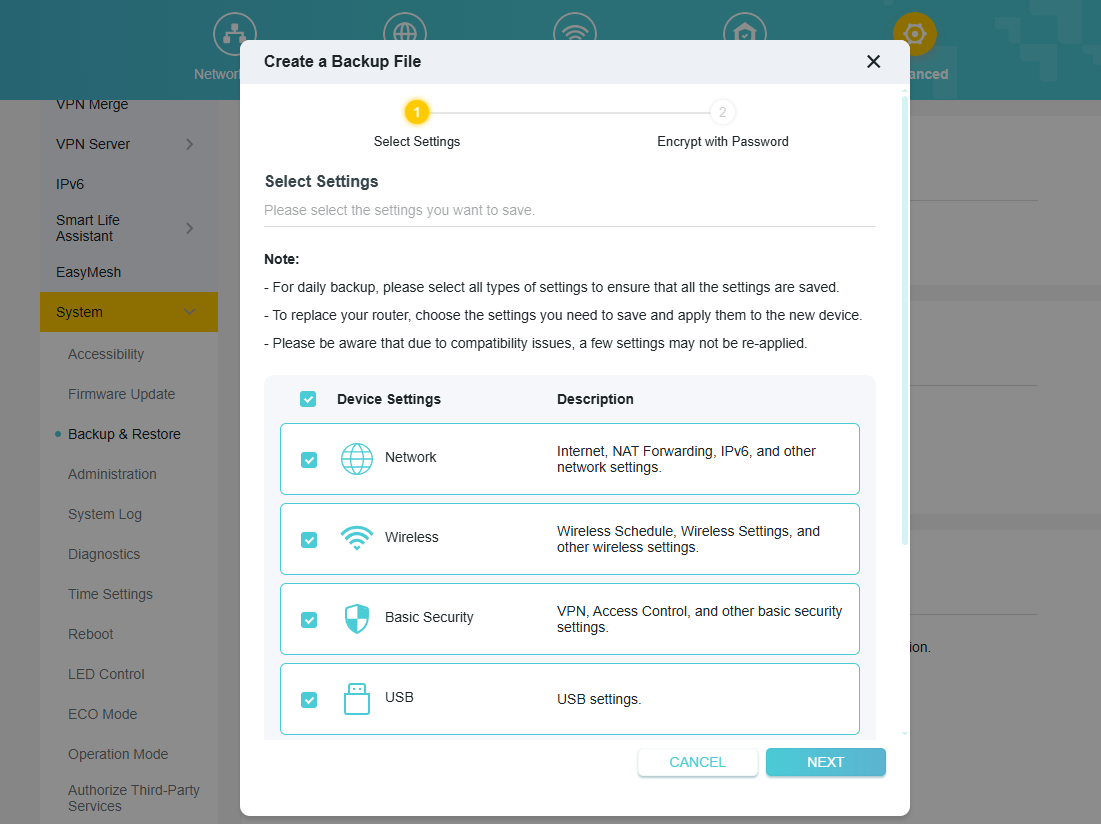
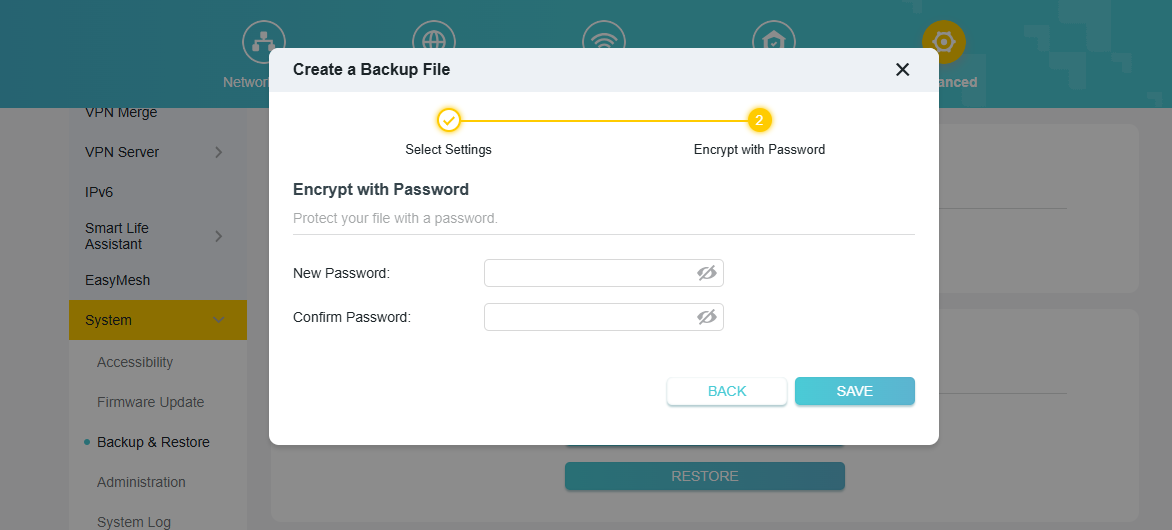
We have significantly upgraded the router's backup functionality for greater control and security. You can now perform a Selective Backup, allowing you to choose specific configuration modules to save, such as Network, Wireless, or Security settings. Additionally, you can now encrypt the backup file with a password, ensuring your sensitive configuration data is protected from unauthorized access.
7. DHCP Detection
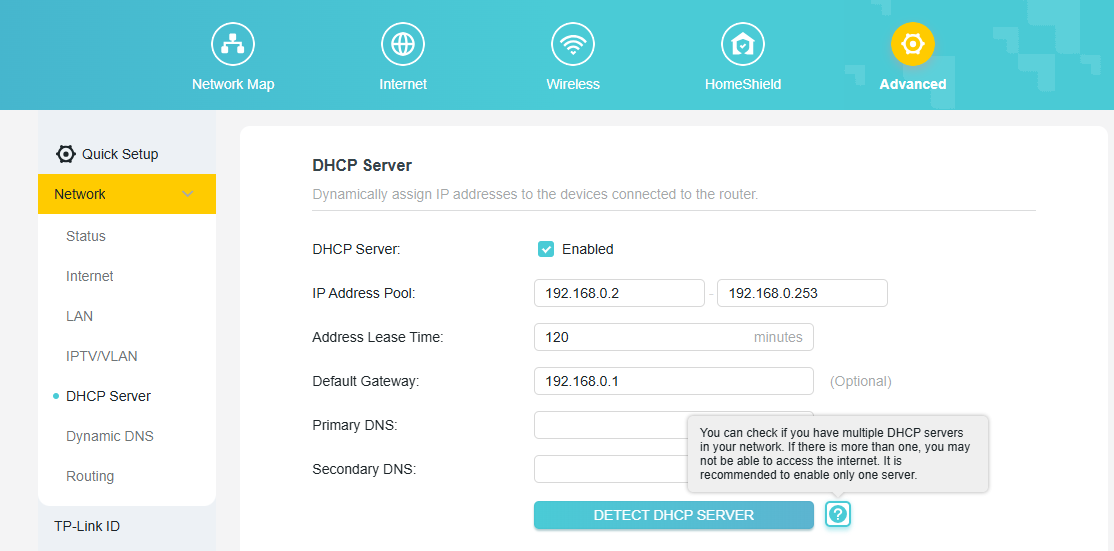
To help you troubleshoot common network issues, we have added a DHCP Server Detection tool. Having more than one DHCP server active on a network can cause IP address conflicts and prevent devices from accessing the internet. This new one-click tool allows you to scan your local network to easily identify any other active DHCP servers, helping you resolve conflicts to ensure a stable and reliable connection.
8. Guest Network Exception Button
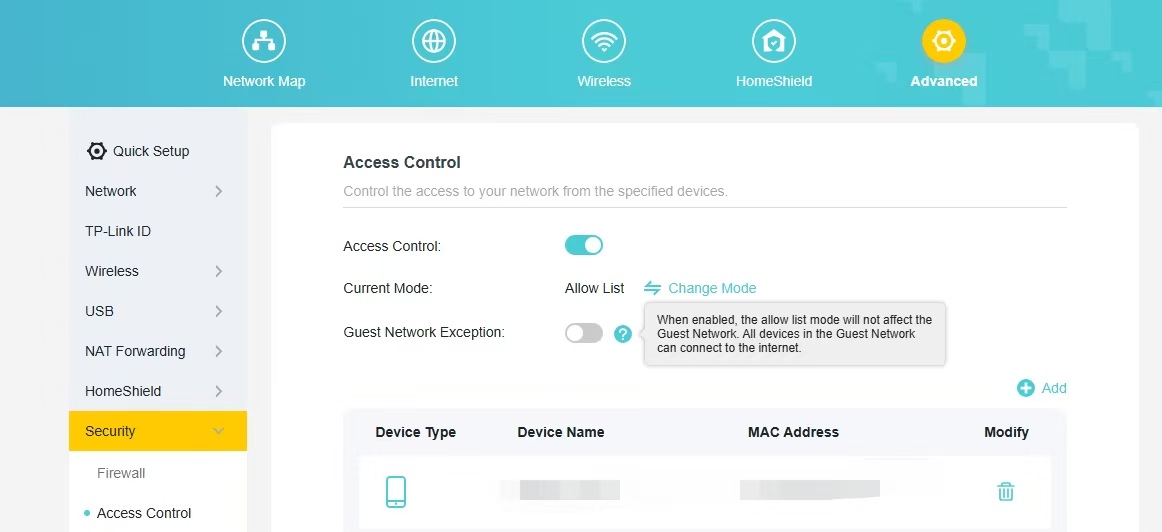
Add a button to the Access Control whitelist that does not apply to the Guest Network. When enabled, the allow list mode will not affect the Guest Network. All devices in the Guest Network can connect to the internet.
9. New features on Tether App
(1) Added support for TSS (TP-Link Simple Setup) Auto Discovery & Quick Configuration of Tether APP.
(2) Added support for QoS (Quality of Service) configuration within the Tether App.
Other Enhancements/Bug Fixes:
(1) Optimizations of IPv6 Dial-Up Methods and Functional Experience.
(2) Enhanced system security, stability, and performance.
Firmware Download:
Before the Upgrade
(1) Please be sure you have read the Beta Test Agreement before upgrading the pre-release firmware!
(2) For the sake of insurance, it's always recommended to save a copy of the router's Backup Config file before upgrading or downgrading.
(3) This pre-release firmware for Archer BE800 V1 is available for all versions (EU/US/AU/CA/etc).
(4) You may follow the guide to upgrade the firmware of your router. How to Upgrade the Firmware on the TP-Link Wi-Fi Routers.
(5) This version of the software can't be degraded to the previous official version.
Direct Firmware Download Link
| Archer BE800_V1 | Archer BE800_V1_1.4.1 Build 20260313 (Pre-Release Firmware) |
Additional Information
As always, we value your feedback. If you happen to encounter any concerns during or after the router firmware upgrade, please leave a message below and provide the following information. Your feedback helps us continuously improve and provide you with better products and support.
Please provide detailed information, including but not limited to:
- A complete network topology diagram.
- The device's connection method, and whether EasyMesh networking is enabled.
- Screenshots of relevant error messages, etc.
Thank you for your continued support and for being a member of our community.
Updated Log:
Updated to Build 20260130 Pre-Release Firmware (Feb 3rd);
Updated to Build 20260313 Pre-Release Firmware (Mar 19th).
- Copy Link
- Subscribe
- Bookmark
- Report Inappropriate Content

@Joseph-TP already did what u said. Previously 1.2.4 if i turn off and on the switch i am able to connect. Iot side is also more stable and able to connect.
- Copy Link
- Report Inappropriate Content
I did what the engineering team told me. Btw they are also onsite. Using teamviewer to check on my equipments. But to no avail. The more they update the worse it gets.also the new eco mode v2 always disconnects from wifi making experience bad.
- Copy Link
- Report Inappropriate Content
Thanks for your feedback.
If you have any information that can help us collect, please send it to TKID260245640, which is the ticket ID for your case.
- Copy Link
- Report Inappropriate Content
Hello @Szaki26a ,
Thanks for getting back to us.
After testing, we were unable to reproduce the problem after upgrading from v1.3.5 to v1.4.1.
The cause of this anomaly still needs further investigation. Please help us collect the following information:
1. What are the specific models of the devices you mentioned?
2. Is the problem easily reproducible? Have you observed the frequency of the problem's occurrence?
3. Before upgrading to v1.4.1, were UPnP, port forwarding, and network connectivity all running stably?
We would like to escalate your case to the support engineers, and they will follow up on it. If you are willing to conduct further analysis, please check your inbox and respond.
- Copy Link
- Report Inappropriate Content
@Joseph-TP
1. modells was a Qnap TS-664, Xiaomi mi box, PC, and Laptop, meta quest 3
2 Seems the problem is ocured by the upgrade the problems solved with wifi turned off and turned on again... reboot the NAS etc. but the meta quest interestingly asked for the wifi password once days after the upgrade. Maybe important before this reboots, wifi turn off back on the upnp list was not totally empty but have only very few list items but the nas ports not there... after reboot the nas the list tiems apeared again. Seems the router forgot the upnp items and the portforwarding not working.
3. Before the upgrade verything was working fine..
4. just for sure i used the last European firmware and that if i remember right was 1.3.3 not 1.3.5...
- Copy Link
- Report Inappropriate Content
Hi @Szaki26a ,
Thanks for sharing the info, I will sync it to the engineer.
Please keep an eye on the ticket follow-up.
- Copy Link
- Report Inappropriate Content

@Joseph-TP I've noticed that if I set IPv6 addressing to auto that it doesn't obtain an address, if I change it to DHCPv6 it obtains an address almost immediately.
- Copy Link
- Report Inappropriate Content
Any updates
- Copy Link
- Report Inappropriate Content

- Copy Link
- Report Inappropriate Content
- Copy Link
- Report Inappropriate Content
Information
Helpful: 1
Views: 21753
Replies: 196
Voters 1