Early Access New Firmware for Archer BE800 V1 to Support VPN Merge,Guest/IoT Network Extend in EasyMesh, and More


Hello everyone!
We are pleased to announce the latest firmware update for the Archer BE800 V1, which introduces a range of new features, especially significant enhancements to the VPN Feature and EasyMesh Network usage.
We encourage all users to upgrade to the latest firmware and share your feedback with us. Your valuable opinions are crucial to our continued product improvement! We look forward to your experience!
Download the update now and experience your router's new features!
New Features/Enhancements:
1. Enhanced VPN feature
(1) VPN Merge
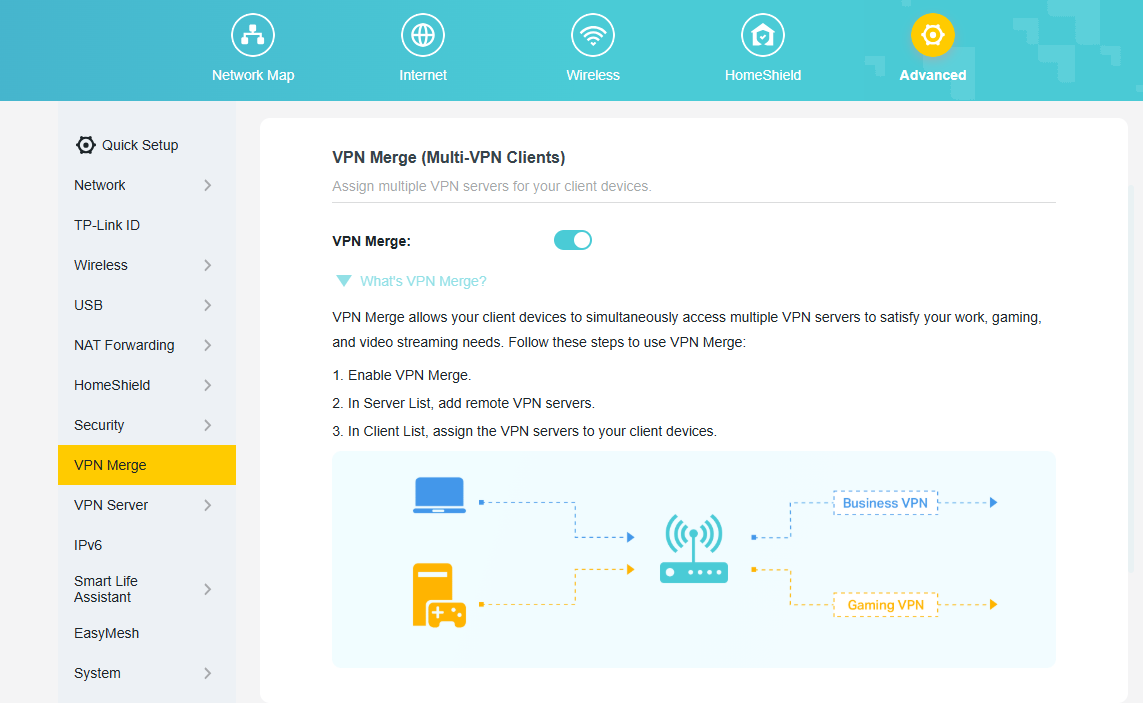
We have officially upgraded the previous VPN Client feature to the new, more powerful VPN Merge. This optimization significantly enhances the flexibility of your network. With VPN Merge, you can now connect different devices on your network to multiple VPN servers simultaneously. For example, your work laptop can connect to a corporate VPN while your smart TV uses another VPN for video streaming. To use this feature, simply enable VPN Merge, add your desired servers to the Server List, and assign them to specific devices in the Client List.
(2) VPN Kill Switch
The VPN Kill Switch to improve your network security. When you enable this feature for a VPN server, it will continuously monitor the connection status. If your VPN connection drops unexpectedly, the Kill Switch will immediately block internet access for all devices using that VPN. This protection remains active until the connection to the VPN server is safely restored, preventing potential data leaks.

(3) Other Enhancements:
- Supports DDNS synchronization during OpenVPN server configuration.
- Add third-party VPN support when configuring the VPN Client: IPVanish, PureVPN.
2. Enhanced EasyMesh Network
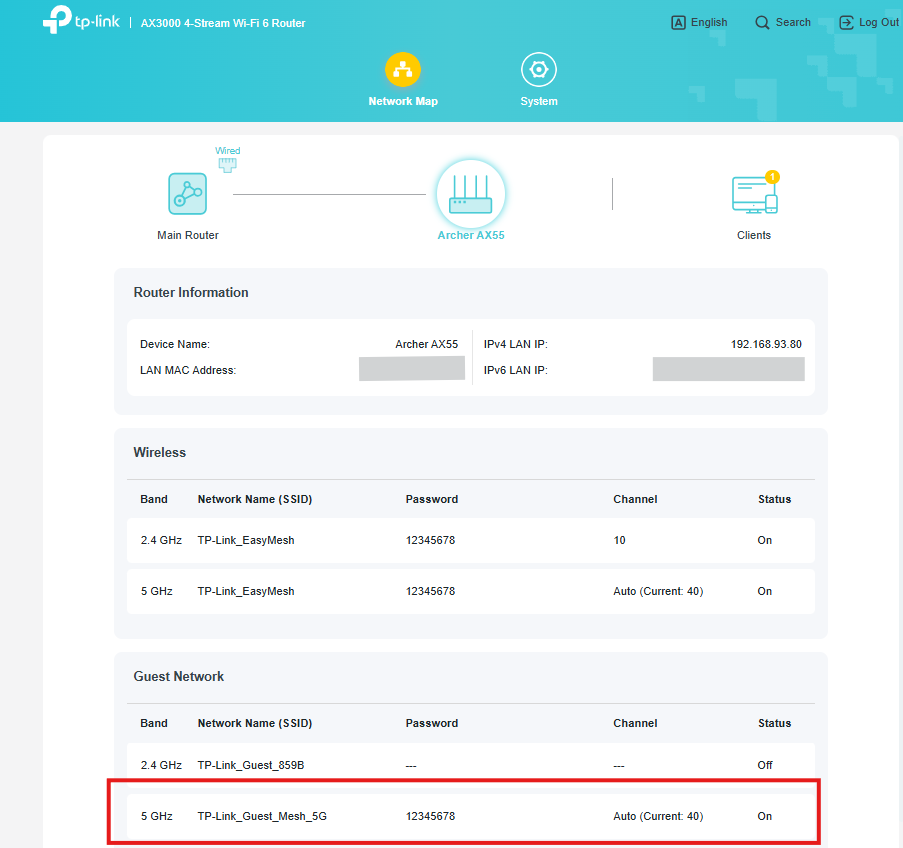
(1) EasyMesh Traffic Separation (*Extend Guest Network)
We have introduced the Traffic Separation feature within the EasyMesh R3 protocol, enabling the synchronous extension of the main router's Guest Network capabilities to satellite devices. This enhances the security of your main network.
(2) IoT Network configuration synchronization
We have introduced the capability to synchronize certain IoT Network configurations from the main router to satellite devices, further enhancing the performance of EasyMesh satellite units.
(3) EasyMesh Client Binding
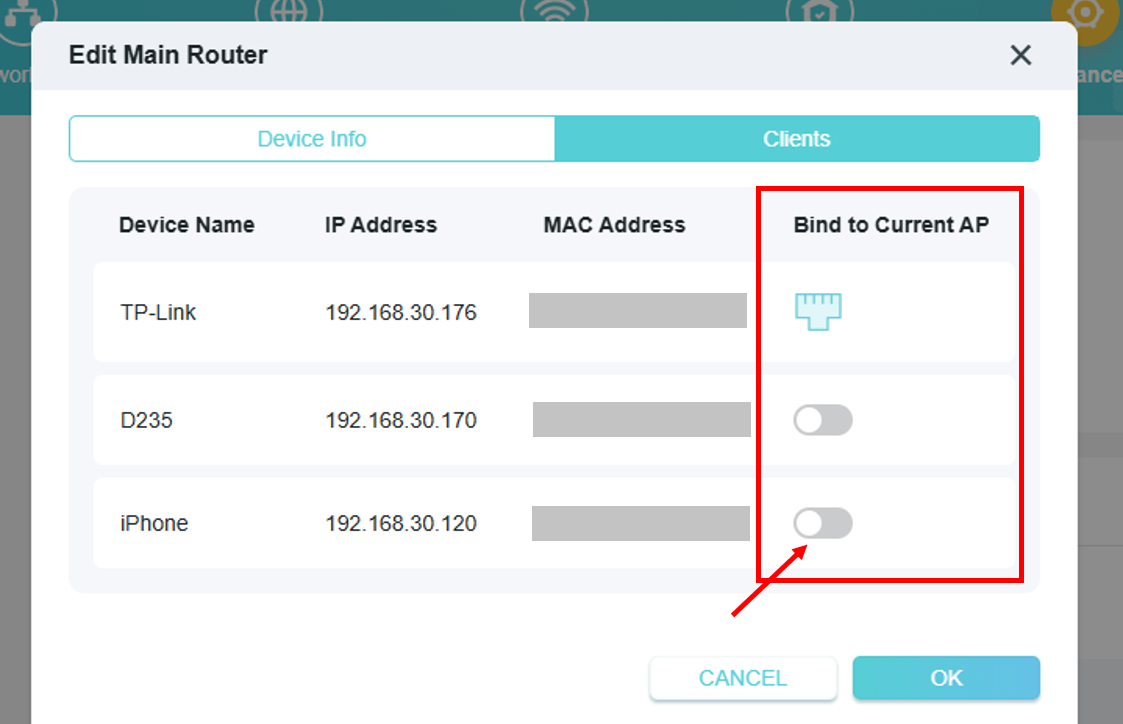
EasyMesh Client Binding allows you to pin specific devices (e.g., smart TVs or IoT sensors) to a designated EasyMesh node, preventing unnecessary roaming and improving connection stability for latency-sensitive or stationary clients.
(4) EasyMesh Satellite Node Binding
EasyMesh Satellite Node Binding allows you to manually specify which upstream node a satellite should connect to.
3. ECO Mode V2
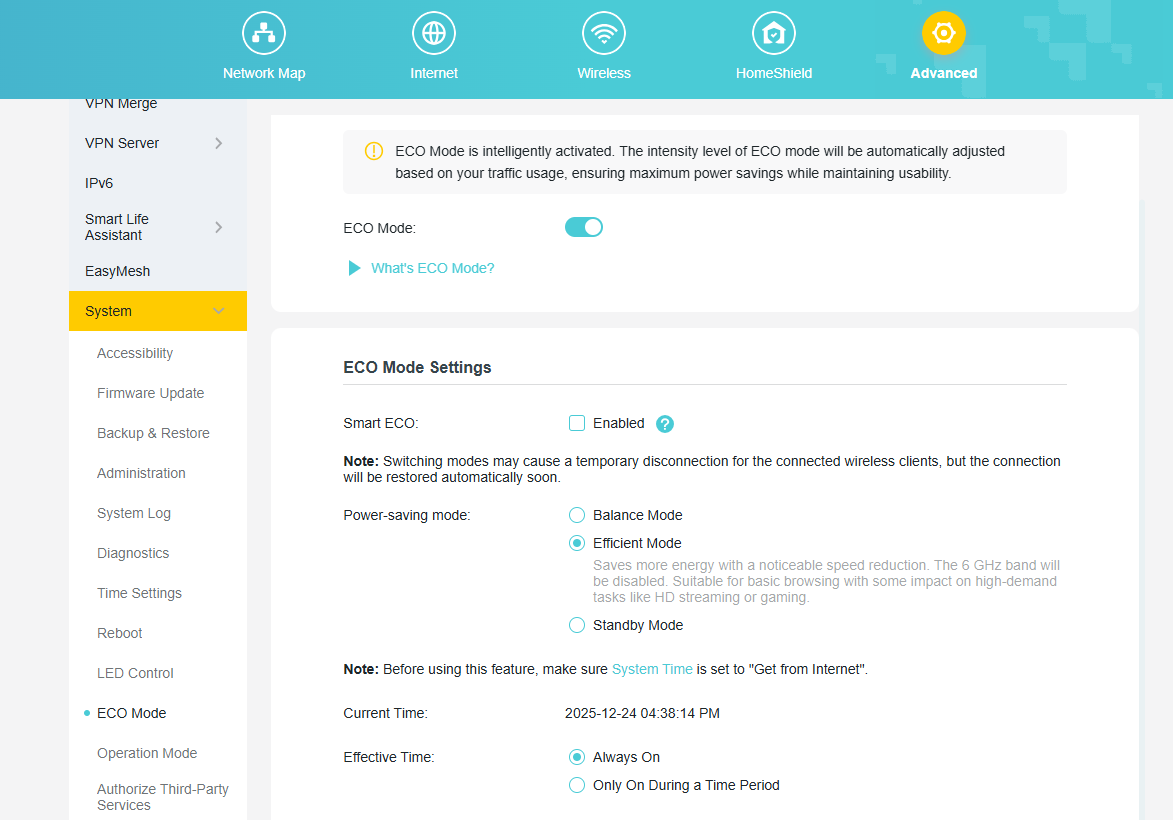
The new ECO Mode Feature is designed to help you save power intelligently. You can select the default Smart ECO mode, which automatically adjusts power consumption based on your real-time traffic usage and turns off the LEDs. This minimizes the impact on your regular internet activities while reducing energy use. For more personalized control, you can also choose from several other power-saving modes and even schedule them to be active only during a specific time period.
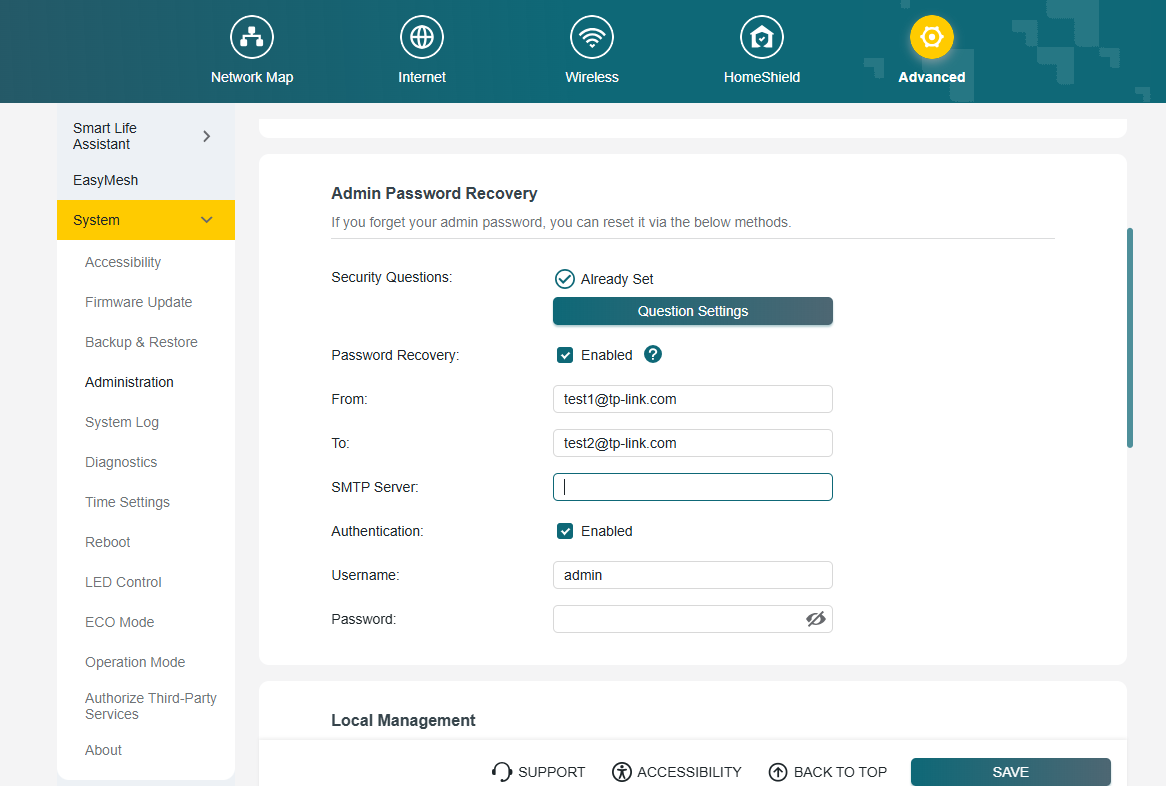
4. Admin Password Recovery
We have introduced new methods to recover your local administrator password, ensuring you never lose access to your router's settings. You can now choose between two secure recovery options. You can enable and configure these options under System > Administration.
(1) Security Questions
Set up answers to predefined security questions. This allows you to verify your identity and reset your password quickly.
(2) Email Recovery
Configure a designated email address and your own SMTP server to receive password recovery instructions directly to your inbox.
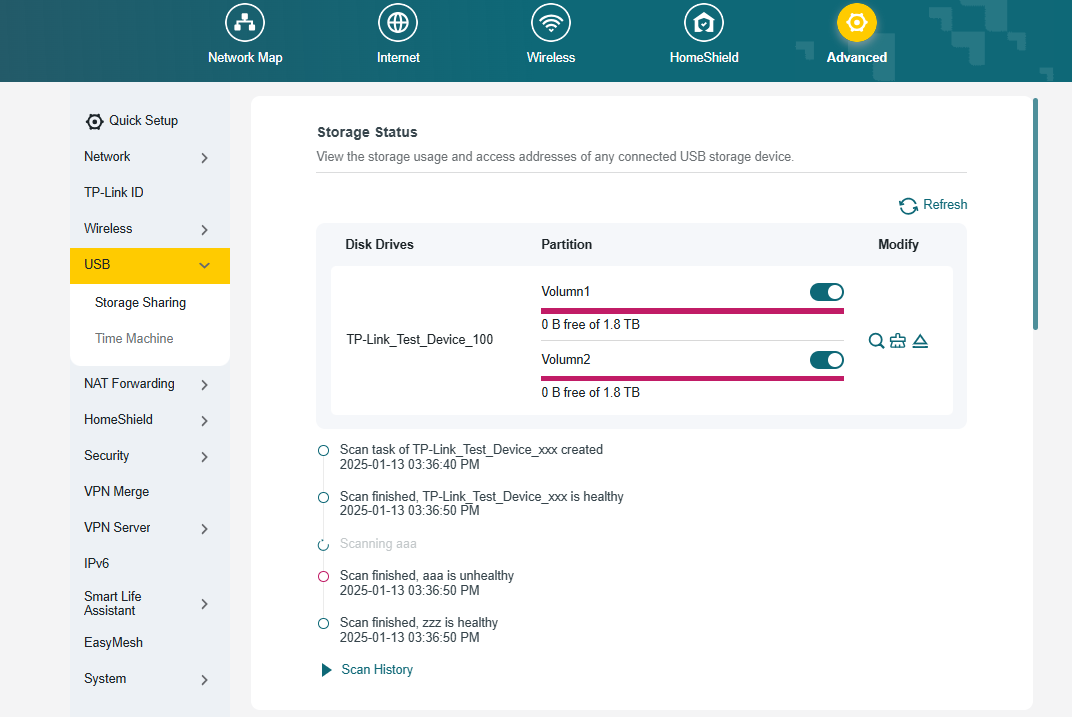
5. Advanced USB Feature
We have upgraded the USB Sharing feature with two powerful new management tools. First, you can now perform a Disk Scan to verify the health of your connected drive. This can be triggered manually or scheduled to run automatically at regular intervals for proactive data protection. Second, we have integrated a Format function, allowing you to format a USB drive directly from the router's interface without the need for a computer. These features provide greater convenience and control over your network storage.
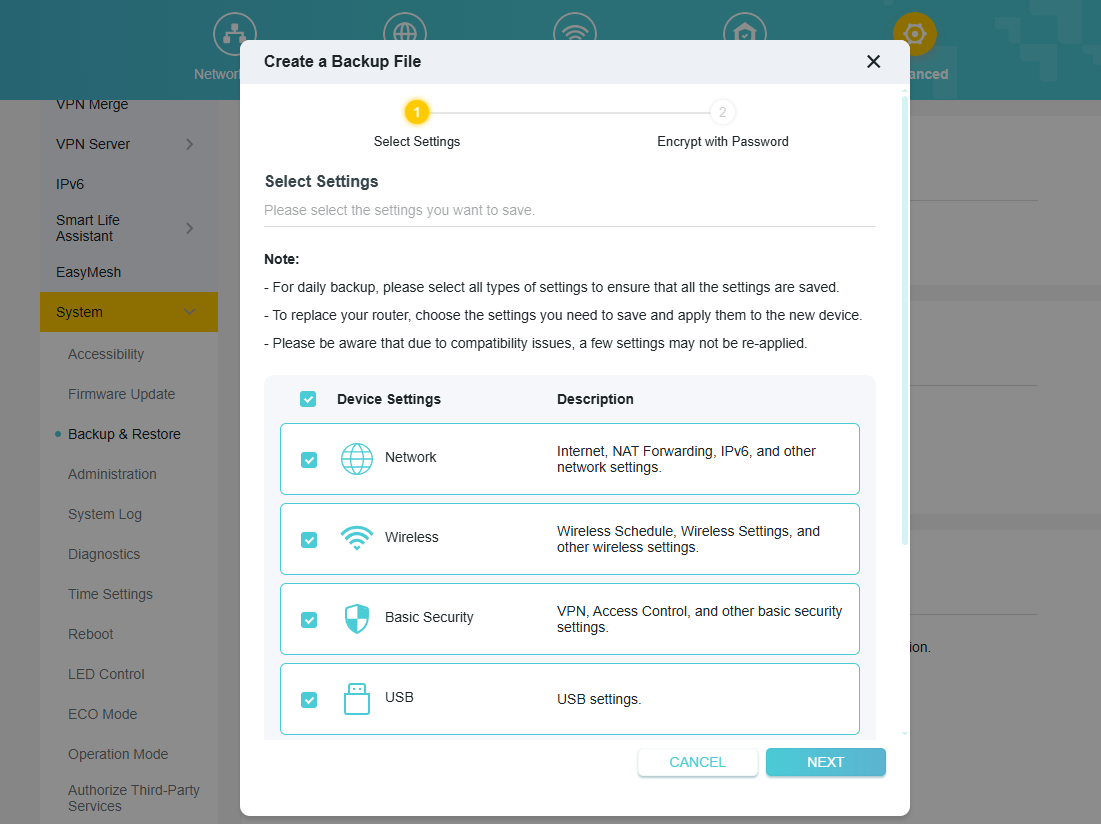
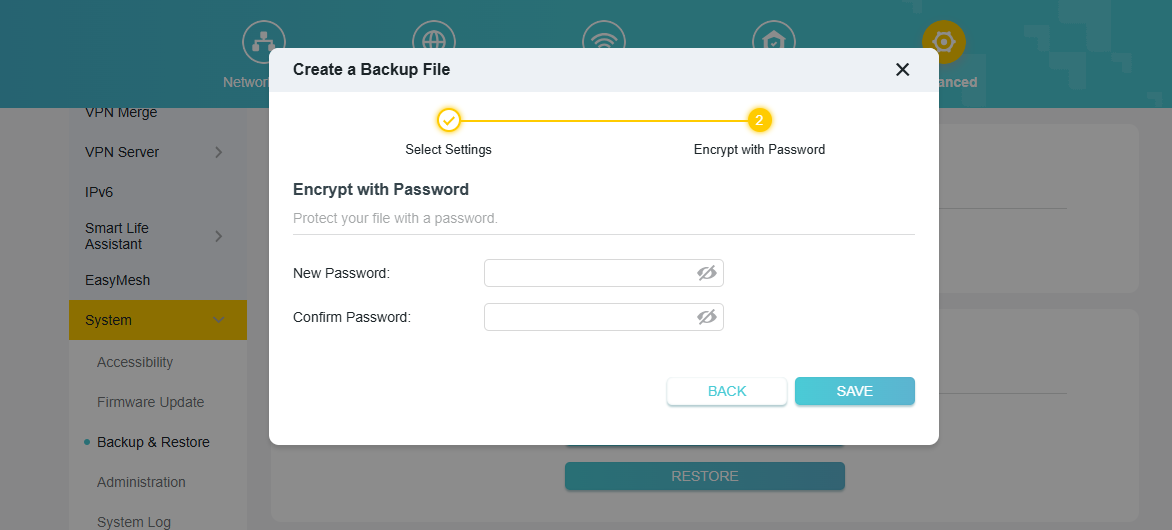
6. Backup & Restore
We have significantly upgraded the router's backup functionality for greater control and security. You can now perform a Selective Backup, allowing you to choose specific configuration modules to save, such as Network, Wireless, or Security settings. Additionally, you can now encrypt the backup file with a password, ensuring your sensitive configuration data is protected from unauthorized access.
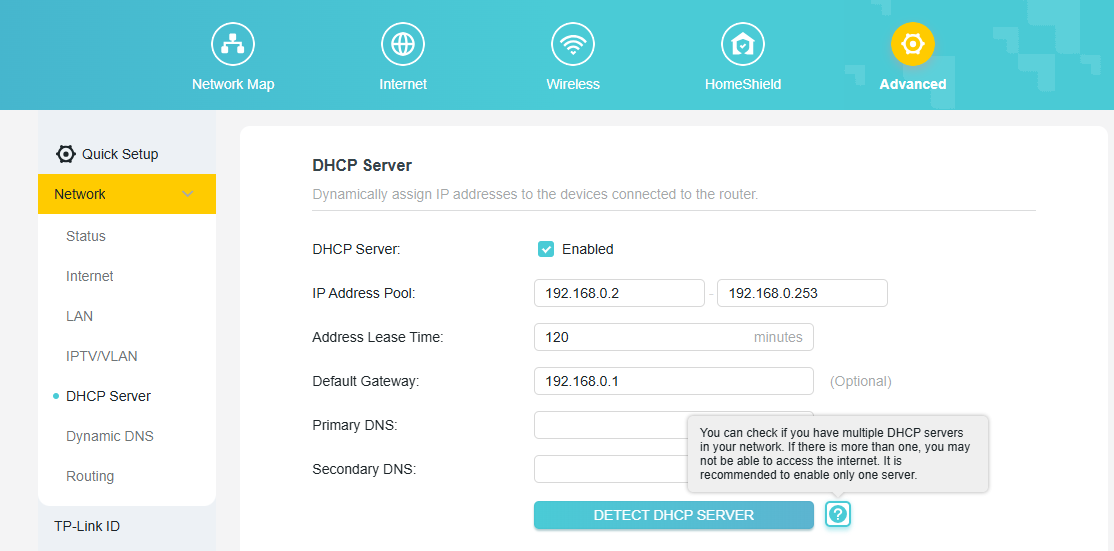
7. DHCP Detection
To help you troubleshoot common network issues, we have added a DHCP Server Detection tool. Having more than one DHCP server active on a network can cause IP address conflicts and prevent devices from accessing the internet. This new one-click tool allows you to scan your local network to easily identify any other active DHCP servers, helping you resolve conflicts to ensure a stable and reliable connection.
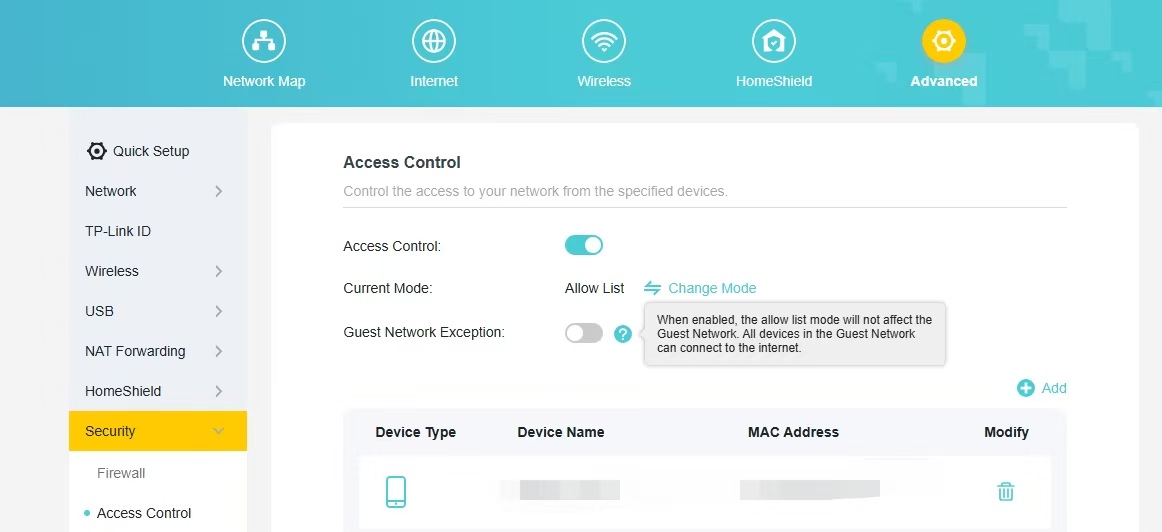
8. Guest Network Exception Button
Add a button to the Access Control whitelist that does not apply to the Guest Network. When enabled, the allow list mode will not affect the Guest Network. All devices in the Guest Network can connect to the internet.
9. New features on Tether App
(1) Added support for TSS (TP-Link Simple Setup) Auto Discovery & Quick Configuration of Tether APP.
(2) Added support for QoS (Quality of Service) configuration within the Tether App.
Other Enhancements/Bug Fixes:
(1) Optimizations of IPv6 Dial-Up Methods and Functional Experience.
(2) Enhanced system security, stability, and performance.
Firmware Download:
Before the Upgrade
(1) Please be sure you have read the Beta Test Agreement before upgrading the pre-release firmware!
(2) For the sake of insurance, it's always recommended to save a copy of the router's Backup Config file before upgrading or downgrading.
(3) This pre-release firmware for Archer BE800 V1 is available for all versions (EU/US/AU/CA/etc).
(4) You may follow the guide to upgrade the firmware of your router. How to Upgrade the Firmware on the TP-Link Wi-Fi Routers.
(5) This version of the software can't be degraded to the previous official version.
Direct Firmware Download Link
| Archer BE800_V1 | Archer BE800_V1_1.4.1 Build 20260313 (Pre-Release Firmware) |
Additional Information
As always, we value your feedback. If you happen to encounter any concerns during or after the router firmware upgrade, please leave a message below and provide the following information. Your feedback helps us continuously improve and provide you with better products and support.
Please provide detailed information, including but not limited to:
- A complete network topology diagram.
- The device's connection method, and whether EasyMesh networking is enabled.
- Screenshots of relevant error messages, etc.
Thank you for your continued support and for being a member of our community.
Updated Log:
Updated to Build 20260130 Pre-Release Firmware (Feb 3rd);
Updated to Build 20260313 Pre-Release Firmware (Mar 19th).
- Copy Link
- Subscribe
- Bookmark
- Report Inappropriate Content
Hello @Awemo ,
May I know your complete topology? For example: ISP modem—BE800—EB810v)))((( client devices
(Note: — stands for wired connection,)))((( stands for wireless connection )
You also mentioned the EB810v router. Have you created an EasyMesh network and set the EB810v as the satellite node?
Based on your consistent upload speed test results of around 600 Mbps across different routers, this strongly indicates a rate limit at the network egress point. However, for a more rigorous diagnosis, please perform the following checks:
First, confirm the client-side negotiation speed: Go to your computer’s system settings > Network status and check the “Link Speed” for the wired connection. If it displays 1.0 Gbps or 10 Gbps, you can rule out bottlenecks related to the network card or local link, allowing us to focus on the ISP side.
If the negotiated speed is normal, the analysis is as follows:
- ISP plan limitation is the most likely cause: 600 Mbps is a common upload speed tier for ISPs, and your results are consistent across two independent routers.
- Regarding the WiFi speed test showing 1300 Mbps: When your device is connected to a Mesh node, the speed test reflects the instantaneous peak throughput of the local “device-to-node” WiFi 7 link. Since data can be temporarily buffered at the node while the total egress bandwidth remains capped by the ISP’s 600 Mbps limit, this reading does not represent your true internet upload speed.
Final Recommendations:
- Perform the key verification test: Connect your computer directly to the optical network terminal (ONT)/modem via an Ethernet cable and run a speed test. If the upload speed remains at 600 Mbps, this conclusively confirms the limitation.
- Contact your ISP: Present the test results and directly ask: “What is the contracted upload speed for my service plan?” Request that they also verify the rate limit profile configured on your ONT/modem.
- Copy Link
- Report Inappropriate Content
Hi@DigitalMan ,
This pre-release firmware is also available for Archer BE800-v1.6.
- Copy Link
- Report Inappropriate Content

hello
Link speed il 10GB...
ISP plain il 10/2GB
I connected the BE800 to the ONT and I have the EX820v in Easymesh... the EB810v is still there. The upload speed of 1300 Mbps is with the BE800 router and my iPhone 15 Pro Wi-Fi 6.
The direct connection via LAN, with cat.8 cable, BE800 and my PC always uploaded at a maximum of 700/800 with ping 25/30... with ping 40/50 the upload was 300/400.
I think the problem is the distance between the provider's server, 800 km away, and my house... this affects the PING and certainly the connection value both in download and upload.
- Copy Link
- Report Inappropriate Content
Hello @Awemo ,
Thanks for your reply. Do you have a device that can directly test the wired speed of the ONT? This might be able to pinpoint the cause of the slow wired upload speed more directly.
Additionally, please check the link speed when the PC is directly connected to the BE800. Please refer to: How to check the associated/link speed on a wired client
- Copy Link
- Report Inappropriate Content

Hello @Joseph-TP
I would like to ask whether there are any plans to add Multi-WAN support to the firmware of the Archer BE800 v1.0 router.
As far as I know, the Archer BE900 already has Multi-WAN support, so I would like to know if the same feature is planned for the BE800 as well.
The BE800 is a high-end router and Multi-WAN would be a very useful feature, especially for users who need WAN failover or load balancing between two Internet connections.
Could you please confirm whether this feature is on the firmware roadmap for Archer BE800 v1.0?
I believe this feature would be very important for many BE800 users, especially since similar functionality already exists on the BE900.
Thank you.
- Copy Link
- Report Inappropriate Content
Hi @TaKeN ,
Currently, there is no information regarding whether Multi-WAN support will be added to the Archer BE800 in the future.
If you require this feature, you may consider the Archer BE900-v2.
Thank you for sharing your feedback—TP-Link will continue to evaluate community feedback and use it to develop future products.
- Copy Link
- Report Inappropriate Content

@Joseph-TP I was provided a new version of the beta firmware that resolved the issue for Quad9 DoH.
- Copy Link
- Report Inappropriate Content


This is not fully unique to this beta fw but is a bug and it does translate into impacting a new features as well so you can make the line that it's a bug and kill 2 birds with one stone maybe?
I have BE800 in AP mode setup as main for EasyMesh
I have 2x BE400 setup via wire backhaul as extenders in this mesh.
In the BE800 it never shows clients connected to the BE400's despite they are.
One impact on the new features, binding can't work.
I can't go to the BE400 via the main unit and bind anything because it shows no clients on them. It only appears to show clients on the BE800 (which I guess you can bind those items but isn't really helpful if you want to bind something to an extender).
IF I go direct to the webUI of the BE400 and look at clients I can see the ones connected to it but binding isn't supported at this layer, only the main can control.
Similar bug exist in the tether app. It does not ever think anything is connected to the extenders despite items are.
I suspect the heart of the issue is AP Mode support seems to not be implemented properly still with something. I've not previously reported this as not the end of the world but now with a nice new feature I'd like to use, it has merrit to being fixed.
I am happy to report the other features do seem to work well now though such as IoT and Guest syncing.
So now just need AP mode fixed for where clients are connected :)
Another "nice" to have thing would be is if WPA3 Enterprise could be supported. Currently only WPA2 Enterprise is on main SSID. Would also love to see guest network allow us to select protection like main and IoT and not be limited. For example I want to force WPA2 only on guest but not an option.
- Copy Link
- Report Inappropriate Content
Hello @xBryan ,
Welcome to our community.
EasyMesh client binding and EasyMesh satellite node binding require all nodes in the EasyMesh network to support these features.
For clients on the Satellite router that are not displayed on the main router, if you switch the BE800 to Wireless router mode, will the BE400 clients be displayed correctly?
For new feature requests, it is recommended that you submit feedback to the Feature Request (Routers) board.
- Copy Link
- Report Inappropriate Content
I can't switch the mode without disrupting things a lot due to dhcp conflicts etc.
The BE800 is on this firmware for this thread.
The BE400 is on https://community.tp-link.com/en/home/forum/topic/857584 which I assume (maybe that's the issue?) supports similar features but maybe that is the gap?
If so seems kind of silly considering my setup of the BE800 being a main and BE400's or other lower models being sattelite would be common. Why would someone buy multiple of the 800's to act as just clients.
Thx
- Copy Link
- Report Inappropriate Content
Information
Helpful: 1
Views: 27375
Replies: 211
Voters 1