Frequent SD card issues with Tapo C210

Frequent SD card issues with Tapo C210

Frequent SD card issues with Tapo C210
a week ago
Model: Tapo C210P2  
Hardware Version: V3
Firmware Version: 1.2.6

I have been facing this issue with my Tapo camera very frequently now (around 2-3 times a week).

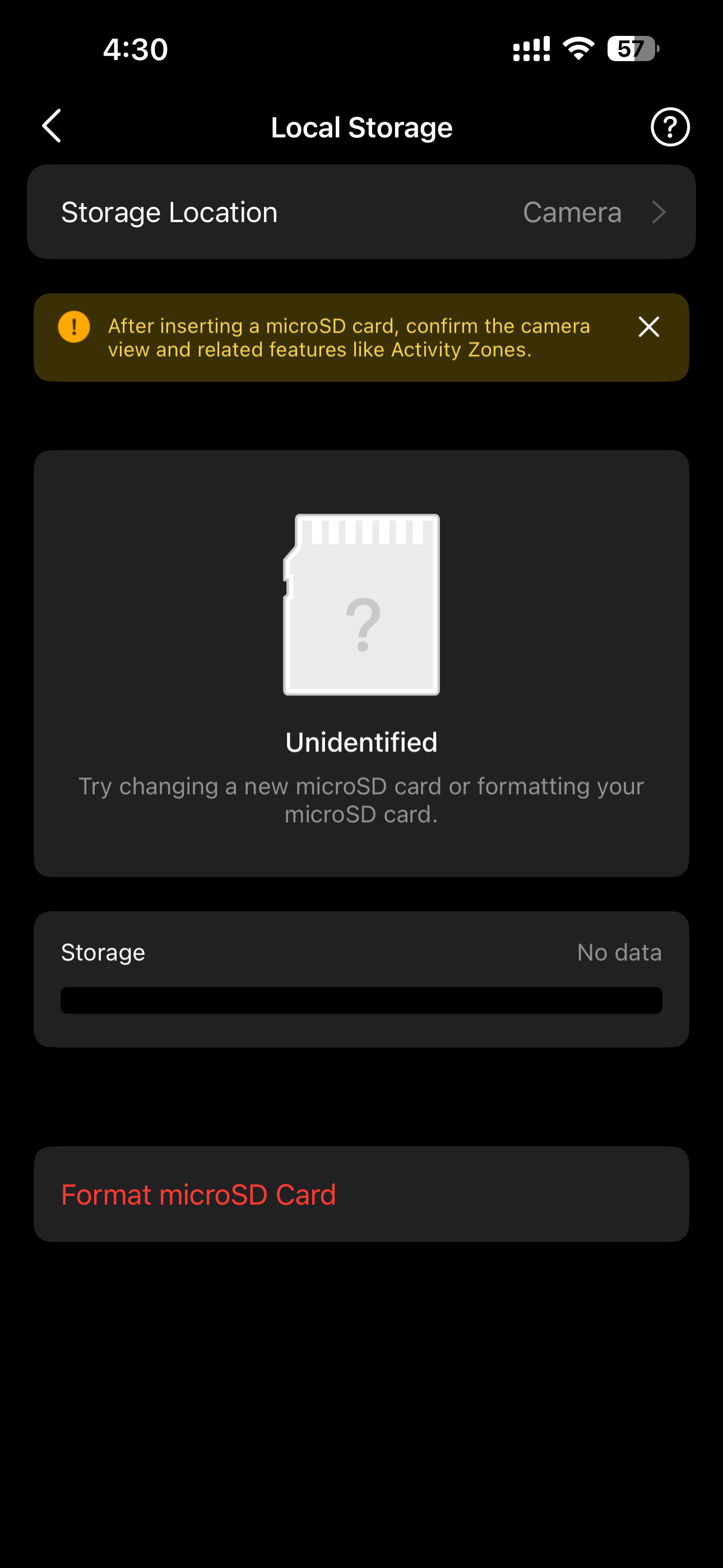
Randomly I get a notification "Initialize the microSD card on the Tapo app for local recording", and when I open the Tapo app I can see that my microSD card is mentioned as unidentified and no recordings are accessible nor anything is getting recorded there. To resume recording again I have to format my SD card every time which leads to all the data loss every time.

The recording starts normally as soon as I format the card.

This is very frustrating. I have two Tapo cameras and this is happening frequently with both of them.

Anyone else facing this similar issue? Does anyone know of any solution?

 

  0      
0
#1
Options
1 Reply
Re:Frequent SD card issues with Tapo C210
a week ago

  @Abhishekve2098 

Hello,

If your microSD card cannot be recognized, formatted, or shows the error "abnormal expansion capacity", try the steps below.


Note: Back up important files before initializing the microSD card.

    1. Make sure your SD card is in the compatibility list of microSD cards we’ve tested: microSD Card Compatibility for Tapo and Kasa Security Cameras. MicroSD cards have a limited read/write lifespan. Use microSD cards designed for surveillance, which offer higher durability.

    2. Ensure there is no physical damage (e.g., bends, scratches) on your SD card.

    3. Make sure both the camera and Tapo app firmware are up-to-date.

    4. Power off the camera, reinsert the SD card several times, then power on the camera and try again to format the SD card.

    5. If the SD card was previously encrypted in another Tapo camera, insert it back into that camera and disable encryption: Tapo app > Camera's Device Settings > Storage & Recording > Local Storage > Encrypt microSD Card > Decrypt.

    6. Insert the SD card into another camera or a computer with an SD card reader. Check if the SD card can be formatted/recognized by the computer/another camera.

    7. Try another SD card from the compatibility list to confirm if the current one is faulty.

    8. Use third-party software such as H2testW to verify the SD card integrity: How to Spot and Test a Fake Micro SD Card

For more details, refer to this FAQ: How to Fix Tapo or Kasa Camera and Doorbell SD Card Not Formatting or Being Recognized


If the problem persists, contact our customer service team and provide the results of the troubleshooting steps above.

  0  
0
#2
Options